How to Find and Manage Your Alexa Voice History: A Complete Guide
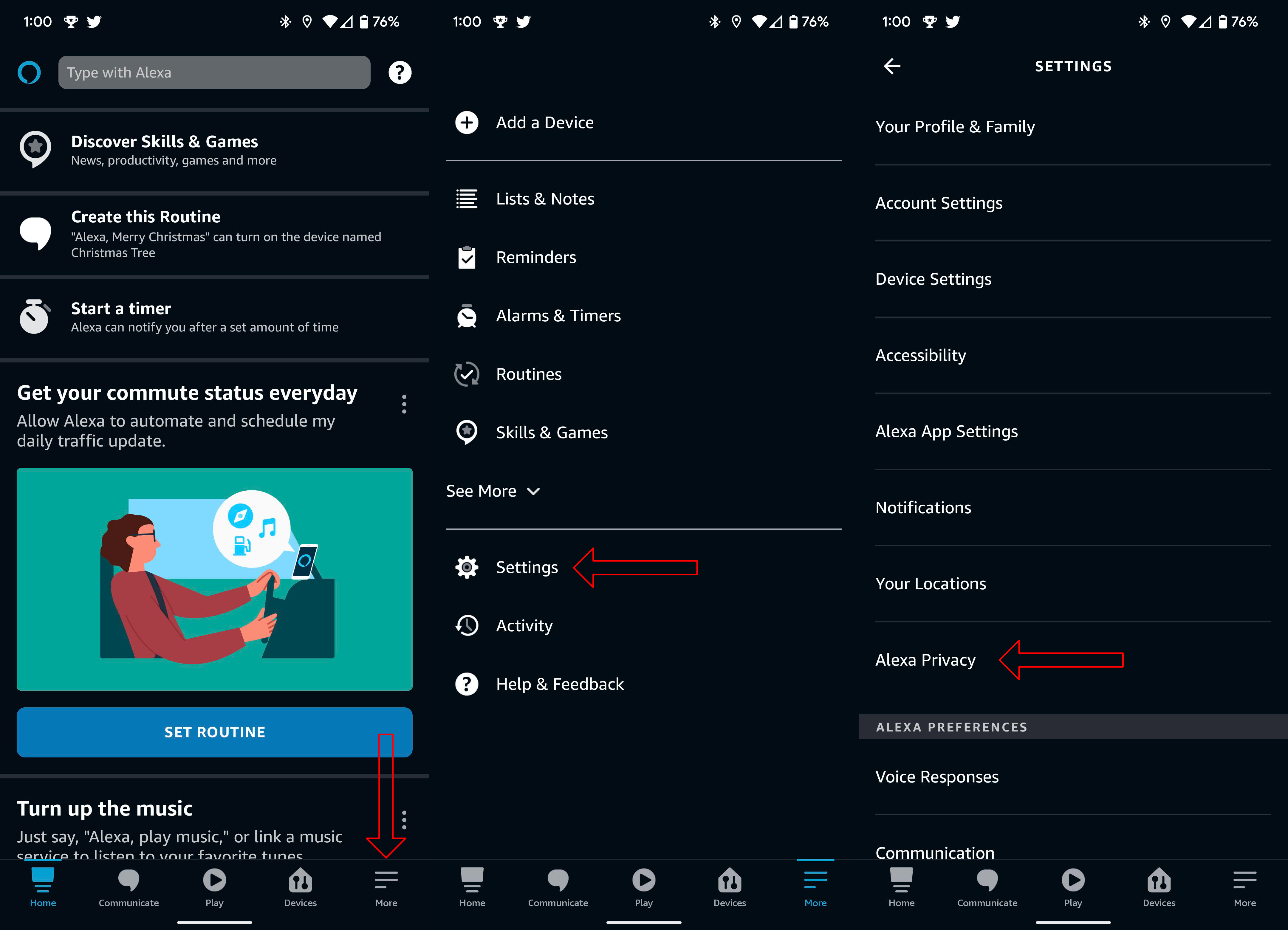
To find your Alexa history, open the Alexa app on your smartphone, tap More, select Settings, and then choose Alexa Privacy. From there, tap Review Voice History to see, hear, and delete your past recordings. You can also access this d...
To find your Alexa history, open the Alexa app on your smartphone, tap More, select Settings, and then choose Alexa Privacy. From there, tap Review Voice History to see, hear, and delete your past recordings. You can also access this data via the Amazon Privacy Settings page on any desktop web browser.
Contents
Managing your Alexa voice history is a critical component of digital hygiene in 2026. As smart home ecosystems become more deeply integrated into our private lives, understanding how to audit the data these devices collect is essential for both privacy and troubleshooting. Whether you want to verify what a child said to a device, troubleshoot a misunderstood command, or clear your data for security reasons, Amazon provides several pathways to access this information.
Understanding What Alexa History Actually Contains
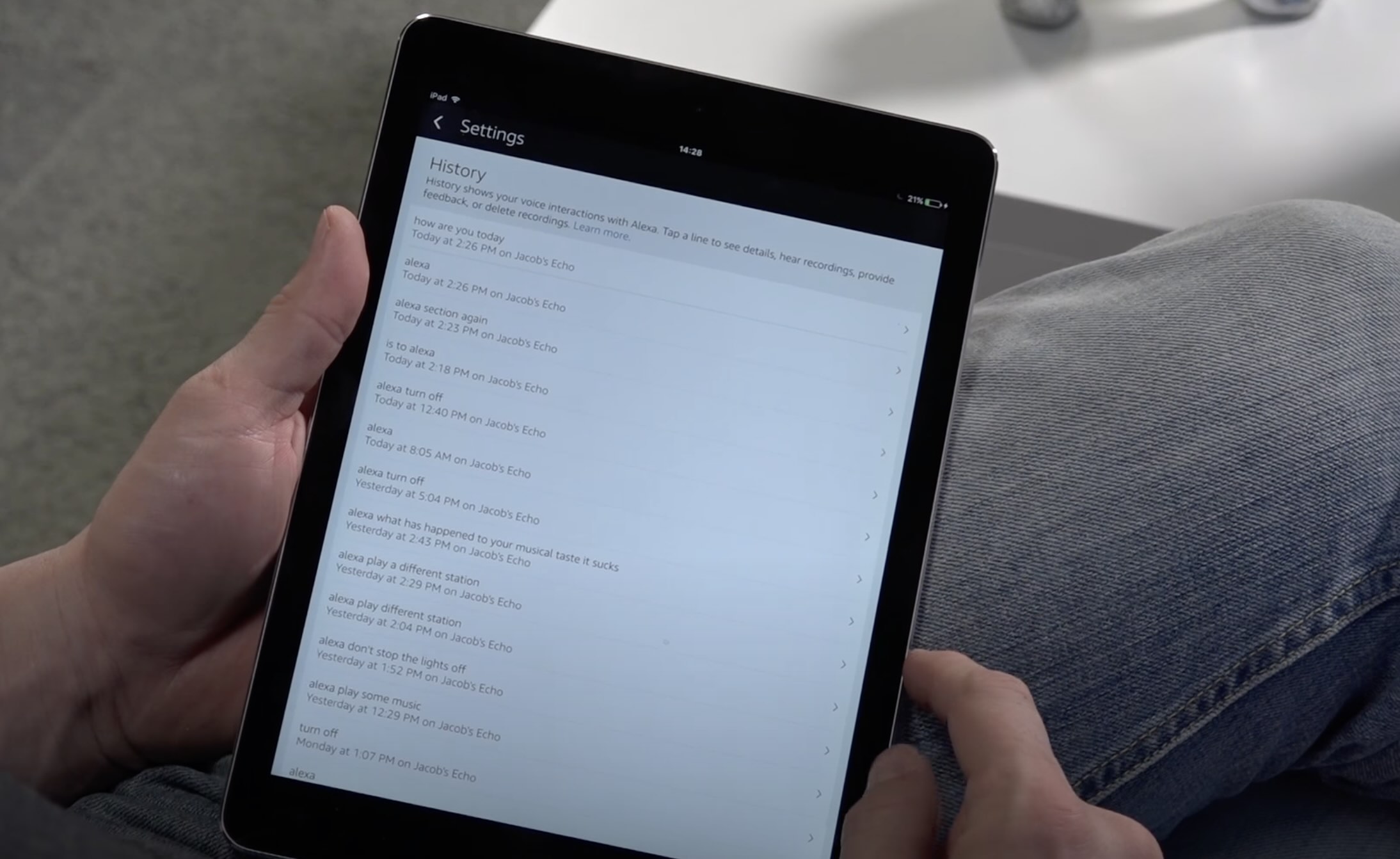
When you interact with an Echo device or the Alexa app, the system creates a multi-layered log of that interaction. It is a common misconception that Alexa history is simply a list of text commands; in reality, it is a comprehensive archive of your voice interactions.
Voice Recordings vs. Text Transcripts
Every time the "wake word" (such as "Alexa" or "Echo") is detected, the device begins streaming audio to the cloud. The history you find in your account includes the actual audio file of your request. Alongside this audio, Amazon’s Natural Language Processing (NLP) engines generate a text transcript of what the system believed you said. Reviewing both is helpful because a transcript might look correct, but the audio might reveal background noise or interference that caused a smart home automation to fail.
Smart Home Activity Logs
Beyond voice commands, your history includes "Smart Home Activity." This tracks every time a routine was triggered, a light was turned off via the app, or a smart lock was engaged. While voice history focuses on what was said, smart home history focuses on what the ecosystem did. In 2026, with the prevalence of Matter and Thread protocols, these logs have become more detailed, often including device status updates and sensor triggers.
Non-Voice Interactions
If you use the Alexa app to type commands or interact with "Skills" via a touch interface (like an Echo Show), these interactions are also logged. This ensures that even if you are using the system silently, you can still audit the data flow.
How to Find Alexa History via the Mobile App
The Alexa app remains the most convenient way for most users to access their logs. Because the app is directly linked to the device's setup, it offers the most streamlined interface for quick reviews.
Step-by-Step Mobile Access
- Open the Alexa App: Ensure you are logged into the primary Amazon account associated with your devices.
- Navigate to the Menu: Tap the More icon (three horizontal lines) in the bottom right corner of the navigation bar.
- Access Settings: Tap Settings near the bottom of the list.
- Enter Privacy Settings: Select Alexa Privacy. This section acts as a secure portal; you may be asked to re-authenticate with your password or biometric ID.
- Review Voice History: Tap on Review Voice History.
Using Filters for Specific Searches
Once you are in the "Review Voice History" screen, you don’t have to scroll through months of data. You can filter by:
- Date Range: Choose "Today," "Yesterday," "Last 7 Days," "Last 30 Days," or a "Custom Range."
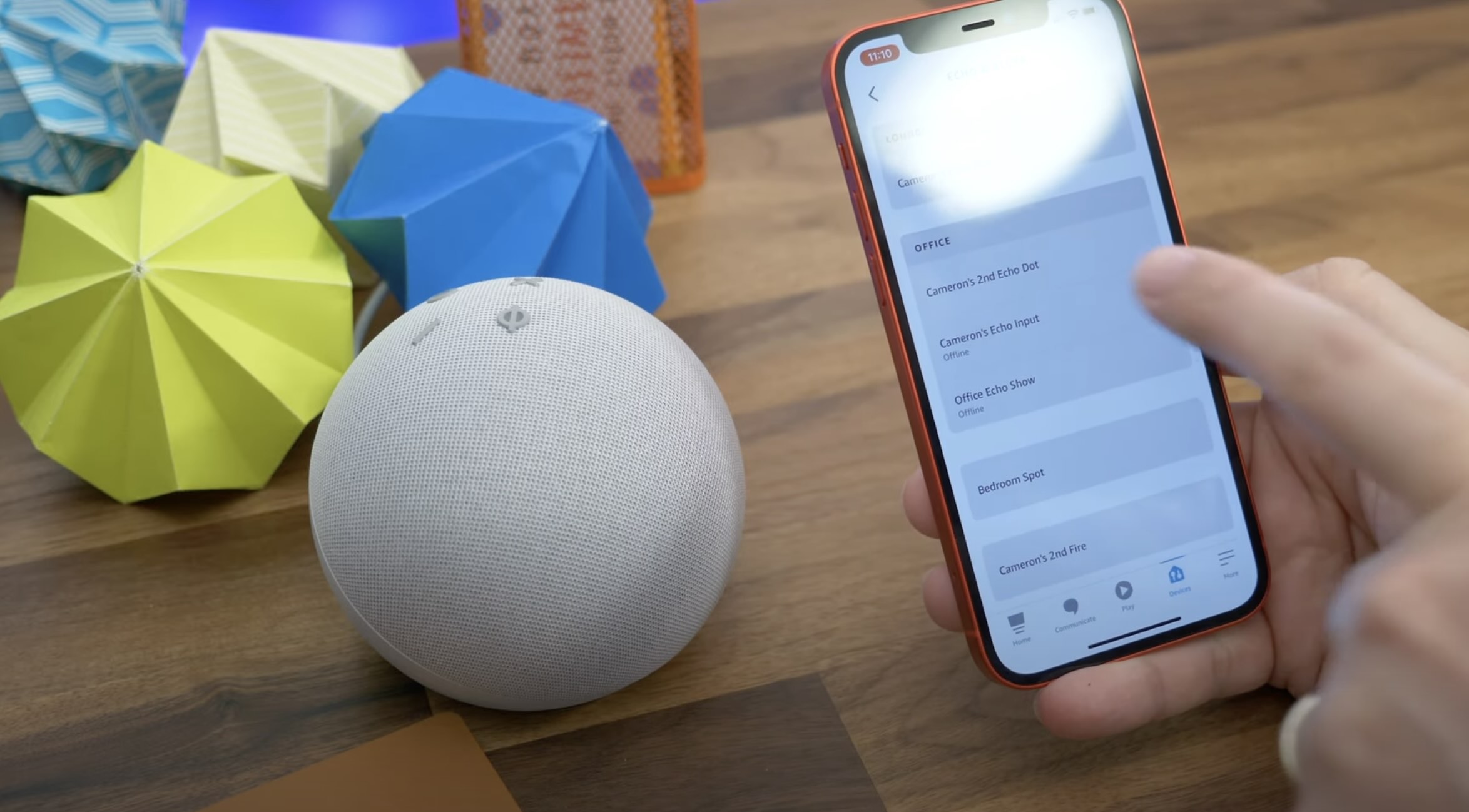
- Specific Device: If you have multiple Echo devices (e.g., "Kitchen Echo," "Office Dot"), you can isolate the logs for just one unit.
- User Profiles: If you have Voice ID set up, the history can often distinguish between different household members, making it easier to find a specific person's requests.
Accessing Alexa Voice History via Web Browser
For users who prefer a larger screen or need to perform bulk management tasks, the Amazon website provides a robust "Privacy Hub." This is often more stable for reviewing very long histories that might cause mobile apps to lag.
- Log in to Amazon: Go to the official Amazon website and sign in.
- Account & Lists: Hover over the "Account & Lists" menu and select Manage Your Content and Devices.
- Privacy Settings: Click on the Privacy Settings tab at the top of the page.
- Alexa Privacy: Click on the link for Alexa Privacy.
- Review History: Select Review Voice History.
The web interface is particularly useful for downloading data. If you wish to keep a permanent record of your interactions before deleting them from Amazon’s servers, the web portal allows you to request a formal data export under various privacy regulations like the GDPR or CCPA.
Reviewing and Listening to Recordings
Finding the history is only the first step; interpreting it is the second. In both the app and the web portal, each entry in your voice history features a "Play" icon.
Why You Should Listen to Recordings
Listening to the audio is the only way to confirm if a device is "accidentally" triggering. If you see entries in your history that you don't recognize, playing the audio might reveal that a television show or a conversation in the next room accidentally used the wake word. Amazon uses these recordings to improve its "Wake Word Engine." By reviewing these, you can identify if a specific device is too sensitive and needs its microphone sensitivity adjusted in the device settings.
Providing Feedback
Next to each recording, there is an option to indicate if Alexa did what you wanted. Marking "Yes" or "No" helps the AI learn your specific accent and speech patterns. This is a form of manual calibration that can significantly reduce the number of times you have to repeat yourself in the future.
Managing and Deleting Your Alexa History
Privacy is the primary reason most users "find" their Alexa history. Amazon provides several levels of deletion, ranging from individual entries to total account wipes.
| Deletion Method | Scope | Speed | Best For |
|---|---|---|---|
| Individual Entry | Single command | Manual | Removing a specific sensitive request. |
| By Date Range | One day or week | Fast | Clearing activity after a party or guest stay. |
| All History | Every recording ever | Instant | Total privacy reset. |
| Auto-Delete | Rolling schedule | Automatic | Set-and-forget privacy management. |
Setting Up Auto-Delete
The most effective way to manage Alexa history is to automate the process. Within the Alexa Privacy settings, you can find the "Manage Your Alexa Data" section. Here, you can toggle an option to automatically delete recordings older than 3 months or 18 months. In 2026, most privacy experts recommend the 3-month setting as a balance between keeping the AI trained on your voice and protecting your long-term data footprint.
Deleting by Voice
If you have "Deletion by Voice" enabled in your privacy settings, you can manage your history without even opening an app. You can say:
- "Alexa, delete what I just said."
- "Alexa, delete everything I said today."
- "Alexa, delete my entire history."
Troubleshooting Missing History
Sometimes, you may go to find your Alexa history only to find it empty or missing recent entries. This is usually due to one of three factors:
- Account Mismatch: If you have a multi-person household, the device might be logged into a different "Profile." Say, "Alexa, which account is this?" to verify. History is stored per-account, not per-device.
- Offline Status: If a device loses Wi-Fi connectivity, it cannot stream the recording to the cloud. Therefore, no entry will appear in the history for failed offline attempts.
- App Cache Issues: If the mobile app is not refreshing, try logging out and back in, or check the web portal to see if the data is visible there.
Privacy and Security Best Practices
Finding your history is a reactive measure; being proactive about privacy is better. In 2026, smart home security involves more than just deleting logs.
- Use the Mute Button: All Echo devices have a physical microphone disconnect button. Use it when having sensitive conversations.
- Enable Guest Mode: If you have visitors, enable "Guest Mode." Interactions in this mode are typically not saved to your primary voice history.
- Review Skill Permissions: Many third-party "Skills" (apps for Alexa) can access your transcripts. Periodically review which Skills have access to your data in the Manage Skill Permissions section of the Privacy Hub.
FAQs
Can I see Alexa history from another person in my house?
Only if you have access to the Amazon account they are using. If your household uses Amazon Household to link two accounts, you can switch profiles on the device, but the voice history remains tied to the specific account that was active during the command. You cannot view another adult's private logs through your own login.
Does deleting history make Alexa less accurate?
Yes, to a small degree. Alexa uses your past recordings to understand your unique vocal nuances, accent, and vocabulary. If you delete your entire history, the system essentially "forgets" your voice profile and must re-learn your speech patterns from scratch. This is why many users prefer the 3-month auto-delete rather than immediate deletion.
Can I download my Alexa voice recordings?
Yes, but not directly through a simple "Save As" button in the app. You must go to the Amazon Privacy Central website and request a copy of your data. Amazon will then compile a ZIP file containing your recordings and transcripts, which is sent to your email within a few days.
Is my Alexa history encrypted?
Amazon encrypts voice recordings in transit to the cloud and stores them in an encrypted format on their servers. However, "encrypted" does not mean "invisible." The data is still accessible to the account holder and, in limited instances, to Amazon’s human reviewers (unless you opt-out of human review in the privacy settings).
What is the difference between "Voice History" and "Activity"?
"Activity" (found in the main menu of the Alexa app) is a simplified feed showing cards for recent timers, reminders, and weather requests. "Voice History" (found in Privacy Settings) is the actual forensic log of every sound the device processed. For privacy management, always use Voice History.
Summary of Next Actions
To maintain a secure and functional smart home, you should perform a "History Audit" at least once a quarter. Start by navigating to the Alexa Privacy Hub on your desktop to get a comprehensive view of your data. Review your recordings to ensure no unauthorized access has occurred, and verify that your Auto-Delete settings are active. By taking these steps, you ensure that your voice assistant remains a helpful tool rather than a privacy liability.
Image Gallery