Why the Right IIS Configuration Matters for Every Site
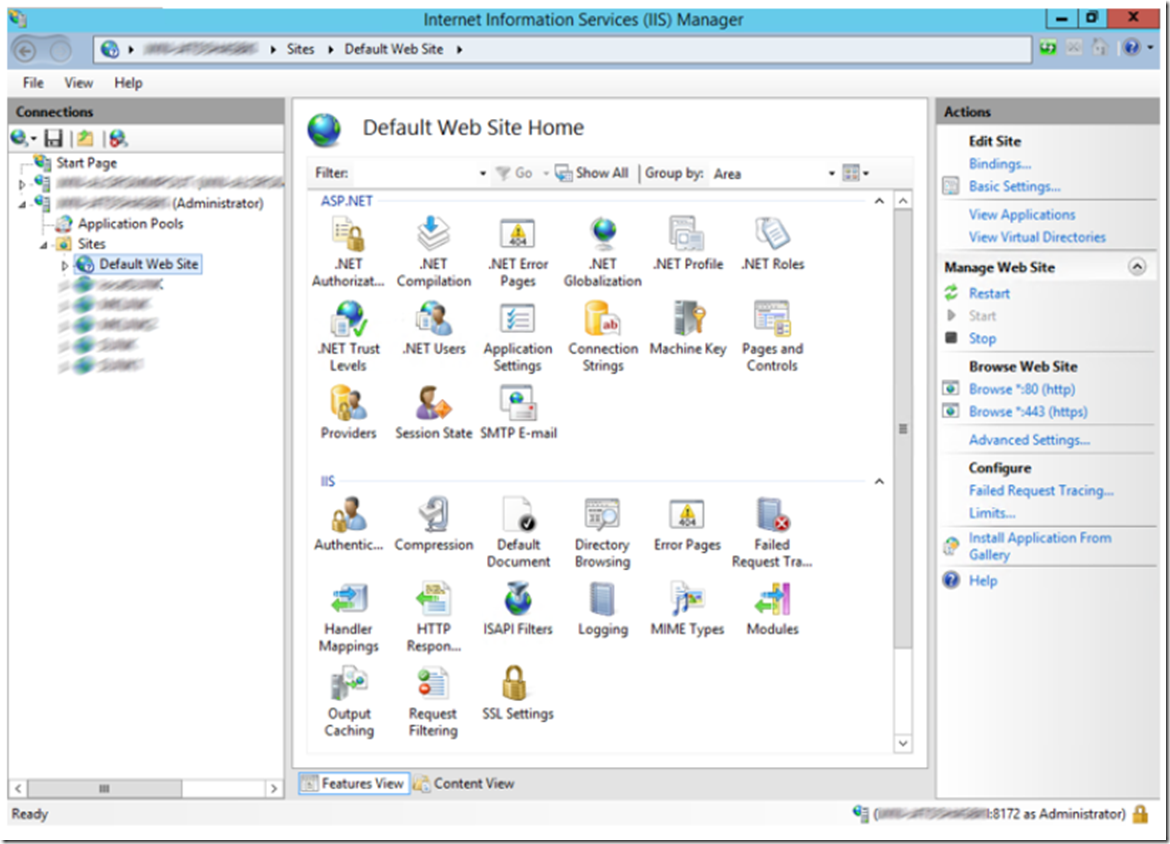
The Internet Information Services (IIS) configuration is the foundation of site performance, security, and reliability for any Windows-based web server. Proper tuning ensures optimal resource utilization, prevents unauthorized access,...
The Internet Information Services (IIS) configuration is the foundation of site performance, security, and reliability for any Windows-based web server. Proper tuning ensures optimal resource utilization, prevents unauthorized access, and maintains uptime by aligning the server’s behavior with the specific demands of your web application’s architecture, traffic patterns, and security requirements.
Contents
The Critical Role of IIS in Web Architecture
Internet Information Services is not merely a service that serves files; it is a complex, modular web server platform integrated deeply into the Windows Server operating system. When a request hits your server, IIS serves as the traffic controller, deciding how to authenticate the user, which application pool processes the request, and how to handle the data transmission.
If the configuration is left at default settings, the server may not handle concurrency efficiently, or it might leave unnecessary features active, creating a larger attack surface. An optimized configuration acts as a performance multiplier, allowing a server to process more concurrent requests with lower latency. Conversely, an improper configuration is often the root cause of "503 Service Unavailable" errors, memory leaks, and vulnerabilities that bypass firewall protections.
Security Hardening Through Configuration
Security in IIS is not just about installing certificates; it is about minimizing the server's footprint. The most common security oversight in IIS management is the inclusion of unnecessary modules. Every installed module adds code that must be parsed and maintained.
Removing Unused Modules
IIS is modular by design. If your site does not require WebDAV (Web Distributed Authoring and Versioning), it should be removed from the server roles entirely. WebDAV is a frequent vector for attackers to attempt unauthorized file uploads. Similarly, disabling server headers that reveal the version of IIS helps in security-through-obscurity, making it slightly harder for automated scanners to identify your server’s specific patch level.
Request Filtering and URL Rewriting
The Request Filtering module is a frontline defense. By configuring it to deny specific file extensions, hidden segments (like the bin folder or web.config file), or high-frequency query strings, you prevent malicious actors from probing your site’s internal structure. When paired with the URL Rewrite module, you can force HTTPS redirects and sanitize incoming requests before they reach your application layer.
Performance Tuning: Application Pools and Worker Processes
The Application Pool is the boundary where your web application lives. The way you configure these pools dictates how the server manages memory and CPU resources.
Recycling Settings
"Recycling" is the process where IIS restarts a worker process to free up memory. While intended to resolve memory leaks, frequent recycling is a major cause of performance degradation. Every time an application pool recycles, the application’s cache is cleared, and the next user experiences a slow "cold start." If your application has a memory leak, the root cause should be addressed in the code; relying on aggressive recycling settings—such as time-based recycling—often masks the issue while harming the end-user experience.
Queue Length and Concurrency
By default, the request queue length is set to 1,000. Under high-traffic scenarios, if the worker process cannot keep up with incoming requests, the queue fills up, resulting in 503 errors. Increasing this limit, or better yet, horizontally scaling your application across multiple worker processes (Web Garden mode), can alleviate pressure. However, Web Gardens should be used cautiously, as they can complicate session state management and increase overhead.
Comparative Overview: Default vs. Optimized IIS
The following table highlights the impact of shifting from default settings to a tailored production configuration.
| Configuration Area | Default Status | Optimized Approach | Impact |
|---|---|---|---|
| Installed Modules | All features enabled | Minimalist/Role-based | Reduced attack surface |
| Application Pool Identity | LocalService / LocalSystem | Managed Service Accounts | Least privilege security |
| Worker Processes | Single process | Multiple (if hardware allows) | Better load distribution |
| Request Filtering | Open / Permissive | Whitelist-based | Prevents injection attacks |
| Caching | Standard output caching | Custom expiration headers | Reduced server CPU load |
Troubleshooting Common IIS Configuration Issues
When an IIS site fails, the error code is your most important diagnostic tool. Understanding the mapping of these codes is essential for any administrator.
- 401.3 Unauthorized: This is almost always a file-system permission issue. Ensure that the account running the Application Pool (e.g.,
IIS AppPool\YourAppName) has Read access to the physical directory where the site files are located. - 500.19 Internal Server Error: This usually indicates a syntax error in your
web.configfile or a missing feature on the server that the configuration is trying to call. Check if the configuration section is locked or if the referenced module is actually installed. - 503 Service Unavailable: This indicates the application pool is stopped or crashing. Check the Windows Event Viewer under "System" and "Application" logs for "WAS" (Windows Process Activation Service) errors to identify why the pool is terminating.
Best Practices for Maintenance in 2026
As we move through 2026, the complexity of web applications continues to increase. Maintaining an IIS server requires a shift toward automation and Infrastructure as Code (IaC).
- Standardize with PowerShell: Never perform manual, one-off changes in the IIS Manager GUI. Use the
WebAdministrationorWebservermodules in PowerShell to script your configurations. This ensures that every server in your environment is identical, preventing "configuration drift." - Log Management: Ensure W3C logging is configured to capture the correct fields. Without precise logs, troubleshooting intermittent spikes in latency or 5xx errors becomes guesswork.
- SSL/TLS Policies: Ensure that legacy protocols (TLS 1.0 and 1.1) are disabled at the registry level. Modern traffic should be forced over TLS 1.3 to ensure compliance with 2026 security standards.
Frequently Asked Questions
Why does my application pool keep restarting automatically? This is typically caused by the "Rapid-Fail Protection" feature. If an application pool crashes multiple times within a short period, IIS shuts it down to prevent further system instability. Check your Event Viewer logs for the specific crash reason, which is often an unhandled exception in your code.
How do I safely test configuration changes without taking my site offline? Use the "Shared Configuration" feature or maintain a dedicated staging environment that mirrors your production server's hardware. Never apply changes directly to production without verifying them in a staging environment first.
Is it safe to run multiple websites in one Application Pool? Generally, no. Running multiple websites in one pool creates a security risk where a compromised site can potentially access the memory space or data of another site. Always isolate sites into their own dedicated Application Pools.
Should I enable 32-bit applications on my 64-bit server? Only if your application has specific dependencies on 32-bit DLLs or legacy COM components. If your entire stack is 64-bit compatible, keep this setting disabled to maximize performance and memory address space.
What is the fastest way to verify if my IIS configuration is secure? Run a security audit against your server using standard compliance tools or check the "Configuration Editor" in the IIS Manager to review enabled modules and request filtering rules against a known-secure baseline.
Next Actions
Begin by auditing your server's current installed features. Use the "Add Roles and Features" wizard to identify components that are not strictly necessary for your application’s operation. Once you have minimized the surface area, perform a review of your Application Pool identities to ensure you are following the principle of least privilege, replacing broad system accounts with specific, restricted service accounts. Regularly scheduled reviews of your web.config file will prevent configuration bloat and keep your environment performant.
Image Gallery