What is AR Doodle on Samsung? A Comprehensive Guide to Augmented Reality Creativity
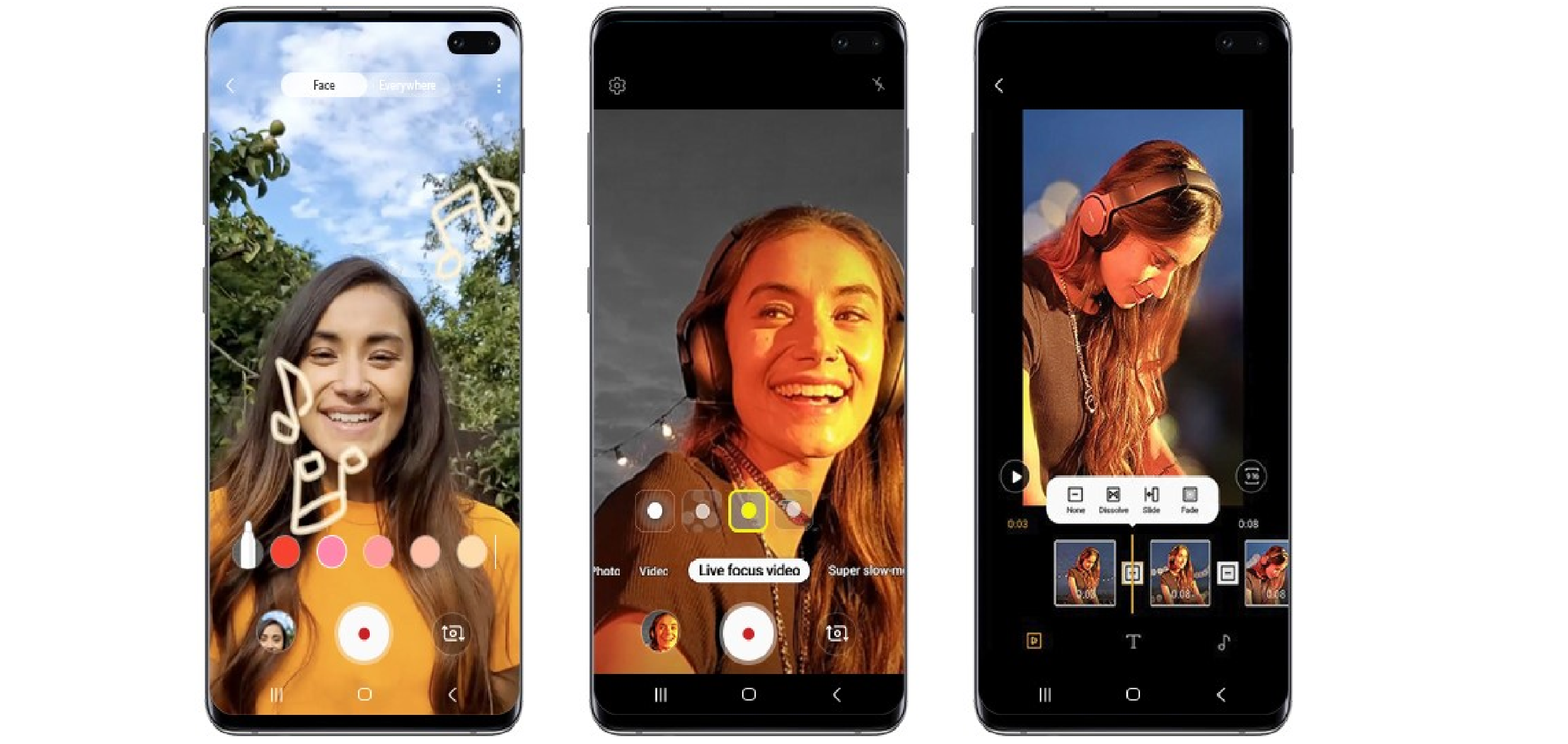
AR Doodle is a Samsung camera feature that uses augmented reality (AR) to let you draw 3D illustrations on your surroundings or tracked faces. These drawings anchor themselves to the real world or move with a subject’s face, allowing f...
AR Doodle is a Samsung camera feature that uses augmented reality (AR) to let you draw 3D illustrations on your surroundings or tracked faces. These drawings anchor themselves to the real world or move with a subject’s face, allowing for interactive, immersive videos that blend digital art with physical environments.
Contents
Since its debut on the Galaxy Note 10 series, AR Doodle has evolved from a niche stylus showcase into a sophisticated creative tool integrated into the broader Samsung AR Zone. As of 2026, the feature leverages advanced Neural Processing Units (NPUs) found in the latest Galaxy S and Z series devices to provide near-zero latency tracking and high-fidelity rendering. Whether you are looking to add a whimsical touch to a birthday video or create professional-looking AR annotations for a social media project, understanding how to master AR Doodle is essential for any modern Galaxy user.
Understanding the Technology Behind AR Doodle
To appreciate what AR Doodle does, it is helpful to understand the underlying technology. The feature is powered by a combination of Google’s ARCore framework and Samsung’s proprietary camera software. It utilizes a process known as SLAM (Simultaneous Localization and Mapping). This technology allows your phone’s camera to detect feature points in a room—such as the corner of a table or the pattern on a rug—to build a spatial map.
When you draw in "Everywhere" mode, the software calculates the 3D coordinates of your brushstrokes relative to those feature points. This is why, when you move your phone away and then point it back at the same spot, your drawing remains exactly where you left it. In "Face" mode, the software uses facial recognition and landmarking to create a mesh over the user's features. This ensures that a digital crown or a pair of drawn-on glasses stays perfectly aligned with the user’s head, even as they turn or tilt.
By 2026, the integration of dedicated depth sensors and improved AI algorithms has made these drawings more stable than ever. Earlier versions occasionally suffered from "drift," where drawings would slowly slide away from their original position. Modern Galaxy devices have largely mitigated this, allowing for complex, multi-layered AR scenes.
The Two Primary Modes: Face and Everywhere
AR Doodle is divided into two distinct functional modes, each designed for a different type of creative output. Choosing the right mode is the first step in creating a successful AR video.
Face Mode
Face mode is designed specifically for "selfie" videos or videos of other people. Once the camera detects a face, you can draw directly onto the screen. The software "pins" these drawings to specific facial landmarks.
- Dynamic Tracking: If you draw a mustache on a friend, that mustache will follow their upper lip as they move around the frame.
- Layering: You can add multiple elements—hats, glasses, or glowing auras—that all move independently but stay synced to the head's position.
- Creative Use Cases: This is highly popular for short-form video content on platforms like TikTok or Instagram, where users want to create unique filters that aren't available in the standard app libraries.
Everywhere Mode
Everywhere mode (sometimes referred to as "Room" or "Space" mode) allows you to treat the entire world as your canvas. This mode requires the camera to "scan" the area first to recognize surfaces.
- Spatial Anchoring: You can draw a floating path in the air, write a message on a wall, or place a 3D character on the floor.
- Depth Perception: As you walk around your drawing with your phone, you can see it from different angles. You can walk "through" a drawing or view it from behind, which highlights the true 3D nature of the feature.
- Environmental Interaction: This mode is ideal for storytelling, where you might want to show a trail of digital footprints leading to a real-world object.
Device Requirements and S Pen Integration
While AR Doodle is available on a wide range of Samsung devices, the experience varies based on hardware capabilities.
The Role of the S Pen
While you can use your finger to draw in AR Doodle, the S Pen is the definitive way to experience the feature. The precision of the S Pen allows for much finer detail, especially when trying to write text or create intricate patterns. On Ultra and Note models, the S Pen’s pressure sensitivity is translated into the thickness of the AR lines, providing a more natural "ink" feel in a 3D space.
Hardware Compatibility
As of 2026, AR Doodle is standard on:
- Galaxy S Series: Every model from the S10 onwards.
- Galaxy Z Series: All Fold and Flip models.
- Galaxy Note Series: Note 10 and Note 20 series.
- Galaxy A Series: Select mid-range models with AR-compatible processors (e.g., Galaxy A54 and later).
To check if your device supports the latest version, ensure you are running the most recent version of One UI and that the AR Zone app is updated via the Galaxy Store. You can verify AR capabilities by visiting the official Google ARCore supported devices list, as Samsung relies on this framework for spatial tracking.
Step-by-Step Guide: How to Use AR Doodle
Accessing AR Doodle is straightforward, though its location has moved slightly in newer versions of One UI. Follow these steps to start your first creation:
- Open the Camera App: Launch the native Samsung Camera.
- Navigate to More: Swipe through the camera modes (Photo, Video, etc.) until you see "More."
- Enter AR Zone: Tap on the AR Zone icon. This is the central hub for all Samsung augmented reality features.
- Launch AR Doodle: Tap the AR Doodle icon.
- Scan Your Environment:
- If using Face mode, point the camera at a person. The phone will indicate when a face is detected.
- If using Everywhere mode, move the phone around slowly so the sensors can map the floor and walls.
- Select Your Brush: Use the toolbar at the bottom to choose different pen types (neon, glitter, 3D ribbon) and colors.
- Draw and Record: Once your doodles are placed, tap the Record button to capture a video. You can continue drawing while the video is recording to create "live" animations.
- Save and Share: After stopping the recording, the video is saved directly to your Gallery.
Practical Comparison of AR Doodle Features
| Feature | Face Mode | Everywhere Mode |
|---|---|---|
| Primary Target | Human faces (front or rear camera) | Floors, walls, and open air |
| Tracking Method | Facial Landmark Mesh | SLAM / Surface Detection |
| Movement | Doodles move with the person | Doodles stay fixed in 3D space |
| Best Used For | Personalized filters, digital makeup | Interior design visualization, 3D art |
| S Pen Support | High (for detail on face) | High (for precise spatial drawing) |
| Light Requirements | Moderate (needs to see face clearly) | High (needs clear surface textures) |
Troubleshooting Common AR Doodle Issues
Even with the advanced hardware of 2026, AR Doodle can occasionally encounter glitches. Here is how to resolve the most common problems:
"Could Not Find Surface"
This usually happens in Everywhere mode. The camera needs visual "anchors" to understand space. If you are in a room with plain white walls and a solid-colored floor, the camera may struggle.
- Solution: Introduce some visual contrast (like a rug or a piece of furniture) or turn on more lights. Avoid glass or highly reflective surfaces, which confuse the depth sensors.
Doodles Are Drifting
If your drawing appears to be "sliding" away from where you placed it, the spatial map has become desynced.
- Solution: Move the phone slowly in a circular motion to help the camera re-establish its orientation. Ensure you aren't covering the camera lenses or the ToF (Time of Flight) sensor with your hand.
App Crashes or Lag
AR Doodle is resource-intensive. If the frame rate drops, your phone’s NPU or GPU may be throttled.
- Solution: Close other background apps. If the phone is excessively hot, let it cool down for a few minutes. High-resolution AR rendering generates significant heat, which is normal for this type of computation.
Creative Tips for 2026 Creators
To take your AR Doodles beyond basic scribbles, consider these advanced techniques:
- The "Walk-Through" Effect: In Everywhere mode, draw a large circle or "portal" in the middle of a room. Start recording from one side, then physically walk through the circle to the other side. Because the drawing is anchored in 3D, it creates a professional-looking "portal" effect.
- Focus on Depth: Don't just draw flat on the screen. Move your phone closer and further away while drawing to create depth. Use the "3D" pen options which have volume rather than just being flat lines.
- Incorporate Real Objects: Draw "hats" on your pets or "steam" coming out of a real coffee mug. The better you align your digital ink with real-world objects, the more convincing the AR effect becomes.
Frequently Asked Questions
Does AR Doodle work on photos?
No, AR Doodle is primarily a video-capture feature. It requires a live camera feed to track movement and space in real-time. While you can take a screenshot of your doodle, the feature is designed for dynamic, recorded content where the viewer can see the perspective shift.
Can I save my AR Doodles to use later?
Currently, AR Doodles are session-based. Once you exit the AR Doodle interface, the unsaved spatial drawings are cleared. However, the videos you record are permanently saved to your Gallery. Samsung has not yet introduced a "save project" feature for AR Doodle scenes, so make sure to record your work before closing the app.
Is AR Doodle available on other Android phones?
AR Doodle is a proprietary Samsung feature part of the "AR Zone" suite. While other phones have similar AR capabilities (like Google’s AR stickers or various third-party apps), the specific UI, brush types, and S Pen integration of AR Doodle are exclusive to Samsung Galaxy devices.
Does using AR Doodle drain the battery quickly?
Yes. Because the feature requires the simultaneous use of the camera, the display at high brightness, the GPU for rendering, and the NPU for spatial tracking, it is one of the most battery-intensive features on a Samsung phone. It is recommended to have at least 20% battery before starting a complex AR session.
Can I use AR Doodle during a video call?
Direct integration into third-party apps like Zoom or WhatsApp is limited. However, some Galaxy devices allow you to use "Effects" during video calls that utilize similar AR technology. For a full AR Doodle experience, you must record the video first and then send it.
Final Recommendation
AR Doodle remains one of the most underrated creative tools in the Samsung Galaxy ecosystem. If you are a student, it is a fantastic way to create engaging visual presentations. If you are a social media creator, it offers a way to generate unique content that stands out from standard filters. To get the most out of it, spend time in Everywhere mode in a well-lit environment and practice using the S Pen to create depth-aware art. As mobile processing power continues to grow in 2026, the boundary between digital sketches and the physical world will only continue to blur.
Image Gallery