Troubleshooting Steps When Your iPad Keyboard Is Not Working
When your iPad keyboard stops responding, the issue is typically caused by a temporary software glitch, a connection interruption with external peripherals, or incorrect accessibility settings. Most instances can be resolved by force-r...
When your iPad keyboard stops responding, the issue is typically caused by a temporary software glitch, a connection interruption with external peripherals, or incorrect accessibility settings. Most instances can be resolved by force-restarting the iPad, toggling Bluetooth connections for external keyboards, or resetting the software dictionary and keyboard settings to their default states.
Contents
Initial Diagnostic Checklist
Before diving into advanced troubleshooting, perform basic checks to rule out the most common causes. If you are using an external keyboard (such as the Magic Keyboard or a third-party Bluetooth device), ensure it has sufficient battery life. If the keyboard is a "Smart Connector" model, inspect the three small pins on the back of the iPad and the corresponding contact points on the keyboard for debris, dust, or physical damage. A simple wipe with a soft, lint-free cloth can often restore conductivity.
If you are experiencing issues with the on-screen software keyboard, verify that no other Bluetooth keyboard is currently connected and "hijacking" the input focus. When an external device is paired and active nearby, the iPad may suppress the on-screen keyboard, assuming a physical one is in use.
Addressing On-Screen Keyboard Issues
The on-screen keyboard is governed by iPadOS settings that can occasionally become corrupted or misconfigured. If the keyboard fails to appear when you tap a text field, start by addressing these software-side factors:
- Toggle the Bluetooth Setting: Open the Control Center and turn off Bluetooth temporarily. If the software keyboard reappears, the issue lies with a paired peripheral interfering with the system.
- Check for "External Keyboard" Settings: Navigate to Settings > Accessibility > Keyboards. Ensure that "Full Keyboard Access" is configured correctly and that no conflicting custom shortcuts are enabled.
- Reset Keyboard Dictionary: Sometimes the predictive text or custom dictionary database becomes bloated or corrupted. Go to Settings > General > Transfer or Reset iPad > Reset > Reset Keyboard Dictionary. This process does not delete your data, but it does revert autocorrect and predictive settings to factory defaults.
- Restart the iPad: A standard power cycle clears the cache. If the keyboard remains unresponsive, perform a force restart. On iPad models without a Home button, press and quickly release the volume up button, press and quickly release the volume down button, then press and hold the top button until the Apple logo appears.
Troubleshooting External and Smart Keyboards
External keyboards rely on either physical contact (Smart Connector) or wireless signals (Bluetooth). Troubleshooting varies significantly based on the connection type.
Smart Connector Keyboards
These keyboards, such as Apple’s Magic Keyboard or Smart Keyboard Folio, draw power directly from the iPad. If they stop responding, the communication bridge between the device and the accessory has likely failed.
- Physical Inspection: Remove the iPad from the keyboard case. Check the Smart Connector pins for any bent components or liquid residue.
- Re-seating: Simply disconnecting and reconnecting the iPad to the magnetic connector can often trigger a hardware handshake that restores connectivity.
- Update iPadOS: Ensure your device is running the latest version of iPadOS. Apple frequently releases firmware updates for its official accessories that are pushed through the iPadOS software update mechanism.
Bluetooth Keyboards
Bluetooth keyboards are prone to signal interference and pairing synchronization errors.
- Forget the Device: Go to Settings > Bluetooth, find your keyboard in the list, tap the "i" icon, and select "Forget This Device." Then, put the keyboard back into pairing mode and complete the setup process as if it were a new accessory.
- Check Interference: Bluetooth operates on the 2.4GHz spectrum. Keep the iPad away from other active wireless devices like microwave ovens or unshielded cables that might cause signal noise.
Comparison Table: Troubleshooting Scenarios
| Scenario | Primary Cause | Recommended Initial Action |
|---|---|---|
| On-screen keyboard won't pop up | Software glitch or HID conflict | Toggle Bluetooth off / Force restart |
| Magic Keyboard keys unresponsive | Physical connection error | Clean Smart Connector pins |
| Bluetooth keyboard lag/latency | Interference or low battery | Forget/re-pair and charge battery |
| Persistent "Ghost" typing | Settings corruption | Reset keyboard dictionary |
Advanced Software Solutions
If standard troubleshooting does not rectify the issue, the problem may reside within the deeper layers of iPadOS. Before considering a factory reset, ensure all applications are closed. Occasionally, a single app—especially one that uses a custom input method or text-editing framework—can cause the system keyboard service to hang.
If you have installed third-party keyboards (e.g., Gboard or SwiftKey), go to Settings > General > Keyboard > Keyboards. Delete the third-party keyboards temporarily to see if the default Apple keyboard resumes normal operation. Third-party keyboards require full access permissions, and if those permissions are revoked or the app fails to initialize, the keyboard input field may remain blank or locked.
When to Seek Professional Assistance
If the keyboard remains non-functional after these steps, there may be a hardware failure. If you are using a physical keyboard, attempt to connect it to a different iPad or a Mac. If it fails to work on those devices, the keyboard accessory itself is likely defective. If the on-screen keyboard is broken across all applications and system menus, the issue could involve the digitizer (the layer of the screen that detects touch). In this case, test if other areas of the screen respond to touch. If the entire screen is unresponsive, your issue is not limited to the keyboard, and you should contact Apple Support or visit an authorized service center for a diagnostic hardware test.
Frequently Asked Questions
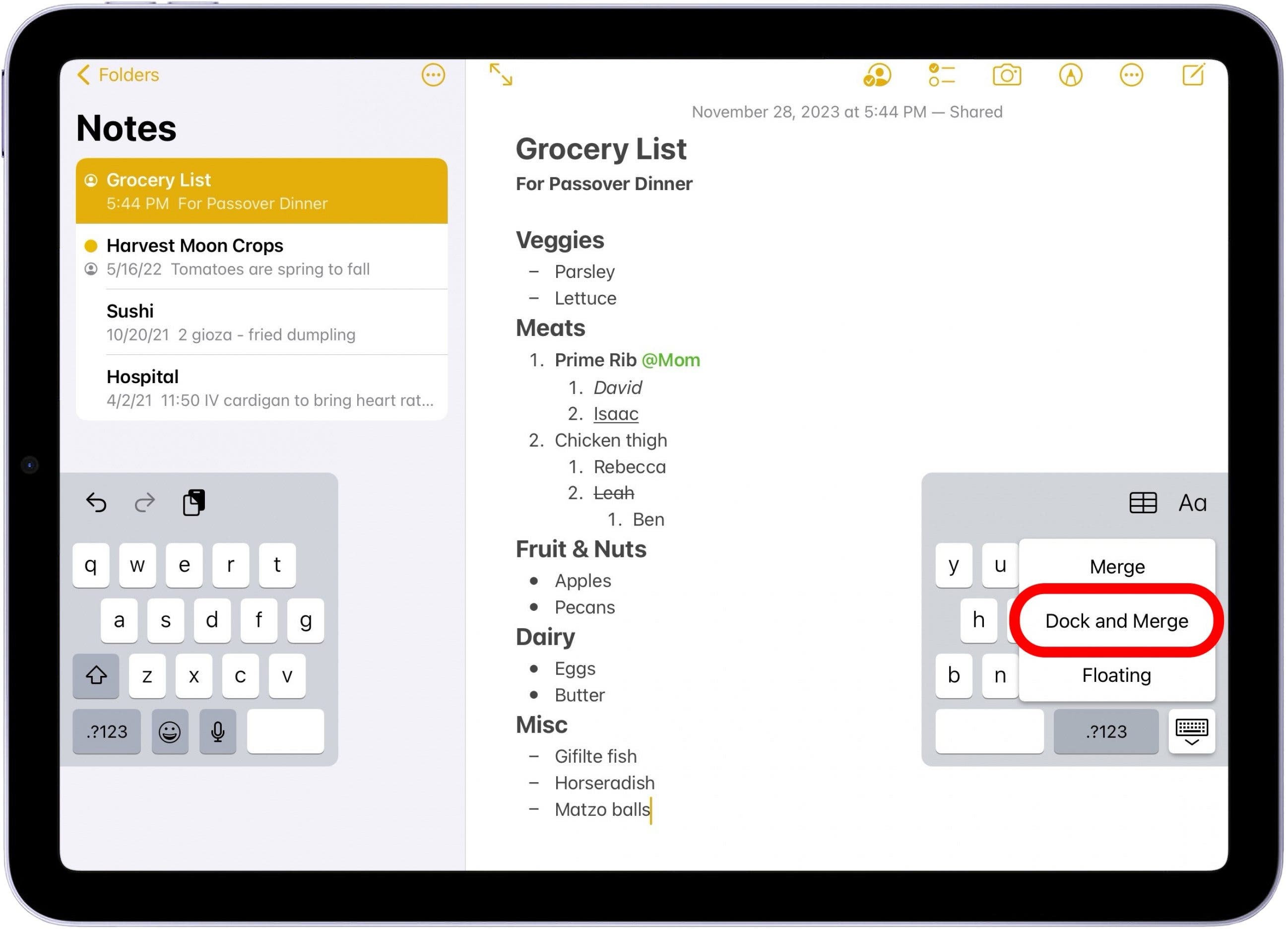
Why does my keyboard disappear while I am typing? This is often caused by an application error or an accidental swipe gesture. Ensure your iPad is not in "Split Keyboard" mode, where the keyboard is divided into two segments; if you accidentally touch the keyboard, it can sometimes minimize. Check Settings > General > Keyboard to disable the "Split Keyboard" feature.
Can a system update fix my keyboard issues? Yes. Apple releases regular updates to address known bugs in iPadOS. If you are using an older version of the operating system, navigate to Settings > General > Software Update to install the latest patches, which may contain specific fixes for peripheral drivers or text-input engines.
Is it safe to reset my iPad to fix a keyboard? A "Reset All Settings" operation is safe for your files (photos, apps, and documents remain untouched), but it does revert your system preferences to default. Only perform this as a last resort if you have tried every other troubleshooting step listed above.
Does a dead battery in my iPad affect the keyboard? If your iPad battery is critically low (typically below 20%), the system may disable certain hardware features or background processes to preserve energy, including Bluetooth connectivity. Always ensure your iPad is adequately charged before troubleshooting connection-based keyboard problems.
Why is my keyboard typing the wrong characters? This is usually a language or region setting issue. Check Settings > General > Keyboard > Keyboards to ensure the correct language is selected. If you have multiple languages enabled, you may be accidentally switching between them using the globe icon key.
Recommendation for Next Steps
If you have performed a force restart and checked your Bluetooth and physical connections without success, the most reliable next step is to perform a "Reset All Settings." Navigate to Settings > General > Transfer or Reset iPad > Reset > Reset All Settings. This will restore your system configuration to factory defaults without erasing your personal data. Should the issue persist after this, record a video of the behavior and contact Apple Support to determine if you require a hardware repair.
Image Gallery