How to Save a Link on the Desktop Easily: A Step-by-Step Guide for Windows and Mac
To save a link on your desktop easily, highlight the URL in your browser’s address bar and drag it directly onto an empty space on your desktop. Alternatively, right-click the desktop, select "New" > "Shortcut," and paste the web addre...
To save a link on your desktop easily, highlight the URL in your browser’s address bar and drag it directly onto an empty space on your desktop. Alternatively, right-click the desktop, select "New" > "Shortcut," and paste the web address. Both methods create an instant, clickable icon for rapid navigation.
Contents
Understanding Web Shortcuts in 2026
Saving a link to your desktop remains one of the most efficient ways to streamline your workflow. Whether you are tracking a volatile stock market dashboard, accessing a frequently used project management tool, or keeping a specific research paper within reach, a desktop shortcut bypasses the need to open a browser and navigate through bookmarks or history.
In 2026, operating systems like Windows 11 (and its successors) and macOS Sequoia have further refined how they handle these pointers. A desktop link is essentially a small file—often using the .url extension on Windows or .webloc on Mac—that instructs your default web browser to open a specific Uniform Resource Locator (URL). Understanding the mechanics of these files allows you to customize your workspace, improve productivity, and ensure that your most critical digital resources are always one double-click away.
Prerequisites and System Compatibility
Before attempting to save links, ensure your environment is configured for the best experience. While the core process has remained stable for decades, subtle shifts in browser security and operating system permissions can affect the outcome.
- Default Browser Selection: Ensure your preferred browser (Chrome, Firefox, Safari, or Edge) is set as the system default. When you click a desktop link, the OS will trigger this specific application.
- Desktop Permissions: On managed enterprise devices, desktop icons may sometimes be restricted by administrative policies. Ensure you have the rights to create new files on your local user profile.
- Browser Window State: To use the drag-and-drop method effectively, your browser window should not be in full-screen mode. It needs to be "restored down" so that a portion of the desktop is visible behind or beside the browser window.
How to Save a Link on the Desktop in Windows
Windows offers the most flexibility for creating shortcuts, providing at least three distinct methods depending on whether you prefer mouse gestures, keyboard inputs, or browser-integrated tools.
The Drag-and-Drop Method
This is the most intuitive approach and works across almost all modern browsers, including Microsoft Edge, Google Chrome, and Mozilla Firefox.
- Step 1: Open your browser and navigate to the website you wish to save.
- Step 2: Click the "Restore Down" button (the double-square icon between the minimize and close buttons) so you can see your desktop.
- Step 3: Look at the address bar. To the left of the URL, you will see a small icon (often a padlock icon representing HTTPS security).
- Step 4: Click and hold that icon, then drag your cursor out of the browser window and onto the desktop.
- Step 5: Release the mouse button. A new icon will appear with the website's title.
This method is highly effective because it automatically fetches the website’s "favicon" (the small logo associated with the site), making the shortcut easily identifiable among other files.
The Right-Click Desktop Menu
If you already have the URL copied to your clipboard, the Windows context menu is often faster than resizing windows.
- Copy the URL: Highlight the address in your browser and press
Ctrl + C. - Access the Desktop: Minimize all windows or press
Win + D. - Create Shortcut: Right-click an empty space on the desktop. Select New, then click Shortcut.
- Paste the Link: A wizard will appear asking for the location of the item. Press
Ctrl + Vto paste the URL into the text box. Click Next. - Name the Link: Enter a descriptive name for the shortcut (e.g., "Company Dashboard 2026"). Click Finish.
Using Browser-Specific Features (Chrome and Edge)
Google Chrome and Microsoft Edge allow you to save links as "Apps" or enhanced shortcuts, which can provide a cleaner, windowless experience.
- Google Chrome: Click the three dots (Menu) > Save and Share > Create Shortcut. If you check the box "Open as window," the link will open in a simplified browser interface without tabs or address bars, mimicking a native desktop application.
- Microsoft Edge: Click the three dots > Apps > Install this site as an app. This is particularly useful for Progressive Web Apps (PWAs) like Outlook or Spotify, as it integrates the link more deeply into the Windows taskbar and Start menu.
How to Save a Link on the Desktop in macOS
Apple’s macOS uses a slightly different file structure for links, typically generating .webloc files. These are highly portable and can even be shared via email or AirDrop to other Mac users.
The Safari Drag-and-Drop Technique
For Safari users, the process is streamlined to prioritize visual simplicity.
- Navigate to the site in Safari.
- Click on the URL in the smart search field to highlight it.
- Click and drag the highlighted text (or the small icon to the left) directly onto your desktop.
- MacOS will immediately create a
.weblocfile.
Renaming and Organizing on Mac
By default, macOS may name the file based on the page title or a truncated version of the URL. To keep your desktop organized:
- Click the file once to select it.
- Press the Return key.
- Type a new name and press Return again.
Comparison of Methods for Saving Links
Different methods offer varying levels of customization and functionality. The following table compares the most common approaches used in 2026.
| Method | Ease of Use | Custom Icon Support | Offline Capability | Best For |
|---|---|---|---|---|
| Drag-and-Drop | High | Automatic | No | Daily browsing and quick access. |
| Right-Click (New Shortcut) | Medium | Manual | No | Users with copied URLs; bulk creation. |
| PWA / "Install as App" | Medium | High | Partial | Tools like Trello, Slack, or Webmail. |
| HTML "Save As" | Low | None | Yes | Archiving articles for offline reading. |
| Browser Bookmarks | High | Browser-only | No | Reducing desktop clutter. |
Advanced Customization: Changing Link Icons
A common complaint with desktop links is that they sometimes default to a generic browser logo. You can change this to any image file to make your desktop more aesthetic or functional.
On Windows:
- Right-click the shortcut and select Properties.
- Go to the Web Document tab.
- Click Change Icon.
- Choose from the system list or click Browse to select an
.icofile you have downloaded.
On macOS:
- Copy an image to your clipboard (open an image,
Cmd + A,Cmd + C). - Right-click the
.weblocfile and select Get Info. - Click the small icon at the very top left of the Info window.
- Press
Cmd + Vto paste the new image over the default icon.
Troubleshooting Common Issues
While saving a link is generally straightforward, technical glitches can occur.
- Link Opens in the Wrong Browser: This happens because your OS "File Associations" are set incorrectly. On Windows, go to Settings > Apps > Default Apps and ensure your preferred browser is the default for
.htmland.urlfiles. - The Icon is Blank: Sometimes the cache for favicons breaks. Deleting the shortcut and recreating it using the drag-and-drop method usually forces the OS to fetch the icon again.
- Security Warnings: When clicking a link, you might see a warning saying "This file may be unsafe." This occurs if the shortcut was downloaded from the internet or created by an external script. As long as you created the link yourself, it is safe to proceed.
- The Link Doesn't Work Offline: Desktop shortcuts are pointers to live web addresses. If you need to access content without an internet connection, you must use the "Save Page As" feature (Ctrl+S) to download a local HTML version of the site.
Best Practices for Desktop Organization
A cluttered desktop can negate the productivity gains of using shortcuts. Consider these strategies to maintain an efficient workspace:
- Use Folders: Group related links into folders. For example, create a folder named "Project Alpha" and store all relevant research links inside it rather than scattering them across the desktop.
- Taskbar Pinning: For your top three most-used sites, consider pinning them to the taskbar (on Windows) or the Dock (on Mac) rather than the desktop. This makes them accessible even when you have other windows open.
- Periodic Audits: Link decay is real. Sites change their URL structures, and projects end. Once a month, delete any shortcuts that are no longer relevant to keep your workspace clean.
Frequently Asked Questions
Can I save a link to the desktop using a mobile device?
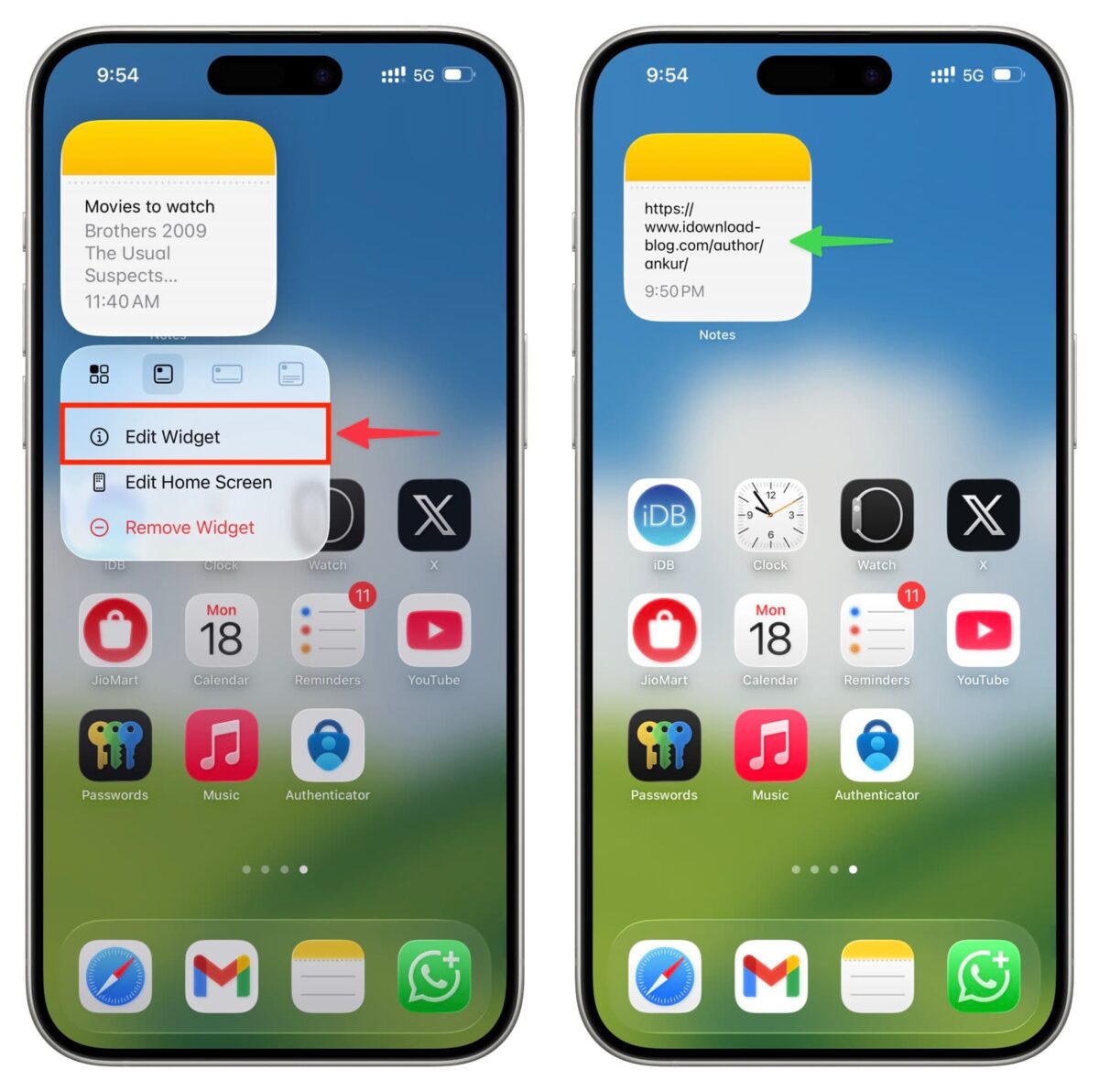
No, standard mobile operating systems like iOS and Android do not have a "desktop" in the same way Windows and macOS do. Instead, you use the "Add to Home Screen" feature found in the browser's share menu. This creates an icon on your mobile home screen that functions similarly to a desktop shortcut.
Does saving a link on the desktop slow down my computer?
Saving a link has a negligible impact on performance. These files are typically less than 1 KB in size. However, having hundreds of icons on your desktop can slightly increase the time it takes for your graphical interface to load upon login, as the OS must render each icon.
How do I delete a saved link?
To delete a saved link, simply right-click the icon and select Delete (Windows) or Move to Trash (Mac). Since the shortcut is only a pointer, deleting it will not affect the actual website or your browser data.
Why does my shortcut icon look like a generic globe?
This usually happens when the browser cannot communicate the site's favicon to the operating system at the moment of creation. To fix it, ensure you are connected to the internet, delete the shortcut, and try dragging the URL again. Alternatively, you can manually set a custom icon in the file properties.
Can I share a desktop link file with someone else?
Yes. On Windows, the .url file can be attached to an email. On Mac, the .webloc file serves the same purpose. When the recipient opens the file, it will trigger their own default browser to navigate to that address.
Final Recommendation
For most users, the drag-and-drop method is the superior choice due to its speed and automatic icon fetching. If you find yourself frequently accessing complex web applications, consider using the "Install as App" feature in Chrome or Edge for a more integrated experience. Regardless of the method chosen, organizing these links into folders will prevent desktop clutter and maintain a high-efficiency digital environment throughout 2026 and beyond.
Image Gallery