How to Send a Statement from Your Auto Insurance
Sending a statement from your auto insurance—commonly referred to as a Certificate of Insurance (COI) or a Proof of Insurance document—is a frequent task required for vehicle registration, financing applications, or proof of coverage f...
Sending a statement from your auto insurance—commonly referred to as a Certificate of Insurance (COI) or a Proof of Insurance document—is a frequent task required for vehicle registration, financing applications, or proof of coverage for third-party entities. You can typically complete this process by logging into your insurer’s official mobile application or web portal, navigating to the "Documents" or "Policy Services" section, and selecting the option to download or share the PDF directly via email or secure messaging.
Contents
Understanding the Purpose of an Auto Insurance Statement
An auto insurance statement, in the context of administrative requirements, usually serves as formal verification that a specific vehicle is covered under an active policy. While many drivers refer to this as a "statement," insurance companies typically categorize these documents as a Certificate of Liability Insurance or a Proof of Insurance card.
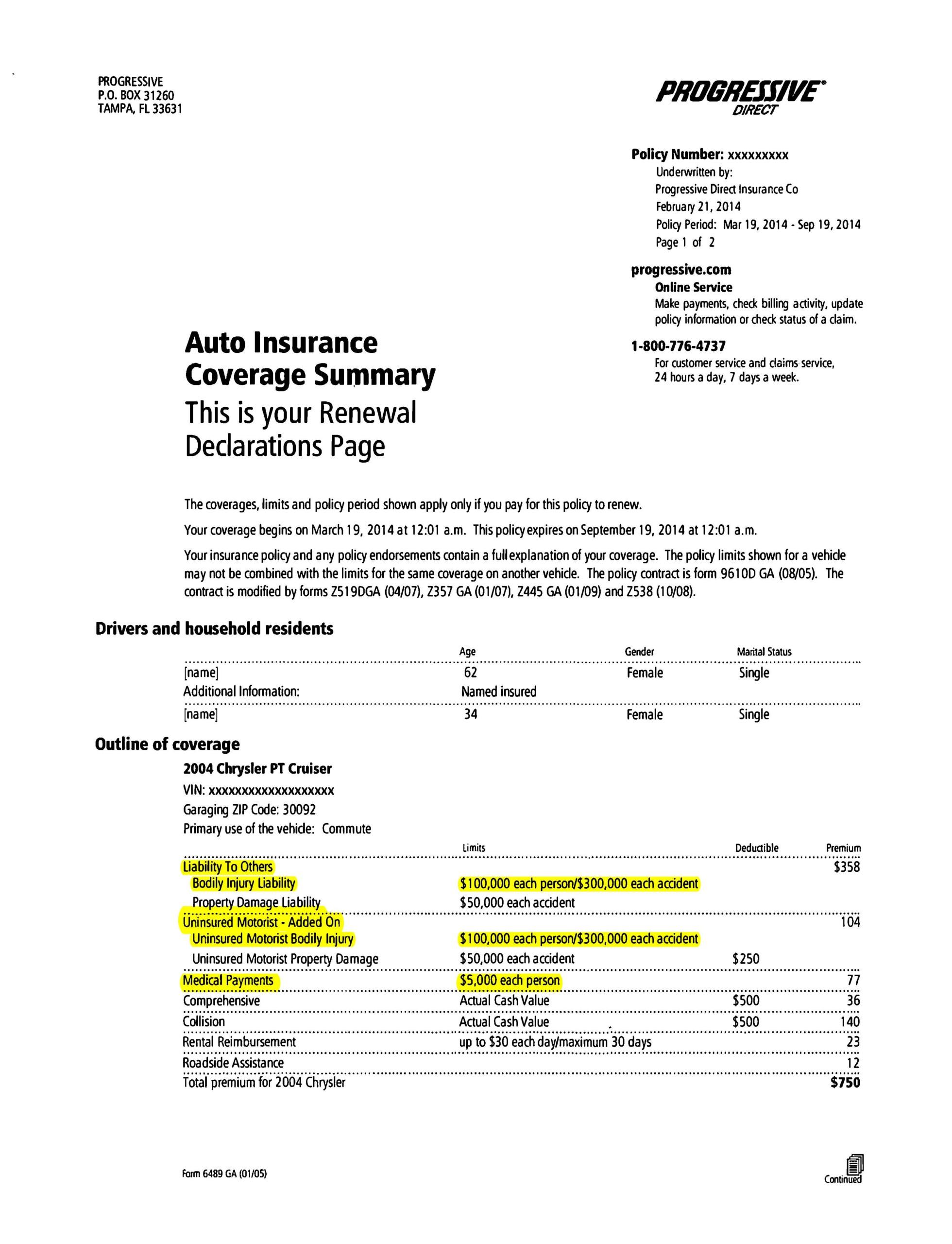
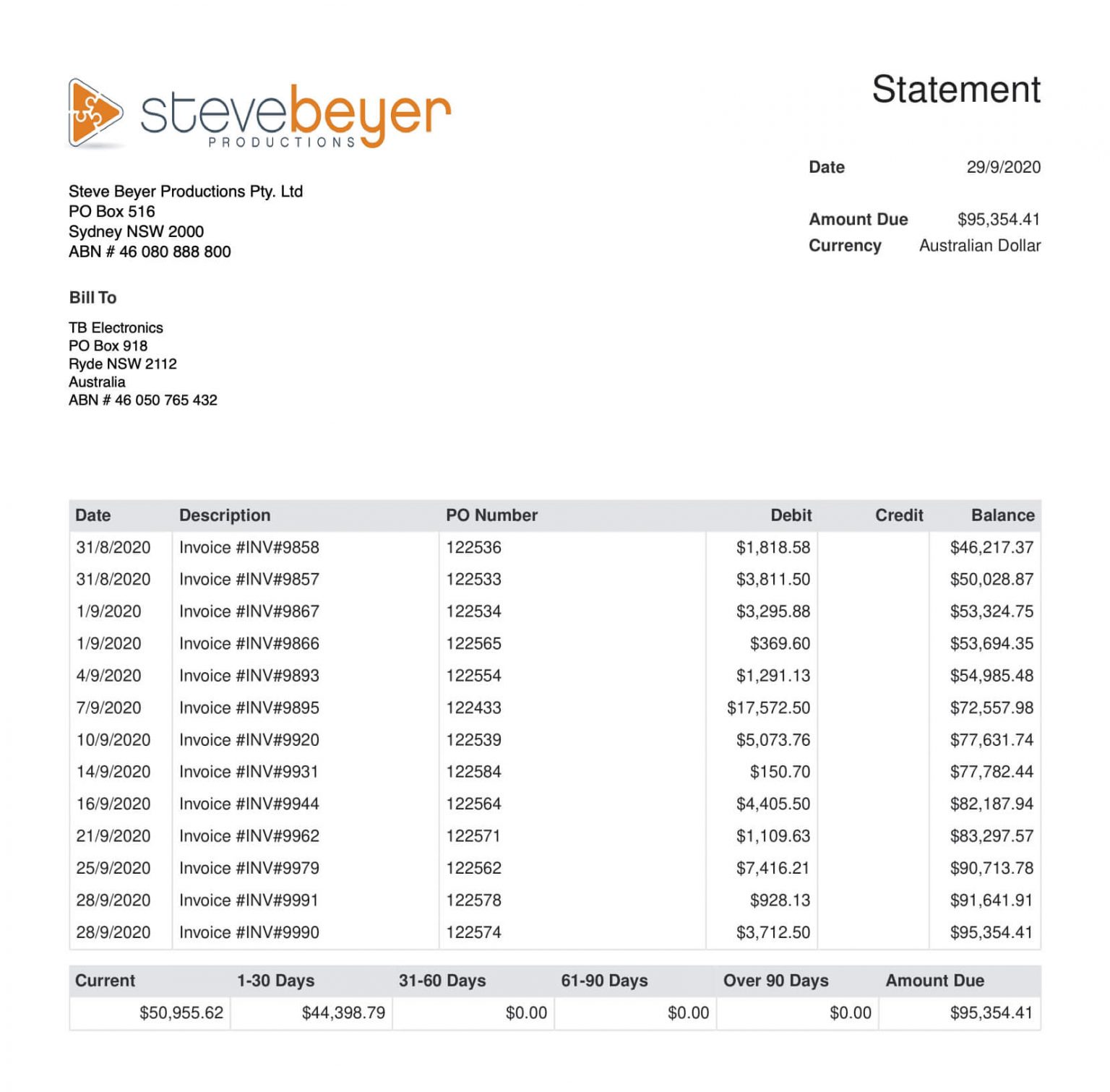
When a third party requests a "statement" from your auto insurance, they are looking for specific data points: your policy number, the effective dates of your coverage, the VIN (Vehicle Identification Number) of the insured car, and the liability limits you carry. Because these documents contain sensitive personal and financial data, insurers provide them through secure channels. Understanding the distinction between a billing statement (which shows what you owe) and an insurance statement (which shows your coverage status) is vital to ensure you provide the correct documentation to the requesting party.
Prerequisites Before Sending Your Insurance Documentation
Before attempting to share your insurance information, ensure you have gathered the necessary digital assets and credentials. Without these, the process may be interrupted by security protocols or lack of access:
- Online Account Credentials: You must have an active username and password for your insurance provider’s digital portal. If you have not registered, you will need your policy number, which is found on your declaration page or your insurance ID card.
- PDF-Capable Device: The document you receive will almost certainly be in PDF format. Ensure your smartphone or computer has a PDF reader installed.
- The Recipient’s Contact Information: Know exactly where the document needs to go. If sending it to a lender or government agency, they may require a specific email address or a secure upload link rather than a general email.
- Verification of Accuracy: Before forwarding the document, quickly inspect it to ensure the vehicle details match the car in question. Sending a certificate for the wrong vehicle can lead to delays in loan processing or registration issues.
Step-by-Step Guide to Accessing and Sending Your Document
The process for obtaining and sending your insurance documentation is streamlined across most major providers in 2026. Follow these steps to ensure you provide the right information securely.
1. Accessing Your Insurer’s Digital Portal
Navigate to your insurer’s official website or open their mobile application. Avoid using third-party aggregator sites or clicking links from unsolicited emails, as these can be phishing attempts. Once you log in, look for tabs labeled "Manage Policy," "Policy Documents," or "Proof of Insurance."
2. Generating the Certificate
Most portals allow you to select a specific vehicle if you have multiple cars on one policy. Select the vehicle for which you need to provide proof. Once selected, look for a button labeled "View/Print ID Card" or "Request Certificate of Insurance." The system will generate a PDF version of the document.
3. Downloading and Sharing
Once the document is displayed on your screen, do not simply take a screenshot if you can avoid it. Screenshots can be cropped or blurry, making them difficult for lenders or state agencies to read. Instead, use the Download or Share icon provided by the interface. From here, you can attach the document to an email or save it to your local files for future use.
Comparison of Delivery Methods
Depending on the recipient, the method of sending your insurance statement varies in both security and speed.
| Delivery Method | Best Used For | Security Level | Speed |
|---|---|---|---|
| Secure Portal Upload | Banks, DMVs, Lenders | High | Instant |
| Encrypted Email | Legal counsel, Employers | High | Fast |
| Standard Email | Personal reference | Low | Immediate |
| Postal Mail | Official legal notices | Medium | Slow |
Navigating Privacy and Security Concerns
When you send a statement from your auto insurance, you are distributing a document that contains your name, address, and policy identifiers. Cyber-security experts recommend following these best practices to protect your identity:
- Redact Unnecessary Information: If the recipient only needs to verify your coverage dates, ask them if you can redact your full social security number or other unrelated financial account numbers if they appear on the document.
- Use Secure Channels: If a bank or lender provides a portal to upload documentation, use that instead of sending the document via standard email. Standard emails are not always encrypted, which could expose the document to interception.
- Verify the Requester: Never send your insurance documentation to an unverified party. If you are unsure about the request, call your insurance agent directly. They can verify if a request for a "statement" is standard procedure for the entity involved.
Troubleshooting Common Issues
If you find that you cannot access or send your document, consider these common technical hurdles:
- Pop-up Blockers: Many insurance websites open documents in a new pop-up window. If your browser blocks pop-ups, the document will appear as if it is not loading. Check your browser settings to "Always allow pop-ups from this site."
- Policy Lapses: If your policy has recently lapsed or is in a grace period, the digital portal may prevent you from downloading an insurance certificate until the payment is processed. If the button is greyed out, contact your insurer's customer support line.
- Format Compatibility: If you are sending the document to an automated system (like a state vehicle registration portal), it may reject the file if it is not a standard PDF. Ensure you are not sending image files (JPG or PNG) unless the portal specifically accepts them.
Frequently Asked Questions
Can I send a picture of my insurance card instead of a formal statement? For minor proof-of-coverage checks, a picture may suffice. However, for formal requests such as mortgage refinancing, car loans, or court-related matters, you must provide the official PDF certificate generated by your insurer to ensure all legal disclosures are included.
What should I do if the document shows incorrect information? If your statement shows the wrong address or an incorrect vehicle, do not share it. Log out and contact your insurance agent immediately. These documents are legal records; using an incorrect one could result in the denial of a claim or a rejected application.
How long does it take for a third party to process my insurance statement? Processing times depend entirely on the recipient. A DMV office might process it immediately upon upload, while a mortgage lender may take 24–48 hours to verify the document against their records.
Is it possible to request that my insurance company sends the statement directly? Yes. Most major insurers have a "Send to Third Party" feature. Instead of downloading and emailing it yourself, you can enter the recipient’s email address directly into your insurer’s portal. This is often the most secure and professional method.
What is an "Insurance Declaration Page" versus a "Statement"? An insurance declaration page is a summary of your entire policy, including coverage types, premiums, and deductible amounts. A certificate or statement usually only verifies that the policy is active for a specific vehicle. If a lender asks for a "statement," ask them if they need the full declaration page or just a proof-of-insurance certificate.
Final Recommendation
When providing proof of your auto insurance, always prioritize the official PDF generated through your insurer’s secure website or application. If you are sending the document to a lender or government agency, utilize their secure document upload portal whenever possible. If you must use email, password-protect the file if the recipient supports that protocol. Always verify the status of your policy within your account before sending to avoid providing documentation that is no longer valid.
Image Gallery