How to Use the Firewall on a MacBook Pro
Using the built-in firewall on a MacBook Pro involves navigating to System Settings, locating the Network panel, and toggling the firewall feature to the on position while configuring optional advanced security settings for incoming co...
Using the built-in firewall on a MacBook Pro involves navigating to System Settings, locating the Network panel, and toggling the firewall feature to the on position while configuring optional advanced security settings for incoming connections.
Contents
Securing a laptop against unauthorized incoming network connections is a vital step in maintaining personal digital privacy and operational integrity. For users of macOS, Apple includes a robust, application-level packet filter commonly referred to as the application firewall. Whether you are working from a high-speed corporate network, a local coffee shop, or your home router, understanding how to use the firewall on a MacBook Pro ensures that your operating system actively monitors and filters inbound traffic. This guide examines the core concepts, prerequisites, step-by-step activation processes, and advanced configuration options necessary to master macOS firewall management.
Understanding the macOS Application Firewall
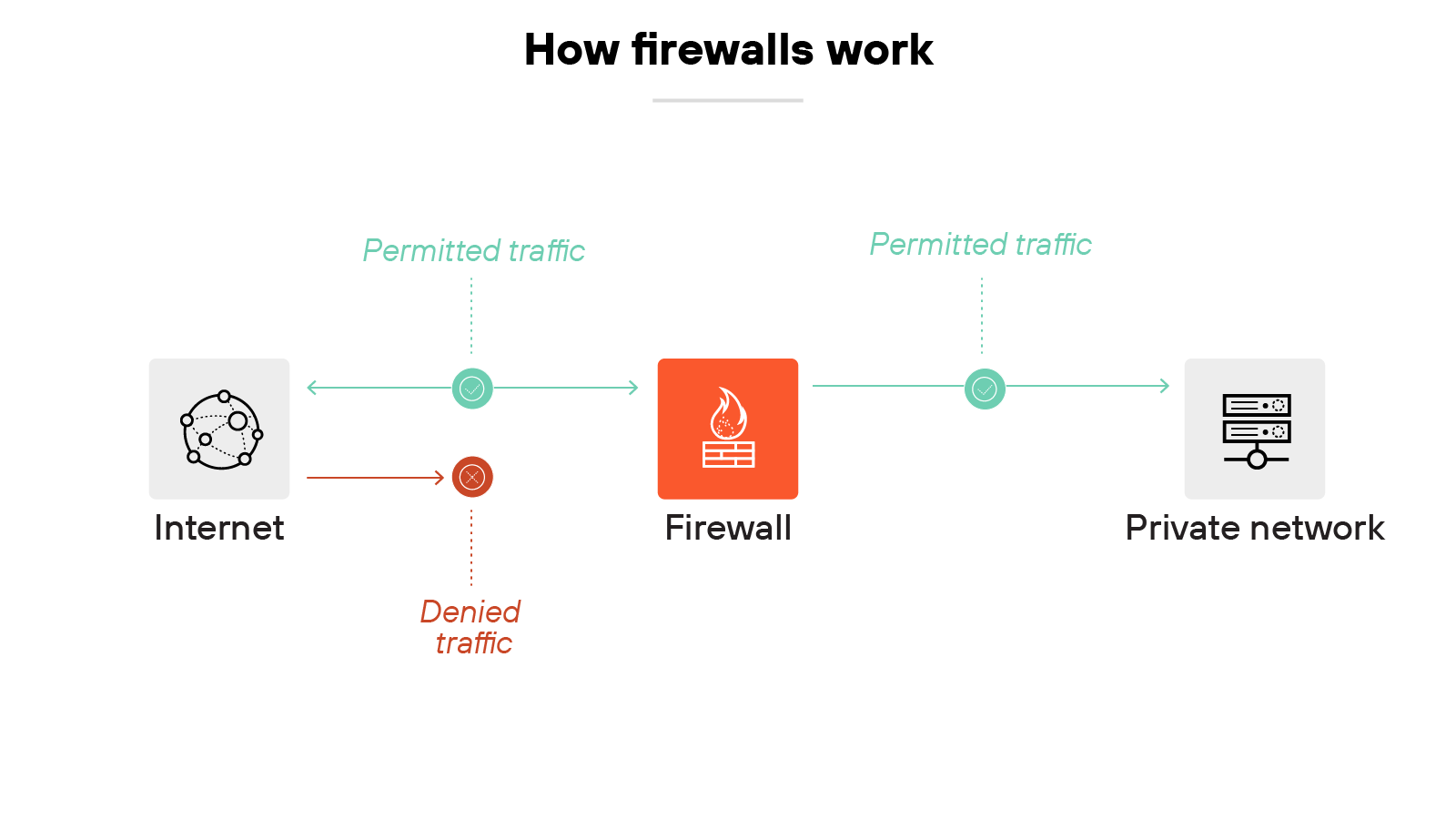
Unlike traditional stateful packet-inspection firewalls that evaluate network traffic primarily at the router level or based strictly on port numbers and IP addresses, the macOS application firewall operates at the application layer. This means the system evaluates incoming connection requests based on the specific application or daemon attempting to open a listening port.
When an application requests permission to accept incoming connections from the network, macOS intercepts this request and prompts the user or defers to predefined rules. If you approve the connection, a code-signing check verifies the integrity of the application. If the application is subsequently modified by malware or an unauthorized agent, its code signature changes, prompting the firewall to block the connection automatically.
The firewall is designed primarily to protect against unsolicited inbound connections when your MacBook Pro is connected to untrusted networks. Outbound connections—such as browsing a website, checking email, or downloading files—are permitted by default because your device initiated them. Recognizing this distinction helps clarify what the firewall can and cannot do: it stops external entities from initiating contact with your machine, but it does not act as a comprehensive data loss prevention tool or a substitute for safe browsing habits.
Prerequisites and System Requirements
Before configuring the firewall on your MacBook Pro, ensure your system meets basic administrative and software requirements:
- Administrator Privileges: Modifying firewall settings requires an administrator account password or Touch ID authentication. Standard user accounts cannot alter these system-level security parameters.
- Operating System Version: While firewall controls have existed across many iterations of macOS, the steps outlined here reflect modern Apple Silicon and Intel-based MacBooks running recent versions of macOS, where preferences are centralized within System Settings.
- Network Connectivity Awareness: You should review your firewall configuration while connected to a trusted private network so you do not accidentally disrupt ongoing administrative tasks or remote management tools.
Step-by-Step Guide to Enabling the Firewall
Activating the application firewall on a modern MacBook Pro requires just a few clicks through the centralized macOS configuration interface.
Step 1: Access System Settings
Click the Apple logo in the upper-left corner of your desktop screen and select System Settings from the drop-down menu.
Step 2: Navigate to Network Security Options
Scroll down the left sidebar of the System Settings window until you locate and click on Network. Within the Network settings panel, look for the Firewall option and click it to open the dedicated firewall management menu.
Step 3: Toggle the Firewall On
Click the main switch next to Firewall to change its status from Off to On. Upon doing so, macOS may prompt you to enter your Mac's administrator username and password or use Touch ID to authorize the system modification.
Once enabled, the firewall immediately begins blocking all incoming connections from the internet and local network, with the exception of built-in macOS services and software explicitly authorized by you or signed by trusted developers.
| Feature | Default State | Operational Description |
|---|---|---|
| Firewall Switch | Off | Master toggle governing whether inbound packet filtering is active. |
| Block All Incoming | Off | Rejects all incoming connections except basic required services like DHCP and IPSec. |
| Stealth Mode | Off | Prevents the Mac from responding to ICMP ping requests and port scans. |
| Signed Software Exception | On | Automatically allows software signed by valid Apple certificates to receive connections. |
Configuring Advanced Firewall Options
For users who require granular control over their network exposure, the macOS firewall provides specialized options beneath the primary toggle switch. Clicking the Options button next to the firewall switch reveals several critical security settings.
Enabling Stealth Mode
By default, if an external device sends a "ping" (an ICMP Internet Control Message Protocol request) or attempts to probe closed ports on your MacBook Pro, your system responds to acknowledge its presence on the network. While helpful for basic network diagnostics, this visibility allows malicious actors to map your device.
Enabling Stealth Mode within the firewall options prevents your MacBook Pro from responding to unsolicited ICMP requests and TCP port probes from unknown networks. Your computer essentially becomes invisible to port-scans conducted by unauthorized entities on public Wi-Fi networks, significantly reducing your device's profile to potential attackers.
Managing Signed Software Exceptions
The operating system automatically permits software signed by valid Apple-issued certificates to receive incoming connections without prompting you. This prevents essential utilities, file-sharing services, and Apple applications from breaking unexpectedly.
If you prefer maximum paranoia or operate within a high-security enterprise environment, you can review and disable automatic exceptions, forcing the system to evaluate every single incoming connection request individually. However, for most users, leaving signed software exceptions enabled represents the optimal balance between security and usability.
Adding and Removing Custom Application Rules
When a third-party application—such as a local development server, a multiplayer video game, or a peer-to-peer utility—requires incoming network access, the firewall typically triggers a dialog box asking whether you wish to Allow or Deny incoming connections.
If you misclick or need to modify these permissions manually later, you can manage the application exception list directly:
- Return to System Settings > Network > Firewall > Options.
- Review the list of applications and services currently registered with the firewall.
- Use the Plus (+) button to add a specific application binary or script to the list if it did not prompt automatically.
- Use the Minus (-) button to remove an application you no longer wish to grant incoming network access.
- Click the drop-down menu next to any listed application to toggle its status explicitly between Allow incoming connections and Block incoming connections.
Troubleshooting Common Firewall Issues
While the macOS firewall is designed to operate seamlessly in the background, misconfigurations can occasionally disrupt normal networking workflows, network printing, or local file sharing.
- Local Network Disruption: If other devices on your home network can no longer connect to your MacBook Pro for screen sharing or file transfer, check whether the "Block all incoming connections" option is mistakenly checked. Unchecking this option typically restores local network functionality.
- Prompt Fatigue: If an application repeatedly prompts you for firewall access every time you launch it, the application's code signature may have changed due to an update, or the application lacks a valid digital certificate. Verify that the application was downloaded from a trusted developer or the official Mac App Store.
- Corporate Profile Conflicts: If your MacBook Pro is managed by an enterprise Mobile Device Management (MDM) solution, local firewall settings may be locked by system administrators to comply with corporate security baselines. In these instances, individual toggles will appear greyed out.
Frequently Asked Questions
Do I need to turn on the firewall on my MacBook Pro?
For most users browsing on trusted home networks, the built-in firewall is optional because modern routers feature hardware-level Network Address Translation (NAT) and stateful firewalls that block unsolicited inbound traffic. However, turning on the macOS firewall provides an essential layer of defense when connecting to public Wi-Fi networks at airports, hotels, or cafes.
Does the firewall slow down my MacBook Pro internet speed?
No. The macOS application firewall operates efficiently at the application layer and evaluates connection establishment requests rather than inspecting every individual data packet passing through active browsing sessions. It introduces no measurable latency or reduction in download and upload speeds.
What is the difference between blocking all incoming connections and stealth mode?
Blocking all incoming connections rejects traffic from reaching any service on your Mac, except for fundamental system requirements. Stealth mode, conversely, keeps your allowed application exceptions working while making your computer drop ping requests and port scans, rendering your device invisible to casual network mapping tools.
How do I know if an app is being blocked by the firewall?
If an expected incoming connection fails—such as a local web server refusing requests from another device—you can check the application list in the firewall options panel. If the application is set to "Block incoming connections," the firewall is actively dropping that traffic. You can also review system logs via the Console application to inspect detailed network filter events.
Can I use a third-party firewall instead of the built-in macOS firewall?
Yes, various third-party security suites and packet filters are available for macOS. However, Apple's native application firewall integrates deeply with the operating system's kernel architecture and code-signing validation framework, making it the most resource-efficient and reliable choice for standard user protection.
Conclusion and Next Actions
Mastering how to use the firewall on a MacBook Pro gives you direct control over your device's network perimeter without requiring complex configuration scripts. To maintain optimal security, navigate to your Network settings today, verify that your firewall is enabled, and activate Stealth Mode if you frequently travel or use public Wi-Fi networks. Combine these settings with good password hygiene and regular software updates to ensure your MacBook Pro remains secure against evolving digital threats.
Image Gallery