How to Manage Google Play Protect Settings on Your Android Device
Google Play Protect is an integrated security service designed to keep Android devices safe by scanning applications for malicious behavior, enforcing app safety standards, and providing warnings about potentially harmful software. Whi...
Google Play Protect is an integrated security service designed to keep Android devices safe by scanning applications for malicious behavior, enforcing app safety standards, and providing warnings about potentially harmful software. While it remains active by default to ensure baseline security, users may occasionally need to modify these settings to install specific third-party applications or perform advanced technical troubleshooting. Disabling these protections requires manual intervention through the Google Play Store interface.
Contents
Understanding the Role of Google Play Protect
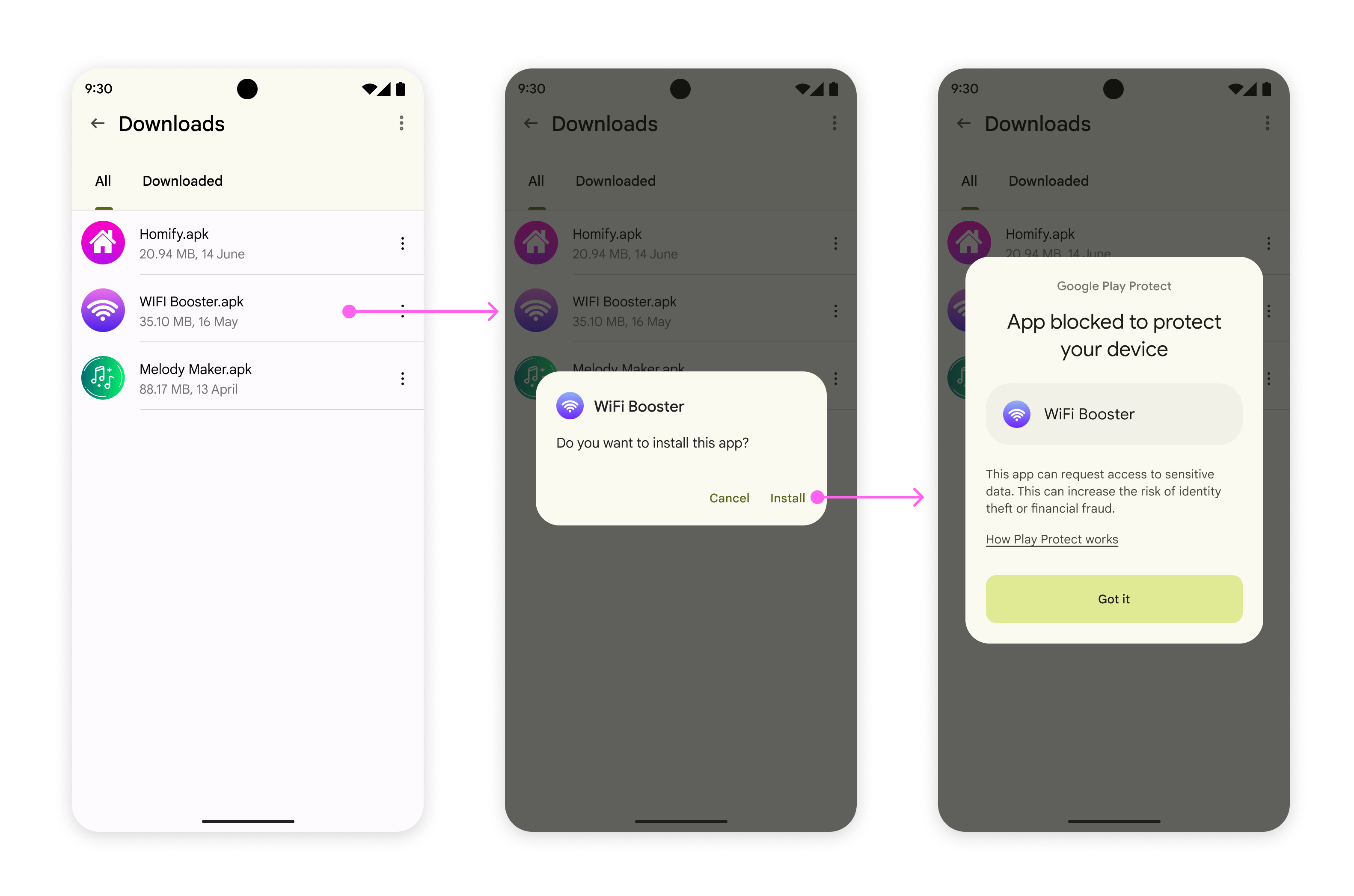
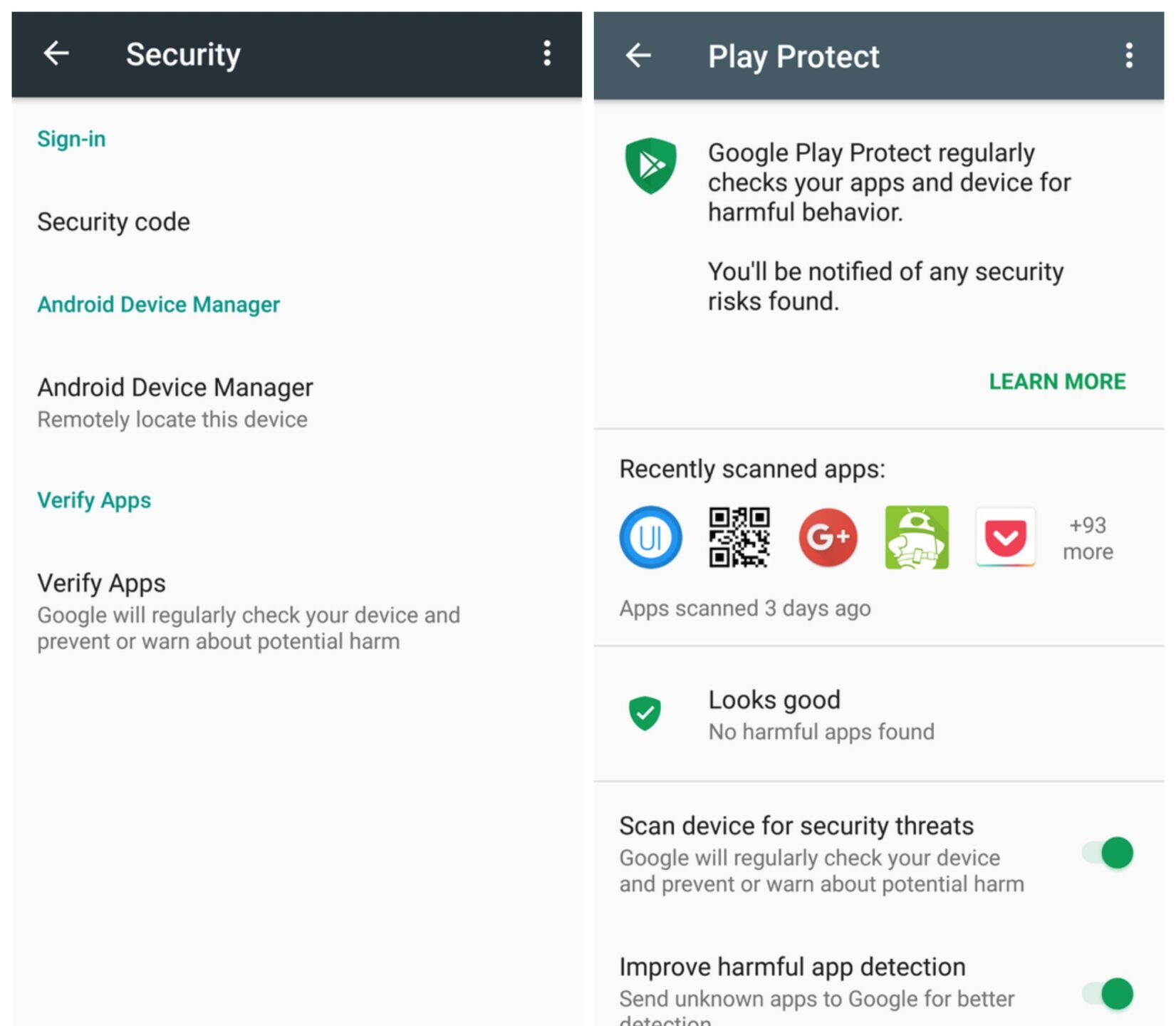
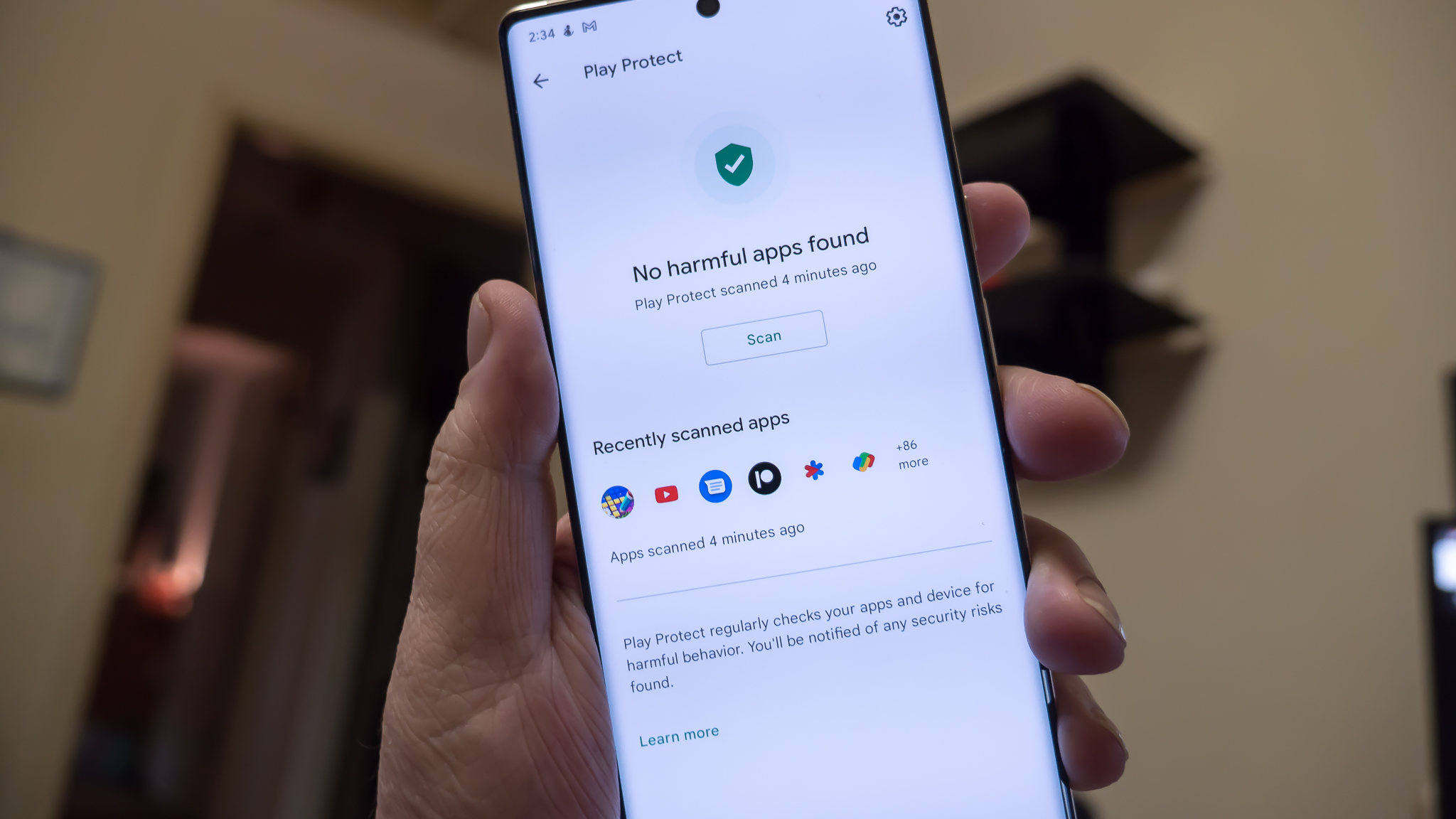
Google Play Protect acts as a multifaceted security layer for the Android ecosystem. It operates primarily by performing automated scans of applications before, during, and after installation. When an app is downloaded from the Google Play Store, the service verifies the integrity of the package against a massive, cloud-based database of known malware and potentially harmful applications (PHAs).
Beyond its store-based scanning, it provides continuous background monitoring. It routinely checks the device for apps that may have been sideloaded from external sources—those not verified through the official Play Store pipeline. If it detects an app attempting to bypass privacy controls, harvest sensitive data without authorization, or compromise system integrity, it will flag the application, restrict its functionality, or automatically remove it from the device.
For the average user, these features provide a necessary safety net against common threats such as data-stealing trojans and ransomware. However, developers, security researchers, and power users may find that these rigid protections interfere with legitimate testing environments or specific authorized software installations that the system might misidentify as hazardous.
Prerequisites Before Modifying Security Settings
Before attempting to disable Google Play Protect, it is essential to understand the implications. By disabling this feature, you remove the primary automated defense system for your device. This increases the vulnerability of your smartphone to malware, phishing attacks, and unauthorized data access.
Ensure you have the following prerequisites fulfilled before you proceed:
- Account Access: You must be signed into the device with a Google account that has the necessary permissions to manage system settings.
- Device Knowledge: Understand that disabling this feature is often a temporary measure. It is best practice to re-enable security scanning immediately after the intended task is completed.
- Source Trust: Only disable these features if you are absolutely certain that the software you intend to install or the action you are performing is safe and sourced from a reputable developer.
Step-by-Step Guide: How to Disable Google Play Protect
Disabling Google Play Protect is a straightforward process managed entirely within the Google Play Store application. Follow these steps to access and toggle the configuration:
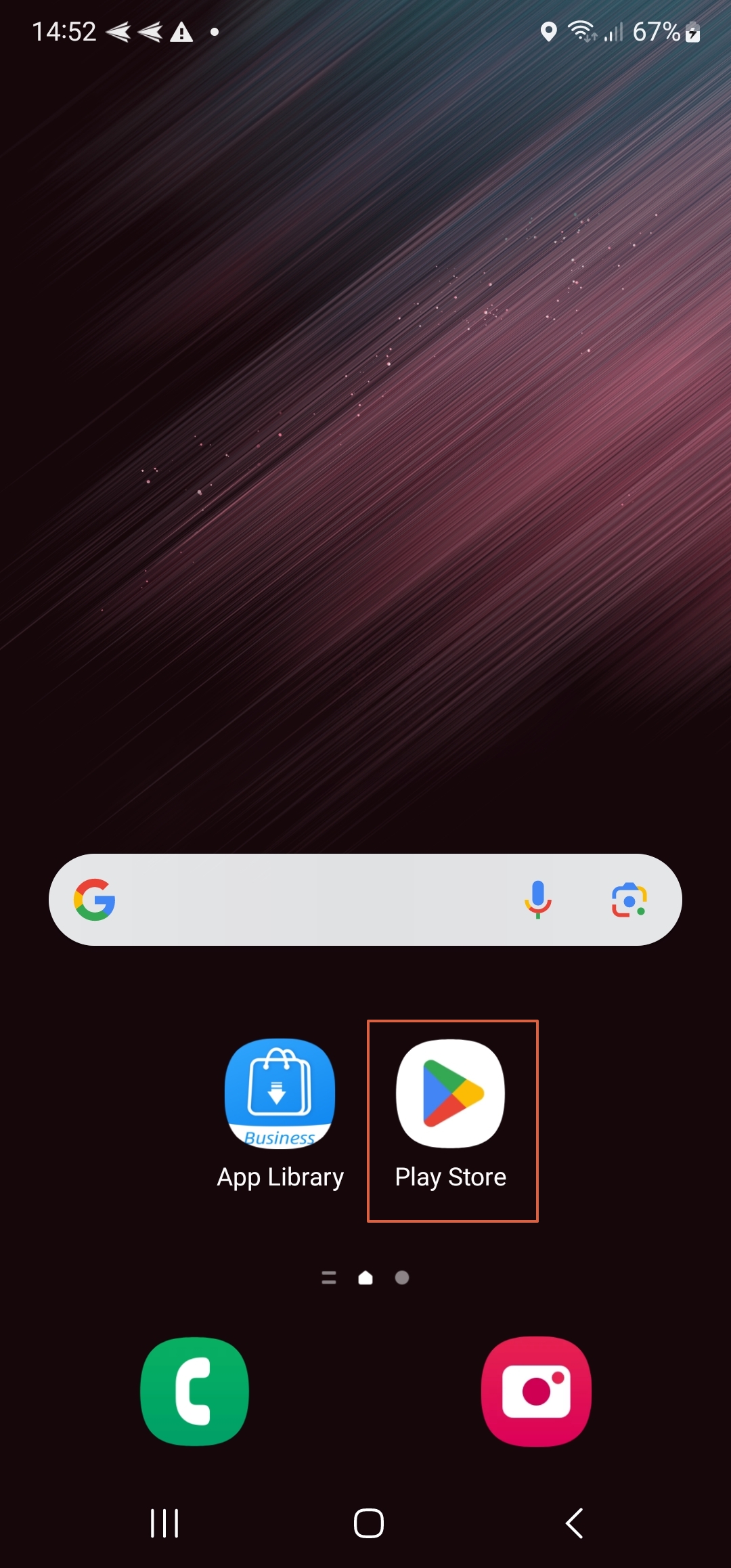
- Open the Google Play Store: Locate and tap the Play Store icon on your device’s home screen or app drawer.
- Access Your Profile: Tap on your profile icon located in the upper-right corner of the screen.
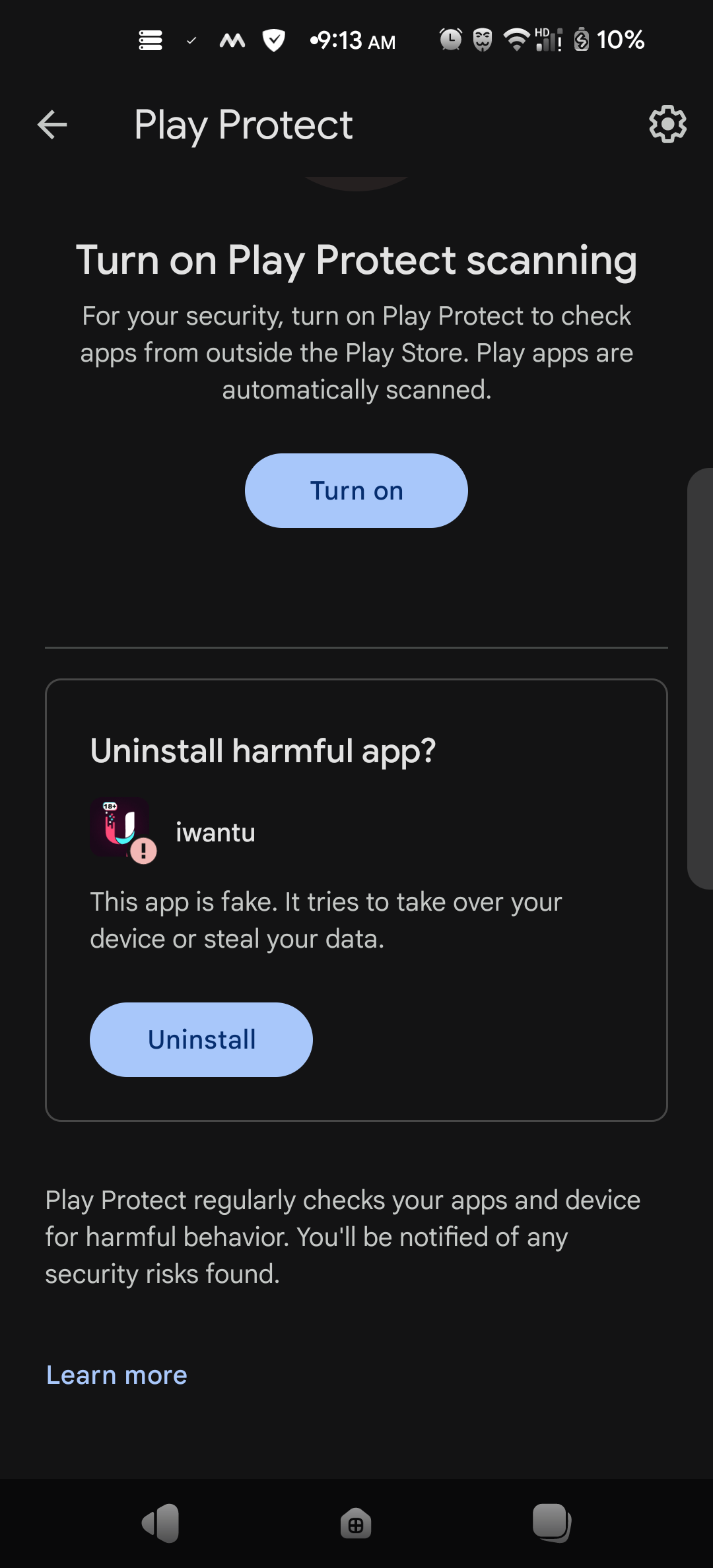
- Navigate to Play Protect: Select the "Play Protect" option from the menu list. This will open the security dashboard.
- Enter Settings: Tap the "Settings" icon (represented by a gear symbol) situated in the top-right corner of the Play Protect dashboard.
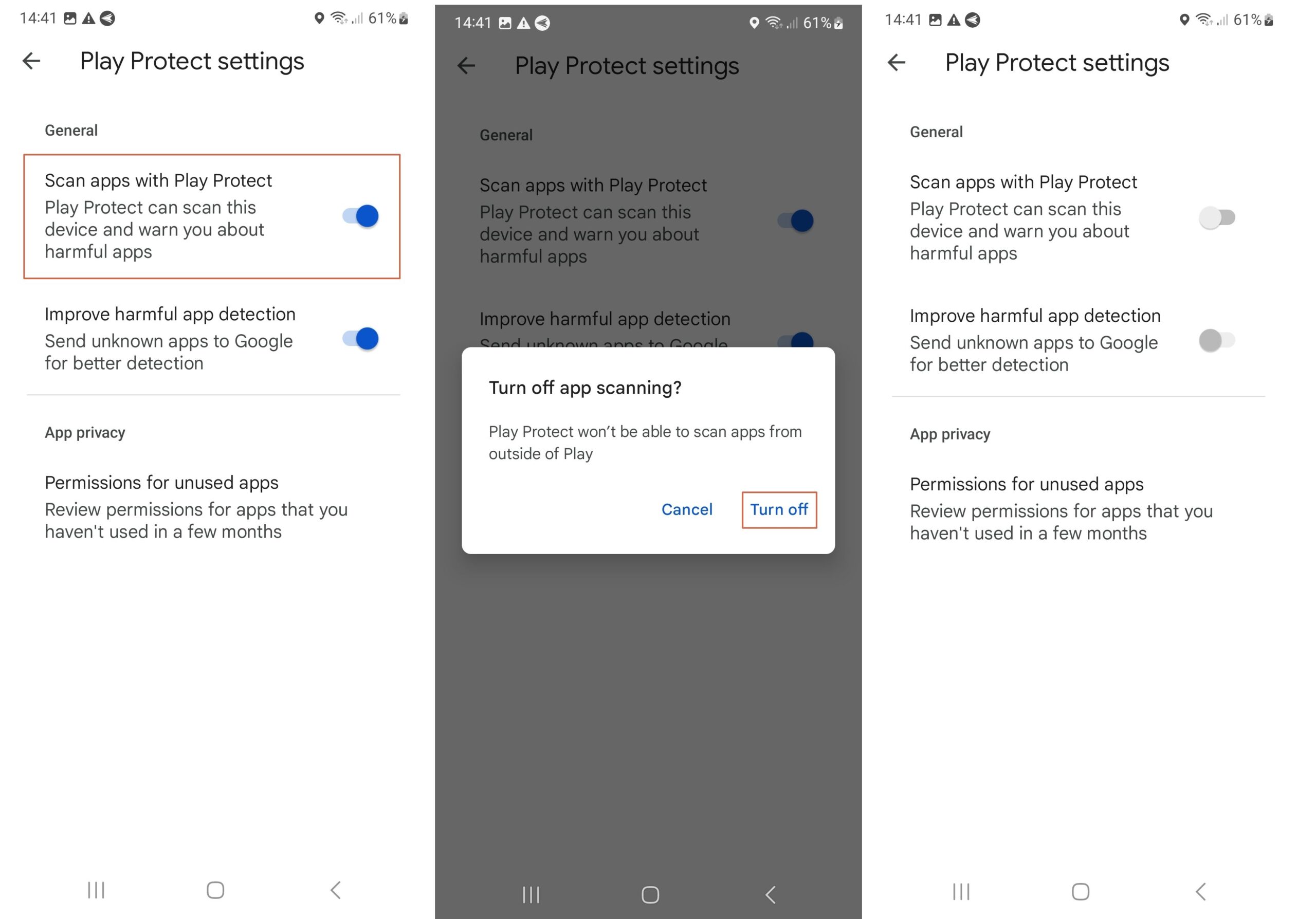
- Toggle Scans: You will see the option "Scan apps with Play Protect." Toggle the switch to "Off."
- Confirm Selection: A prompt will appear warning you about the risks associated with disabling this service. Confirm your decision by tapping "Turn off."
Once these steps are completed, the device will no longer automatically scan your apps. You may notice a notification in your notification tray or within the Play Store indicating that your device is currently "unprotected."
Comparative Analysis of Protection States
Understanding the difference between active and inactive protection states helps in evaluating the security posture of your device. The table below outlines the functionality changes when the service is toggled off.
| Feature | Active State | Disabled State |
|---|---|---|
| Real-time App Scanning | Enabled: Ongoing protection | Disabled: Manual check required |
| Sideloaded App Verification | Verified against cloud database | Bypassed: User assumes all risk |
| Malware Removal | Automatic quarantine/deletion | No automatic intervention |
| Security Alerts | Provided when threats are detected | Suppressed |
| System Reporting | Periodically shares data with Google | Data sharing reduced |
Common Troubleshooting and Considerations
If you find that your device is still flagging applications despite disabling Google Play Protect, there may be other security layers active on your system. Many manufacturers include proprietary security software, such as Samsung’s Knox or specialized device health features from other OEMs.
- Check for Manufacturer-Specific Security: Some devices include separate "Device Care" or "Security" apps that function independently of Google Play Protect. Check your device settings under "Security" or "Apps" to see if a secondary scanner is enabled.
- Persistent Notifications: If you disable Play Protect, your device may periodically show a notification suggesting you turn it back on. This is a default behavior designed to prevent users from leaving their devices permanently exposed to threats.
- Temporary Disabling: For most users, the most secure workflow involves disabling the scanner only for the duration of a specific file installation or developer debug session, then returning to the settings menu to toggle it back to the "On" position.
Frequently Asked Questions
Will disabling Google Play Protect remove the apps currently on my phone?
No. Disabling the service stops the active scanning of apps. It does not initiate the removal of existing applications. However, if you disable the service, the system will lose the ability to identify or neutralize any malicious behavior that may arise in your existing apps later.
Does this action affect my Google account status?
No. Modifying local device settings for Play Protect does not negatively impact your Google account standing. It is a local device-side preference. You remain in compliance with Google Play's standard terms of service by having the option to manage your security features.
Why does the option to toggle Play Protect sometimes appear greyed out?
In enterprise or managed environments, such as company-issued phones or devices enrolled in Mobile Device Management (MDM) software, security settings are often locked by an administrator. If you cannot change the setting, your organization’s security policy likely mandates that Google Play Protect remains active at all times.
Is it safe to leave Play Protect off permanently?
It is strongly recommended to keep Google Play Protect enabled. Permanently disabling it exposes the device to unverified app installations and potential security breaches that can lead to financial loss, identity theft, or unauthorized data surveillance.
How do I know if a sideloaded app is safe if I have disabled the scanner?
Without Play Protect, you are solely responsible for verifying the safety of any file. Only download software from official developer websites, verify the file's digital signature where possible, and avoid applications that demand excessive permissions (e.g., access to contacts, SMS, or banking credentials) without a clear functional reason.
Final Recommendation
Managing Google Play Protect should be treated as an exception rather than a standard operational practice. If your goal is to sideload an application, ensure the APK file originates from a trusted, verified source before disabling the security scanner. Once the installation is complete, navigate back to the Play Store security dashboard and re-enable "Scan apps with Play Protect" immediately. This approach allows you to achieve your technical objectives while maintaining the core security integrity of your mobile environment.
Image Gallery