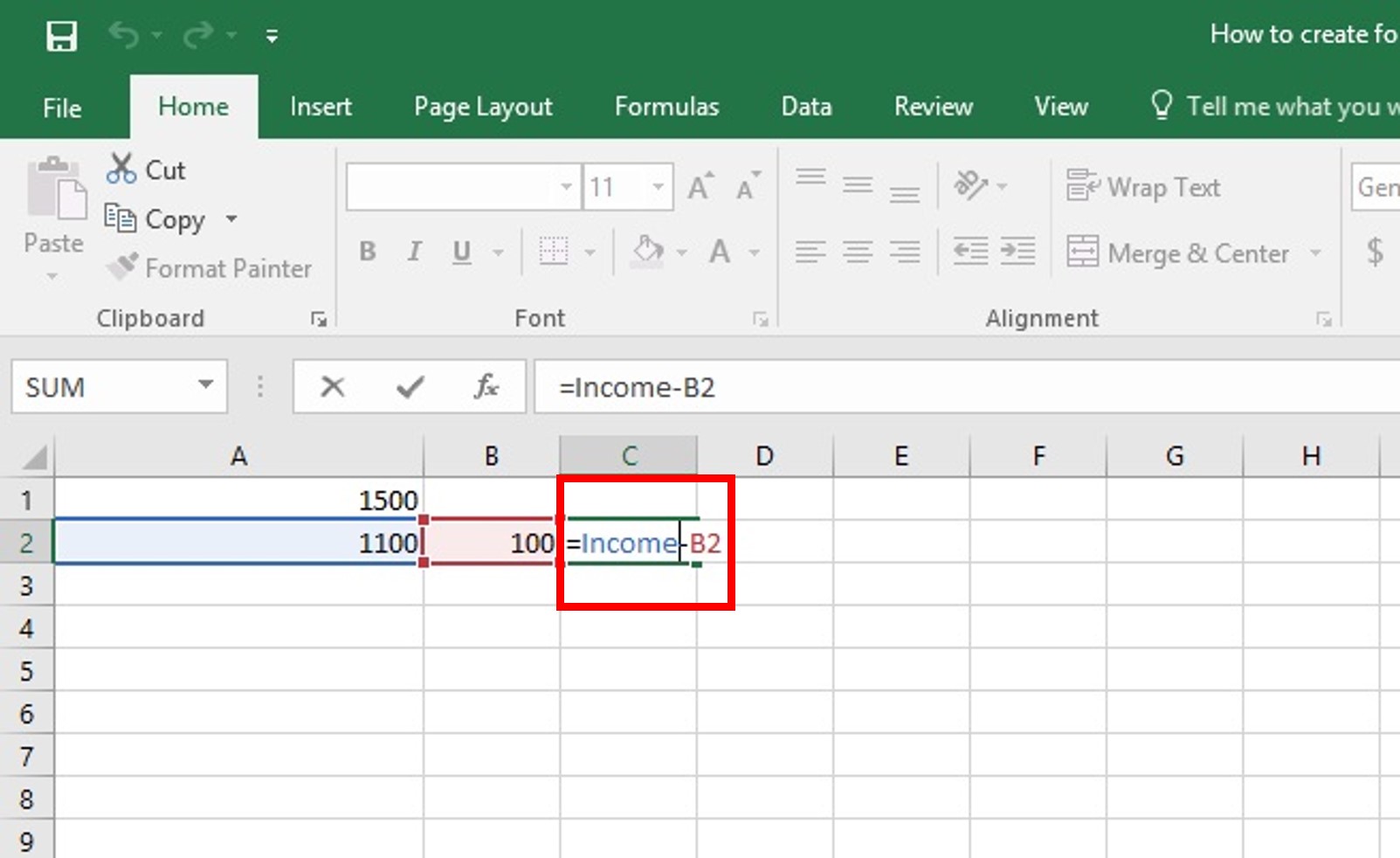
What Is the Formula for Adding in Excel
The standard formula for adding numbers in Microsoft Excel is the SUM function, written as =SUM(range), or by using the plus sign operator, such as =A1+A2. These methods allow users to sum individual cells, entire rows, columns, or non...
The standard formula for adding numbers in Microsoft Excel is the SUM function, written as =SUM(range), or by using the plus sign operator, such as =A1+A2. These methods allow users to sum individual cells, entire rows, columns, or non-contiguous data ranges efficiently.
Contents
Microsoft Excel remains the ubiquitous tool for data organization, financial modeling, and administrative tracking across global enterprises and personal workflows. Central to its daily utility is the fundamental operation of addition. Whether calculating monthly expenditures, aggregating quarterly sales, or totaling inventory items, knowing how to add numbers correctly forms the cornerstone of effective spreadsheet management. This guide explores the foundational mechanics of Excel addition, ranging from basic arithmetic operators to advanced conditional functions, equipping you with the technical depth required for robust data analysis.
Understanding the Basics of Excel Formulas
Every calculation in Microsoft Excel begins with an equals sign (=). This foundational rule tells the software that the subsequent characters constitute a formula or function rather than ordinary text. When you omit the equals sign, Excel simply displays the literal string of characters, rendering data processing impossible.
Once the equals sign is established, Excel interprets the following input according to standard mathematical order of operations. Users can perform direct arithmetic using numbers, cell references, or a hybrid of both.
Using Arithmetic Operators
The most straightforward way to add two or more numbers in Excel is by using the plus sign (+) operator. This approach mirrors manual calculation on a standard calculator. For instance, entering =5+5 into a cell and pressing Enter returns 10. However, hardcoding static numbers inside formulas limits flexibility because the output does not update if the underlying data changes.
To leverage the dynamic capabilities of a spreadsheet, users substitute static numbers with cell references. A cell reference points to the location of data within the grid, such as A1, B2, or C10.
=A1+B1
When you enter =A1+B1 into cell C1, Excel calculates the sum of whatever values currently reside in A1 and B1. If you subsequently modify the value in A1, the value in C1 updates automatically. This dynamic recalculation is the primary advantage of spreadsheet architecture over traditional paper ledgers.
The Standard Addition Formula: The SUM Function
While the plus operator works efficiently for two or three cells, it becomes cumbersome and error-prone when dealing with long columns or rows of data. Writing =A1+A2+A3+A4+A5+A6+A7+A8+A9+A10 is inefficient and difficult to audit. To solve this, Microsoft Excel provides the SUM function.
The SUM function is a built-in mathematical formula designed to add all numbers specified within its arguments. The standard syntax is:
=SUM(number1, [number2], ...)
The arguments can be individual numbers, cell references, ranges, or a combination of these elements. A range is designated by a colon (:) separating the starting cell from the ending cell.
Adding a Column or Row Range
To add an entire continuous range of cells, such as cells A1 through A10, you supply the range directly to the SUM function.
=SUM(A1:A10)
This single expression instructs Excel to evaluate all ten cells in column A and calculate their aggregate total. If you insert a new row within the range A1:A10 (for example, by inserting a row at position 5), Excel automatically adjusts the formula to =SUM(A1:A11), preserving data integrity without manual formula rewriting.
Combining Ranges and Individual Cells
The SUM function can accept up to 255 individual arguments in modern versions of Excel. This allows users to combine multiple discrete ranges and individual cells into a single formula.
=SUM(A1:A10, C1:C10, E5)
In this example, Excel sums every cell in the first range, every cell in the second range, and adds the standalone value in cell E5 to the grand total. Arguments are separated by commas.
Comparison of Excel Addition Methods
Choosing the correct addition method depends on the scale and structure of your dataset. The following table compares the primary techniques available in Excel.
| Method | Syntax Example | Best Used For | Scalability | Dynamic Range Adjustment |
|---|---|---|---|---|
| Plus Operator | =A1+B1 |
Adding 2 to 3 specific cells | Low (unusable for large sets) | Manual update required |
| SUM Function (Range) | =SUM(A1:A50) |
Continuous rows or columns | High (handles thousands of rows) | Automatic when inserting rows |
| SUM Function (Multiple) | =SUM(A1:A10, C1:C10) |
Discontiguous data sets | Medium | Automatic within ranges |
| AutoSum Shortcut | Alt + = |
Rapid entry of standard totals | High | Automatic detection |
Speeding Up Data Entry with AutoSum
For users seeking maximum efficiency, Microsoft Excel provides a dedicated shortcut and ribbon button known as AutoSum. This feature automatically writes the SUM formula for you by scanning adjacent cells for numeric data.
To use AutoSum via the ribbon interface:
- Click the empty cell directly below a column of numbers or immediately to the right of a row of numbers.
- Navigate to the Home tab or the Formulas tab on the ribbon.
- Click the AutoSum button (marked with the Greek letter Sigma: $\sum$).
- Press Enter to confirm the automatically generated formula.
Alternatively, you can use the keyboard shortcut Alt + = on Windows or Command + Shift + T on macOS while selecting the target cell. Excel intelligently detects the data block, inserts the SUM function, and highlights the referenced range for your verification.
Advanced Addition: Conditional Sums and Criteria
Standard addition sums all numeric values in a given range indiscriminately. However, business and data analysis tasks frequently require adding only those numbers that meet specific criteria. For example, you may need to total only the sales figures associated with a specific region or sum expenses that exceed a defined threshold.
Using SUMIF for Single Criteria
The SUMIF function evaluates a single range against a specified condition and sums the corresponding values in another (or the same) range. Its syntax is:
=SUMIF(range, criteria, [sum_range])
- range: The group of cells evaluated by the criteria.
- criteria: The condition that must be met (e.g.,
">100","North", or a cell reference likeF1). - sum_range: The actual cells to add. If omitted, Excel sums the cells specified in the first range argument.
For example, to sum all sales in column B where the corresponding department in column A equals "Marketing," use:
=SUMIF(A1:A100, "Marketing", B1:B100)
Using SUMIFS for Multiple Criteria
When data requires filtering across multiple conditions simultaneously, the SUMIFS function is deployed. Unlike its predecessor, SUMIFS places the sum range first in the argument sequence:
=SUMIFS(sum_range, criteria_range1, criteria1, [criteria_range2, criteria2], ...)
This structure supports up to 127 criteria range/criteria pairs, enabling complex financial modeling, project accounting, and multi-variable data auditing.
Common Mistakes and Troubleshooting
When formulating addition equations in Excel, users occasionally encounter errors or unexpected outputs. Understanding these pitfalls ensures rapid resolution.
The Value Error (#VALUE!)
The #VALUE! error occurs when an addition formula attempts to process text strings instead of numbers using the plus operator (e.g., =A1+A2 where A1 contains text). Note that the standard SUM function ignores text strings within ranges, treating them as zero, whereas direct arithmetic operators (+) throw an error. Ensure all referenced cells contain valid numeric data.
Numbers Stored as Text
Importing data from external databases, CSV files, or web pages frequently results in numbers formatted as text. These values align to the left of the cell by default and often display a small green triangle in the upper-left corner. While the SUM function safely ignores text, direct addition operators fail or miscalculate. To fix this, select the affected cells, click the yellow warning indicator, and select Convert to Text.
Unintentional Circular References
A circular reference occurs when a formula explicitly or implicitly refers back to its own cell container. For instance, placing =SUM(A1:A10) inside cell A10 creates an infinite calculation loop. Excel issues a warning dialog box when a circular reference is detected, and the status bar displays a circular reference notification alongside the cell coordinates.
Frequently Asked Questions
What is the keyboard shortcut to sum a column in Excel?
The fastest keyboard shortcut to insert a total sum is Alt + = on Windows systems or Command + Shift + T on macOS. Selecting the empty cell directly beneath a column of numbers and pressing these keys automatically generates and applies the =SUM() formula.
Why does my Excel addition formula show the formula instead of the answer?
This issue typically occurs because the cell is formatted as Text rather than General or Number, or because Excel's formula display mode is toggled on. To fix cell formatting, change the format in the Home tab number group, press F2, and then press Enter. To disable formula display mode globally, press Control + ` (grave accent).
Can I add numbers across multiple different worksheets?
Yes. Excel allows 3D referencing to sum identical cell locations across multiple worksheets. For example, =SUM(Sheet1:Sheet3!A1) adds the values in cell A1 across Sheet1, Sheet2, and Sheet3, along with any intermediate sheets in that workbook range.
Does the SUM function ignore hidden rows or blank cells?
The standard SUM function ignores blank cells and treats text strings as zero. However, it does not ignore hidden rows resulting from manual hiding or filters; hidden values are still included in the total. To sum only visible rows, utilize the SUBTOTAL function with function number 9 or 109.
What is the maximum number of arguments a SUM function can accept?
In modern versions of Microsoft Excel, a single SUM function can accept up to 255 individual arguments, which can span massive multi-cell ranges containing millions of individual data points.
Conclusion and Next Actions
Mastering the mechanics of addition in Excel—from straightforward cell references and the versatile SUM function to conditional formulas like SUMIF—provides an essential foundation for effective data management. To reinforce these skills, open an existing spreadsheet, practice deploying the AutoSum shortcut on a numeric column, and experiment with range-based formulas to observe dynamic recalculation in real time.
Image Gallery