Norton Cloud Backup and Security: A Complete Guide to Data Protection in 2026
Norton Cloud Backup is a core component of the Norton 360 security suite designed to protect critical data against loss due to ransomware, hardware failure, or device theft. By automatically syncing selected folders to secure, encrypte...
Norton Cloud Backup is a core component of the Norton 360 security suite designed to protect critical data against loss due to ransomware, hardware failure, or device theft. By automatically syncing selected folders to secure, encrypted remote servers, it provides a secondary layer of defense that ensures your most important documents, photos, and financial records remain recoverable even if your local hardware is compromised.
Contents
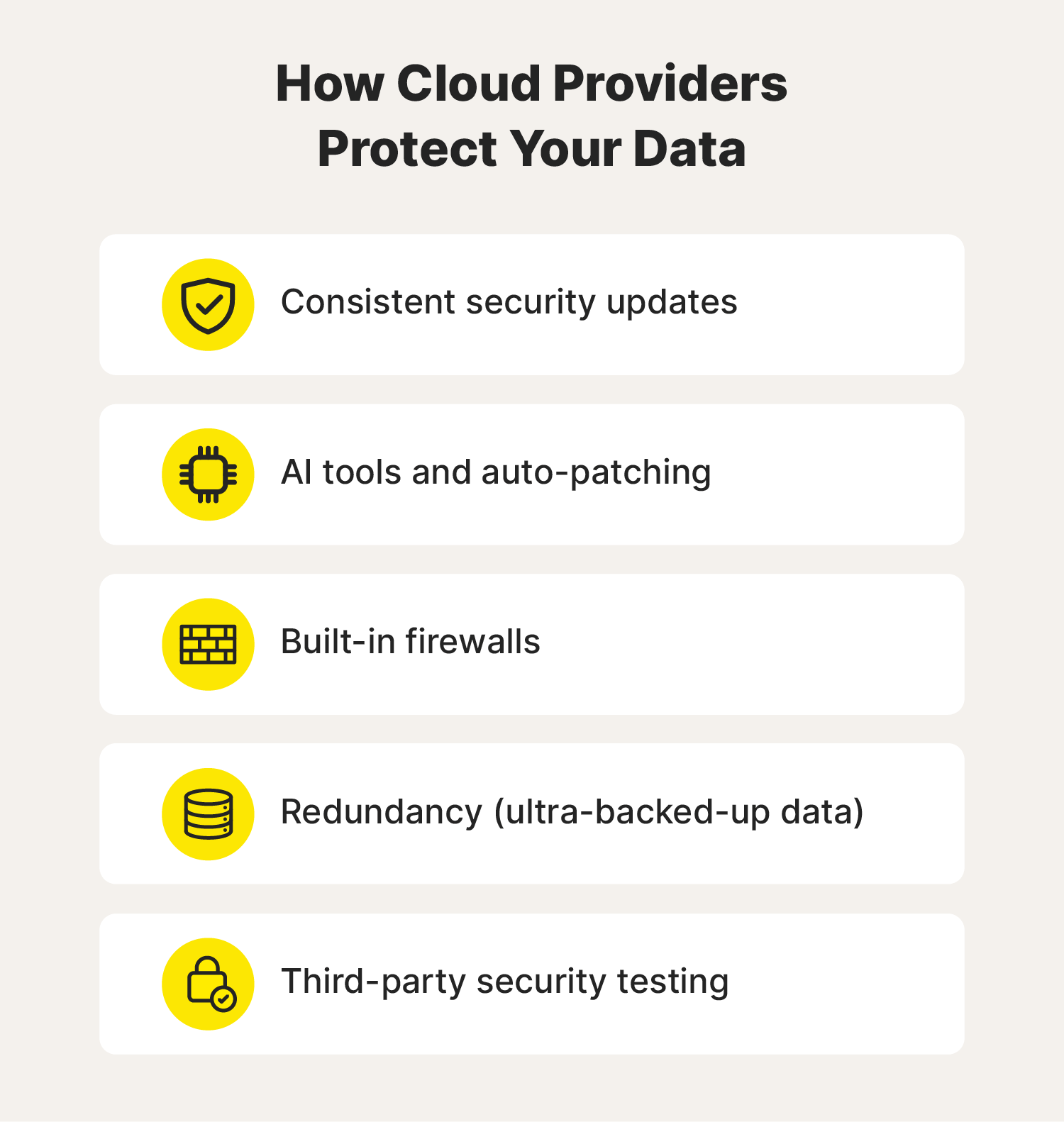
The landscape of personal cybersecurity in 2026 has shifted from simple virus scanning to comprehensive digital identity and data protection. While antivirus software blocks incoming threats, cloud backup serves as the ultimate safety net for when a threat—or a simple hardware malfunction—succeeds. Norton’s integration of cloud storage directly into its security dashboard simplifies what used to be a complex manual process, making enterprise-grade redundancy accessible to home users and small businesses alike.
The Role of Cloud Backup in Modern Cybersecurity
In 2026, the primary threat to data is no longer just the deletion of files, but their incarceration. Ransomware-as-a-Service (RaaS) has become more sophisticated, often targeting local backup drives connected to a network. Norton Cloud Backup addresses this by maintaining "air-gapped" versions of your data in a secure cloud environment that is not mapped as a local drive letter, making it much harder for automated malware to encrypt your backups.
Furthermore, the physical reliability of Solid State Drives (SSDs) and NVMe storage, while high, is not absolute. When these drives fail, data recovery is often impossible or prohibitively expensive. Norton’s solution follows the industry-standard 3-2-1 backup strategy: keep three copies of your data, on two different media types, with one copy stored off-site. By using Norton Cloud Backup, you satisfy the "off-site" and "different media" requirements automatically.
Integration with Norton 360 Suites
It is important to clarify that "Norton Security" as a standalone name has largely been superseded by the "Norton 360" branding. The cloud backup feature is not sold as a separate product but is tiered based on the specific Norton 360 plan you choose. The amount of storage allocated is the primary differentiator between these tiers, ranging from basic protection for a single PC to massive storage pools for entire households.
Key Features and Technical Specifications
Norton’s backup solution is built on a framework of automation and security. Unlike generic cloud storage services like Dropbox or Google Drive, which are designed for file sharing and collaboration, Norton Cloud Backup is optimized specifically for disaster recovery.
1. Automated Scheduling and Smart Monitoring
The software monitors your files for changes. You can configure it to run backups during "idle time," ensuring that the process does not consume CPU resources or upload bandwidth while you are actively using the computer for gaming, video conferencing, or work.
2. End-to-End Encryption
Data is encrypted locally before it ever leaves your machine using AES-256 bit encryption. It remains encrypted during transit and while at rest on Norton’s servers. This ensures that even in the unlikely event of a server-side breach, your personal files remain unreadable to unauthorized parties.
3. Versioning and File Retention
One of the most critical features in 2026 is versioning. If a file becomes corrupted or you accidentally save unwanted changes, Norton allows you to revert to previous versions of that file. This is particularly useful for protecting against "slow-burn" ransomware that encrypts files over time rather than all at once.
4. Selective File Categorization
Norton uses "Backup Sets" to simplify the selection process. Instead of hunting through file paths, you can tell Norton to back up all "Office Documents," "Pictures," or "Financial Files." The software then scans the entire drive to find files matching those signatures.
Comparing Norton 360 Plans and Storage Capacities
Choosing the right plan depends on the volume of data you need to protect. As of 2026, the storage tiers have been adjusted to reflect the larger file sizes of high-resolution media and complex applications.
| Plan Tier | Cloud Storage Capacity | Best For | Device Limit |
|---|---|---|---|
| Norton 360 Standard | 2GB - 10GB | Essential documents and schoolwork | 1 Device |
| Norton 360 Deluxe | 50GB | General household use and photo libraries | Up to 5 Devices |
| Norton 360 Premium | 100GB | Power users with significant media collections | Up to 10 Devices |
| Norton 360 Select + Lifelock | 250GB - 500GB | Small business owners and extensive archival needs | Unlimited* |
Note: Unlimited device plans often have "fair use" policies or specific per-platform limits.
Step-by-Step: Setting Up Norton Cloud Backup
Configuring your backup for the first time is a critical task. Follow these steps to ensure your data is correctly protected.
Step 1: Accessing the Backup Dashboard
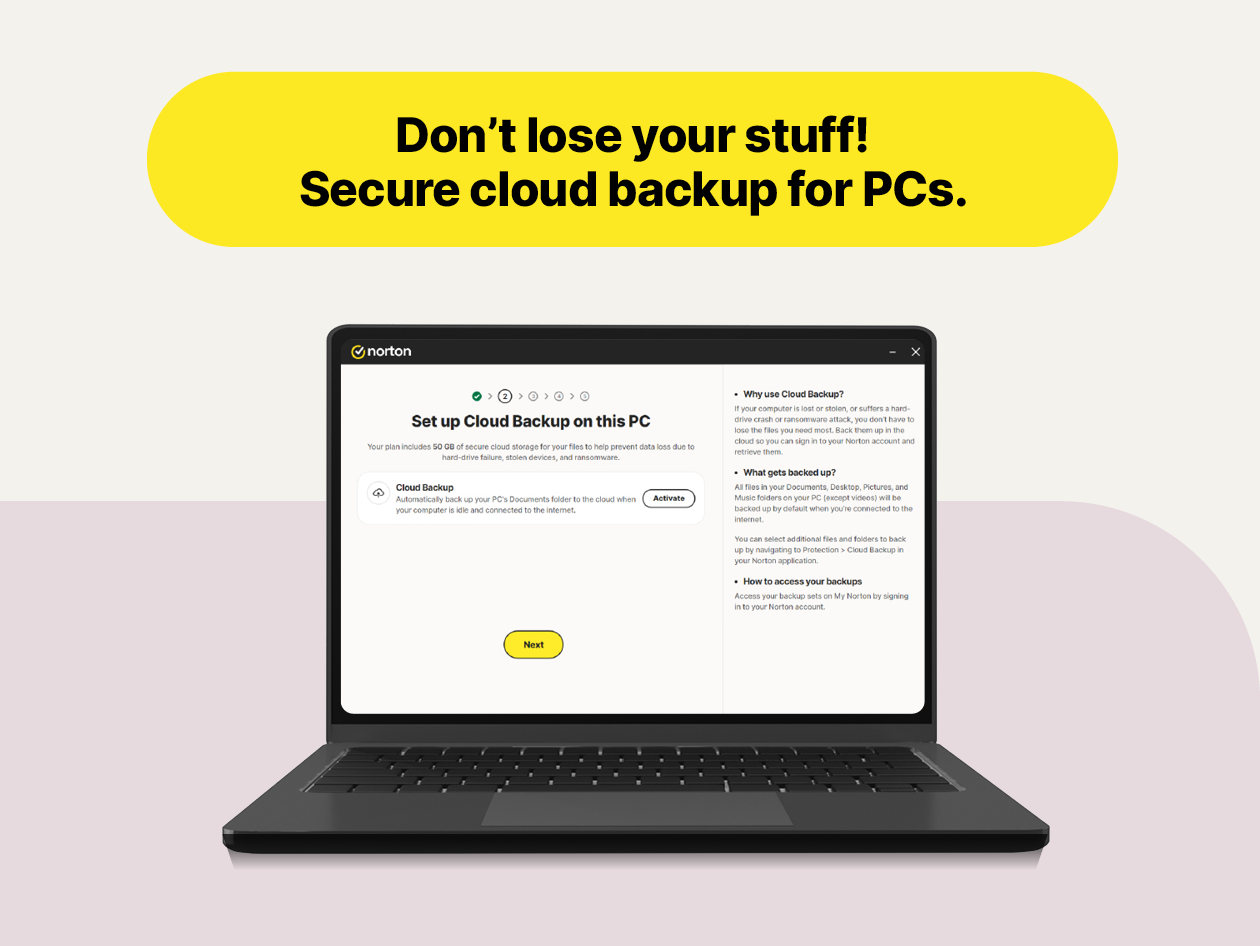
Open the Norton 360 interface. On the main "My Norton" screen, you will see a tile labeled Cloud Backup. Click the down arrow or the "Set Up" link to begin.
Step 2: Creating a Backup Set
A "Backup Set" is a group of rules that tells Norton what to back up and where.
- What: Select the file types. By default, Norton selects common categories like Documents and Pictures. You can click "Add or exclude files and folders" to pick specific directories (e.g., a specific folder for a tax project).
- Where: Ensure "Cloud Backup" is selected as the destination. While Norton can back up to local external drives, the Cloud option provides the necessary off-site protection.
- When: Choose "Weekly," "Daily," or the recommended "Automatic." The Automatic setting triggers the backup whenever the computer is idle and plugged into power.
Step 3: Running the Initial Backup
The first backup will always take the longest, as Norton must upload every selected file to the cloud. Depending on your internet upload speed and the amount of data (e.g., 50GB of photos), this could take several hours or even days. Once the initial "seed" is complete, subsequent backups only upload the changes (delta-incremental backups), which are much faster.
Restoring Files: The Recovery Process
A backup is only as good as its restore process. Norton provides two primary ways to retrieve your data if your computer fails or you lose a file.
Restoration via the Norton Client
If you are on your original computer or a new computer with Norton installed:
- Open Norton 360 and go to the Backup section.
- Select Restore Files.
- Choose the Backup Set you wish to restore from.
- You can choose to restore "All Files" or browse for specific items.
- Select the destination (original location or a new folder).
Restoration via the Web Portal
If you do not have your computer (e.g., it was stolen) and you need a specific document urgently:
- Log into the Norton My Account portal from any web browser.
- Navigate to the Cloud Backup section.
- Browse your backed-up folders and download individual files directly to the device you are currently using. This is highly effective for accessing critical travel documents or work files while on the go.
Common Troubleshooting and Optimization
Even with automated systems, issues can arise. Here are the most common challenges users face in 2026.
- Backup Failure Due to "Low Disk Space": Norton requires a small amount of local "staging" space to compress and encrypt files before uploading. If your primary C: drive is completely full, the backup may fail.
- Throttled Upload Speeds: Many Internet Service Providers (ISPs) offer high download speeds but very low upload speeds. If your backup seems stuck, check your internet's upload bandwidth. You may need to schedule backups for overnight hours.
- Files Not Updating: If a file is currently open in another program (like an active Excel spreadsheet), Norton may not be able to back it up until the file is closed. Ensure you close your work at the end of the day to allow the "Idle" backup to trigger.
- Storage Limit Reached: If you hit your 50GB or 100GB limit, Norton will stop backing up new files. You will receive a notification to either purge old backup sets or upgrade your subscription for more space.
Comparison: Norton Cloud Backup vs. Standard Cloud Storage
It is a common mistake to assume that OneDrive or iCloud replaces the need for Norton Cloud Backup. While they share the "cloud" name, their purposes differ significantly.
Standard Cloud Storage (OneDrive/Google Drive):
- Purpose: Synchronization and collaboration.
- Risk: If ransomware encrypts a file in your local OneDrive folder, the encrypted (corrupted) version is immediately synced to the cloud, potentially overwriting your good copy.
- Retention: Often limited version history unless you pay for premium business tiers.
Norton Cloud Backup:
- Purpose: Disaster recovery and archival.
- Security: Uses a "pull/push" mechanism that is less susceptible to immediate synchronization of corrupted data.
- Versioning: Built-in ability to roll back to a known-good state before an infection occurred.
Frequently Asked Questions
Can I back up my smartphone photos to Norton Cloud Backup?
While Norton 360 offers mobile security for Android and iOS, the specific "Cloud Backup" feature is primarily managed through the Windows client. However, you can access and view your backed-up PC files from your mobile device via the Norton portal. For mobile photo backup, most users still rely on OS-native services (iCloud/Google Photos) while using Norton to secure the device itself.
Does Norton Cloud Backup work on macOS?
Historically, Norton's Cloud Backup tool has been a Windows-specific feature. While Norton provides antivirus and firewall protection for macOS, Mac users are generally encouraged to use Time Machine for local backups and Apple's integrated cloud services, though they can still access their Norton Windows backups via the web portal on a Mac.
What happens to my data if I cancel my Norton subscription?
If your subscription expires or is canceled, Norton typically provides a grace period (often 30 to 60 days) during which your data is kept on their servers. After this period, the data is permanently deleted to comply with privacy regulations and free up server space. Always ensure you have a local copy of your data before ending your service.
Is there a limit to the size of an individual file?
Norton is designed for documents and media. While there isn't a strict "small" limit, extremely large files (such as 100GB virtual machine images or raw 8K video projects) may struggle to upload on standard home internet connections and could quickly exhaust your storage quota.
Does the backup include my operating system and apps?
No. Norton Cloud Backup is a file-level backup, not a "system image" or "disk clone." It backs up your data (photos, docs, videos) but not the Windows operating system or the programs themselves. If your drive fails, you would need to reinstall Windows and your apps, then use Norton to restore your personal files.
Summary and Next Actions
Norton Cloud Backup provides a vital safety net in an era where data is often more valuable than the hardware it resides on. By integrating backup directly into the security suite, Norton ensures that protection is not just about keeping threats out, but about ensuring resilience when things go wrong.
To get started:
- Verify your current Norton 360 plan to see your available storage.
- Open the Norton 360 app and configure your first Backup Set.
- Prioritize your "User" folders (Documents, Pictures, Desktop) to ensure maximum protection of your unique data.
- Perform a test restore of a single file once a month to ensure you are familiar with the process before an emergency occurs.
Image Gallery