How to Change Your Gender on Roblox: Account Settings and Avatar Customization Guide
To change your gender on Roblox, open your Account Settings by clicking the Gear icon, navigate to the Account Info tab, scroll to the Personal section, and select your preferred gender icon. To change your avatar's physical gender pre...
To change your gender on Roblox, open your Account Settings by clicking the Gear icon, navigate to the Account Info tab, scroll to the Personal section, and select your preferred gender icon. To change your avatar's physical gender presentation, enter the Avatar Editor to swap your character bundles, body scales, torso meshes, and layered clothing.
Contents
Account Setting vs. Avatar Appearance Changing your gender icon inside Account Settings does not automatically alter your 3D avatar in games. Account settings control internal account categorization and recommendation algorithms, whereas the Avatar Editor dictates how your character appears to other players across the platform.
Understanding Roblox Account Gender vs. Avatar Presentation
Navigating identity settings on Roblox requires understanding the distinction between internal account metadata and in-game visual representation. When players ask how to switch gender on the platform, they usually want to accomplish one of two goals: update their profile's back-end demographic setting, or redesign their visual avatar to look masculine, feminine, or gender-neutral.
Roblox handles these two elements through separate platform systems:
- Account Information Settings: Located within your user dashboard, this menu stores profile data including your birthday, language, location, and account gender toggle. Historically represented by standard binary icons, this setting informs system preferences, marketing metrics, and default package assignments when new accounts are provisioned.
- The Universal Avatar Customization Engine: Located in the Avatar Editor, this tool controls your actual 3D character model. Roblox utilizes modular character skeletons—specifically the classic R6 framework and the modern R15 articulation standard—paired with dynamic heads, body bundles, skin tones, and layered clothing. Modifying this visual identity requires adjusting 3D meshes rather than toggling a single profile switch.
Step-by-Step: Changing Your Gender in Roblox Account Settings
Updating your internal account gender can be completed through any standard desktop web browser or the official Roblox mobile application on iOS and Android.
On Desktop (Web Browser)
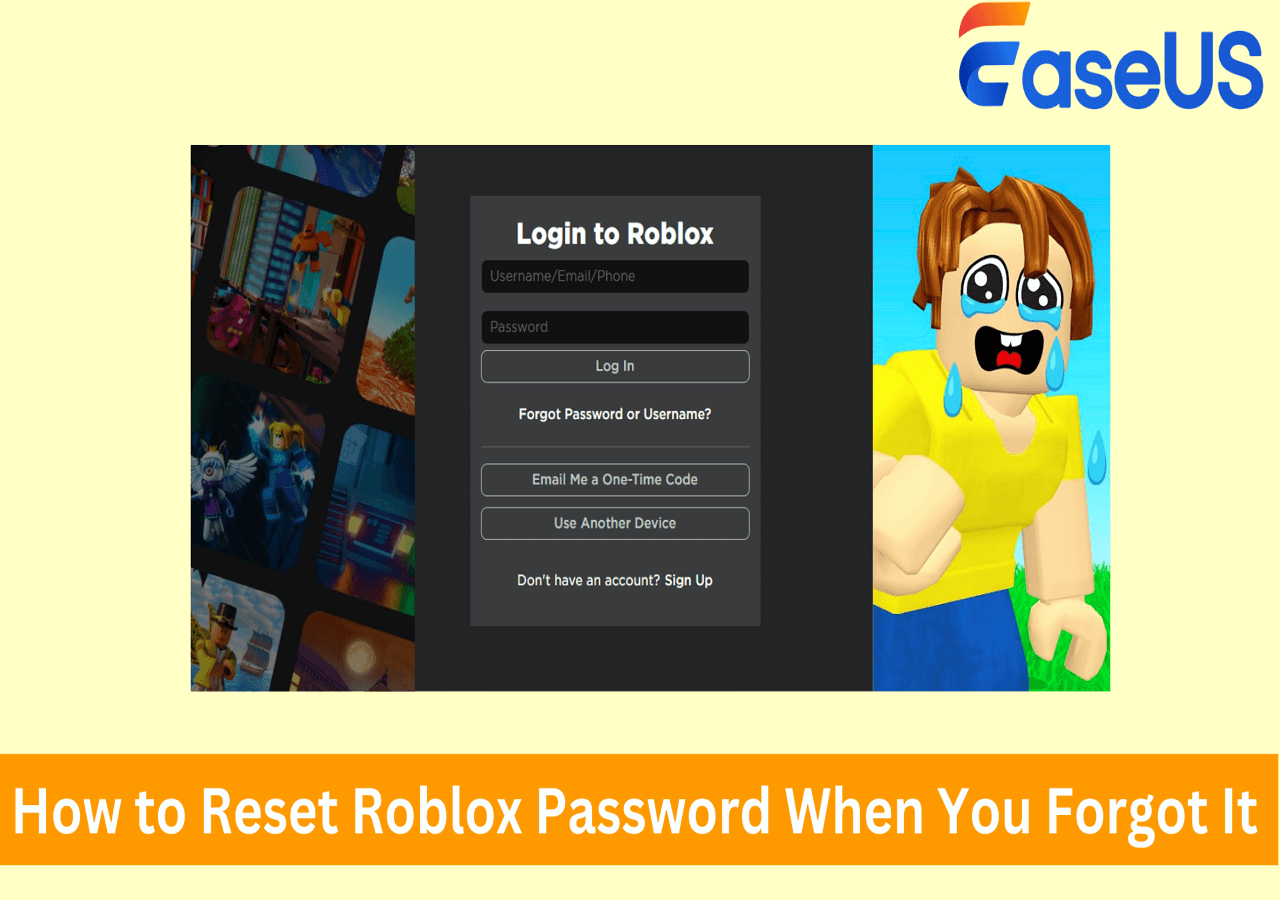
- Navigate to the official Roblox Home page and log in to your account.
- Click the Gear icon in the upper-right corner of the screen to open the platform navigation menu.
- Select Settings from the drop-down menu. This will open the Account Info page by default.
- Scroll down to the Personal details section, situated directly below the birthdate fields.
- Locate the Gender selector. You will see icons representing male, female, or unselected.
- Click your preferred icon. A pop-up confirmation or an automatic green banner will verify that your preferences have saved.
On Mobile (iOS and Android)
- Open the Roblox App on your smartphone or tablet.
- Tap the More icon (three dots inside a circle) located in the bottom-right navigation bar.
- Scroll down the menu list and tap Settings.
- Tap Account Info at the top of the settings directory.
- Scroll down to the Personal category.
- Tap the desired gender icon to apply your selection instantly.
Note: If your account has parental controls or age verification restrictions applied via Roblox Identity Verification, certain personal data fields may be locked or require a parent PIN to modify.
(Formatted as narrative/blockquote per guidelines:)
Parental Controls and Restricted Settings If your account operates under a Parent PIN or specific family safety restrictions, personal information fields may appear locked or grayed out. You must enter the four-digit Account PIN under the Parental Controls tab to unlock the Personal settings interface before changes can be saved.
How to Change Your In-Game Avatar Gender Presentation
Changing the toggle in your account settings does not automatically modify your 3D character in experiences. If you want your avatar to switch between male, female, or non-binary appearances, you must configure your body parts, packages, and clothing within the Avatar Editor.
1. Swapping Avatar Bundles and Character Packages
Roblox characters are built around base packages. The platform provides several free base character models, including classic packages such as the standard Roblox Boy, Roblox Girl, Man, and Woman bundles.
To equip a different base package:
- Open the navigation menu and select Avatar (on browser) or tap your Avatar Profile picture in the bottom navigation bar (on mobile).
- Navigate to Characters and click on the Purchased or Creations tab.
- Select an alternate character base. Equipping the Woman or Roblox Girl package instantly alters the torso, arms, and legs to standard feminine proportions, while equipping the Man or Roblox Boy package applies masculine proportions.
2. Modifying Body Parts and Skeletal Mesh
If you prefer custom proportions rather than a pre-built character package, you can manually swap individual body elements:
- Go to the Head & Body category within the Avatar Editor.
- Select Torso to choose between curved, athletic, blocky, or streamlined chest meshes.
- Select Left Arm, Right Arm, Left Leg, and Right Leg to mix and match limbs. Standard classic square limbs (R6 blocky) are entirely neutral, whereas R15 packages provide sculpted anatomical silhouettes.
- Adjust the Scale sliders under the Head & Body > Scale menu. You can modify Body Type, Height, Width, Head Size, and Proportions to fine-tune your avatar's silhouette.
3. Updating Layered Clothing and Classic Apparel
Roblox uses a layered clothing system that adapts 3D garments to fit any body type automatically, eliminating clipping across different skeletal meshes:
- Open the Clothing tab.
- Swap standard tops, jackets, sweaters, pants, and dresses according to your stylistic preferences.
- Remove gender-coded accessories such as stylized facial hair, long eyelashes, or specific dynamic makeup heads if shifting toward an opposing or neutral aesthetic.
Technical Comparison: Roblox Account Settings vs. Avatar Configuration
| Operational Feature | Account Info Gender Setting | Avatar Editor Configuration |
|---|---|---|
| Primary System Purpose | User demographic metrics, platform algorithms | 3D in-game character visual appearance |
| Visible to Other Players | No (Kept private within user backend) | Yes (Rendered across all public experiences) |
| Cost to Modify | Completely free (0 Robux) | Free base options; premium cosmetics cost Robux |
| Mechanical In-Game Impact | None | Changes collision hitboxes slightly on custom rigs |
| Supported Formats | Account Info toggle interface | R6 Classic, R15 Articulated, Layered 3D Assets |
| Reversibility | Instant toggle via Account Info | Instant switch via saved Custom Outfits |
| Authentication Dependency | May require Parent PIN if controls are active | Independent of PIN settings |
Switching Between R6 and R15 Systems for Gender Presentation
The rigging standard you select dramatically impacts how masculine, feminine, or neutral your avatar appears. Roblox supports two primary animation rigs: the legacy R6 framework and the modern R15 framework.
The R6 System
The R6 system connects the avatar using six fixed body parts: head, torso, two arms, and two legs. R6 avatars do not feature bending elbows or knees.
- Aesthetic Result: R6 provides the classic, boxy aesthetic. Because the meshes are primarily rectangular blocks, R6 avatars are fundamentally gender-neutral until classic 2D shirts, pants, or t-shirts are applied.
- Compatibility: Highly favored in competitive obstacle courses (obbys) and legacy combat experiences due to consistent, predictable collision physics.
The R15 System
The R15 system divides the avatar into fifteen distinct articulating joints.
- Aesthetic Result: R15 allows for expressive movement, dynamic heads, animated faces, and anatomically sculpted body bundles (such as narrow waists, broad shoulders, or muscular definition).
- Layered Clothing Integration: R15 is required for the full functionality of dynamic layered clothing, shoes, and 3D jackets, making it the preferred system for realistic masculine or feminine styling.
To toggle between these rigs:
- Open the Avatar Editor.
- Select Head & Body, then navigate to the Scale tab.
- Scroll to the bottom and locate the Avatar Type toggle.
- Select either R6 or R15. Note that experiences with developer-enforced rig rules may override this selection upon joining.
Troubleshooting Common Issues When Changing Gender Settings
While modifying your gender and appearance on Roblox is straightforward, account locks or rendering bugs can occasionally interfere with the process.
Personal Settings Fail to Save
If your chosen gender icon in the Account Info menu reverts back to blank or an old selection upon refreshing:
- Clear Browser Cache and Cookies: Outdated session cookies can prevent account configuration requests from reaching the server. Clear your browser cache or log out and log back in.
- Disable Third-Party Browser Extensions: Ad-blockers or third-party Roblox extension suites can block API update calls to user settings endpoints.
- Verify Account PIN: Check if a four-digit PIN is active under the Parental Controls tab. If enabled, unlock the session by submitting your PIN before editing demographic details.
In-Game Avatar Does Not Update After Editing
If you redesigned your avatar in the editor but your character appears unchanged inside an experience:
- Server Caching: Active game servers cache your character model at the moment of entry. Leave the current experience and join a new server for your updated asset bundle to load.
- Developer Custom Characters: Some games enforce custom starter characters, uniform scripts, or fixed R6 rigs that deliberately override your profile avatar. Test your avatar inside an open-sandbox title or the default Roblox avatar preview screen to verify asset application.
- Asset Moderation: If you recently purchased third-party user-generated content (UGC) clothing or heads, confirm that the assets have not been moderated or temporarily archived by reviewing your account inventory on Roblox Support.
Frequently Asked Questions
Does changing my gender in account settings change my avatar clothes?
No, toggling your gender in Account Info has no effect on your equipped avatar clothing, bundles, or accessories. The account setting updates internal platform preferences, whereas visual adjustments must be made manually inside the Avatar Editor by equipping different outfits and body parts.
Can I leave my gender selection blank on Roblox?
Yes, Roblox does not require an active gender selection. If you click an active gender icon a second time or leave the field unselected during initial registration, your account will remain neutral with no specified gender attached to your profile data.
Does changing my avatar body type or gender cost Robux?
No, changing your base avatar gender presentation can be done completely free of charge. Roblox provides several default base packages—including the standard Boy, Girl, Man, and Woman bundles—as well as free neutral hairstyles, faces, shirts, and pants in the Avatar Shop catalog.
Why do some games force my avatar to look like a default character?
Certain experiences utilize custom scripts that automatically assign team uniforms, roleplay-specific outfits, or standardized blocky models to ensure fair gameplay. In these games, the developer's custom character rules override whatever model, bundle, or clothing you have equipped in your main Roblox Avatar Editor.
Will changing my gender setting reset my account inventory or friends list?
No, modifying your account gender, birthday, or visual appearance will never reset your game passes, badges, friends list, or inventory. Your purchases and social connections remain permanently tied to your unique user ID regardless of how often you alter your personal info or character aesthetics.
Ensure your profile settings accurately reflect your preferences, and explore the extensive array of free base models and layered clothing in the Roblox Marketplace to design an avatar presentation tailored to your visual identity.
Image Gallery