How to Rotate Rooms in The Sims 4: A Step-by-Step Guide for PC, Mac, and Consoles
To rotate a room in The Sims 4, enter Build Mode, click on the floor or wall of an enclosed room to select it, and click the Rotate icon (curved arrows) on the pop-up contextual menu. Alternatively, press the , (comma) or . (period) ke...
To rotate a room in The Sims 4, enter Build Mode, click on the floor or wall of an enclosed room to select it, and click the Rotate icon (curved arrows) on the pop-up contextual menu. Alternatively, press the , (comma) or . (period) keys on PC/Mac, or press L1/R1 (PlayStation) or LB/RB (Xbox) while holding the room.
Contents
Understanding Room Selection and Mechanics in Build Mode
Building in The Sims 4 relies heavily on a dynamic room-based system. Unlike older iterations of the franchise where individual wall segments were built and manipulated strictly piece-by-piece, The Sims 4 treats fully enclosed wall boundaries, platforms, and predefined shapes as single discrete entities called "rooms." Understanding how the game categorizes these spaces is essential before attempting to move or rotate them.
A space becomes an officially recognized room when its wall nodes connect continuously to enclose an area, or when built using the pre-formed room shape tools (such as the Square Room, L-Shape Room, or Octagon Room tools). Platforms placed on the lot also function as room units even if they lack full-height walls, provided their boundaries define a distinct flat plane.
When you hover over or click inside a valid room, a highlighted outline—the room boundary grid—appears around the exterior walls, accompanied by a central control hub. If a structure does not highlight as a single unit when clicked, The Sims 4 views it as disconnected wall segments rather than a recognized room. In such cases, standard room manipulation tools, including structural rotation, cannot be applied until the perimeter is properly closed.
How to Rotate Rooms on PC and Mac
Rotating a room on PC or Mac can be accomplished using either the graphical user interface (GUI) or dedicated keyboard shortcuts. Both methods operate seamlessly within Build Mode, provided your lot has sufficient grid space to accommodate the reoriented dimensions of the room.
- Select Room
- Click Move Handle / Pick Up
- Press ',' or '.' Key
- Left-Click to Place
Method 1: Using the Contextual User Interface
- Open Build Mode by clicking the hammer and wrench icon in the upper-right corner of the screen or by pressing F3 or B on your keyboard.
- Left-click anywhere on the floor tiles or exterior walls of the room you wish to reorient.
- Observe the operational overlay that appears in the center of the room. This panel contains controls for wall height, platform elevation, and movement.
- Locate the Move Room handle (indicated by a four-directional arrow icon) surrounded by curved rotation arrows.
- Left-click the Rotate Clockwise or Rotate Counter-Clockwise icons to turn the room in 90-degree increments.
- Once the room faces your desired direction, click off the structure or press Esc to confirm placement.
Method 2: Using Keyboard Shortcuts
Keyboard shortcuts offer a faster workflow when designing intricate architectural layouts:
- Select the room by clicking its floor or wall boundary.
- Press the
,(comma) key to rotate the room counter-clockwise by 90 degrees. - Press the
.(period) key to rotate the room clockwise by 90 degrees. - If you have picked up the room using the central move handle, pressing
,or.will turn the entire structure mid-air before you drop it back onto the lot grid.
The Role of Camera Modes (Sims 4 Camera vs. Sims 3 Camera)
Your active camera control scheme can slightly alter how build shortcuts interact with mouse controls:
- Sims 4 Camera (Default): Rotating selected structures relies primarily on the
,and.keys or the UI control wheel. Clicking and holding the right mouse button tilts or pans the camera view independently of the selected object. - Sims 3 Camera: When enabled (via Game Options > Camera Control or Ctrl + Shift + Tab), right-clicking while holding an object or room allows you to rotate the selection by dragging the mouse horizontally. This mode provides smoother visual feedback for players accustomed to legacy controls, though 90-degree grid snapping still governs final room alignment.
How to Rotate Rooms on PlayStation and Xbox
Console players utilizing PlayStation 4, PlayStation 5, Xbox One, or Xbox Series X|S navigate Build Mode through controller shortcuts rather than traditional keyboard layouts.
PlayStation Controls (PS4 / PS5)
- Enter Build Mode using the Touchpad or Options button menu.
- Position the cursor over the desired room using the left analog stick and press the X button to highlight and select the room.
- To lift the room off the grid, press X on the central multi-directional arrow icon.
- While holding the room, press L1 to rotate the room counter-clockwise by 90 degrees.
- Press R1 to rotate the room clockwise by 90 degrees.
- Align the room with the grid and press X to place it on the ground or foundation. Press O (Circle) to cancel the action if needed.
Xbox Controls (Xbox One / Series X|S)
- Enter Build Mode by pressing the Menu button.
- Move the reticle over the room floor or wall boundary and press the A button to select it.
- Select the central move handle with A to pick up the entire structure.
- Press LB (Left Bumper) to rotate the room counter-clockwise.
- Press RB (Right Bumper) to rotate the room clockwise.
- Move the room to the target lot coordinates and press A to confirm placement, or press B to back out.
What Happens to Furniture, Decor, and Architectural Features?
Rotating a room in The Sims 4 does not merely turn the empty shell of four walls; it dynamically reorients all interior components, structural attachments, and surface finishes assigned to that specific space.
| INCLUDED IN ROTATION | POTENTIALLY REMOVED / DISPLACED |
|---|---|
| • Interior Furniture & Appliances | • Overlapping Exterior Roofs |
| • Flooring Patterns & Orientations | • Unenclosed Exterior Porches |
| • Wall-Mounted Art & Shelving | • Wall Items Clipping Adjacent Spaces |
| • Windows & Doors on Perimeter | • Fences Connected to Outer Nodes |
Furniture and Interior Objects
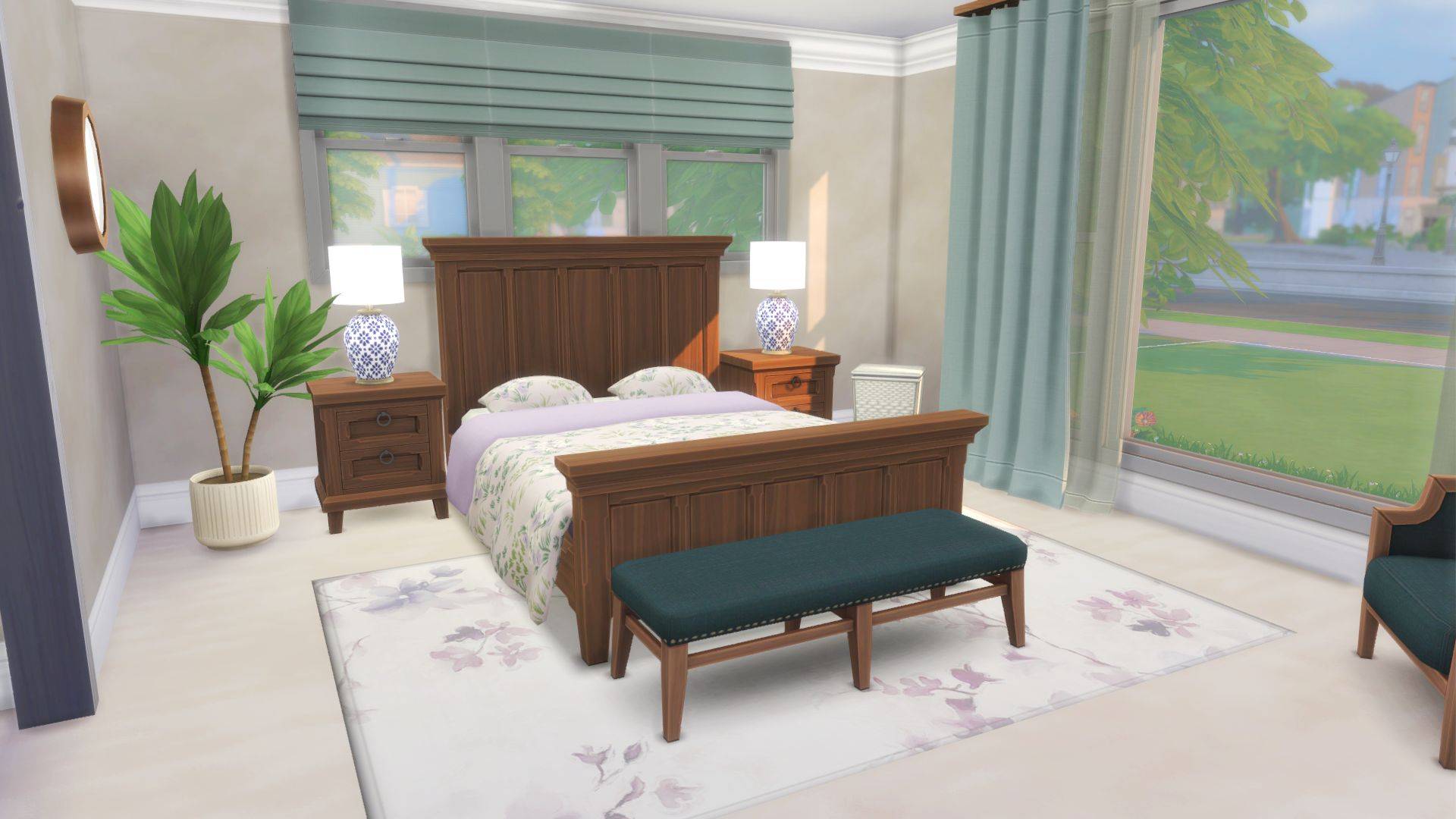
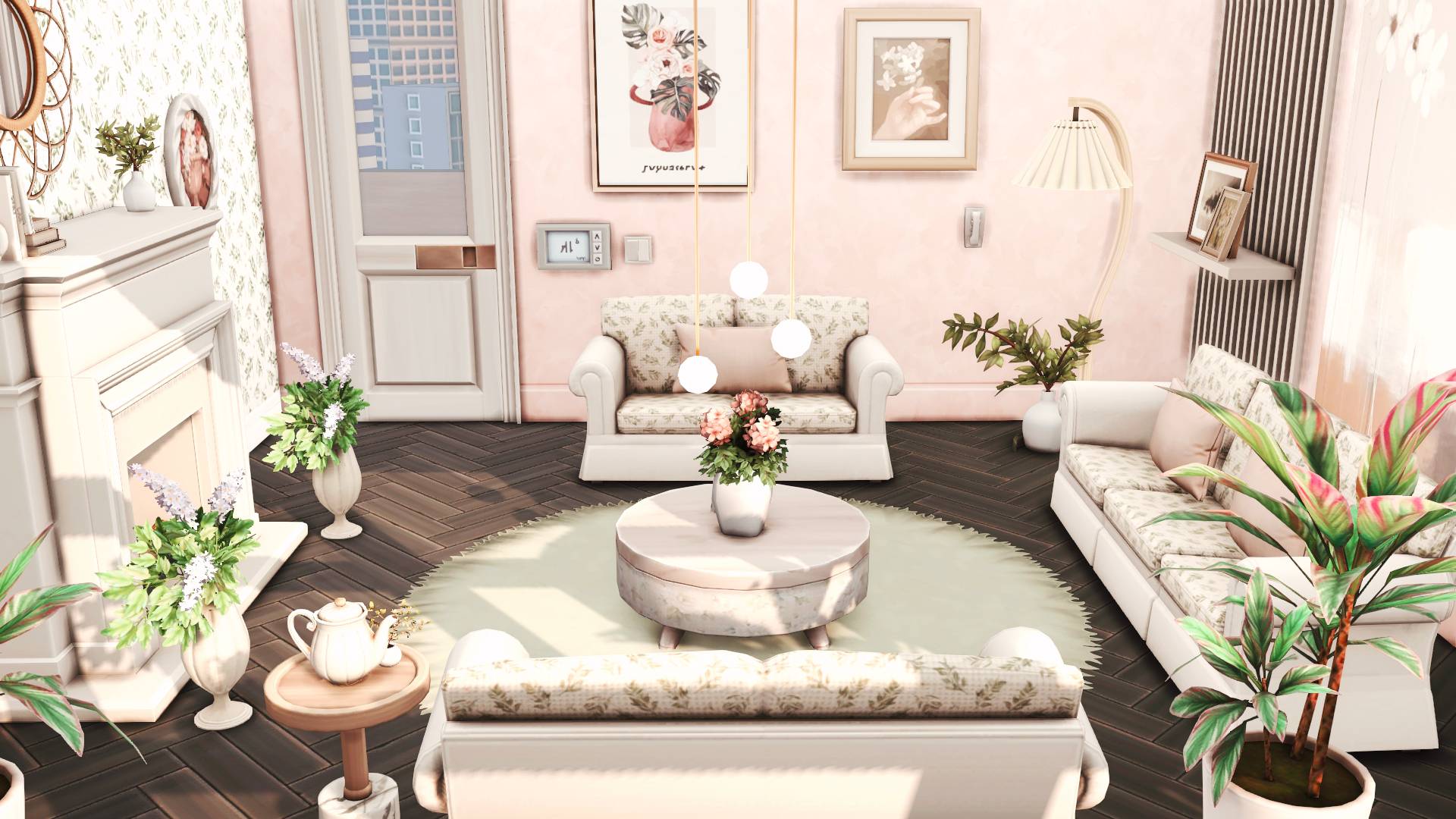
All objects resting on the floor or mounted to internal walls rotate automatically along with the room envelope. Tables, chairs, rugs, lighting, and plumbing fixtures retain their relative positions, spacing, and user orientations within the footprint.
Doors, Windows, and Wall Textures
- Exterior Windows and Doors: Windows and doors placed on the outer boundary walls rotate in place, maintaining their outward-facing direction relative to the exterior.
- Interior Passageways: Doors connecting the rotated room to an adjacent room will detach if the wall boundary no longer aligns with the adjoining structure. The opening automatically seals into a solid wall, and the detached door goes to the Household Inventory.
- Wall & Floor Finishes: Wallpaper, wall paneling, tile patterns, and hardwood direction maintain their relative alignment, ensuring wood planks or pattern orientations shift 90 degrees alongside the floor plan.
Troubleshooting Common Room Rotation Issues
While the room manipulation engine in The Sims 4 is flexible, structural constraints, terrain collisions, and system limits can trigger placement errors.
1. "Must Be Applied to a Room" Error
This error occurs when you attempt to use room-level tools (such as rotation or height adjustment) on an area that the game engine does not recognize as a fully enclosed entity.
- Cause: A missing wall segment, an incomplete diagonal corner, or a floor gap prevents the engine from completing the room loop.
- Solution: Select the Wall Tool (B) and trace over the perimeter to close any open nodes. Alternatively, replace open boundaries with the Flat Trimmer or Platform Tool to enforce room recognition.
2. "Cannot Intersect with Wall" or Terrain Height Mismatches
When rotating asymmetrical or irregular rooms (such as L-shaped or T-shaped structures), the newly oriented footprint may extend beyond lot boundaries or collide with other lot features.
- Cause: The rotated footprint overlaps existing foundations, basements, swimming pools, or off-lot boundaries.
- Solution: Ensure adequate empty grid tiles surround the structure before rotating. If placing the room near a lot edge, temporarily move the room toward the center of the lot, perform the rotation, and drag it back to the edge.
3. Roof Collisions and Disconnections
Roofs in The Sims 4 operate on a separate layer from standard walls. Rotating a room located directly beneath a roof structure will not automatically rotate the roof unless the entire building is selected using the lot-level move controls.
- Cause: Roof pieces are independent architectural elements that do not auto-parent to individual ground-floor rooms.
- Solution: Manually select each roof gable or hipped roof section, use the
,and.keys to rotate the roof to match the new room orientation, and adjust the eaves using the handle grips.
4. Items Disappearing or Sent to Household Inventory
If a rotated room intersects with outdoor flora, columns, or items on an adjoining wall, the game engine safety mechanism removes the obstructed objects to prevent save corruption.
- Cause: Object collision detection invalidates object placement upon rotation.
- Solution: Check your Household Inventory (accessible in Build Mode by clicking the cardboard box icon in the bottom-left menu) to retrieve missing decor or appliances. To bypass spatial restrictions during placement, open the cheat console (Ctrl + Shift + C on PC/Mac; all four shoulder buttons on console) and enter
bb.moveobjects onbefore rotating the room.
Advanced Building Techniques: Platforms, Multi-Story Buildings, and Saved Modules
Rotating rooms becomes more complex when managing multi-level mansions, split-level floor plans, or custom architectural modules.
- MULTI-STORY ROTATION STRATEGY
- Individual Room Method
- Rotates floor-by-floor
- Requires manual roof alignment
- Ideal for layout tweaks
- Whole-Lot / Building Tool
- Rotates entire lot/house
- Preserves multi-floor alignment
- Ideal for complete rebuilds
- Individual Room Method
Rotating Multi-Story Structures
When rotating a room on the second floor of a home, upper-story walls rotate independently of the ground level beneath them. If the newly rotated upper room overhangs empty space without support columns or lower walls, the game allows placement but creates an architectural overhang.
- To rotate an entire multi-floor house simultaneously rather than room by room, use the Move House / Move Lot tool located on the top center toolbar in Build Mode. Selecting Move House highlights every connected story, roof section, and foundation, allowing you to rotate the complete structure as a single unit without breaking vertical wall alignment.
Rotating Platforms and Split-Level Spaces
Platforms feature adjustable height nodes that alter floor elevation. When rotating a platform room:
- Attached stairs do not automatically rotate with the platform edges; they drop off into the Household Inventory or delete if their landing zones are blocked.
- Re-anchor staircases after completing the rotation by selecting the Stairs Tool and snapping them to the newly positioned platform boundaries.
Saving Custom Room Layouts for Later Use
If you frequently design intricate room configurations (such as fully decorated kitchens or master suites) that you wish to reuse across different lots:
- Select the completed room.
- Click the Save to My Library icon (a folder with a down arrow) on the top menu bar.
- Set the room classification (e.g., Bedroom, Kitchen, Living Room) and click Save Room.
- When placing this saved room on a new lot from your Library, use
,and.to rotate the blueprint before placing it on the ground.
Quick Reference: Room Rotation Controls Across Platforms
The table below summarizes the control inputs and requirements for rotating structural elements in The Sims 4 across supported platforms and control schemes:
| Platform / Mode | Selection Method | Primary Rotation Input | Alternate Method / Shortcut |
|---|---|---|---|
| PC / Mac (Sims 4 Camera) | Left-click room floor/wall | , (Counter-Clockwise) / . (Clockwise) |
Click curved arrows on room UI overlay |
| PC / Mac (Sims 3 Camera) | Left-click room floor/wall | Hold Right Mouse Button & drag horizontally | , and . keys |
| PlayStation (PS4 / PS5) | Highlight room + Press X | L1 (Counter-Clockwise) / R1 (Clockwise) | Select UI rotate handle with X |
| Xbox (One / Series X|S) | Highlight room + Press A | LB (Counter-Clockwise) / RB (Clockwise) | Select UI rotate handle with A |
| Entire House / Lot Tool | Click Move House icon top menu | , and . (PC/Mac) or L1/R1 / LB/RB (Console) |
Drag whole footprint across lot grid |
Frequently Asked Questions
Can you rotate a room diagonally in The Sims 4?
No. Standard room rotation in The Sims 4 is restricted to 90-degree right angles relative to the grid. To create diagonal rooms, you must draw diagonal walls using the Diagonal Wall Tool or place predefined diagonal room shapes from the Build Mode catalog.
Why does my room lose its roof when I rotate it?
Roofs are distinct objects built on top of room nodes rather than permanently fused to wall geometry. When you select and rotate an individual room, the roof stays in its original position on the lot grid. You must manually select the roof section and use the , / . keys (or L1/R1 / LB/RB on console) to align it with the newly rotated room below.
How do I rotate a single wall without rotating the whole room?
You cannot rotate individual single walls using the rotation tool. Instead, delete the original wall using the Sledgehammer Tool (K) and redraw the wall segment in the desired direction using the Single Wall Tool.
Will rotating a room delete my furniture?
No, objects placed inside an enclosed room automatically turn with the structure. However, if the rotated wall boundary clips into exterior objects, fences, or lot boundaries, affected exterior items may be moved to your Household Inventory.
How do I move a room without rotating it?
Select the room by clicking its floor or wall, then left-click and drag the central Move Handle (the four-way arrow icon). Move your cursor across the lot grid to relocate the entire room while keeping its original orientation intact.
Practical Recommendations for Builders
When reorganizing your Sim's home floor plan:
- Enable Placement Cheats: Press Ctrl + Shift + C and type
bb.moveobjects onbefore relocating or turning decorated spaces. This prevents wall hangings, plants, and small appliances from being sent to your inventory due to temporary collision overlaps. - Clear Surrounding Boundaries: Leave at least two to three empty grid tiles around the room before rotating so irregular footprints have sufficient clearance.
- Use the Move House Tool for Multi-Story Homes: Avoid rotating multi-floor buildings room by room. Use the top toolbar's Move House option to retain exact floor-to-floor vertical alignment and keep staircase connections unbroken.
Image Gallery