How to Set Up a Google Sheet: A Complete Guide to Getting Started
Setting up a Google Sheet involves signing in to your Google Account, navigating to the Google Sheets home screen, and selecting a blank spreadsheet or a template. This cloud-based application allows for real-time collaboration, automa...
Setting up a Google Sheet involves signing in to your Google Account, navigating to the Google Sheets home screen, and selecting a blank spreadsheet or a template. This cloud-based application allows for real-time collaboration, automatic cloud saving, and integration with other Google Workspace tools, making it a robust platform for data management and analysis.
Contents
Prerequisites and Account Requirements
Before you can create a Google Sheet, you must have a valid Google Account. This is the same account used for Gmail, Google Drive, and other Google services. If you do not have an account, you can create one at no cost via the Google sign-up portal.
Google Sheets is a browser-based application, meaning it does not require dedicated software installation on your desktop or mobile device. However, you do need a stable internet connection for the initial creation and for real-time collaboration features. Once a sheet is created, you may be able to access it offline if you have previously enabled "Offline Mode" within your Google Drive settings. Ensure your web browser—such as Chrome, Firefox, Safari, or Microsoft Edge—is updated to a recent version to ensure full compatibility with the interface features as of 2026.
Initializing a New Spreadsheet
There are three primary methods to initialize a new spreadsheet. Choosing the correct starting point depends on your existing workflow and whether you are already working within another Google service.
- The Google Sheets Home Screen: Navigate to sheets.google.com in your browser. Ensure you are signed in. Click the large "+" button labeled "Blank" to open a fresh, empty spreadsheet.
- Google Drive Integration: If you are already organizing files in Google Drive, click the "New" button in the top-left corner of your Drive dashboard and select "Google Sheets" from the drop-down menu. This will create the file directly within the folder you are currently viewing.
- Browser Address Bar Shortcut: For rapid access, type "sheets.new" into your browser’s address bar. This shortcut automatically generates a new, untitled spreadsheet and opens it immediately, bypassing the dashboard menus.
Customizing and Organizing Your New Sheet
Once your spreadsheet is open, the first task is to provide it with a clear, descriptive title. Click on the text "Untitled spreadsheet" in the top-left corner and type your desired file name. Google Sheets saves your work automatically every few seconds; you do not need to hunt for a "Save" button.
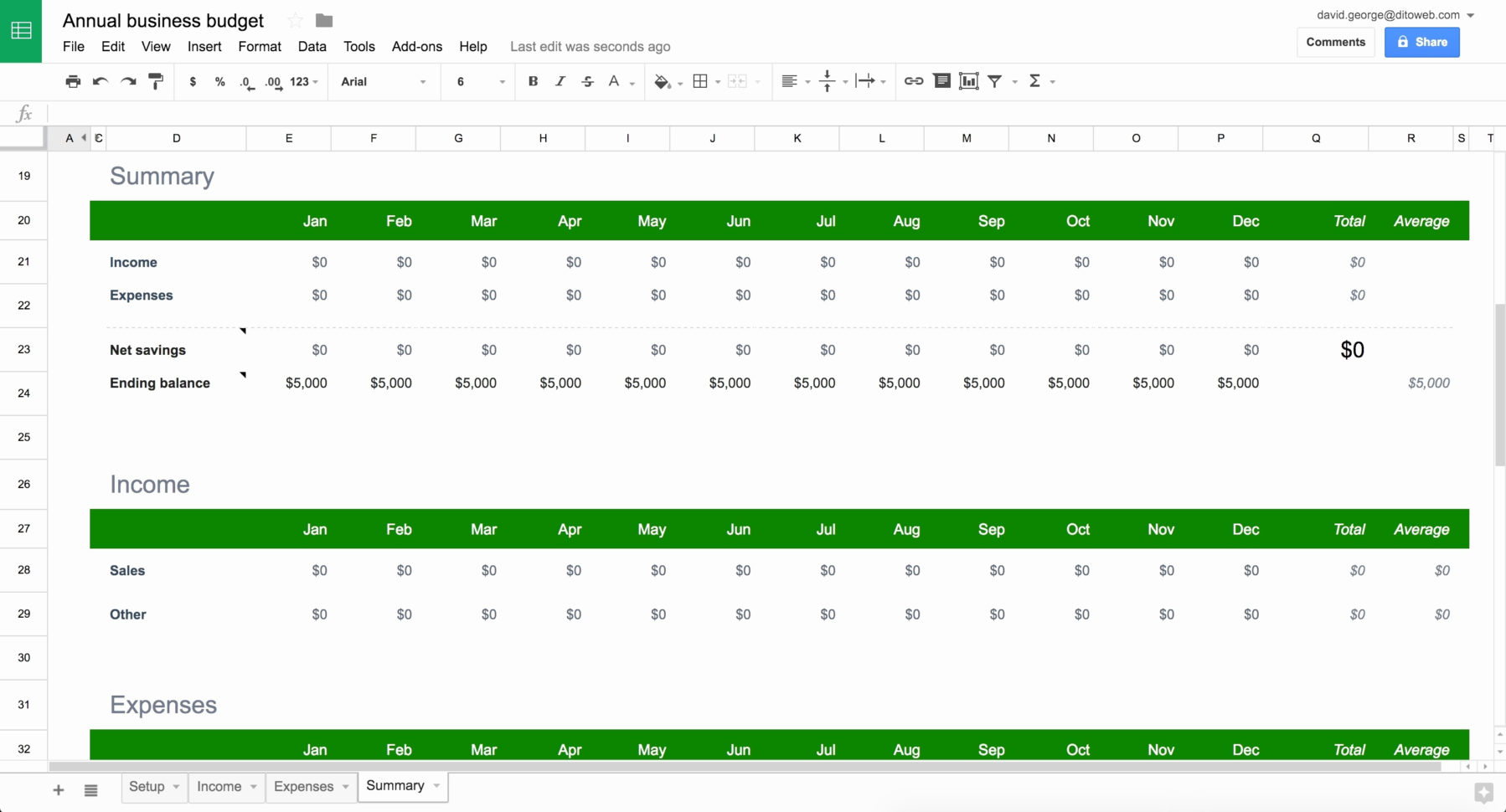
Organize your data by using the grid interface. Columns are labeled with letters (A, B, C...) and rows with numbers (1, 2, 3...). To adjust the layout:
- Resizing: Click and drag the border between column headers or row numbers to expand or contract the cell size.
- Formatting: Use the toolbar located beneath the main menu to apply bold, italics, font colors, or background highlights.
- Data Validation: You can restrict cell input to specific types (e.g., dates, drop-down menus) by navigating to "Data" > "Data validation." This is essential for maintaining data integrity when multiple users are editing the same sheet.
Comparison of Creation Methods
| Method | Best Use Case | Benefit |
|---|---|---|
| Sheets Home Screen | General usage | Provides access to templates and recent files. |
| Google Drive | Project-specific organization | Keeps files grouped in relevant folders. |
| sheets.new | Rapid task capture | The fastest way to start from scratch. |
| Template Gallery | Structured workflows | Saves time on complex formatting and formulas. |
Collaborating and Sharing
One of the primary benefits of Google Sheets is the ability to work simultaneously with team members. To share your spreadsheet, click the prominent "Share" button in the top-right corner. You can invite individuals via their email addresses or create a "General access" link.
When sharing, you must designate the level of access:
- Viewer: The user can read the data but cannot make changes.
- Commenter: The user can suggest changes and leave comments but cannot alter the raw data directly.
- Editor: The user has full control to change content, adjust formulas, and share the file with others.
If you are working in a corporate or enterprise environment, check your organization's specific sharing policies, as administrators may restrict the ability to share files externally to ensure data security.
Troubleshooting Common Setup Issues
Even with a straightforward process, you may occasionally encounter barriers to access or performance.
- Account Permissions: If you are using a work or school account, your administrator might have restricted the ability to create or share spreadsheets. Contact your internal IT department if you receive an "Access Denied" error.
- Browser Conflicts: If the page fails to load or tools appear grayed out, try disabling browser extensions, particularly ad-blockers, which can interfere with the Google Sheets script execution.
- Connectivity Lags: If you are working with a massive dataset, the browser may experience latency. Google Sheets is designed for efficiency, but excessively large files (containing tens of thousands of rows with complex, interconnected formulas) can slow down performance. Consider breaking large datasets into separate sheets or using the "Filter" tool to manage the viewable data.
Frequently Asked Questions
Can I use Google Sheets without an internet connection? Yes, but you must enable this functionality in advance. Go to the Google Drive settings and check the "Offline" box. Once enabled, you can create and edit sheets while offline, and the changes will sync automatically to the cloud once you reconnect.
Is there a limit to how many people can edit a Google Sheet at once? While you can share a file with hundreds of users, optimal performance is typically observed with up to 50 simultaneous editors. Beyond this, the system may experience latency, and the UI may become cluttered with cursors.
Can I import data from Microsoft Excel? Absolutely. You can import existing .xlsx, .csv, or .ods files by going to "File" > "Import" within your spreadsheet. Google Sheets will automatically convert these formats into its native structure.
Does Google Sheets charge a subscription fee? Google Sheets is free for personal use with a standard Google account. Businesses and educational institutions may pay for Google Workspace subscriptions, which provide additional storage, enhanced security controls, and premium features, but these are not required to use the base functionality of Sheets.
Next Actions
Once your spreadsheet is set up, focus on data structure. Start by establishing headers in the first row to define what each column represents. Use the "Freeze" function (found under "View" > "Freeze") to lock the top row, ensuring your headers remain visible as you scroll down through large datasets. For more advanced workflows, explore the "Insert" menu to add charts, pivot tables, or smart chips, which allow you to link people, files, and calendar events directly into your cells.
Image Gallery