Okta Marmon Login: Secure Access and Identity Management Guide
Accessing corporate resources securely requires navigating specialized enterprise portals like the Okta Marmon login page, which authenticates employees, partners, and contractors into Marmon Holdings network environments. This gateway...
Accessing corporate resources securely requires navigating specialized enterprise portals like the Okta Marmon login page, which authenticates employees, partners, and contractors into Marmon Holdings network environments. This gateway utilizes modern Single Sign-On (SSO) and Multi-Factor Authentication (MFA) protocols to protect sensitive industrial manufacturing and service data against unauthorized access and credential compromise.
Contents
Understanding the Marmon Holdings Identity Architecture
Marmon Holdings operates a diverse decentralized group of autonomous manufacturing and service companies across multiple global sectors. To unify security governance without disrupting day-to-day operations across hundreds of independent business units, the enterprise utilizes Okta as its centralized Identity and Access Management (IAM) provider.
The Okta integration acts as a single cloud-based directory service. Instead of requiring employees to memorize multiple distinct passwords for enterprise resource planning (ERP) platforms, internal intranets, payroll systems, and communication suites, the Okta portal routes every authentication request through a heavily monitored security perimeter.
- Single Sign-On (SSO): Minimizes credential fatigue by allowing users to log in once per session to access all authorized cloud and on-premises applications.
- Contextual Access Policies: Evaluates user location, device health, and network trust levels before granting application access.
- Lifecycle Management: Automatically provisions and de-provisions user accounts based on active human resources directory changes.
Prerequisites for Accessing the Portal
Before attempting to authenticate through the corporate portal, users must verify that their digital environment meets baseline security and network standards. Enterprise IAM platforms implement strict endpoint compliance checks. Attempting to log in from an unmanaged, outdated, or unsecured device often triggers automated security blocks.
| Requirement Category | Technical Specification / Standard | Purpose |
|---|---|---|
| Browser Compatibility | Latest stable releases of Google Chrome, Microsoft Edge, or Mozilla Safari | Ensures full support for modern web cryptographic APIs and TLS protocols. |
| Network Security | Corporate VPN or verified secure corporate IP range (where mandated) | Establishes an encrypted tunnel for internal application traffic. |
| Device Trust | Enrolled MDM (Mobile Device Management) profile or verified endpoint agent | Confirms device ownership and verifies operating system patch levels. |
| Authentication Factors | Registered smartphone running Okta Verify, hardware token, or FIDO2 key | Satisfies mandatory Multi-Factor Authentication (MFA) policies. |
Step-by-Step Authentication Process
Executing a secure login requires a structured approach to prevent credential interception and satisfy identity verification checks. Following these standard procedures ensures seamless entry into the corporate ecosystem.
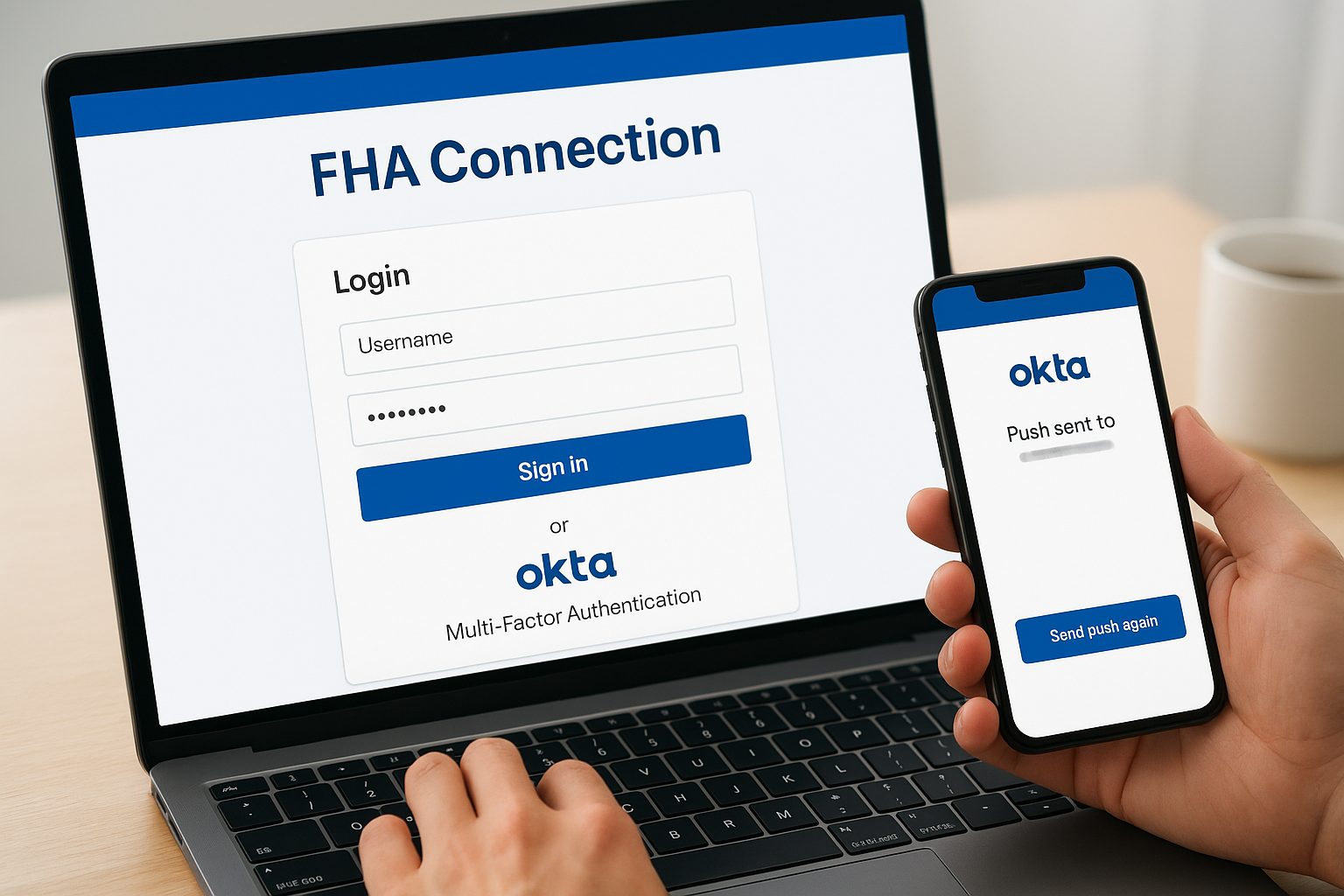
- Navigate to the Official Portal: Open a trusted, modern web browser and enter the dedicated corporate Okta URL assigned to your specific Marmon business sector. Avoid using saved search engine links or unverified bookmarks to prevent phishing redirection.
- Enter Corporate Credentials: Input your assigned corporate email address or username alongside your primary enterprise password into the designated input fields.
- Select Verification Method: Upon submitting primary credentials, the system prompts you to complete a secondary verification step depending on your configured security profile.
- Approve Multi-Factor Challenge: Respond to the push notification sent to the Okta Verify application on your mobile device, enter the time-based one-time password (TOTP), or tap your physical security key.
- Verify Dashboard Access: Once the cryptographic handshake succeeds, your browser loads the personalized Okta user dashboard displaying all authorized enterprise applications available to your role.
Comparative Overview of Authentication Factors
Enterprise security frameworks rely on varying degrees of authentication assurance. Understanding the security posture of each verification method helps users choose the most resilient option for everyday access.
| Authentication Method | Security Rating | Convenience Level | Vulnerability Profile |
|---|---|---|---|
| SMS One-Time Passcode | Low | High | Vulnerable to SIM-swapping and interception attacks. |
| Email Verification Link | Low | Medium | Vulnerable if corporate email account is compromised. |
| Okta Verify Push Notification | High | High | Resistant to standard phishing when number matching is enabled. |
| FIDO2 Hardware Security Key | Maximum | Medium | Cryptographically bound to the origin domain; completely phishing-proof. |
Troubleshooting Common Login Failures
Authentication errors can disrupt productivity when technical misconfigurations or expired credentials occur. System administrators recommend systematically reviewing potential failure points before submitting an IT service desk ticket.
Credential Expiration: Password Resets Enterprise directory policies typically enforce mandatory password rotations every 90 days. If your primary password expires, the login portal displays an expiration warning and automatically redirects you to a self-service password update utility. Ensure your new password complies with complexity rules, including minimum length, uppercase characters, numbers, and symbols.
MFA Synchronization Errors: Time Drift and Device Replacement If your Okta Verify push notifications fail to arrive, check that your mobile device's clock is set to automatic network time synchronization. Even a minor time drift of 30 seconds between your smartphone and the authentication server breaks the cryptographic validation of time-based tokens.
Account Lockouts: Threshold Protection Entering incorrect credentials consecutively multiple times triggers an automated security lockout to prevent brute-force attacks. If locked out, refrain from guessing passwords and utilize the automated self-service unlock feature or contact your local IT support desk to verify your identity out-of-band.
Best Practices for Enterprise Account Security
Maintaining the integrity of the Marmon Holdings supply chain and corporate infrastructure depends heavily on individual adherence to cybersecurity hygiene. Identity theft and credential harvesting remain primary attack vectors for external threat actors targeting industrial networks.
- Never Share Credentials: Corporate accounts are strictly personal. Never disclose your password or approve MFA push notifications for colleagues or external vendors.
- Recognize Phishing Attempts: Verify the browser address bar reads the exact corporate domain before entering credentials. Legitimate IT personnel will never ask for your password over email or phone.
- Secure Session Endpoints: Always log out of your Okta dashboard and lock your workstation (using Windows Key + L or equivalent shortcut) whenever stepping away from your device in public or shared environments.
- Promptly Report Anomalies: If you receive an unexpected MFA push notification when you are not attempting to log in, deny the request immediately and notify the security operations center.
Frequently Asked Questions
What should I do if my Okta Verify push notifications stop working?
First, verify that your mobile device has an active cellular data or Wi-Fi connection and that notifications are explicitly enabled for the Okta Verify app in your operating system settings. If issues persist, open the Okta Verify app manually to check for pending verification prompts or re-enroll your device using the setup wizard in your profile settings.
How do I reset a forgotten Marmon corporate password?
Navigate to the main login portal page and click the "Need help signing in?" or "Forgot password" link located beneath the primary input fields. Follow the automated identity verification prompts, which typically require answering security questions or confirming a code sent via alternative secure channels.
Why does the portal demand a secondary verification method every time?
Contextual access policies enforced by IT security may require step-up authentication based on risk indicators such as unrecognized network locations, new device fingerprints, or high-risk geographic sign-inas. These measures protect corporate assets even if primary credentials are compromised.
Can I access the Marmon Okta portal from personal unmanaged devices?
Depending on corporate governance policies for your specific subsidiary, access from personal devices may be completely blocked, restricted to web-only applications without data download permissions, or require the installation of specific endpoint management software. Consult your internal IT policy documentation for specific compliance mandates.
Who should I contact if my account remains locked after a password reset?
If automated recovery utilities fail, reach out directly to your local company helpdesk or the central IT service management team via your designated internal support portal, providing your employee identification number and a secure callback number to verify your identity.
To maintain continuous and secure access to your operational tools, ensure your recovery methods remain up to date and contact your system administrator immediately if you suspect any unauthorized activity on your account.
Image Gallery