How to Set Up and Use a Roku TV Without Internet
You can set up a Roku TV without an internet connection by selecting the "Connect to the internet later" option during the initial startup sequence. This allows the TV to function as a standard display for cable boxes, gaming consoles,...
You can set up a Roku TV without an internet connection by selecting the "Connect to the internet later" option during the initial startup sequence. This allows the TV to function as a standard display for cable boxes, gaming consoles, and over-the-air antenna broadcasts without requiring a Roku account or Wi-Fi.
Contents
For many users, the primary appeal of a Roku TV is its integrated streaming ecosystem. However, there are numerous scenarios—ranging from temporary housing and remote cabins to privacy concerns—where a user might want to use the hardware without a persistent network connection. While Roku players (like the Streaming Stick or Ultra) generally require an internet connection for initial activation and to reach the home screen, Roku TVs (hardware with the operating system built-in, such as those made by TCL, Hisense, or Westinghouse) are designed with a fallback mode that permits offline use.
Understanding the Roku TV Activation Process
When you first power on a new Roku TV in 2026, the software guides you through a "Guided Setup." The standard path expects you to connect to a Wi-Fi network or Ethernet cable to download the latest firmware and link the device to a Roku account. This activation process is how Roku validates the device and prepares the specialized streaming interface.
If you do not have internet access, you encounter a fork in the road during the setup process. You must decide whether you want to use the TV as a "Non-Connected" device or if you want to use a temporary connection for a one-time activation.
The "Set Up Later" Method for Offline Use
Roku provides a specific path for users who do not wish to connect to the internet. This is often referred to as the "dumb TV" mode. By choosing this, you bypass the account creation and software update steps.
- Power On and Language Selection: Turn on the TV and select your preferred language.
- Select "Set up for home use": Unless you are a retailer, avoid "Set up for store use," as this will trigger a continuous loop of promotional videos.
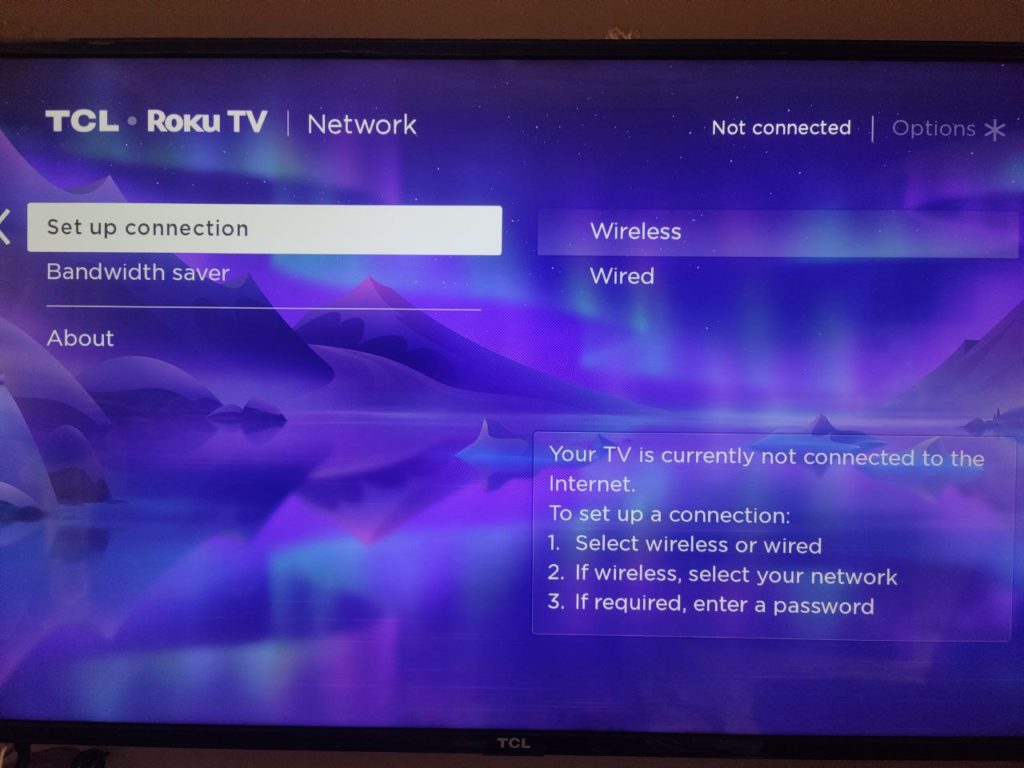
- Network Connection Screen: When the TV prompts you to "Connect to the Internet" or "Set up wireless," look for an option at the bottom or side of the screen that says "Connect to the internet later" or "Don't connect."
- Confirm the Choice: The TV may warn you that you will miss out on streaming features. Confirm that you wish to proceed without a connection.
- Device Setup: The TV will then ask you to connect your external devices, such as an antenna or a cable box.
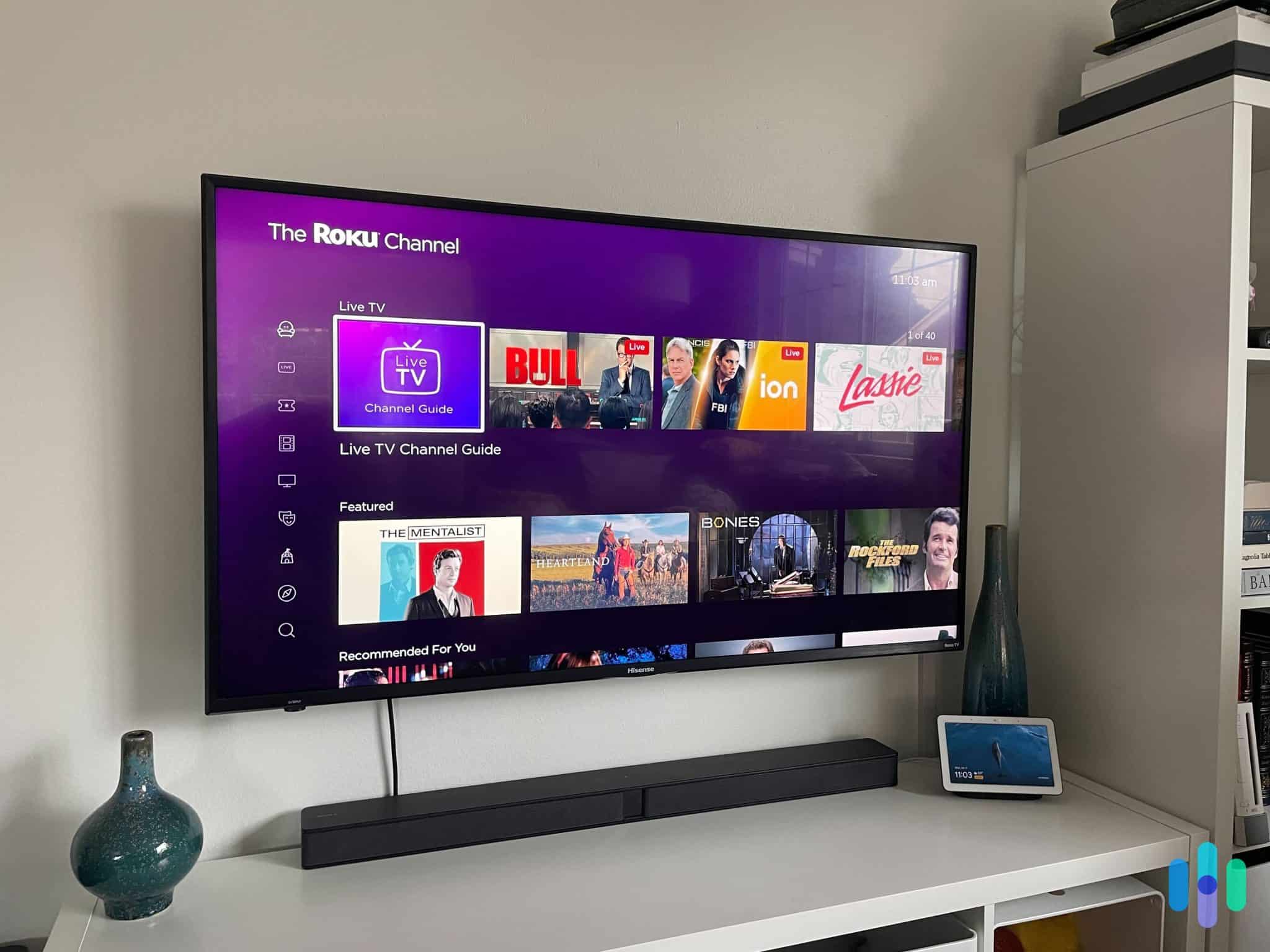
Once this is complete, the TV will boot into a simplified home screen. Instead of rows of streaming apps like Netflix or Disney+, you will see tiles representing your physical inputs (HDMI 1, HDMI 2, AV, and Live TV/Antenna).
Using a Mobile Hotspot for One-Time Activation
If your goal is to have the full Roku interface but you lack a permanent home internet connection, the mobile hotspot workaround is the most effective strategy. This method allows you to activate the TV, link your account, and download the latest OS updates using your smartphone's cellular data.
Why Activation Matters
Activating the TV via a hotspot, even if you plan to go offline immediately after, provides several technical advantages:
- Firmware Stability: Newer Roku TVs often ship with "base" firmware that may have bugs. Connecting once allows the TV to update to a more stable version of Roku OS.
- Media Player Access: Certain offline apps, like the Roku Media Player (for USB drives), are more robust when the device has been officially activated.
- Screen Mirroring: Some mirroring protocols (like Miracast) function better if the TV’s initial handshake with the Roku servers has been completed.
Steps to Use a Hotspot
To execute this, turn on the Personal Hotspot feature on your smartphone. During the Roku setup, select your phone’s network from the list of Wi-Fi options. Keep in mind that system updates can range from 100MB to 500MB. Once the update and activation are complete, you can turn off the hotspot. The TV will retain its activated status and allow you to access the home screen and local inputs without a connection.
Functionality Comparison: Online vs. Offline Roku TV
Deciding to stay offline impacts the utility of the hardware. The following table outlines what features remain accessible when the internet is removed from the equation.
| Feature | Internet Required? | Offline Functionality Description |
|---|---|---|
| HDMI Inputs | No | Full access to gaming consoles, Blu-ray players, and cable boxes. |
| Over-the-Air (OTA) TV | No | Requires an antenna; can scan and save local digital channels. |
| USB Media Playback | No | Use the Roku Media Player to watch MKV, MP4, and MOV files. |
| Streaming Apps | Yes | Netflix, Hulu, YouTube, etc., will not load or function. |
| Voice Control | Yes | Remote voice commands and "Hey Roku" require cloud processing. |
| Screen Mirroring | Partial | Miracast (Windows/Android) works via Wi-Fi Direct; AirPlay usually requires a shared network. |
| System Updates | Yes | Security patches and new features require a connection. |
| The Roku Channel | Yes | Even "Live" channels on this app are streamed via the web. |
Maximizing an Offline Roku TV with External Hardware
Since the "smart" features of the Roku TV are disabled without internet, the device essentially becomes a monitor. To get the most out of it, you should focus on the physical ports located on the back or side of the panel.
Over-the-Air (OTA) Antenna
Roku TVs feature a built-in ATSC tuner. By connecting a standard digital antenna to the "Ant/Cable In" coaxial port, you can watch local broadcast networks (ABC, CBS, NBC, FOX, etc.) in high definition.
- The Scan Process: Navigate to the "Live TV" tile on the home screen. Follow the prompts to "Scan for channels." This process takes about 5 to 10 minutes.
- The Smart Guide: While an internet connection allows Roku to provide a 14-day grid guide, an offline TV will still show "Now and Next" information sent over the broadcast signal for the current program.
Local Media via USB
Most Roku TVs include at least one USB port. If you have a library of movies or home videos on an external hard drive or flash drive, you can play them using the Roku Media Player app.
- Supported Formats: Roku is generally compatible with H.264/AVC and H.265/HEVC video codecs in MP4 or MKV containers.
- File System: Ensure your USB drive is formatted to FAT16, FAT32, NTFS, EXT2, EXT3, or HFS+.
Gaming and Computing
Connecting a PC or a gaming console via HDMI is the most common use for an offline Roku TV. Because Roku TVs support HDMI-CEC (Consumer Electronics Control), your TV can often automatically switch to the correct input the moment you power on your PlayStation, Xbox, or Nintendo Switch, even without an internet connection.
Technical Limitations and Common Misconceptions
There are several nuances to running a Roku TV offline that can lead to frustration if not understood beforehand.
The Problem of "Incomplete" Setups
If you started the setup process and connected to a Wi-Fi network that then lost internet access, the TV may get "stuck" in a loop trying to reach the Roku servers. If this happens, you must perform a factory reset to return to the initial screen and select the "Connect later" option. This is done by holding the physical reset button on the back of the TV for 10–20 seconds.
Clock and Time Sync
Roku TVs typically sync their internal clocks via the internet (NTP). Without a connection, the TV may display the wrong time or date. This usually doesn't affect video playback from HDMI or Antenna, but it can affect the "Program Guide" accuracy for OTA television.
Screen Mirroring and AirPlay 2
A common misconception is that screen mirroring requires the internet. While Apple AirPlay 2 generally requires both the sender (iPhone) and the receiver (Roku) to be on the same local network with internet access for DRM verification, Miracast (used by Android and Windows) does not. Miracast establishes a "Wi-Fi Direct" connection between the two devices. You may need to enable "Screen Mirroring" in the Roku's system settings menu, which is accessible even when offline.
Troubleshooting Offline Issues
If you are using your Roku TV without internet and encounter performance issues, consider these technical steps:
- Input Lag in "Home Mode": If you are gaming and notice delay, ensure "Game Mode" is enabled in the picture settings for that specific HDMI input. This bypasses the TV's internal post-processing.
- Missing "Live TV" Tile: If the antenna input is missing from the home screen, go to Settings > TV Inputs > Live TV > Set up input.
- Remote Control Pairing: Roku "Point-Anywhere" remotes (the ones with voice buttons) use Wi-Fi frequencies to talk to the TV. If the remote stops working, it is not because the internet is down; it simply needs to be re-paired by holding the pairing button inside the battery compartment.
Final Recommendation for Users
If you are setting up a Roku TV in a location where internet is permanently unavailable, choose the "Connect to the internet later" path during the initial setup. This keeps the interface clean and prevents the TV from constantly seeking a signal it cannot find. However, for the best performance and to ensure your TV has the latest bug fixes, we recommend bringing the TV to a location with Wi-Fi (or using a mobile hotspot) at least once every six months to perform a manual system update.
Image Gallery