Why Hulu Is Not Loading: Causes and Step-by-Step Fixes
Hulu usually fails to load due to server outages, unstable local internet connections, corrupted app cache, outdated device firmware, or active VPNs and ad-blockers. Resolving the issue involves verifying Hulu's server status, power-cy...
Hulu usually fails to load due to server outages, unstable local internet connections, corrupted app cache, outdated device firmware, or active VPNs and ad-blockers. Resolving the issue involves verifying Hulu's server status, power-cycling your device and router, clearing cached application data, disabling network proxies, and updating or reinstalling the Hulu application.
Contents
Primary Causes Behind Hulu Loading Failures
When Hulu gets stuck on a black screen, freezes at the green logo, or displays a continuous loading spinner, the problem typically stems from one of five core failure points. Understanding how the Hulu app interacts with your local hardware and internet network helps narrow down the root cause quickly.
Server/CDN Level: Down Outages / Regional Edge Server Drop
Network Level: Insufficient Speed / High Packet Loss
Security Level: Active VPN / Proxy / DNS Ad-Blocker
Software Level: Corrupted App Cache / Stale DRM Tokens
Hardware Level: Low Memory (RAM) / Outdated OS Firmware
Server-Side Outages and CDN Disruptions: Hulu relies on distributed Content Delivery Networks (CDNs) to stream media. If Hulu's central authentication servers or regional distribution edge servers experience high traffic or infrastructure outages, the client app cannot negotiate a playback session.
Local Network Instability: Insufficient bandwidth, high packet loss, or DNS resolution failures can prevent the app from fetching layout assets, user profile data, and media manifests.
Corrupted Application Cache and Data: Temporary files stored locally on Smart TVs, streaming sticks, or web browsers can become corrupted after updates or unexpected power cuts. Stale session tokens or broken cache structures prevent the app from executing startup scripts properly.
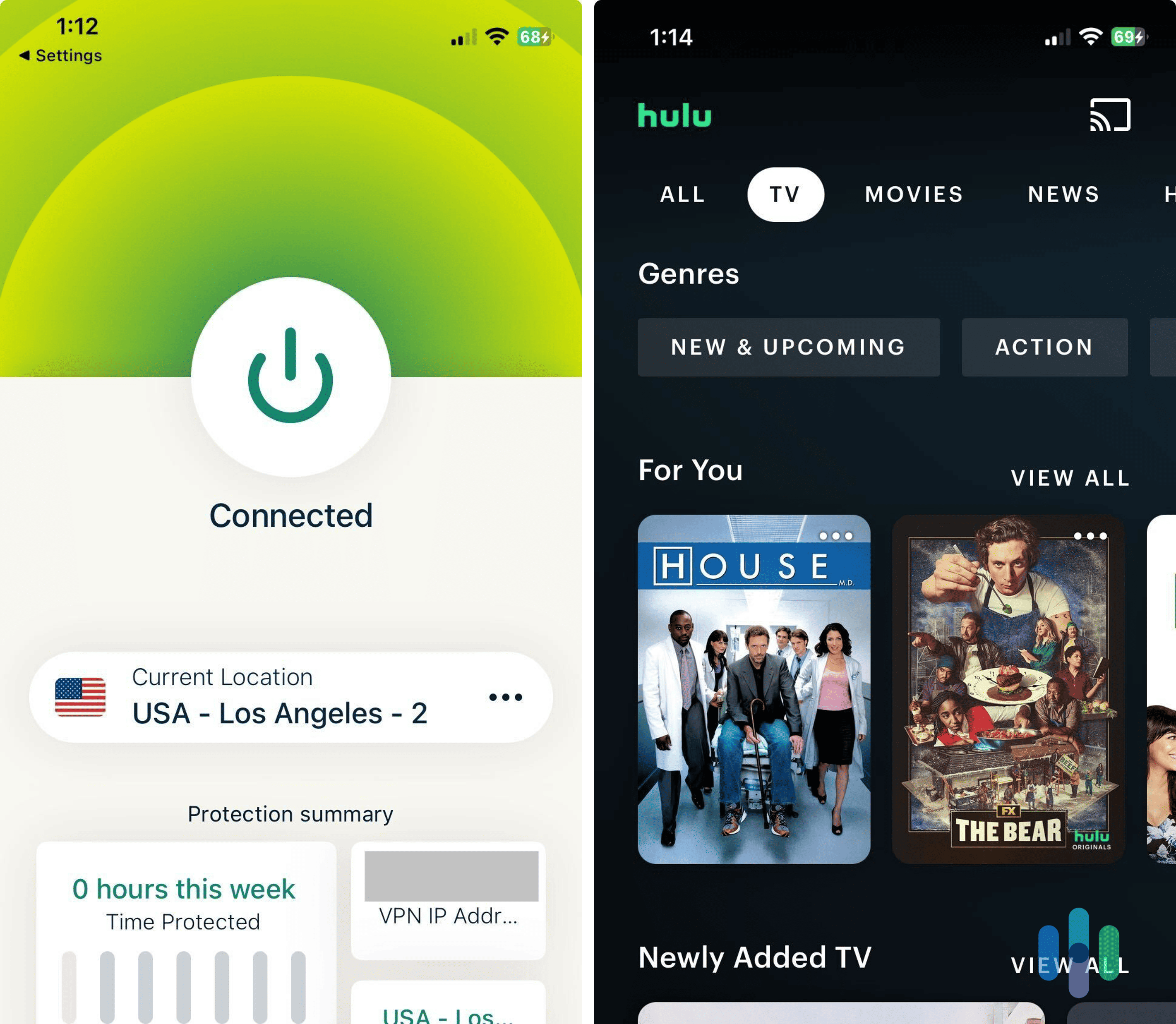
Interference from VPNs, Proxies, and Network Filters: Hulu uses strict digital rights management (DRM) and geolocation checks. Active Virtual Private Networks (VPNs), custom DNS services, or network-level ad-blockers (such as Pi-hole or NextDNS) frequently block tracking or ad-serving endpoints required for the app to initialize.
Hardware Resource Exhaustion and Outdated OS: Low-spec streaming devices (such as older streaming sticks or Smart TV platforms) run out of volatile RAM when background apps accumulate. Operating system incompatibilities or outdated Widevine/FairPlay DRM certificates can also halt playback execution.
Step 1: Check for Hulu Server Outages and Service Disruptions
Before changing local network settings or resetting hardware, confirm whether Hulu is experiencing a widespread system outage. If the underlying cause is server-side, local troubleshooting steps will not resolve the failure.
- Check Third-Party Monitoring Tools: Visit crowd-sourced platforms such as Downdetector to see if other users are reporting simultaneous loading errors, login failures, or video buffering. A sudden spike in reports indicates a server outage or regional network routing issue.
- Review Official Customer Support Channels: Hulu updates users on critical service disruptions through its official support handles on social media platforms (such as @HuluSupport on X).
- Test Platform Variations: Attempt to open Hulu on a different device connected to the same network (for example, try opening the mobile app on a smartphone while connected to Wi-Fi). If Hulu loads successfully on your mobile phone but fails on your Smart TV, the problem is localized to your television's software or app state, not Hulu’s servers.
Step 2: Troubleshoot Local Network and Internet Connections
Streaming video—especially live television broadcasts and 4K Ultra HD content—demands consistent throughput and low latency. Network degradation often manifests as an indefinite loading animation or an explicit connection error code.
Bandwidth and Speed Requirements
Hulu specifies minimum stable download speeds for uninterrupted streaming:
- Standard Definition (SD) Content: 3.0 Mbps
- High Definition (HD 720p/1080p): 5.0 Mbps
- 4K Ultra HD Content: 16.0 Mbps
- Hulu + Live TV: 8.0 Mbps for a single stream; higher bandwidth for multiple concurrent household streams.
Run an isolated speed test on the specific device experiencing the failure (or through a browser on the same Wi-Fi connection) to verify available throughput and ping stability.
Execute a Complete Network Power Cycle
Routers and modems accumulate state errors, routing table bloat, and memory fragmentation over time. Power-cycling your networking hardware clears temporary memory, forces a fresh IP assignment from your Internet Service Provider (ISP), and re-establishes clean DNS resolution:
- Unplug the power cords from both your modem and standalone wireless router.
- Wait a minimum of 60 seconds to allow all internal capacitors to discharge fully.
- Plug the modem back into power and wait for its downstream/upstream indicator lights to solidify (usually 2 to 3 minutes).
- Plug the router back into power and wait until the wireless networks (2.4 GHz and 5 GHz) broadcast active internet connectivity.
- Restart your streaming device and relaunch Hulu.
Address Wireless Signal Interference and DNS Failure
If your streaming device connects over Wi-Fi:
- Switch Wi-Fi Bands: Connect your streaming device to the 5 GHz band rather than 2.4 GHz. While 5 GHz has a shorter effective range, it provides significantly higher data throughput and encounters far less interference from household electronics.
- Use Direct Ethernet Connections: Where possible, plug an RJ-45 Ethernet cable directly into your Smart TV, streaming box, or game console. Wired connections bypass wireless signal dropouts and high latency.
- Change Public DNS Servers: Default ISP DNS servers can sometimes fail to resolve domain names for Hulu’s media delivery nodes. Switch your router or device network settings to use reliable public DNS resolvers, such as Google Public DNS (
8.8.8.8/8.8.4.4) or Cloudflare DNS (1.1.1.1/1.0.0.1).
Step 3: Clear Hulu App Cache and Data Across Platforms
Over time, cached data, temporary thumbnail files, and session manifests accumulate. If any of these files become corrupt, the Hulu app may freeze on launch or fail to render the home navigation bar.
| Platform | Primary Remediation Action |
|---|---|
| Roku | System Restart or Home 5x -> Up -> Rew 2x -> FF 2x |
| Fire TV | Settings -> Applications -> Hulu -> Clear Cache |
| Android TV | Settings -> Apps -> See All Apps -> Hulu -> Clear |
| Apple TV | Force-close app or uninstall/reinstall |
| Web Browsers | Clear Site Data / Cookies for hulu.com |
| Mobile (iOS/Android) | Offload/Uninstall app or Clear Storage in Settings |
Roku Devices and Roku TVs
Roku operating systems do not feature a standard "Clear App Cache" button within the software menu. Use either of the following methods:
- System Reboot via Menu: Navigate to Settings > System > Power (if applicable) > System Restart > Restart.
- Cache Clearing Remote Sequence: From the Home screen, press Home 5 times, Up 1 time, Rewind 2 times, and Fast Forward 2 times. The Roku hardware will process the sequence, freeze briefly, and force-reboot the system within 15–30 seconds.
Amazon Fire TV and Firestick
- Navigate to Settings on your Fire TV main menu.
- Select Applications > Manage Installed Applications.
- Scroll down the list and select Hulu.
- Select Force Stop to kill active app processes.
- Select Clear Cache.
- Select Clear Data (Note: Clearing data resets your sign-in details; you will need to log back into your Hulu account).
- Relaunch the app.
Apple TV (tvOS)
tvOS manages application caches automatically and does not provide an explicit menu option to delete cache files. To reset the application state:
- Double-click the TV/Control Center button on your Siri Remote to open the App Switcher view.
- Swipe left or right to locate the Hulu preview window.
- Swipe Up on the trackpad/touch surface to force-close the app.
- If force-closing fails to resolve the issue, highlight the Hulu app icon on the home screen, press and hold the Clickpad Center/Touch surface until the icon jiggles, press Play/Pause for options, and select Delete. Re-download Hulu from the App Store.
Smart TVs (Samsung Tizen, LG webOS, Vizio SmartCast)
Smart TV operating systems often store application states aggressively in standby mode:
- Samsung Smart TVs (Tizen OS): Go to Settings > Support > Device Care > Manage Storage. Locate Hulu, select View Details, and choose Clear Cache and Clear Data.
- LG Smart TVs (webOS): Force-close the application by launching another app (like Netflix or YouTube), then open the Recents bar, press the "X" over the Hulu tile, or hold the Back button on the Magic Remote to exit apps completely.
- Cold Booting the TV: Turn off the television using the remote, then unplug the TV power cable directly from the wall outlet. Hold the physical power button on the TV chassis for 30 seconds to drain remaining power. Plug the TV back in and turn it on. This clears volatile RAM without erasing system preferences.
Step 4: Fix Hulu Browser Loading Issues (PC & Mac)
If Hulu fails to load when accessed through a desktop web browser (such as Google Chrome, Mozilla Firefox, Microsoft Edge, or Apple Safari), local browser configurations, security extensions, or hardware acceleration issues are frequently responsible.
- Launch Incognito/Private Mode: Test hulu.com
- Works? Disable extensions / Clear site cache
- Fails? Check HTML5 DRM / Enable Hardware Accel
Test in Incognito / Private Window
Open a Private or Incognito browser window and log in to your account. Incognito mode launches the browser without running third-party extensions and bypasses stored site cookies.
If Hulu loads normally in Incognito mode, one of your active browser extensions or a corrupted cookie is causing the launch block.
Disable Ad-Blockers and Privacy Extensions
Hulu relies on specific client-side scripts to serve advertisements (on ad-supported tiers) and authenticate DRM permissions (on both ad-supported and ad-free tiers). Popular privacy tools—such as uBlock Origin, AdGuard, Privacy Badger, or Brave Shield—often block these critical domains.
- Add
hulu.comto your ad-blocker's allowlist/whitelist. - Alternatively, disable extensions individually under your browser’s Extensions / Add-ons manager to identify the conflicting plugin.
Clear Browser Cache and Web Cookies
- In Google Chrome or Microsoft Edge, press
Ctrl + Shift + Delete(Windows) orCmd + Shift + Delete(Mac). - Set the Time Range to All time.
- Check the options for Cookies and other site data and Cached images and files.
- Click Clear data.
- Restart your browser and navigate back to Hulu.
Verify HTML5 Video Support and Widevine DRM Settings
Hulu relies on HTML5 Encrypted Media Extensions (EME) and Widevine Content Decryption Modules (CDM) to process protected video streams.
- Check Hardware Acceleration: Go to your browser settings, search for Hardware Acceleration, and ensure it is turned On. Restart the browser. Hardware acceleration offloads video decoding to your graphics processing unit (GPU).
- Reset DRM Components in Chrome: Type
chrome://componentsinto your address bar and press Enter. Locate Widevine Content Decryption Module and click Check for update to force-update corrupted decryption binaries.
Step 5: Disable VPNs, Proxies, and Network Filters
Hulu uses geographic access controls and distribution license agreements that restrict streaming to supported territories (primarily the United States and Japan). As a result, Hulu actively detects and blocks access from known virtual private network (VPN) datacenters, commercial proxy services, and SmartDNS routers.
Identifying Proxy Blocks
If Hulu detects an active VPN or proxy connection, it may display an error screen (such as Error Code P-DEV318 or BYDR) or refuse to load past the main landing layout.
- Turn Off Desktop/Mobile VPN Software: Fully disconnect and exit client applications such as NordVPN, ExpressVPN, Surfshark, or ProtonVPN before launching Hulu.
- Disable Browser-Based Proxies: Check your network configuration to ensure your browser is not using an active HTTP/SOCKS proxy server.
- Bypass Router-Level VPNs: If your Wi-Fi router routes all household traffic through an encrypted VPN tunnel, construct a split-tunneling rule to exclude your streaming hardware or temporarily disable the router's VPN interface.
- Check Custom DNS Services: If you use DNS solutions designed to block advertisements network-wide (e.g., Pi-hole or NextDNS), inspect your query logs for blocked requests to domains such as
*.hulu.com,*.huluim.com, or*.asset-hulu.com. Add these core Hulu asset domains to your blocklist exemptions.
Diagnostic Reference: Common Hulu Error Codes and Quick Solutions
When Hulu fails to load, it often returns a specific alpha-numeric code indicating why the failure occurred. Use the reference matrix below to identify targeted solutions:
| Error Code / Symptom | Primary Cause | Direct Remediation Steps |
|---|---|---|
| P-DEV318 / P-DEV320 | Player device communication failure or outdated client application. | Force-close the app, clear app data, update the app to the latest build version, or power cycle your device. |
| RUNUNK13 / P-DEV302 | Playback error caused by network dropped packets or server negotiation timeout. | Perform a network restart on your modem/router. Verify download bandwidth meets minimum requirements. |
| BYDR / Error 5003 | An active VPN, commercial proxy, or unauthenticated geographic region detected. | Disable VPN software, proxy extensions, or network-level SmartDNS configurations. |
| Error 500 / Internal Server Error | Hulu infrastructure failure or database timeout. | Wait 10–15 minutes for Hulu engineers to address the server outage; verify status on Downdetector. |
| Black Screen with Audio | Display HDCP handshaking error or graphics pipeline failure. | Replace the HDMI cable, switch to an HDCP 2.2-compliant HDMI port, or disable browser hardware acceleration. |
| Endless Green Loading Screen | App startup cache corruption or broken login token. | Clear device app cache, force-stop the process, or execute a hard reinstall of the application. |
Step-by-Step Device Resets and Reinstallations
If clearing cache and restarting your network fails to fix the loading issue, reinstalling the Hulu application provides a clean starting point. This removes stale configuration files, deletes old session states, and installs the latest application updates.
Reinstalling on Streaming Media Players (Roku & Fire TV)
Roku
- Highlight the Hulu tile on your main Roku screen.
- Press the Star (*) button on your Roku remote control to open the Options menu.
- Select Remove app and confirm deletion.
- Important step: Restart your Roku via Settings > System > System Restart. (Failing to restart before reinstalling can cause Roku to preserve the previous corrupted data footprint).
- Navigate to Streaming Store (or Search), locate Hulu, and select Add app.
Amazon Fire TV / Firestick
- Go to Settings > Applications > Manage Installed Applications.
- Select Hulu and click Uninstall.
- Restart your Fire TV by holding the Select and Play/Pause buttons on your remote simultaneously for 5 seconds (or via Settings > My Fire TV > Restart).
- Search for "Hulu" using the Find tool or Alexa voice search, download the application again, and log in.
Frequently Asked Questions
Why is Hulu stuck on the green welcome screen?
Hulu usually gets stuck on the green logo screen when the application cannot complete its initial authentication check with Hulu’s accounts server. This happens because of corrupted local storage, an interrupted app update, or network packet drops. Force-closing the app and executing a power cycle on your streaming device clears the frozen initialization state.
Why does Hulu load on my phone but not on my Smart TV?
Smart TVs generally have less processing power, less system RAM, and receive less frequent application updates than modern smartphones. If Hulu works on your mobile device, your internet connection is functional, but your Smart TV app cache is likely corrupted, running low on volatile memory, or operating on outdated TV firmware.
How do ad-blockers cause Hulu to freeze on a black screen?
Even on ad-free subscription tiers, the Hulu application executes structural tracking and ad-insertion checks at startup. Network ad-blockers or browser extensions often block the specific domain calls needed for these checks. When these network requests are blocked, the app's video player enters an infinite wait state, resulting in a black screen or spinning loader.
Does Hulu stop loading if too many devices are streaming at once?
Standard Hulu plans limit simultaneous streaming to two concurrent screens per account (unless you have purchased the Unlimited Screens Add-on for Hulu + Live TV). If your account exceeds its concurrency limit, the app will typically load its layout but display a stream limit error message when you press play.
What should I do if clearing the app cache does not fix Hulu?
If clearing the cache fails, confirm that your streaming device's operating system firmware is up to date under System Settings. If your hardware is up to date, uninstall the app completely, restart your device, reinstall Hulu, and verify that your network is not running an active VPN or custom DNS redirect.
Practical Summary and Escalation Actions
When Hulu fails to load, follow this systematic resolution plan:
- Verify Outages: Confirm Hulu is operational by checking Downdetector or cross-testing on a secondary device using mobile data.
- Reboot the Stack: Unplug your streaming hardware, television, and router/modem for 60 seconds to purge system memory and refresh IP configuration.
- Purge App Storage: Clear the application cache and data on your streaming hardware or clear cookies/site data within your desktop web browser.
- Disable Network Proxies: Turn off all active VPNs, proxy services, and strict ad-blocking network filters that prevent communication with Hulu’s authentication servers.
- Clean Reinstall: Uninstall the Hulu application, reboot your device, and perform a fresh installation from your platform’s official app store.
If loading failures persist after following these steps, navigate to the official Hulu Help Center, open a support ticket, and provide your current device model, firmware version, ISP details, and any specific error codes displayed on your screen.
Image Gallery