How to Cancel Apps on iPhone: A Complete Step-by-Step Guide
Canceling unwanted applications and recurring subscriptions on your iPhone requires navigating through your Apple ID account settings rather than simply deleting the app icon from your home screen. Because deleting an app does not auto...
Canceling unwanted applications and recurring subscriptions on your iPhone requires navigating through your Apple ID account settings rather than simply deleting the app icon from your home screen. Because deleting an app does not automatically terminate active subscriptions billed through the App Store, users must access the App Store account menu, locate the subscriptions dashboard, select the target service, and tap cancel to stop future billing cycles.
Contents
Managing digital subscriptions efficiently prevents unexpected charges, controls monthly overhead, and keeps your mobile device organized. Whether you signed up for a streaming platform, a productivity tool, or a fitness tracker, Apple centralizes all digital purchases and recurring fees under a single management portal linked to your Apple ID. This comprehensive guide walks you through every requirement, technical nuance, and step necessary to cancel apps on your iPhone, troubleshoot common billing dilemmas, and manage your recurring digital expenses.
Understanding How iPhone Subscriptions Work
Before diving into the cancellation process, it helps to understand how Apple manages digital purchases. When you download a free application from the App Store and later subscribe to a premium tier, premium features, or cloud storage, the transaction is processed directly by Apple through your Apple ID payment method.
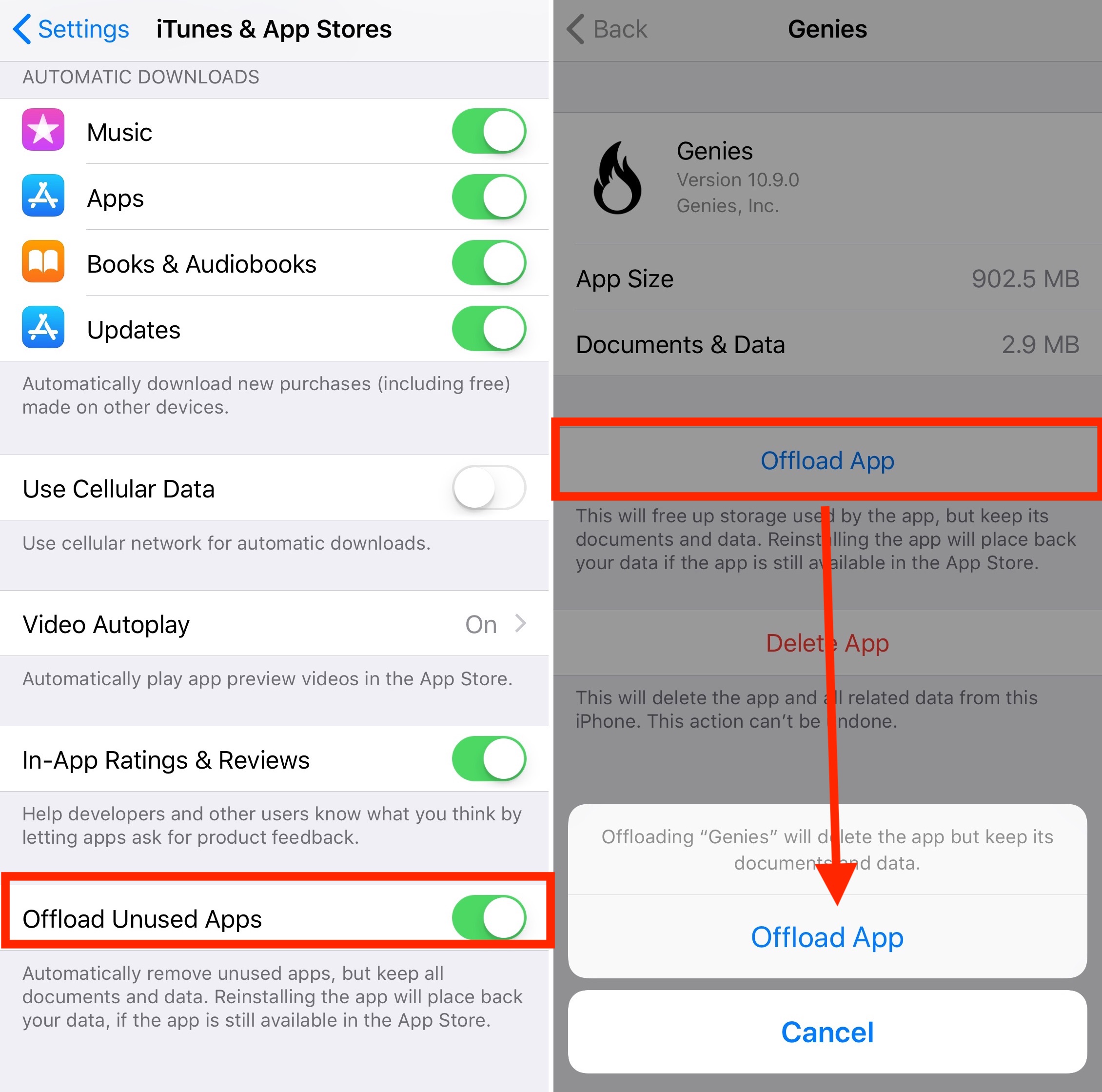
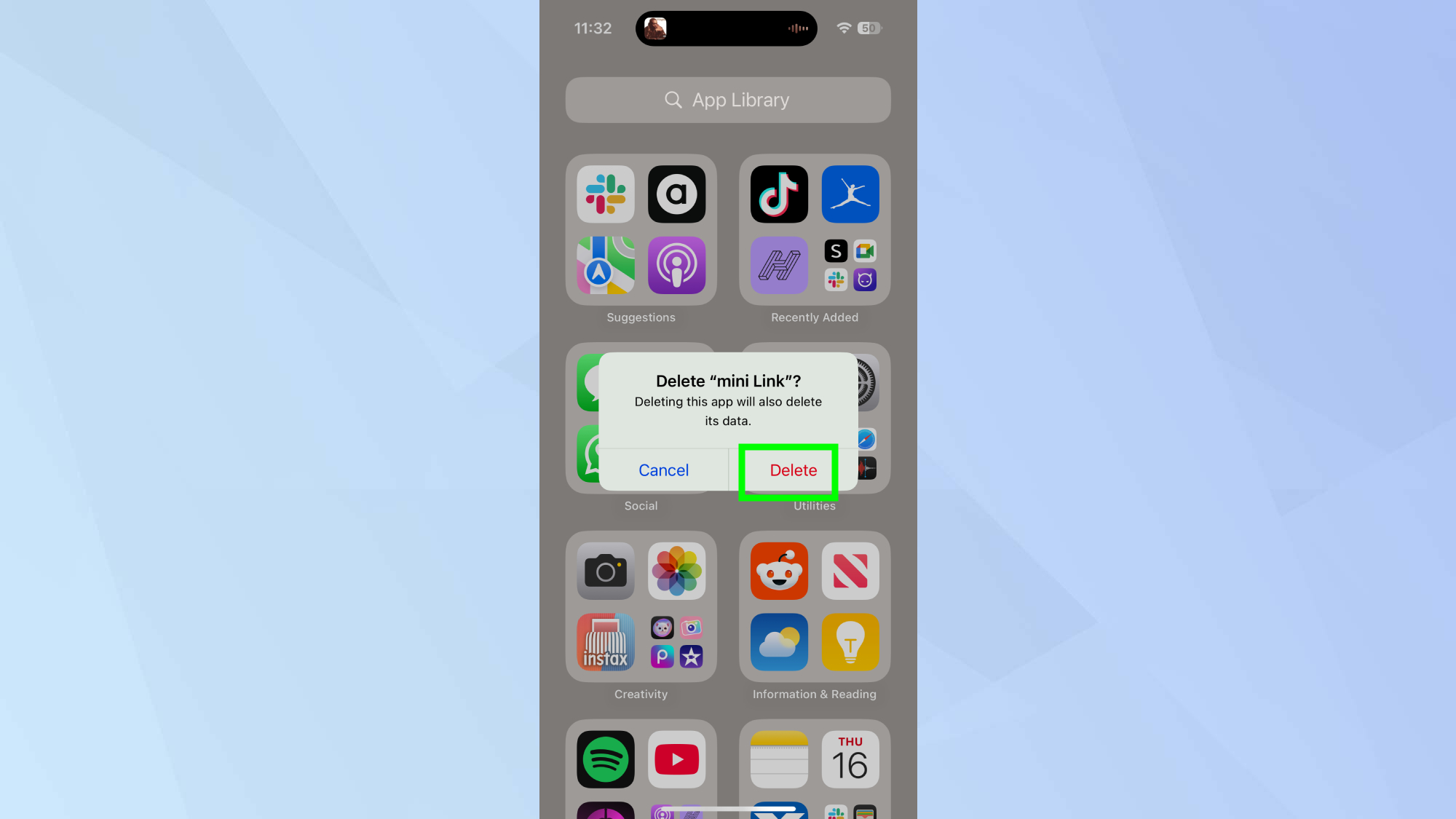
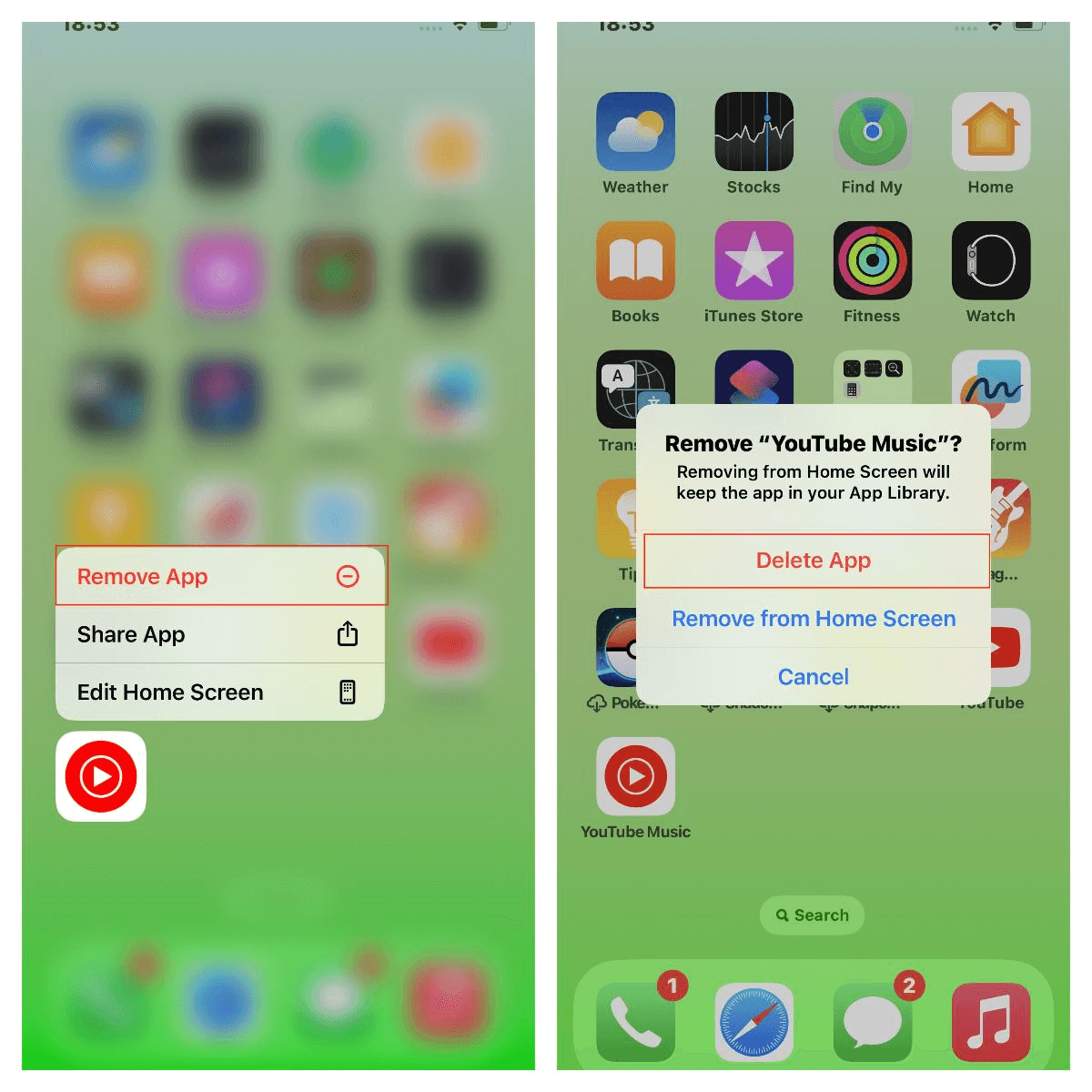
Crucially, deleting an app from your home screen does not cancel your subscription. If you simply press and hold an app icon, tap "Remove App," and confirm deletion, your billing cycle remains active in Apple's database. Apple continues to charge your linked credit card, debit card, PayPal account, or mobile phone carrier until you explicitly cancel the subscription inside your account settings.
Free Trials and Renewal Windows
Many iOS applications offer introductory free trials to entice users. While these trials provide temporary access to full features, they convert automatically into paid recurring subscriptions if they are not canceled before the trial period expires.
To avoid unwanted charges, Apple requires users to cancel subscriptions at least 24 hours before the renewal date. If you attempt to cancel on the exact day of renewal within that final 24-hour window, the system may already have processed the payment for the upcoming billing cycle.
Step-by-Step Guide: How to Cancel Apps and Subscriptions on iPhone
The primary method for canceling apps involves using the native App Store application installed on every iOS device. Follow these step-by-step instructions to navigate to your active subscriptions and terminate them successfully.
Method 1: Using the App Store Application
- Open the App Store: Unlock your iPhone and tap the App Store icon.
- Access Your Account: Tap your Profile Icon or user photo located in the top-right corner of the Today screen.
- Select Subscriptions: In the account menu that appears, tap Subscriptions. (If you do not see this option immediately, ensure you are signed in with the correct Apple ID).
- Locate the Target App: Review the list under the "Active" section. Find the specific application or service you wish to cancel and tap it.
- Cancel the Subscription: Tap Cancel Subscription (or Cancel Free Trial).
- Confirm Your Choice: A confirmation pop-up will appear outlining when your access will end. Tap Confirm to finalize the cancellation.
| Action Step | Where to Find It | Expected Result |
|---|---|---|
| Open App Store | Home Screen / App Library | Launches the official digital marketplace. |
| Tap Profile Icon | Top-right corner of App Store | Opens account settings and personal details. |
| Select Subscriptions | Account menu list | Displays active and expired digital services. |
| Tap Cancel | Inside individual subscription view | Terminates future recurring billing cycles. |
Method 2: Using the iOS Settings Menu
Alternatively, you can access your subscription management portal directly through your device's core settings application. This method provides the exact same functionality as the App Store route.
- Open Settings: Launch the Settings app on your iPhone.
- Tap Your Name: Tap your name and Apple ID banner at the very top of the main settings menu.
- Select Subscriptions: Tap on Subscriptions from the account options list.
- Choose the Service: Find the app you want to drop, tap on it, and select Cancel Subscription. Confirm the action when prompted.
What Happens After You Cancel?
Once you successfully cancel an app subscription, several things happen regarding your access and billing status:
- Continued Access Until Expiration: Apple allows you to keep using the paid features of the app until the current prepaid billing period or free trial concludes. For example, if you paid for a monthly subscription on the 1st of the month and cancel on the 10th, you retain full access until the 1st of the following month.
- No Pro-Rata Refunds: Apple generally does not issue partial refunds for unused days within a current billing cycle unless required by local consumer protection laws in your jurisdiction.
- Reactivating Later: If you change your mind, you can resubscribe at any time before or after your access lapses by returning to the same Subscriptions menu.
Troubleshooting Common Issues
While the cancellation process is straightforward, users occasionally encounter technical hurdles or interface roadblocks. Here is how to resolve them:
1. I Don't See the Subscription in My List
If you are certain you are paying for an app but cannot find it under your Apple ID subscriptions, consider the following possibilities:
- Family Sharing: If you are part of a Family Sharing group, another family member might be paying for the service, or the subscription is billed under a different Apple ID signed into the device. Check all accounts used on the device.
- Third-Party Billing: Some major services—such as Netflix, Spotify, or Amazon Prime—do not allow new or direct sign-ups through Apple's in-app purchase system. If you subscribed directly on the company's official website using a web browser, you must log into your account on their website to cancel, rather than using your iPhone's App Store settings.
2. The "Cancel Subscription" Button is Missing
If you see an active subscription but lack the option to cancel it, the subscription may have already been canceled and is simply running out its remaining time. Look for text that says "Expires [Date]" rather than "Renews on [Date]."
3. Requesting a Refund from Apple
If you were charged accidentally or forgot to cancel a free trial in time, you can request a refund from Apple:
- Open a web browser and go to reportaproblem.apple.com.
- Sign in with your Apple ID and password.
- Locate the specific purchase or charge in your purchase history.
- Select "I'd like to," choose "Request a refund," and select an appropriate reason.
- Submit the request and monitor your email for updates from Apple Support.
Frequently Asked Questions
Can I cancel my app subscription directly by deleting the app?
No. Deleting an app from your iPhone home screen removes the software and its local data from your device, but it does not terminate your binding subscription contract with Apple. You must follow the steps in the App Store or Settings menu to stop recurring charges.
Why am I still being charged after deleting an app?
Billing continues because deletion only removes the interface from your screen, leaving the active subscription record intact on Apple's servers. Apple automatically bills your payment method at the start of every new cycle until you manually cancel via your Apple ID settings.
Can I get a refund if I forgot to cancel a free trial?
You can request a refund through Apple's Report a Problem portal, but refunds are not guaranteed. Apple evaluates refund requests on a case-by-case basis depending on your account history and the timing of the request.
What should I do if a subscription is billed outside of the App Store?
If you subscribed to a service via a desktop web browser or an Android device, Apple cannot manage or cancel that subscription. You must log into the specific service provider's official website, navigate to your account billing settings, and cancel the subscription directly through their platform.
How do I check if I have hidden or expired subscriptions?
In the App Store subscriptions menu, scroll past your active listings to view the expired section. This area lists previous trials and canceled services, allowing you to review your complete historical digital spending.
Next Actions and Best Practices
To maintain control over your digital finances, make it a habit to audit your App Store subscriptions every few months. Reviewing your active services ensures you are only paying for applications you actively use. If you manage multiple Apple devices within a household, ensure all family member accounts are audited regularly to eliminate redundant or forgotten recurring expenses.
Image Gallery