How to Personalize Outlook Email for Better Outreach: Strategies for Engagement
Personalizing Outlook emails for professional outreach involves leveraging Mail Merge features, dynamic fields, and structured templates to deliver tailored content at scale. By moving beyond generic blasts to segmented, data-driven me...
Personalizing Outlook emails for professional outreach involves leveraging Mail Merge features, dynamic fields, and structured templates to deliver tailored content at scale. By moving beyond generic blasts to segmented, data-driven messaging, you can significantly increase response rates while maintaining the technical deliverability standards required for modern corporate communication.
Contents
Understanding the Mechanics of Email Personalization
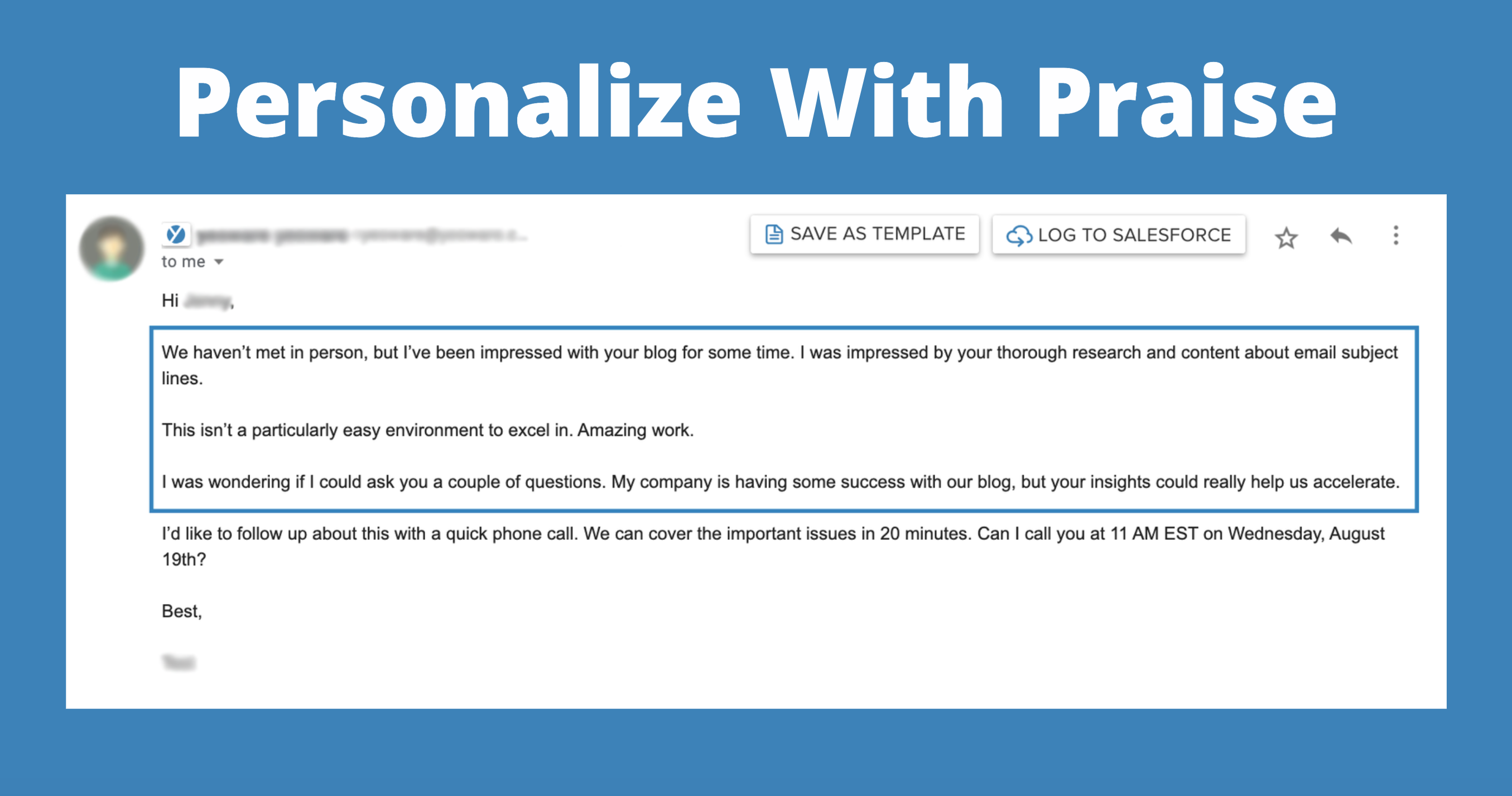
Personalization is not merely about inserting a recipient's first name into the salutation. In a professional context, true personalization requires aligning your message with the specific pain points, industry context, or recent activities of your target audience. When using Microsoft Outlook, the challenge is balancing the need for deep customization with the operational necessity of reaching a wider audience.
Outlook offers several layers of personalization, ranging from simple manual adjustments to automated workflows. To execute successful outreach, you must first distinguish between "Dynamic Content" (using database fields to auto-populate data) and "Contextual Relevance" (tailoring the body of the message to a specific prospect). Utilizing both effectively is the hallmark of a high-converting email strategy.
Prerequisites for Professional Outreach
Before initiating an outreach campaign, ensure your environment is configured to support mass messaging without triggering spam filters.
- Domain Reputation: Ensure your SPF (Sender Policy Framework), DKIM (DomainKeys Identified Mail), and DMARC (Domain-based Message Authentication, Reporting, and Conformance) records are properly configured. Personalization is ineffective if your emails never reach the inbox.
- Data Hygiene: Your personalization strategy is only as good as your data source. Clean your Excel or CSV lists to remove invalid entries, formatting errors, or outdated contact names.
- Outlook Configuration: If using the Mail Merge function, ensure that Outlook is set as your default mail client in your operating system’s settings.
Implementing Mail Merge for Scalable Personalization
The most robust tool for personalizing outreach in Outlook is the integrated Mail Merge feature. This allows you to connect an Excel spreadsheet containing prospect information directly to an Outlook email draft.
- Prepare the Data Source: Organize your Excel file with clear headers (e.g., "FirstName," "Company," "LastInteraction"). Each column should represent a variable you intend to use in the email body.
- Initiate Merge in Word: While Outlook handles the delivery, the setup occurs in Microsoft Word. Select "Mailings" > "Start Mail Merge" > "E-mail Messages."
- Link Data: Click "Select Recipients" and choose "Use an Existing List," then select your prepared Excel file.
- Insert Merge Fields: Use the "Insert Merge Field" function to place your placeholders. For example, "Hi «FirstName», I noticed your team at «Company» recently expanded."
- Finalize: Once the placeholders are set, click "Finish & Merge" and select "Send Email Messages." Outlook will generate a unique email for each row in your Excel sheet.
Comparison of Personalization Levels in Outlook
| Strategy | Technical Complexity | Scalability | Impact on Engagement |
|---|---|---|---|
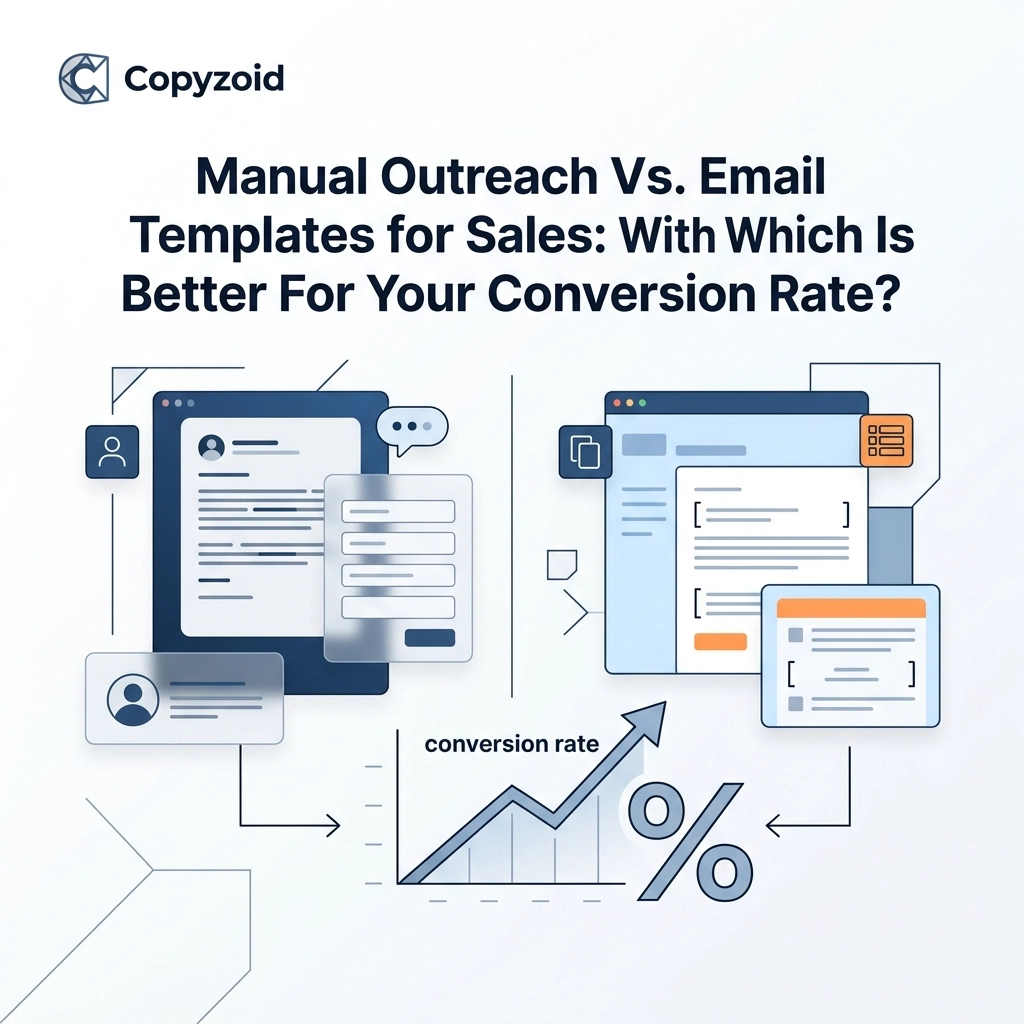
| Manual Drafting | Low | Minimal | Very High |
| Mail Merge (Excel + Word) | Medium | High | Medium |
| Third-party Add-ins | Medium | Very High | High |
| API/Automated Flows | High | Unlimited | High |
Mastering Dynamic Variables for Contextual Outreach
Beyond basic names and company placeholders, advanced users should utilize conditional logic. While standard Mail Merge in Word does not support complex "if/then" statements natively without VBA (Visual Basic for Applications), you can achieve a similar effect by creating different segments.
Divide your contact list into groups based on industry, seniority, or previous relationship. Create a master template but customize the "hook" sentence for each segment. By preparing three slightly different versions of your email for three distinct demographics, you maintain a high level of personalization without the risks associated with fully automated, generic scripts.
Common Pitfalls and How to Avoid Them
Even with a solid plan, errors can derail an outreach campaign. Being aware of these pitfalls is essential for maintaining professional credibility.
- Broken Placeholders: If your Excel header is "First_Name" but you use a placeholder for "FirstName" in Word, the recipient will see an error or an empty space. Always perform a test run sending emails to addresses you control before launching to your full list.
- The "Uncanny Valley" Effect: Attempting to force personal details that feel invasive—such as mentioning specific family members or very niche personal hobbies—often backfires. Stick to professional context, such as recent company milestones, industry news, or common professional connections.
- Ignoring Formatting Consistency: When merging data, font styles or sizes can sometimes reset to the default settings of the target application. After inserting fields, highlight your text and ensure all fonts, sizes, and line spacing are uniform throughout the message.
Troubleshooting Delivery and Formatting Issues
If your personalized emails are not appearing in the recipient's inbox as intended, focus on these technical checkpoints:
- The "Send As" Restriction: If you are using a shared mailbox or an alias, ensure the "From" address in your Mail Merge settings is the primary account authorized to send bulk mail from that domain.
- Attachment Limits: Avoid attaching large documents to personalized mass emails. Instead, provide a link to a secure, cloud-hosted version of the document. This reduces the size of the email, lowering the likelihood of it being blocked by firewalls.
- HTML Complexity: Keep email design simple. Overly complex HTML layouts often render incorrectly across different email clients (such as mobile versions of Outlook vs. desktop versions). Use standard text formatting to ensure maximum compatibility.
Frequently Asked Questions
Can I include images that change based on the recipient? Native Outlook Mail Merge does not support dynamic image insertion. To achieve this, you would need to use a dedicated third-party email marketing integration or Outlook add-in designed for dynamic content, which can pull unique image URLs from your data source.
What is the maximum number of recipients for a Mail Merge? Outlook and your Exchange server may have daily sending limits to prevent spam. For large outreach efforts (over 500 recipients), it is recommended to split your list into smaller batches over several days or utilize an enterprise-grade marketing automation platform.
How do I track if personalized emails are being opened? Standard Outlook does not provide robust analytics for mass emails. To track engagement, use a tracking pixel or a third-party add-in. These tools embed a unique tracking link or invisible image in each email, allowing you to see which specific recipients interacted with your message.
Can I use Outlook rules to personalize the follow-up process? Yes. You can create "Quick Steps" or "Rules" in Outlook to move replies from specific outreach campaigns into dedicated folders, allowing you to prioritize responses from prospects who engaged with your personalized content.
Next Steps for Your Outreach Strategy
To refine your process, conduct an A/B test with your next campaign. Send one version with standard "Company Name" personalization and another with a more specific, industry-relevant observation. Measure the response rates for both over a 48-hour period. Use this data to iteratively improve your templates. As you gain proficiency, consider transitioning to professional CRM integrations that offer deeper automation capabilities while still leveraging the reliability of the Microsoft 365 ecosystem.
Image Gallery