How to Compress Files for Discord to Bypass Size Limits
To compress a file for Discord, reduce its file size by archiving it into a ZIP format, lowering video or image resolutions, or using online compression tools to fit under the 8MB limit for free accounts or larger tiers for Nitro subsc...
To compress a file for Discord, reduce its file size by archiving it into a ZIP format, lowering video or image resolutions, or using online compression tools to fit under the 8MB limit for free accounts or larger tiers for Nitro subscribers.
Contents
Sharing media, documents, and archives on Discord is a daily routine for millions of communities, yet users frequently run into an immediate roadblock: the file size limit. When a file exceeds the platform's native restrictions, Discord rejects the upload and displays an error message. Understanding how to properly compress a file for Discord ensures that you can share high-definition clips, extensive document portfolios, and large software projects without running into frustrating upload barriers.
Understanding Discord File Size Restrictions
Before attempting to compress any file, it is vital to know the exact boundaries set by the platform. Discord structures its upload limits based on account tiers. For standard, free accounts, the maximum file size limit is 8 megabytes (MB). This limit applies to images, videos, audio clips, documents, and compressed archives alike.
For users who subscribe to Discord Nitro Basic, the file size limit is increased to 50 MB. Meanwhile, top-tier Discord Nitro subscribers enjoy a limit of 500 MB, allowing for the direct upload of large, uncompressed video files and comprehensive software builds.
If your file exceeds the limit assigned to your account tier, Discord will block the upload completely. While upgrading to Nitro is one option, data compression remains the universal, free solution to ensure your files can be shared with anyone on the platform, regardless of their subscription status.
Methods to Compress Files for Discord
Different file types require different reduction techniques. Attempting to compress a text document using a video-shrinking algorithm will yield poor results, just as zipping a high-resolution video might not reduce its footprint enough to clear the 8MB threshold. Below are the primary methods for shrinking various file formats.
Using Built-In Archive Tools (ZIP Compression)
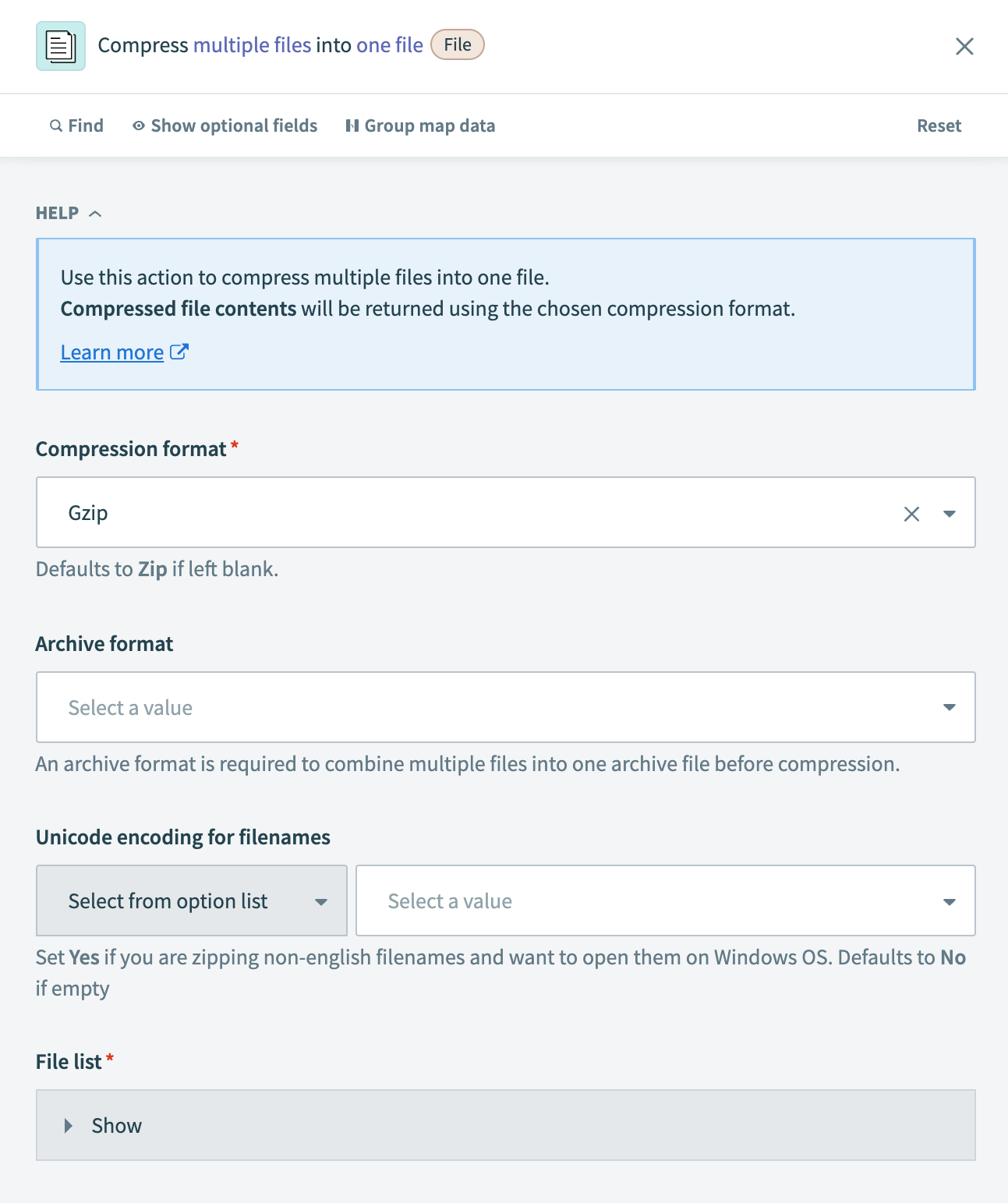
For folders containing multiple files, documents, code, or images, creating a compressed archive is the cleanest and fastest method. Archiving does not alter the quality of the individual files inside; instead, it bundles them together and uses lossless data compression algorithms to reduce the total footprint.
- On Windows: Right-click the file or folder you want to send, hover over Send to, and select Compressed (zipped) folder. Windows will instantly generate a new
.zipfile in the same directory. - On macOS: Right-click (or Control-click) the target file or folder and select Compress "[Folder Name]". Mac OS will create a
.ziparchive right beside the original items.
While ZIP compression is ideal for documents and code, it has limitations with already-compressed formats like MP4 videos, JPG images, or MP3 audio files. Because those formats are already compressed, zipping them yields negligible size reductions.
Compressing Video Files for Discord
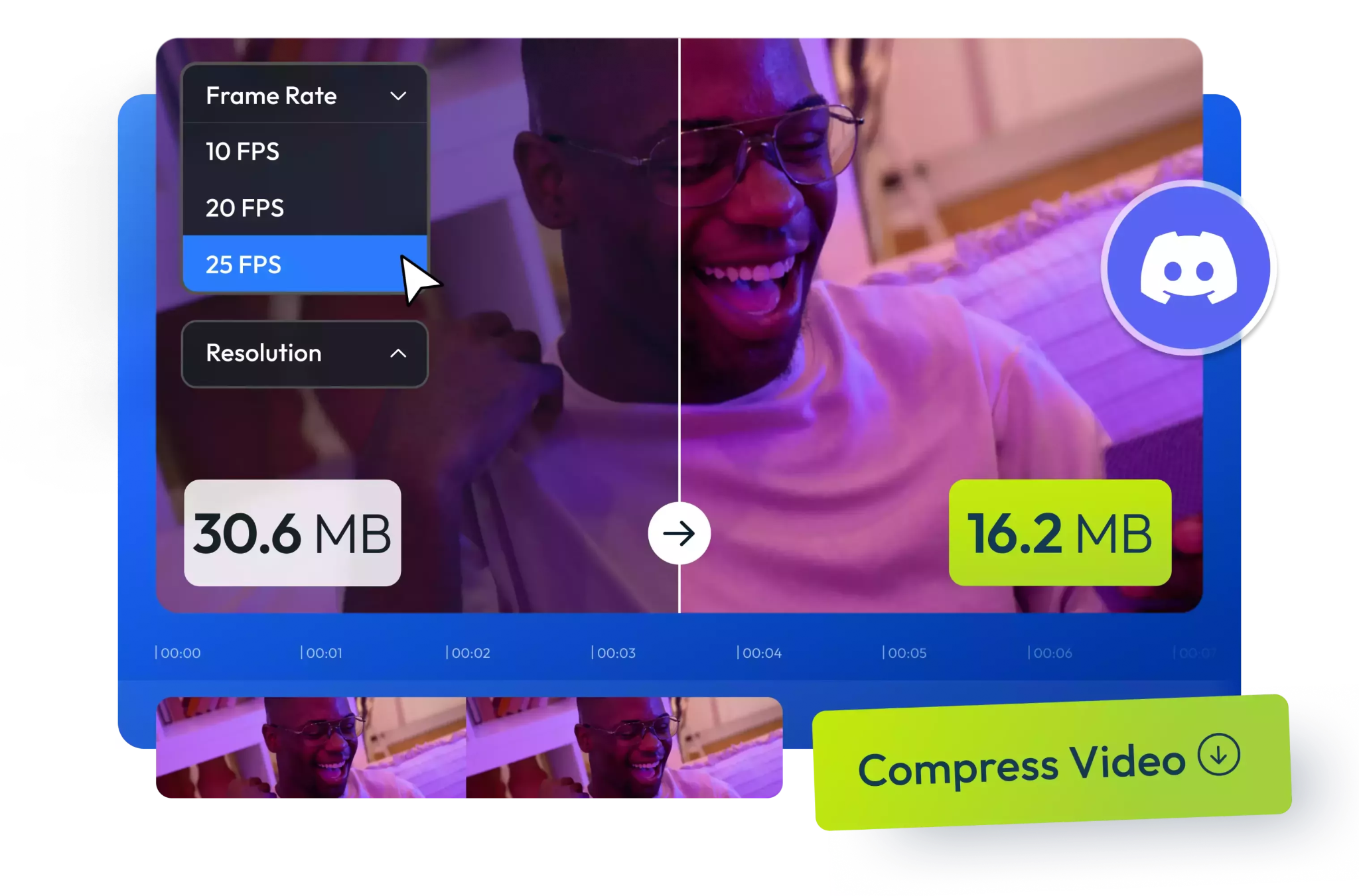
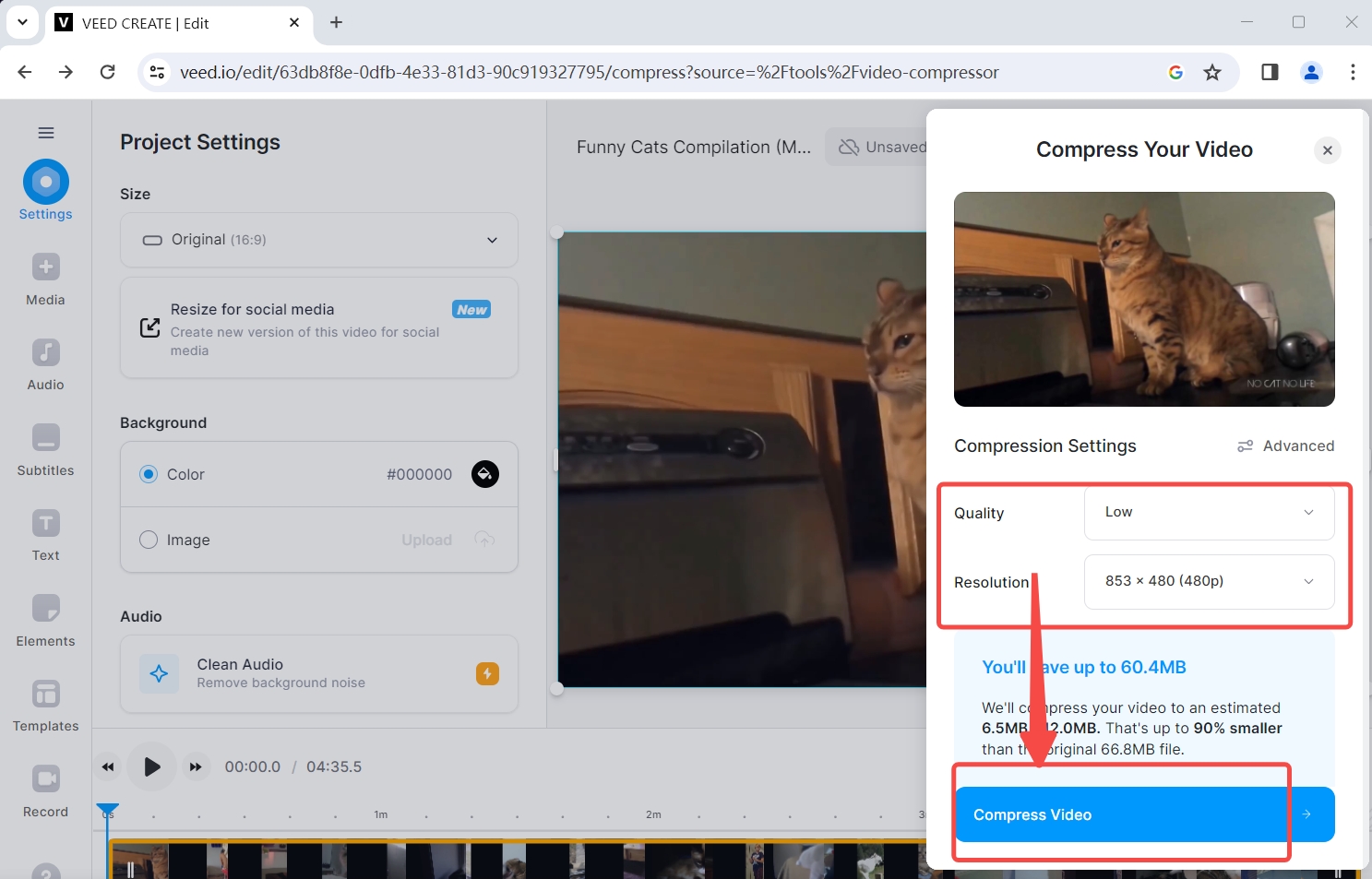
Videos are the most common culprits behind failed Discord uploads. A standard smartphone video or screen recording can easily range from 50MB to several gigabytes. To fit a video under the 8MB free limit—or even the 50MB Nitro Basic limit—you need to reduce its resolution, lower its bitrate, or trim its duration.
Trimming Unnecessary Footage
The simplest way to shrink a video file is to cut out dead space. Most operating systems feature built-in video editors:
- Windows (Photos App): Open the video, click the edit icon, select Trim, adjust the start and end sliders to keep only the essential moments, and save the file.
- macOS (QuickTime Player): Open the video, press
Command + Tto open the Trim interface, drag the handles to select the desired segment, and click Trim.
Transcoding with Handbrake
For heavy compression where you must retain as much visual clarity as possible, free and open-source software like HandBrake provides professional-grade control.
- Download and open HandBrake, then drag your video file into the window.
- Navigate to the Summary tab and choose a container such as MP4.
- Go to the Dimensions tab to lower the resolution (for example, stepping down from 1080p to 720p or 480p).
- Move to the Video tab and adjust the Constant Quality (RF) slider. Moving the slider to the right (e.g., RF 24 to 28) reduces file size at the cost of visual fidelity.
- Select an output destination at the bottom of the window and click Start Encode at the top.
Compressing Images for Discord
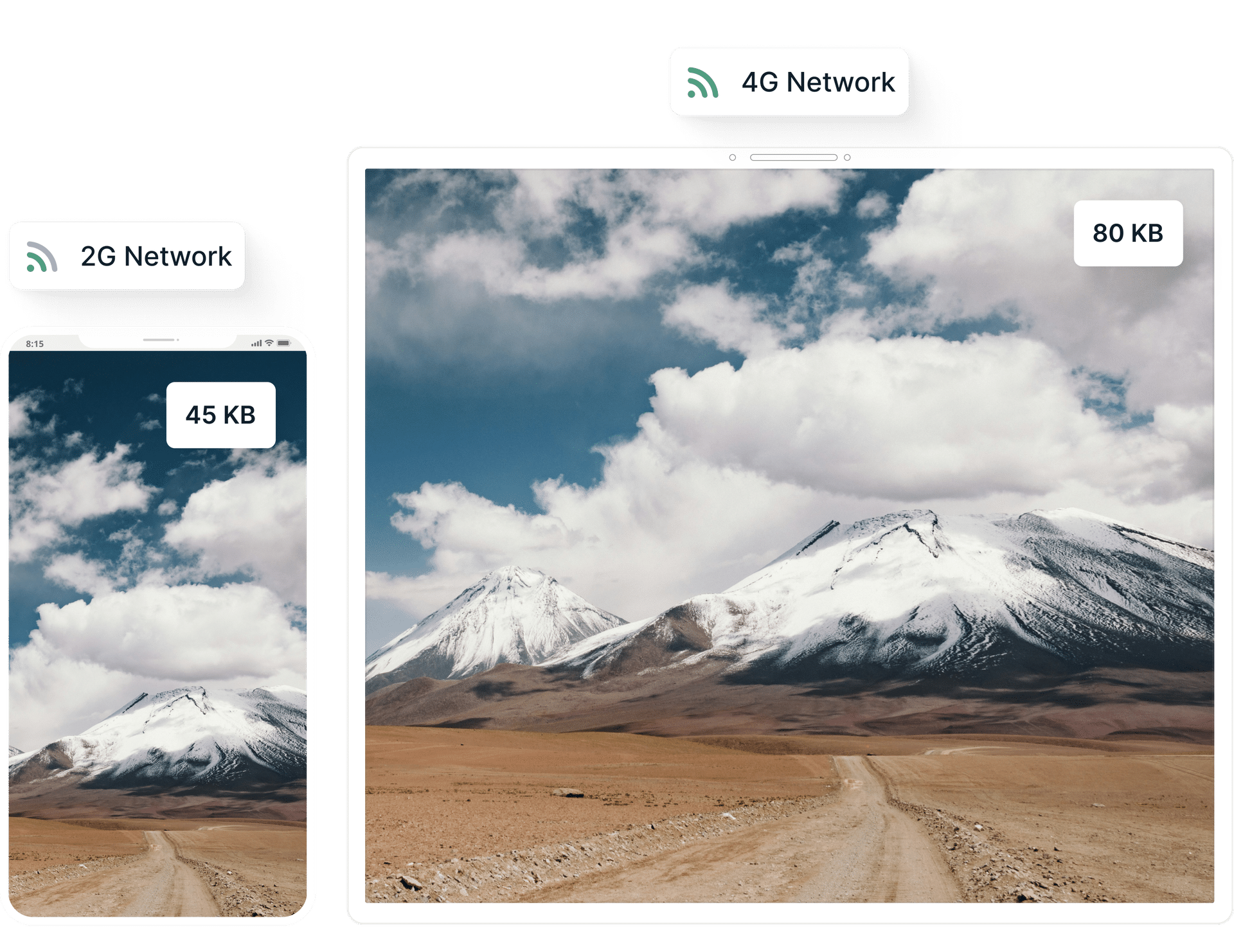
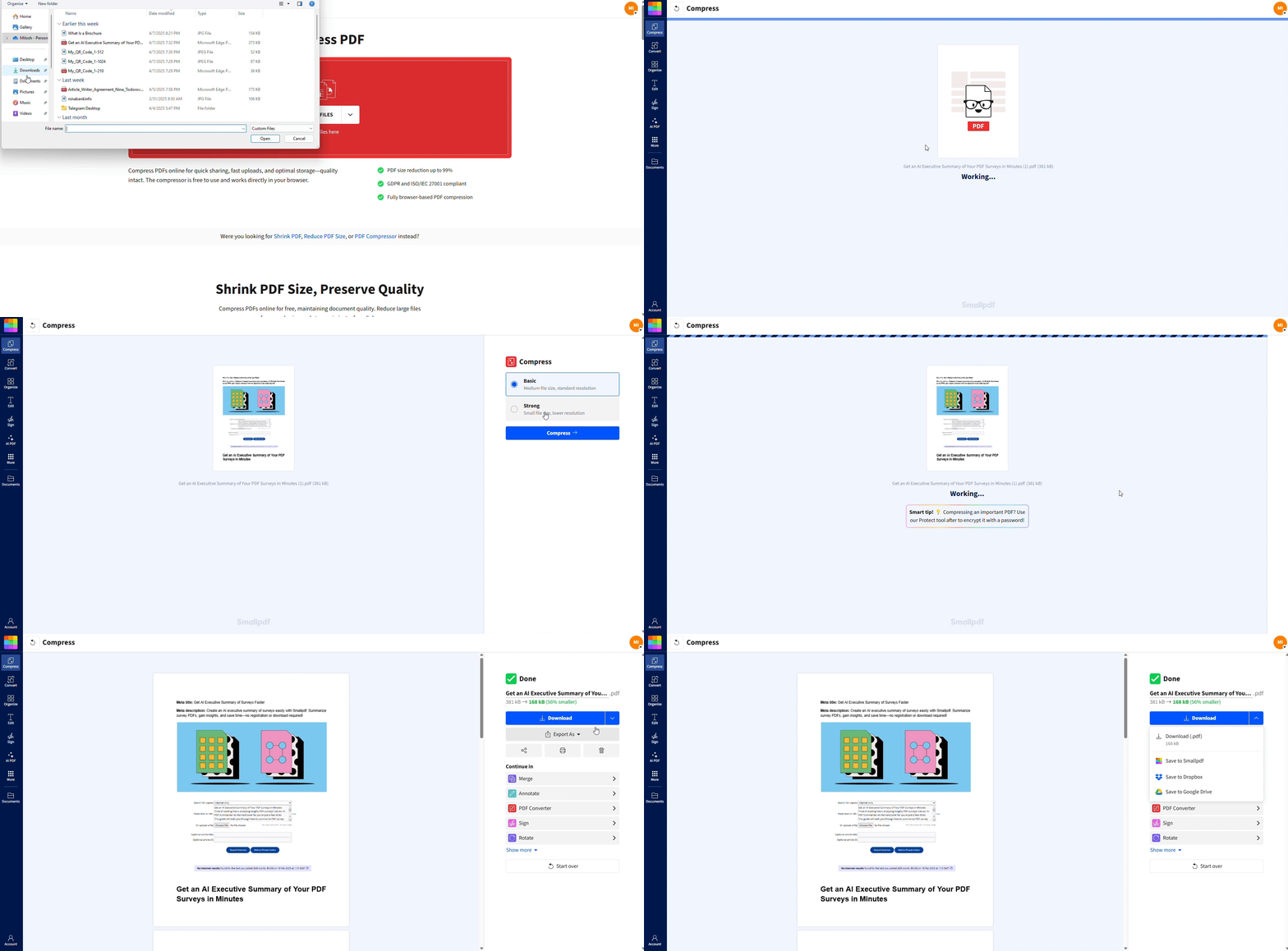
High-resolution photographs captured on modern mirrorless cameras or smartphones frequently exceed 10MB to 20MB. If you need to share photography or high-res artwork on Discord without losing critical detail, image compression is necessary.
- Lossless Compression: Tools like PNGquant or TinyPNG reduce file sizes by stripping out unnecessary metadata and optimizing color palettes without dropping a single pixel of visual quality.
- Lossy Compression and Resizing: Opening the image in a basic editor like Microsoft Paint, Apple Preview, or Adobe Photoshop to scale down the pixel dimensions (e.g., changing width from 4000px to 1920px) will drastically cut the file size down to a Discord-friendly scale.
| File Type | Best Compression Method | Typical Size Reduction | Quality Impact |
|---|---|---|---|
| Documents / Folders | ZIP Archiving | Moderate (10% - 40%) | None (Lossless) |
| Videos (MP4 / MOV) | Resolution reduction & Bitrate adjustment (HandBrake) | High (50% - 90%) | Noticeable if over-compressed |
| Images (PNG / JPG) | Resizing & Color palette optimization | Moderate to High (30% - 80%) | Minimal to None |
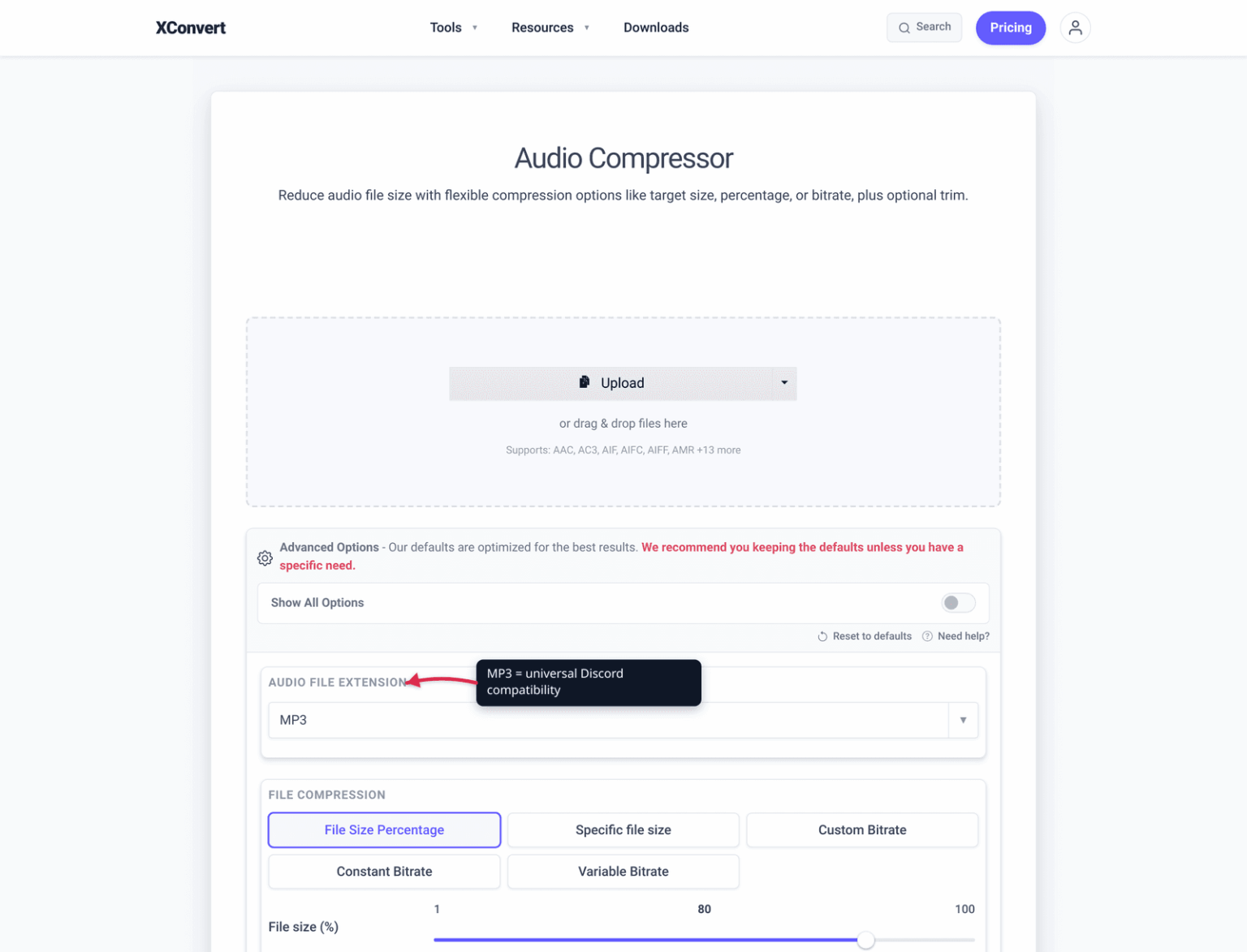
| Audio (WAV / MP3) | Converting WAV to MP3 or lowering bitrate | High (WAV to MP3) | Low for voice / Medium for music |
Alternative Solutions When Compression Fails
If your file is simply too large to compress effectively without turning it into an unreadable, pixelated mess, you can bypass Discord's upload limits entirely using external sharing platforms.
Cloud Storage Services
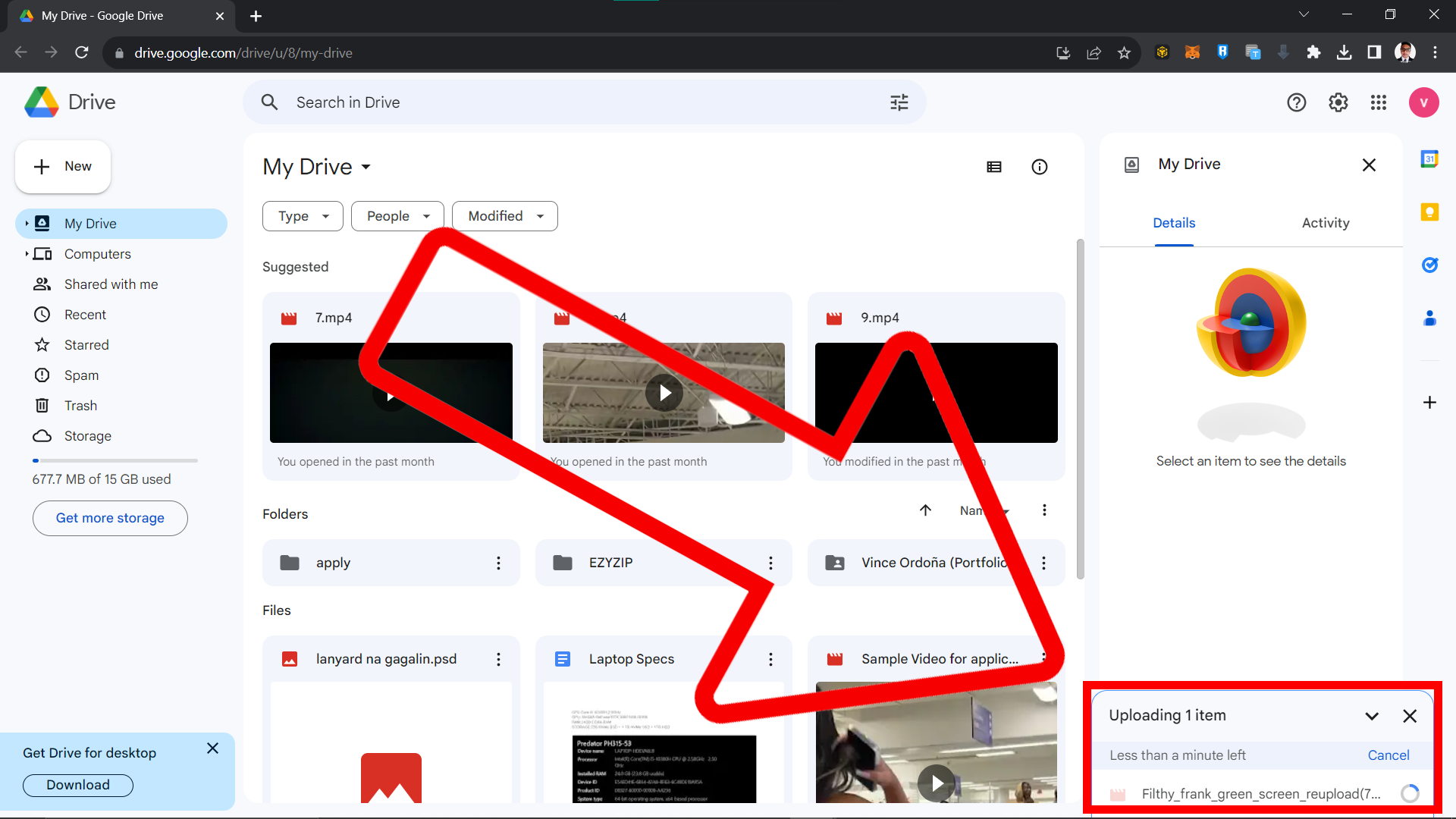
You can upload your large files to a cloud storage provider and share the public link directly in your Discord channel. Trusted platforms include:
- Google Drive
- Microsoft OneDrive
- Dropbox
When pasting these links into Discord, the platform will often generate an interactive embed, allowing other server members to preview or download the file with a single click.
Dedicated File Sharing and Paste Sites
For code snippets, massive text logs, or quick file drops, specialized hosting services keep your Discord chat clean and organized:
- Hastebin or Pastebin: Ideal for sharing thousands of lines of code or server logs without cluttering the chat window.
- Mega or MediaFire: Useful for distributing large game mods, installer packages, or multimedia bundles that exceed even Discord Nitro limits.
Troubleshooting Common Compression Issues
When compressing files for Discord, users occasionally encounter formatting snags or playback errors.
- Audio Desync in Videos: If you heavily compress a video file and notice the audio is out of sync with the visuals, the encoding frame rate may have dropped. Ensure your video encoder is locked to a standard frame rate like 30fps or 60fps.
- Corrupted ZIP Archives: If a friend downloads your ZIP archive and receives an error stating the file is invalid or corrupted, the upload may have been interrupted. Re-export the archive and ensure the file transfer completes fully before closing Discord.
- Wrong Container Format: Discord natively supports standard web formats like MP4, WebM, and MOV for video playback directly inside the chat interface. If you compress a video into an obscure format like MKV or AVI, Discord may force users to download the file rather than playing it inline.
Step-by-Step Summary for Quick Execution
To quickly compress and share any file on Discord without hassle, follow this streamlined workflow:
- Evaluate the file: Check its current size against your account tier (8MB for free, 50MB for Nitro Basic, 500MB for Nitro).
- Choose the tool: Use native ZIP compression for folders, HandBrake or a trimmer for videos, and image resizers for photos.
- Process the file: Execute the compression and verify that the final output size sits comfortably below your limit.
- Test the upload: Drag and drop the compressed file into your Discord channel. If it fails, opt for a cloud storage link instead.
Image Gallery