A Comprehensive Guide on How to Add Markers on Google Maps
Adding a marker on Google Maps is a foundational skill for individuals and businesses looking to highlight specific locations, create custom itineraries, or share points of interest. Whether you are using a personal map via Google My M...
Adding a marker on Google Maps is a foundational skill for individuals and businesses looking to highlight specific locations, create custom itineraries, or share points of interest. Whether you are using a personal map via Google My Maps, integrating coordinates into a web application through the Google Maps Platform, or simply dropping a pin for navigation, the process varies significantly depending on your specific goal and technical requirements.
Contents
Understanding Your Mapping Goal
Before you begin, it is important to distinguish between the two primary ways you can add markers to Google Maps. The first, and most common for personal use, is through Google My Maps. This is a user-friendly interface that allows you to create custom maps, draw lines, add shapes, and place markers for personal organization or public sharing. The second method involves the Google Maps Platform (API), which is intended for developers who need to programmatically embed interactive maps with dynamic markers into websites or mobile applications.
If you are looking to place a marker for personal use, such as marking a list of favorite restaurants or planning a travel route, Google My Maps is the appropriate tool. If you are building a commercial application that requires thousands of markers, automatic updates based on database entries, or custom styling, you will need to utilize the Google Maps JavaScript API.
Adding Markers Using Google My Maps
For most users, Google My Maps serves as the primary tool for custom location management. Follow these steps to get started:
- Access Google My Maps: Navigate to the Google My Maps website. Ensure you are signed in with your Google account.
- Create or Open a Map: Click the "Create a New Map" button, or select an existing map from your dashboard.
- Use the Marker Tool: In the toolbar beneath the map title, look for the "Add Marker" icon, which resembles an inverted teardrop. Select it.
- Place the Marker: Click directly onto the location on the map where you wish to drop your pin.
- Customize the Entry: Once placed, a dialogue box will appear. Here, you can title your marker, add a description, change the marker color, or choose a custom icon to represent the location type.
- Save and Share: Your changes are saved automatically to your Google Drive. You can share your map with others by clicking the "Share" button and adjusting the access permissions.
Implementing Markers via Google Maps Platform
For developers, the process requires an understanding of the Google Maps JavaScript API. This approach is more technical and involves several prerequisites:
- Google Cloud Console Project: You must create a project in the Google Cloud Console.
- Billing Setup: Even for the free tier, a billing account must be linked to your project to facilitate API usage.
- API Key Generation: You must enable the "Maps JavaScript API" and generate an API key to authenticate your requests.
Basic Implementation Logic
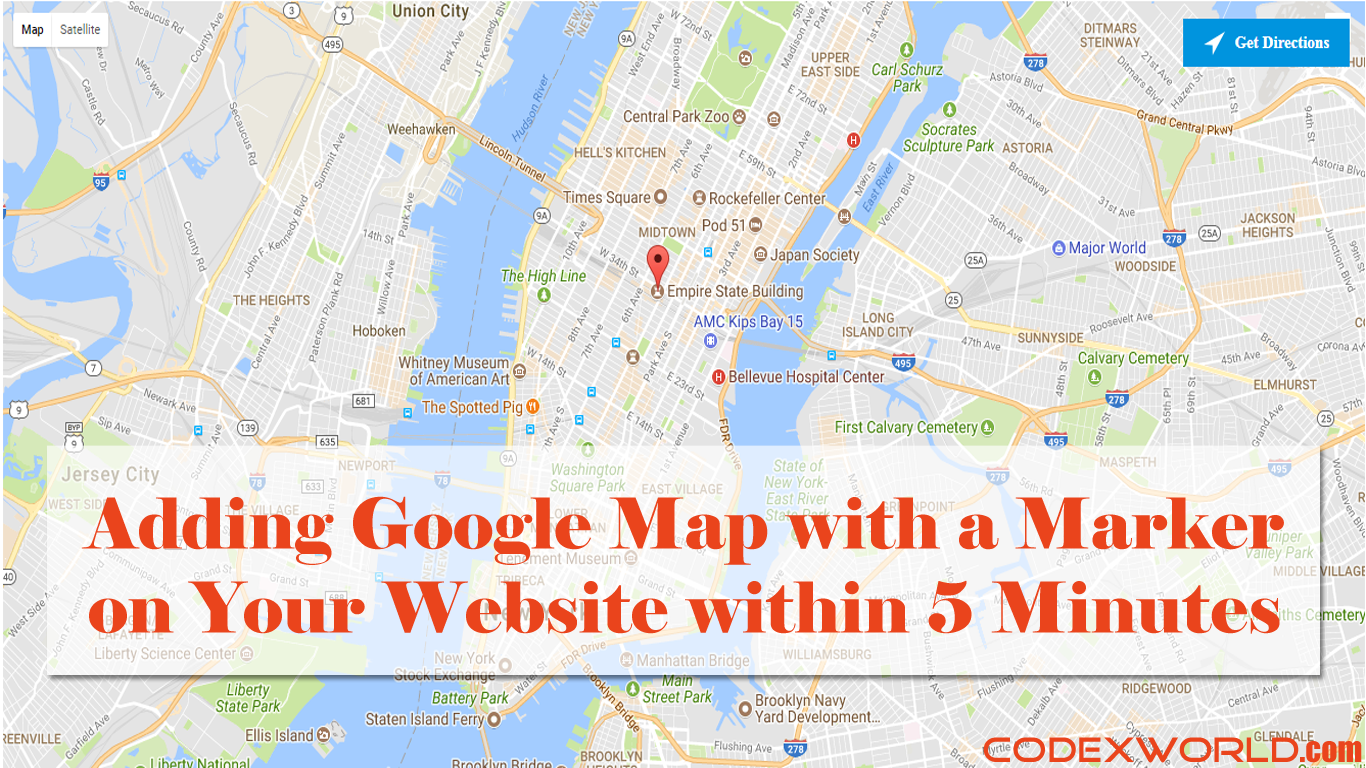
Once your environment is configured, adding a marker is achieved by initializing a google.maps.Marker object. You must define the position using latitude and longitude coordinates.
// Example of the logic used in JavaScript const myLatLng = { lat: 40.7128, lng: -74.0060 }; const map = new google.maps.Map(document.getElementById("map"), { zoom: 12, center: myLatLng, }); new google.maps.Marker({ position: myLatLng, map: map, title: "Hello World!", });
This code snippet represents the core functionality. In a production environment, developers often use the AdvancedMarkerElement class, which offers better performance and customization options compared to the legacy Marker class.
Comparing Marker Methodologies
Choosing the right method depends entirely on your technical proficiency and the purpose of your map.
| Feature | Google My Maps | Google Maps API |
|---|---|---|
| Technical Skill | Minimal | High (Requires Coding) |
| Customization | Basic (Icons/Colors) | Unlimited (Custom SVGs/DOM) |
| Scaling | Low (Manual) | High (Dynamic/Database) |
| Cost | Free | Pay-as-you-go (After Free Tier) |
| Use Case | Personal/Small Teams | Enterprise/Commercial Apps |
Common Challenges and Troubleshooting
Even with a clear process, users often encounter specific hurdles when managing map markers.
Positioning Accuracy
In Google My Maps, if a marker appears slightly off-center, you can simply click and drag it to the desired position. For API users, ensure your latitude and longitude coordinates are formatted as floating-point numbers. Errors in coordinate precision are the most frequent cause of markers appearing in the middle of the ocean or an incorrect district.
Marker Visibility
If you are using the API and your markers are not appearing, first verify that your API key is correctly restricted and authorized for your domain. If using My Maps, ensure that the "Layer" containing your markers is checked as "Visible" in the legend panel on the left side of the screen.
Performance Limitations
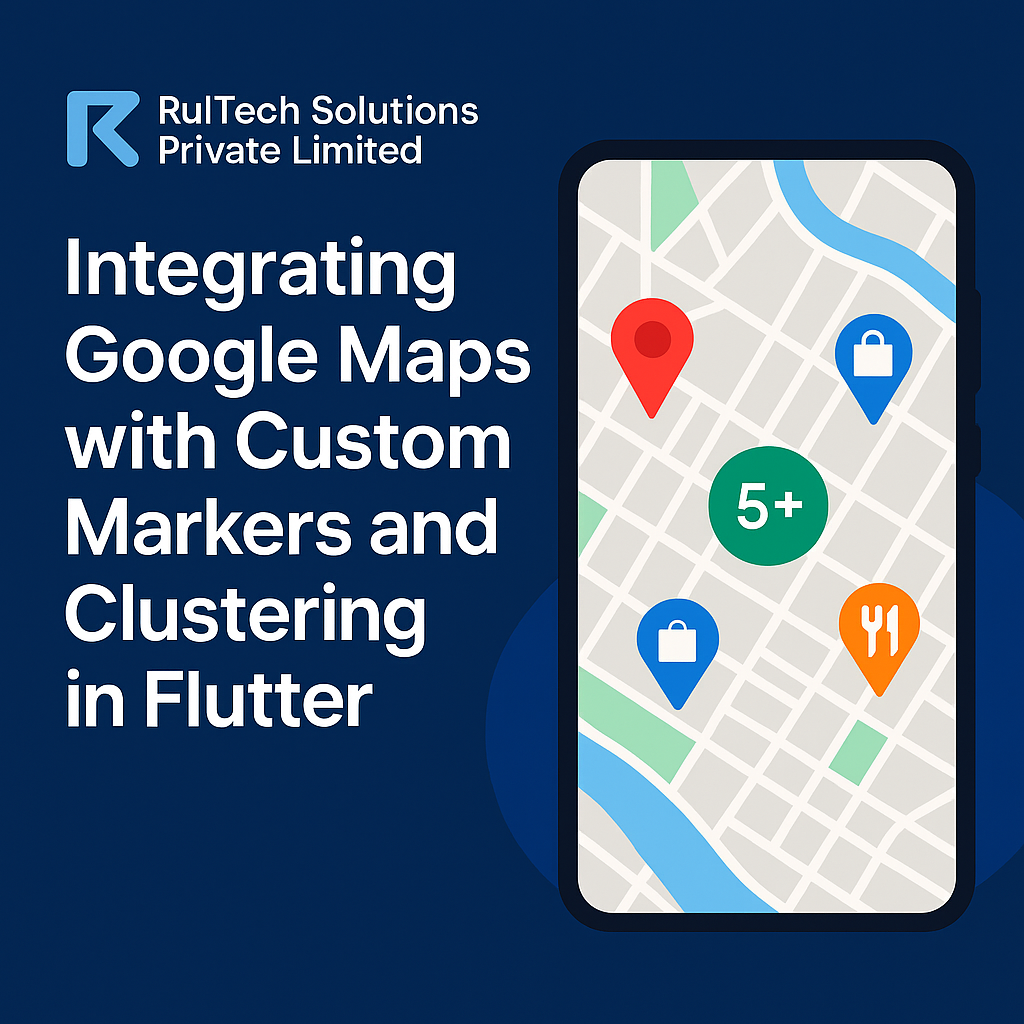
When displaying a large number of markers (e.g., hundreds or thousands), performance can degrade. For API users, it is highly recommended to implement "Marker Clustering." This utility groups markers that are close together into a single icon, preventing the map from becoming cluttered and improving loading speeds for the end user.
Frequently Asked Questions
Can I import bulk data to add markers to Google My Maps? Yes. You can import data from CSV, XLSX, or KML files. In your map, click "Add Layer," then click the "Import" link. Ensure your file contains columns for latitude and longitude, or at least addresses that Google can geocode.
Is there a cost for using Google Maps markers on my website? Google Maps Platform provides a monthly credit of $200 that covers a significant number of requests. Once this credit is exceeded, you will be charged according to their usage-based pricing model. My Maps remains free for personal use.
How do I delete or edit a marker once it is placed?
In My Maps, click on the marker directly on the map. A box will open; click the trash icon to delete or edit the text fields. For the API, you must update your underlying data source or call the .setMap(null) method on the marker object to remove it from the view.
Are there privacy concerns with markers on shared maps? When you share a My Maps link, anyone with the link can view your markers. If your map contains sensitive data, ensure you keep the sharing settings set to "Private" or "Restricted" rather than "Public."
Can I use custom images for my markers? In My Maps, you are limited to the provided icons. In the Google Maps API, you can define custom icons by passing a URL to an image file or by using advanced DOM elements to render custom HTML/CSS markers.
Recommended Next Steps
If you are starting a project, define your data requirements first. If you simply need to visualize a small set of data points, export a CSV and use the import feature in Google My Maps; it is the most efficient path. If you are developing a professional application, familiarize yourself with the Google Maps Platform documentation to understand how to handle API key security and data-driven marker rendering to ensure a smooth, professional user experience.
Image Gallery