How to Index Google Docs: Understanding Search Engine Visibility and Best Practices
Indexing a Google Doc in search engine results requires the document to be publicly accessible on the web, properly formatted for web crawlers, and actively discovered through inbound links or a submitted sitemap. Because Google Docs r...
Indexing a Google Doc in search engine results requires the document to be publicly accessible on the web, properly formatted for web crawlers, and actively discovered through inbound links or a submitted sitemap. Because Google Docs reside on Google’s own infrastructure (docs.google.com), they operate under different indexing mechanics than traditional self-hosted websites, making it essential to understand visibility settings, sharing permissions, and technical constraints before expecting search engine appearance.
Contents
Understanding How Search Engines Discover and Index Google Docs
Search engines like Google discover content by crawling the public web via automated bots. When these bots encounter a URL pointing to a Google Doc, they attempt to read its contents and determine whether to add it to their index. However, the architecture of Google Drive and Google Docs introduces specific hurdles that prevent casual documents from appearing in search engine results pages (SERPs).
By default, every newly created Google Doc is kept strictly private. It is bound to the creator's Google Account, and no external entity—human or automated—can access it. For a search engine crawler to read a document, the sharing permissions must be adjusted from restricted to public visibility. Even then, Google applies distinct quality filters to documents hosted on collaborative platforms to prevent spam, duplicate content, and clutter in search results.
Furthermore, Google Docs lack standard technical SEO elements found on traditional content management systems. You cannot directly install an SEO plugin, edit meta robots tags, or inject custom schema markup into a standard Google Doc. Consequently, optimization relies almost entirely on clean document structure, descriptive titles, strategic keyword placement, and external link equity pointing directly to the shared document URL.
Prerequisites for Making a Google Doc Eligible for Indexing
Before a search engine can index a Google Document, several mandatory access and structural requirements must be met. Ignoring any of these prerequisites will result in crawling errors, blocked access, or an outright refusal by search engines to process the file.
1. Adjusting Sharing Permissions to Public Access
The most critical barrier to indexing is document security. If a file is restricted to specific email addresses, automated crawlers will hit an authentication wall and fail to read the text.
- Open the target Google Doc.
- Click the green Share button in the top right corner.
- Under the General access section, change the setting from Restricted to Anyone with the link.
- Ensure the permission role is set to Viewer (changing it to Editor is unnecessary for indexing and introduces security risks).
2. Ensuring the Document Contains Original, Crawlable Text
Search engine bots parse textual data. If your Google Doc consists solely of embedded images, unformatted screenshots, or scanned PDFs uploaded into the document body, crawlers will struggle to extract meaning. To maximize indexability:
- Use native text formatting with standard heading styles (Heading 1, Heading 2, Paragraph).
- Include clear, descriptive alt text for any essential images within the document.
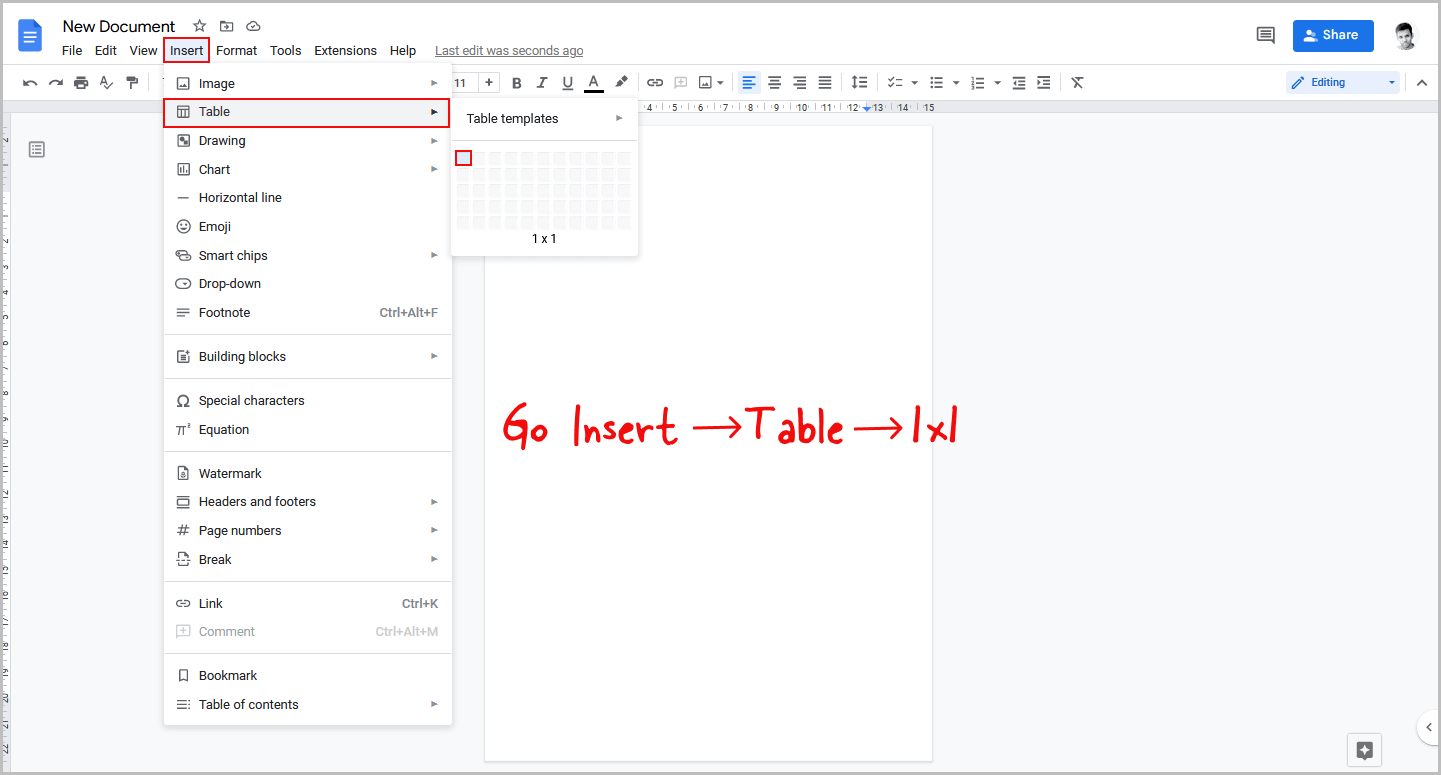
- Avoid heavy reliance on complex, nested tables or text boxes that obscure the natural reading order of the document.
Step-by-Step Guide to Driving Indexation for Your Google Doc
Simply changing sharing settings is rarely enough to force instant indexation. Because search engines prioritize established websites, Google Docs require active signaling to be noticed and processed. Follow these structured steps to encourage search engine crawlers to find and index your document.
- Google Doc Creation
- Set Sharing to "Anyone with the link"
- Optimize On-Page Structure & Headings
- Distribute External Backlinks & Social Signals
- Request Indexing via Google Search Console
Step 1: Secure and Optimize the Document Title and URL Slug
The title of your Google Doc serves as the primary anchor for how search engines understand the page topic. Ensure the document title contains your primary target keywords. When you share a Google Doc, the URL generated is permanent and contains a unique document identifier string. While you cannot customize this string, keeping the document title clean and keyword-rich helps reinforce topical relevance when crawlers parse the text.
Step 2: Build External Backlinks to the Shared URL
Search engines discover web pages primarily through links. Because you cannot submit a standalone Google Doc URL directly through a traditional site sitemap unless it is embedded within an indexable web property, you must create external pathways to the document.
- Embed or link the document within an existing, indexed blog post or website article.
- Share the public URL on high-authority social media platforms or public forums where search engine bots actively crawl.
- Reference the document in collaborative workspaces, open knowledge bases, or community directories that allow public contributions.
Step 3: Utilize Google Search Console (If Applicable)
If you own a verified domain and want to index a Google Doc tied to your Google Workspace account, you can test how Google crawls the URL. While Google Search Console primarily indexes standard website properties, entering the public Google Doc URL into the URL Inspection tool can trigger an on-demand crawl request, prompting Googlebot to evaluate the document faster than waiting for organic discovery.
Comparing Google Docs Indexing vs. Traditional Web Pages
Understanding how Google Docs differ from standard web pages clarifies why indexation can sometimes be unpredictable or slower.
| Feature | Standard Web Page (CMS / HTML) | Public Google Doc (docs.google.com) |
|---|---|---|
| Control Over Meta Tags | Full control over title, description, and robots directives. | None; determined automatically by Google. |
| URL Customization | Clean, readable, keyword-targeted slugs available. | Long, randomized alphanumeric strings generated by Google. |
| Sitemap Inclusion | Can be easily added to XML sitemaps for automated crawling. | Cannot be included in standard XML sitemaps directly. |
| Domain Authority | Inherits authority from your custom domain name. | Rides on Google’s high overall domain trust (docs.google.com). |
| Indexation Speed | Varies based on site crawl budget and internal linking. | Often slower due to reliance on external backlink discovery. |
Common Pitfalls and Troubleshooting Indexation Issues
Even when sharing settings are configured correctly, webmasters and content creators frequently encounter roadblocks that prevent Google Docs from appearing in search results. Reviewing these common mistakes helps diagnose why a document remains unindexed.
1. Accidental Search Engine Blocking via Workspace Admin Settings
If you are using a Google Workspace account provided by an enterprise, school, or organization, domain-level administrators can enforce strict sharing restrictions. Even if you set an individual document to public, organization-wide policies may override your settings and block external access, resulting in a 403 or 404 crawl error for search engines.
2. Low-Quality or Thin Content Penalties
Google applies strict quality guidelines to prevent low-effort or automated content hosted on collaborative platforms from clogging search results. A Google Doc consisting of a single sentence, placeholder text, or scraped information will likely be crawled but ignored (categorized as "Crawled - currently not indexed" in advanced SEO diagnostics). Ensure your document provides substantial, unique value to readers.
3. Frequent Permission Changes
Toggling a document back and forth between restricted and public states confuses search engine crawlers. Every time a crawler attempts to access a URL and encounters an authorization error, it delays subsequent crawl attempts. Keep the sharing permissions stable once the document is finalized and ready for public discovery.
Frequently Asked Questions
Can I use a custom domain for a Google Doc URL?
No. Google Docs are hosted exclusively on Google’s proprietary infrastructure using docs.google.com or drive.google.com paths. It is impossible to map a third-party custom domain (such as www.yourbrand.com/doc) directly to an individual Google Doc. If you require a custom domain, consider publishing the document as a Google Site or transferring the text to a traditional content management system.
How long does it take for Google to index a shared Google Doc?
Indexation timelines vary significantly. Because Google Docs lack direct sitemap integration, search engines rely entirely on external links to discover the URL. If the document link is placed on a high-authority, frequently crawled website, indexation can occur within a few days. If no external links point to the document, it may never be discovered or indexed.
Will Google index a Google Doc that is set to "Anyone with the link can view"?
Yes. Setting the general access permissions to "Anyone with the link" makes the document readable by anyone on the internet, including automated search engine web crawlers. However, this alone does not guarantee indexation; the crawler must still discover the URL via an inbound link or a manual crawl request.
Can I prevent Google from indexing a public Google Doc?
Google Docs do not support standard noindex meta tags. If you want to share a document via link without having it appear in search engine results, you must keep the sharing permissions set to Restricted and manually share the specific email addresses of authorized viewers, or password-protect alternative formats if exported.
Is it recommended to use Google Docs for SEO-driven content?
Generally, no. While Google Docs are exceptional for collaborative drafting, editing, and content creation, they are poorly optimized for long-term search engine optimization compared to self-hosted blogs or dedicated content platforms. Most publishers use Google Docs for drafting before exporting the finalized text to a platform where they retain full technical control over meta tags, URL structures, and internal linking architectures.
Image Gallery