How to Install Steam on Linux Chromebook in 2026: A Complete Guide
Installing Steam on a Chromebook involves two primary methods depending on your device’s hardware: using the official native Steam on ChromeOS (Borealis) for high-performance models or the Linux development environment (Crostini) for s...
Installing Steam on a Chromebook involves two primary methods depending on your device’s hardware: using the official native Steam on ChromeOS (Borealis) for high-performance models or the Linux development environment (Crostini) for standard x86 devices. Both methods require enabling Linux support in your settings, installing the Steam client, and configuring GPU acceleration for optimal performance.
Contents
As of 2026, ChromeOS has evolved from a cloud-centric operating system into a platform capable of handling native PC gaming. While cloud gaming services remain popular, the ability to run Steam directly on Linux-based Chromebooks allows for offline play and reduced latency. However, because Chromebooks use a specialized Linux container system, the installation process is more nuanced than a standard Windows or Ubuntu setup.
Understanding the Two Paths to Steam on ChromeOS
Before starting the installation, it is crucial to identify which version of Steam your Chromebook supports. Google categorizes gaming support into two distinct tiers:
1. The Native Steam on ChromeOS (Borealis)
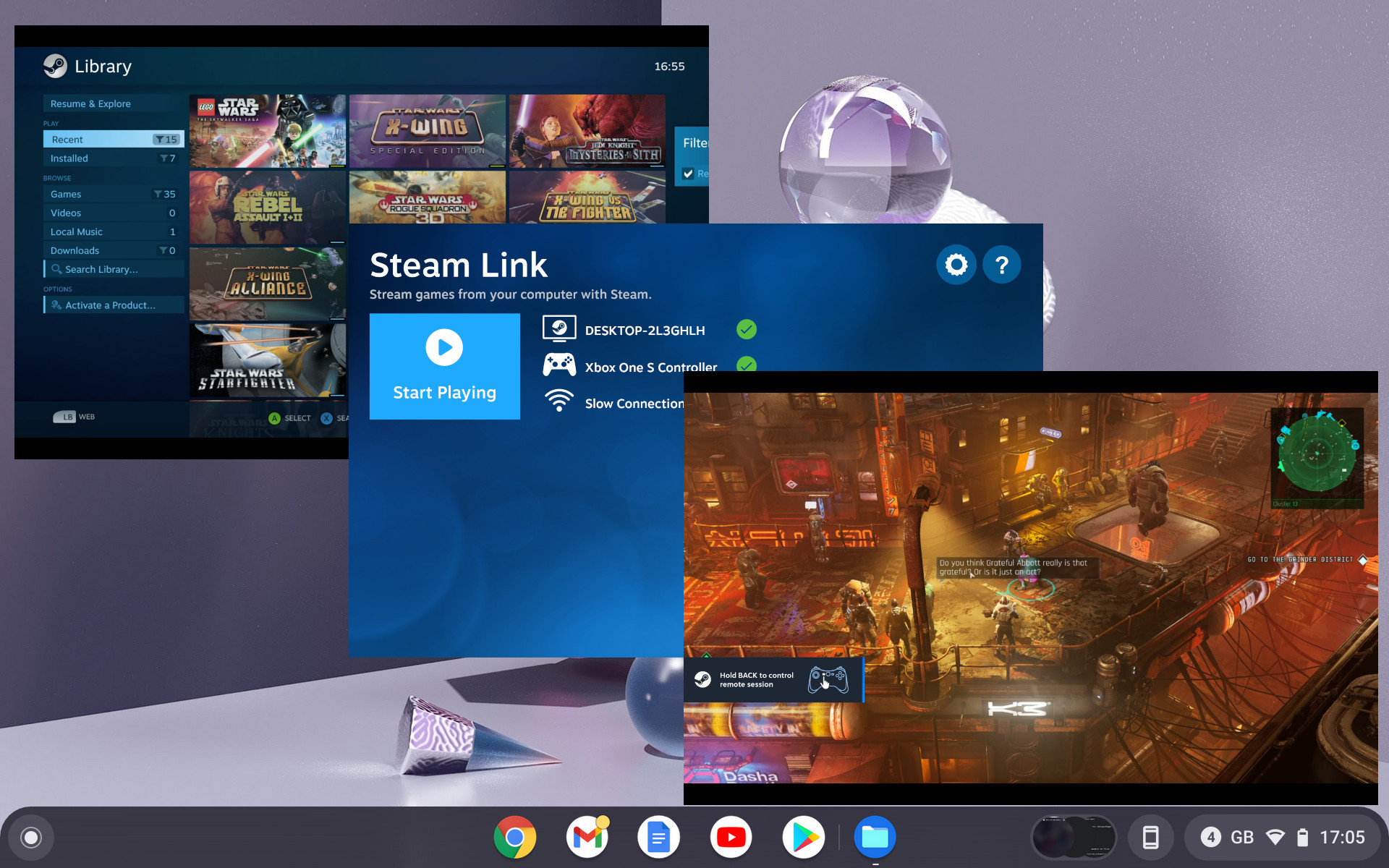
This is the "official" gaming mode designed for modern, high-spec Chromebooks. It runs a custom Arch Linux-based virtual machine optimized specifically for Steam. It offers better hardware utilization, improved pointer locking for first-person shooters, and easier storage management. If you own a "Gaming Chromebook" or a high-end device with at least an Intel Core i3 (11th Gen or newer) or an AMD Ryzen 3 (5000 series or newer), this is your primary choice.
2. The Linux Development Environment (Crostini)
For older or mid-range devices that do not meet the Borealis hardware requirements, the standard Linux Development Environment is the fallback. This method uses a Debian-based container. While it is more versatile for development, it often requires manual configuration of 32-bit libraries and GPU flags to get Steam running smoothly.
Hardware and Software Prerequisites
Steam is a resource-intensive application. Even with the optimizations present in 2026, you must ensure your hardware can handle the overhead of a virtualized Linux environment and the game itself.
- Processor (CPU): An x86_64 architecture is mandatory. While ARM-based Chromebooks (like those using MediaTek or Snapdragon chips) can technically run the Linux environment, they cannot run most Steam games because the vast majority of the Steam library is compiled for Intel/AMD processors.
- Memory (RAM): A minimum of 8GB of RAM is highly recommended. While 4GB units can launch the Steam client, gaming performance will be severely throttled by "swapping" (using disk space as temporary memory).
- Storage: You should have at least 20GB of free space. Modern games can exceed 50GB individually, so ensure your Chromebook has an SSD rather than slow eMMC storage for better load times.
- Software Version: Ensure your ChromeOS is updated to the latest stable build. In 2026, the kernel optimizations for Linux containers are vital for Steam’s anti-cheat compatibility.
Method 1: Installing Native Steam on ChromeOS (Borealis)
If your device is on the supported list for "Steam on ChromeOS," the process is streamlined and integrated into the OS interface.
Step 1: Enable the Flag (If Required)
While many devices have this enabled by default in 2026, you may need to toggle the feature flag:
- Open Chrome and type
chrome://flagsin the address bar. - Search for
#enable-borealis. - Set the toggle to Enabled.
- Restart your Chromebook.
Step 2: Launch the Installer
- Open the Launcher (the circle icon on the bottom left).
- Search for "Steam."
- Click the Steam icon. This will launch a dedicated setup wizard that verifies your hardware compatibility.
- Follow the on-screen prompts to download the Borealis disk image. This file is approximately 1GB to 2GB.
Step 3: Login and Configuration
Once installed, the Steam login window will appear. After logging in, navigate to Settings > Compatibility and ensure that "Enable Steam Play for all other titles" is checked. This allows you to run Windows games on your Linux-based Chromebook using the Proton translation layer.
Method 2: Installing Steam via Linux Development Environment (Crostini)
For devices that do not support Borealis, the Crostini method is the standard way to get Steam running. This requires using the Linux terminal to install dependencies.
Step 1: Enable Linux Support
- Go to Settings on your Chromebook.
- Click on About ChromeOS > Developers.
- Next to "Linux development environment," click Turn On.
- Follow the prompts. When asked for a disk size, assign at least 20GB to ensure you have room for the Steam client and a few small games.
Step 2: Update the Linux Container
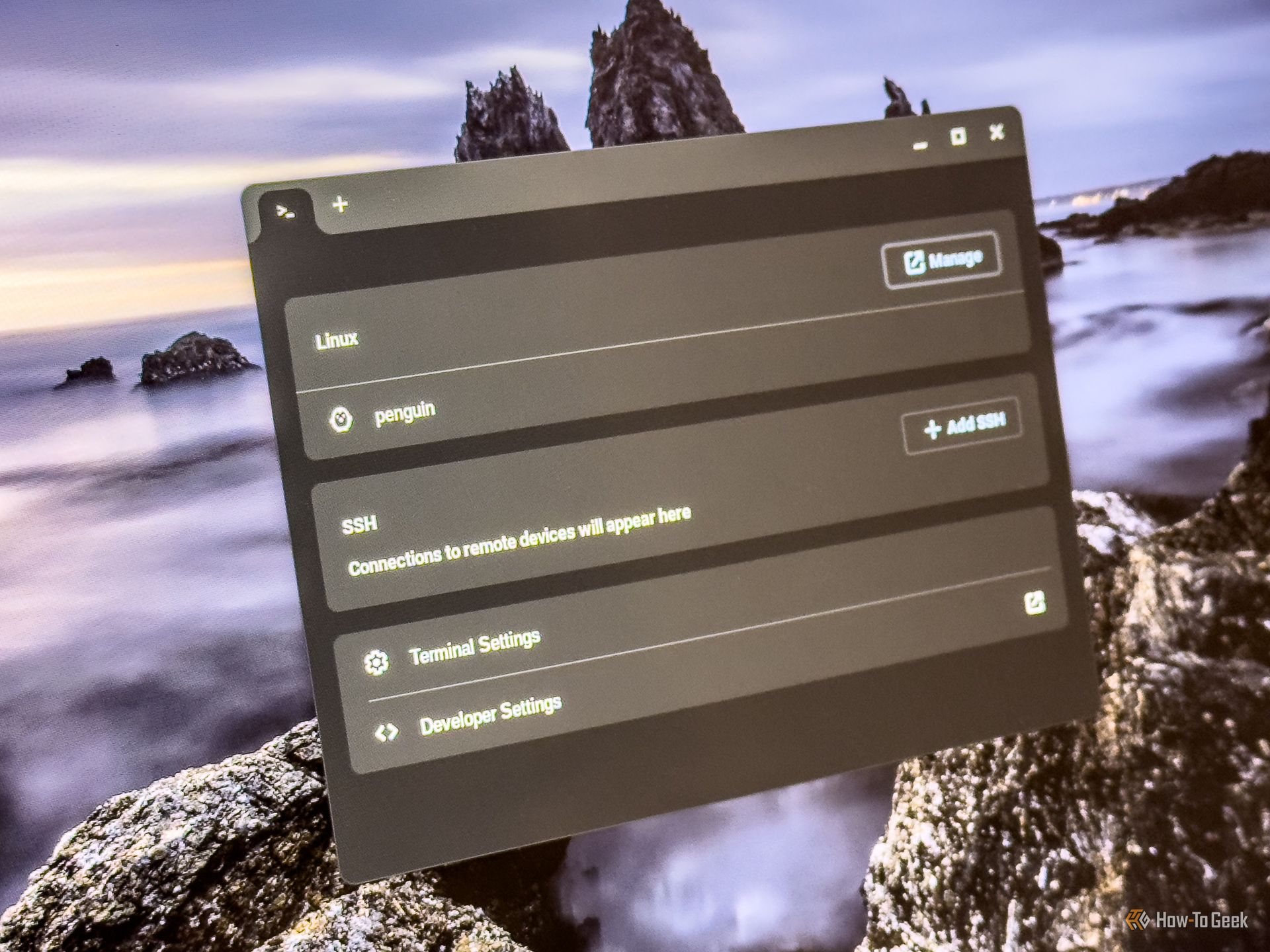
Open the Terminal app from your app drawer. Select the "Penguin" terminal and type the following commands one by one, pressing Enter after each:
sudo apt update
sudo apt upgrade -y
Step 3: Enable 32-bit Architecture
Steam is a 32-bit application, but most Linux containers are 64-bit by default. You must enable multi-arch support:
sudo dpkg --add-architecture i386
sudo apt update
Step 4: Install Necessary Libraries
Install the graphics drivers and dependencies required for the Steam client to render properly:
sudo apt install libgl1-mesa-dri:i386 libgl1-mesa-glx:i386 libc6:i386 -y
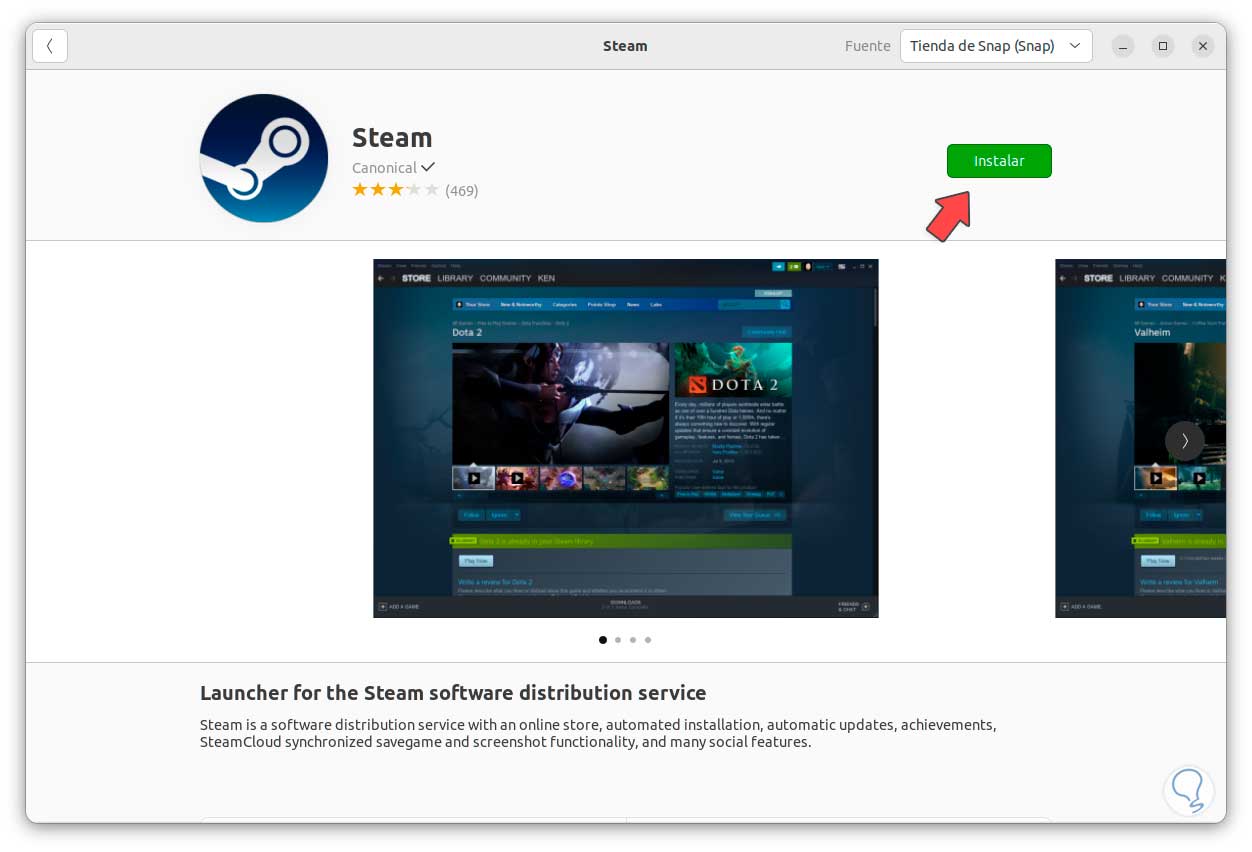
Step 5: Download and Install Steam
- Visit the official Steam website in your Chrome browser and download the
.debinstaller (the Linux version). - Open the Files app and move the
steam.debfile into the Linux files folder. - Right-click the file and select Install with Linux, or use the terminal:
sudo apt install ./steam.deb
Comparison of Installation Methods
| Feature | Native Steam (Borealis) | Linux Environment (Crostini) |
|---|---|---|
| Ease of Setup | High (Wizard-based) | Moderate (Terminal-heavy) |
| Performance | Optimized GPU access | Shared container overhead |
| Hardware Requirement | Mid-to-high tier only | Any x86_64 Chromebook |
| Storage Management | Dynamic resizing | Fixed partition size |
| Game Compatibility | Verified via Proton | Manual Proton configuration |
Optimizing Performance and Troubleshooting
Once Steam is installed, you may encounter issues with frame rates or input lag. Chromebooks use a virtualized graphics driver (Virtio-GPU), which translates Linux commands to the ChromeOS host.
Enabling Proton for Windows Games
Most games on Steam are built for Windows. To run them on your Linux Chromebook:
- Open Steam Settings.
- Go to Compatibility.
- Toggle "Enable Steam Play for all other titles."
- Select the latest version of Proton Experimental or Proton 8.0+ from the dropdown menu. This translation layer allows Windows system calls to work on the Linux kernel.
Fixing Storage Limits
If you run out of space, you do not need to reinstall Linux.
- Go to Settings > Developers > Linux development environment.
- Click on Disk size.
- Use the slider to increase the allocation. Note that you can only increase the size if you have enough physical space left on your Chromebook’s internal drive.
Common Troubleshooting Steps
- Steam Won't Open: If clicking the icon does nothing, open the Terminal and type
steam. This will show an error log. Usually, it indicates a missing library (likelibnss3), which can be fixed withsudo apt install [library-name]. - Screen Flickering: This is often caused by the "GPU Support" flag in the Linux container. Ensure that GPU acceleration is active by typing
glxinfo -Bin the terminal. If it says "software rendering," the performance will be unplayable. - Microphone/Audio Issues: Ensure that the "Allow Linux to access your microphone" toggle is enabled in the ChromeOS Settings under the Linux section.
FAQ: Frequently Asked Questions
Can I run Steam on an ARM-based Chromebook?
Technically, you can install the Steam client on ARM using translation tools like Box86 or FEX-Emu, but the performance is generally too poor for mainstream gaming in 2026. Most Steam games are compiled for x86 CPUs, and translating them to ARM architecture adds a massive performance penalty. It is recommended to use cloud gaming services like GeForce NOW or Xbox Cloud Gaming for ARM devices.
Will installing Steam void my Chromebook warranty?
No. Using the Linux Development Environment or the native Steam on ChromeOS flags are official features provided by Google. They do not require "Powerwashing" your device or entering Developer Mode (which disables verified boot).
How do I use an external controller?
ChromeOS has excellent support for USB and Bluetooth controllers. Most Xbox and PlayStation controllers are plug-and-play. If the controller works in ChromeOS (e.g., in a web browser), it should be automatically passed through to the Linux container for use in Steam.
Why are my game downloads so slow?
The Linux container shares the network connection with ChromeOS through a virtual bridge. To speed up downloads, ensure no Android apps are running in the background and disable any VPNs active on the ChromeOS host. Also, verify that "Limit download bandwidth" is turned off in the Steam download settings.
Can I play games with Anti-Cheat (like EAC or BattlEye)?
In 2026, many titles using Easy Anti-Cheat (EAC) or BattlEye are compatible with Linux/Proton if the developer has enabled the module. However, some games (like Valorant or certain versions of Call of Duty) that require kernel-level drivers will not run in the Chromebook’s virtualized Linux environment.
Next Steps for New Users
After successfully installing Steam, your next action should be to check the Steam Deck Verified list. Games that are marked as "Verified" or "Playable" on the Steam Deck are the most likely to run well on a Linux Chromebook, as the Steam Deck also utilizes a Linux-based architecture (SteamOS). Start with lightweight titles like Stardew Valley or Hades to test your thermal performance before attempting more demanding AAA games.
Image Gallery