How to Find Your ISP Provider: Quick Methods for Every Device
To quickly find your Internet Service Provider (ISP), open a web browser on any device connected to your local network and visit a public IP lookup tool like WhatIsMyIP.com or IPLocation.net. These tools instantly read your network con...
To quickly find your Internet Service Provider (ISP), open a web browser on any device connected to your local network and visit a public IP lookup tool like WhatIsMyIP.com or IPLocation.net. These tools instantly read your network connection to display your public IP address, host organization, and official ISP name without requiring system diagnostic commands or technical configurations.
Contents
Why You Might Need to Identify Your Internet Service Provider
Identifying your Internet Service Provider (ISP) is a foundational step for network management, administrative maintenance, and technical troubleshooting. While home and business owners usually contract directly with an internet vendor, there are numerous scenarios where the active provider is unknown or ambiguous.
Common situations requiring ISP identification include:
- Moving into a New Residence or Office: Renters, homeowners, and commercial tenants frequently inherit active broadband or fiber connections provided by property managers or previous occupants without clear documentation.
- Technical Support and Outage Reporting: When experiencing severe packet loss, unexpected latency, or complete connectivity loss, contacting the correct network operation center (NOC) requires knowing which entity controls your physical infrastructure.
- Network Configuration and Port Forwarding: Setting up static IP addresses, configuring firewall rules, hosting local servers, or modifying network switches requires knowing your ISP's connection type (e.g., PPPoE, Dynamic DHCP, or Carrier-Grade NAT).
- Copyright, Security, or Abuse Notices: Network administrators and security teams receiving digital rights or cybersecurity flags must verify which upstream provider owns the public IP address block associated with the traffic.
- Billing Audits and Speed Verification: Confirming that your line's actual upstream routing matches the carrier listed on your monthly invoice ensures you are not paying a reseller or secondary contractor for lower-tier routing.
The Fastest Online Method: Using Web-Based IP Lookup Tools
The simplest and most accurate way to identify your ISP across any internet-connected device—including smart TVs, tablets, smartphones, and desktop computers—is using a web-based public IP lookup service.
When your device communicates over the internet, your web browser transmits HTTP/HTTPS request headers to destination servers. These requests contain your public IP address, which is assigned directly by your ISP from an allocated block of IP addresses registered with a Regional Internet Registry (RIR).
How to Perform a Browser Lookup
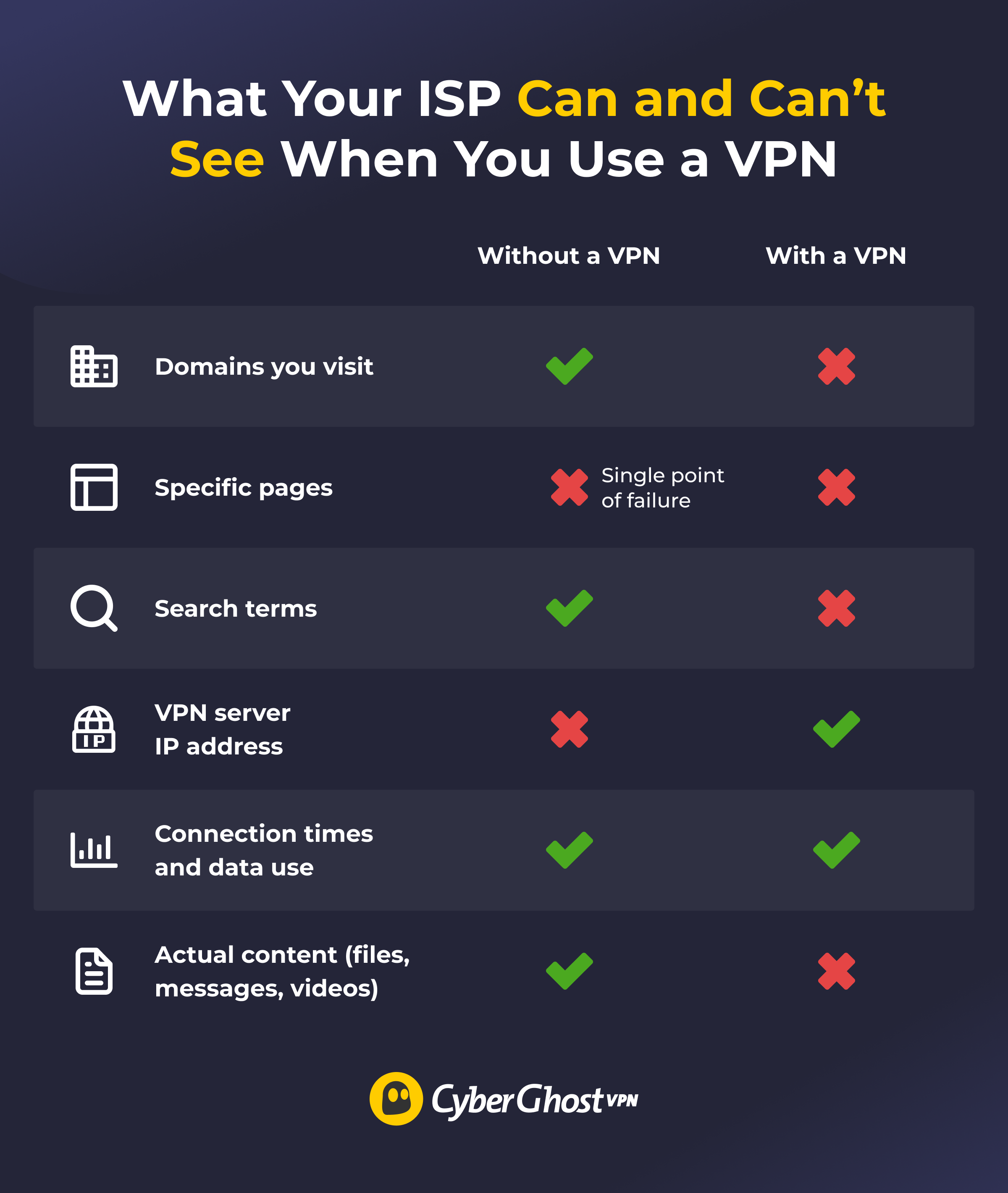
- Disconnect Active VPNs: Turn off any virtual private networks (VPNs), iCloud Private Relay, Tor browsers, or corporate proxies. VPNs route your traffic through an encrypted tunnel to a third-party server, which causes IP lookup tools to report the VPN hosting company rather than your actual internet provider.
- Open a Web Browser: Launch any standard browser (such as Chrome, Safari, Firefox, or Edge).
- Navigate to an IP Registry Tool: Visit a recognized IP identification service, such as ARIN Whois or standard address resolution tools.
- Locate the ISP/Organization Field: The resulting dashboard will display several key pieces of network data:
- Public IP Address: Your network’s public IPv4 or IPv6 string (e.g.,
198.51.100.45or2001:0db8::8a2e:0370:7334). - ISP / Carrier: The commercial brand operating the network connection (e.g., Comcast Cable, AT&T Internet Services, Spectrum, British Telecom).
- ASN (Autonomous System Number): A unique global identifier (such as
AS7018orAS7922) assigned to the internet routing domain. - Organization / Hostname: The legal entity owning the IP address range.
- Public IP Address: Your network’s public IPv4 or IPv6 string (e.g.,
Finding Your ISP via Operating System Diagnostic Commands
If you do not have web access or need to verify your connection path directly through command-line utilities, native operating system tools can query network pathways and Domain Name System (DNS) configurations.
1. Windows (Command Prompt & PowerShell)
Windows operating systems provide built-in network command utilities capable of revealing domain details, DNS suffixes, and gateway routing paths.
Using nslookup
The Network Administration Tool (nslookup) queries your local DNS server to resolve IP address origins:
- Press
Win + R, typecmd, and press Enter to open the Command Prompt. - Type the following command and press Enter:
nslookup - The prompt displays your default server and address. The server domain often includes your ISP's name (for example,
resolver1.sys.comcast.netordns.att.net). - Alternatively, query a public server to trace reverse DNS mapping:
nslookup myip.opendns.com. resolver1.opendns.com
Using tracert (Traceroute)
Traceroute sends packets to a remote host and measures the hops along the route, exposing the domain names of upstream routers managed by your ISP.
- Open Command Prompt.
- Type
tracert 1.1.1.1and press Enter. - Examine the hostnames listed in hops 2 through 5. You will typically see domain suffixes identifying your ISP (e.g.,
cpe-xx-xx-xx.houston.res.rr.comfor Roadrunner/Spectrum orbe-xxx.edge1.chicago.comcast.net).
2. macOS (Terminal & System Settings)
Apple devices running macOS allow users to trace upstream routing using command-line binaries in the Terminal application.
- Press
Cmd + Spaceto open Spotlight, typeTerminal, and press Enter. - Run a reverse lookup query using the
digutility:dig +short myip.opendns.com @resolver1.opendns.com - Run a network trace to reveal carrier routing hostnames:
traceroute 8.8.8.8 - Look at the early network hops directly following your local gateway (
192.168.1.1or10.0.0.1). The network node descriptions will detail the carrier's edge router domain names.
3. iOS and Android Mobile Devices
Smartphones and tablets connect to the internet through either cellular data carriers or local Wi-Fi networks.
- Cellular Data Connections: If Wi-Fi is disabled, your ISP is your cellular network operator (e.g., Verizon Wireless, T-Mobile, Vodafone). You can confirm this in device settings under Settings > Cellular / Mobile Data.
- Wi-Fi Connections: When connected to local Wi-Fi, mobile operating systems display local gateway information under Settings > Wi-Fi > [Network Name] > Network Details. However, to translate the gateway into the underlying upstream ISP name, perform a quick IP lookup via a mobile browser while connected to that Wi-Fi network.
Method Comparison: Technical Approaches to Identifying Your ISP
The table below compares the primary methods for identifying an internet service provider, detailing accuracy levels, technical requirements, and appropriate use cases.
| Identification Method | Data Revealed | Technical Skill Level | System Requirements | Best Used When... |
|---|---|---|---|---|
| Web-Based IP Lookup | Public IP, ISP Name, ASN, Host Name, Geo-Location | Basic (Browser navigation) | Active internet connection, Web browser | You need instant, human-readable ISP identification without manual CLI entry. |
| WHOIS Registry Query | IP Owner, NetBlock Range, Tech Contacts, ASN | Intermediate (Registry lookup) | Public IP address | You need to identify wholesale line owners, fiber resellers, or corporate entities. |
| Command Line (Traceroute) | Upstream router hostnames, Hop Latency, Backbone provider | Intermediate (Terminal/CLI access) | Terminal or Command Prompt | Browser tools are blocked, or you need to inspect infrastructure routing paths. |
| Hardware Label Inspection | Equipment Manufacturer, Carrier Branding, MAC Address | None (Physical access) | Physical access to router or modem | You have no active internet connection and need to identify installed hardware. |
| Billing & Lease Records | Billing account details, Service plan specifications | None (Administrative access) | Paper or digital records | You need to verify account ownership, contractual bandwidth, or payment targets. |
Physical Hardware and Documentation Inspection
When offline or troubleshooting an unconfigured physical setup, hardware and documentation provide concrete identification of the service provider.
Examining Modems, Optical Network Terminals (ONTs), and Gateways
The physical equipment installed at a property frequently features explicit branding from the service provider:
Optical Network Terminals (ONTs): For fiber-optic internet installations, look for a small box mounted on an interior wall or garage near the utility entry point. ONTs installed by carriers like Verizon Fios, AT&T Fiber, or Lumen Technologies usually bear carrier-specific logos and serial number badges.
Cable/DSL Modems and Gateways: Integrated router-modem units supplied by telecommunications carriers typically display prominent logo printing on the front casing or an identification label on the underside.
Third-Party Customer-Owned Equipment: If the router is a retail consumer model (such as Netgear, Asus, Linksys, or TP-Link), check the back panel. Find the coaxial cable or WAN ethernet cable connected to the internet port and follow it back to the wall jack or upstream modem. If an separate modem exists, it may carry ISP branding even if the Wi-Fi router does not.
Incoming Line: Coax / Fiber / DSL
Carrier Modem / ONT (Check branding label here)
Local Wi-Fi Router (May be third-party like Netgear/Asus)
User Devices
Reviewing Accounts, Real Estate Leases, and Utility Records
If hardware is unbranded or hidden within building utility closets, review administrative documentation:
- Utility and Telecommunication Invoices: Search email archives or physical record files for terms like "broadband," "fiber," "gigabit," "internet," or "telecommunications."
- Property Lease Agreements: Many multi-dwelling units (MDUs) or managed corporate spaces feature bulk-internet agreements. Leases usually include an addendum detailing included utilities and named service providers.
- Building Utility Closets and Panels: In commercial properties, service demarcation points (demarc lines) feature tags installed by telecom technicians marking line ownership (e.g., "Property of CenturyLink" or "Cox Communications Line Drop").
Advanced Technical Methods: WHOIS and Regional Internet Registry Lookups
For enterprise network administrators, cybersecurity analysts, and IT support professionals, simple brand-name tools may not provide sufficient clarity—especially when dealing with wholesale bandwidth, fiber resellers, or multi-homed networks. Performing a direct query against a Regional Internet Registry (RIR) yields definitive network block allocation data.
Understanding Regional Internet Registries (RIRs)
Global IP address allocations are managed hierarchically by the Internet Corporation for Assigned Names and Numbers (ICANN), which delegates authority to five Regional Internet Registries:
- ARIN: American Registry for Internet Numbers (North America and parts of the Caribbean).
- RIPE NCC: Réseaux IP Européens Network Coordination Centre (Europe, Middle East, and parts of Central Asia).
- APNIC: Asia-Pacific Network Information Centre (Asia-Pacific region).
- LACNIC: Latin America and Caribbean Network Information Centre.
- AFRINIC: African Network Information Centre.
Executing a WHOIS Query
By querying these databases with your public IP address, you can locate the exact legal entity registered to your IP address block.
- Obtain your public IP address by visiting a command terminal and executing a public echo tool:
curl ifconfig.me - Query the official ARIN database using a command-line
whoisclient or via the ARIN RDAP/Whois Portal:whois 198.51.100.45 - Analyze the WHOIS output fields:
- NetName: Identifies the specific block allocation name assigned by the registry (e.g.,
AT-INT-02-198-51). - OrgName / Organization: Details the registered corporate parent (e.g.,
Comcast Cable Communications, LLC). - Comment / Description: Notes whether the network block is designated for residential broadband, enterprise fiber, static business pools, or infrastructure backhaul.
- NetName: Identifies the specific block allocation name assigned by the registry (e.g.,
Crucial Distinction: Wi-Fi Provider vs. Internet Service Provider
A common point of confusion for non-technical users is conflating local Wi-Fi networks with Internet Service Providers. Understanding this architectural distinction is essential when troubleshooting network errors or configuring hardware.
LOCAL NETWORK (LAN)
- Devices (Phones, Laptops)
- Router (Local IP Gateway) — connected via Wi-Fi/Ethernet
WIDE AREA NETWORK (WAN)
- ISP Infrastructure (Public IP assigned by Carrier)
- Global Internet (Websites, Cloud Services)
Wi-Fi Network / Local Area Network (LAN): Wi-Fi is simply the wireless transport medium that connects your local devices (smartphones, laptops, printers) to your router. The name of your Wi-Fi network (SSID) and its password are set locally by the user or hardware installer. Owning a Wi-Fi router does not inherently generate an internet connection.
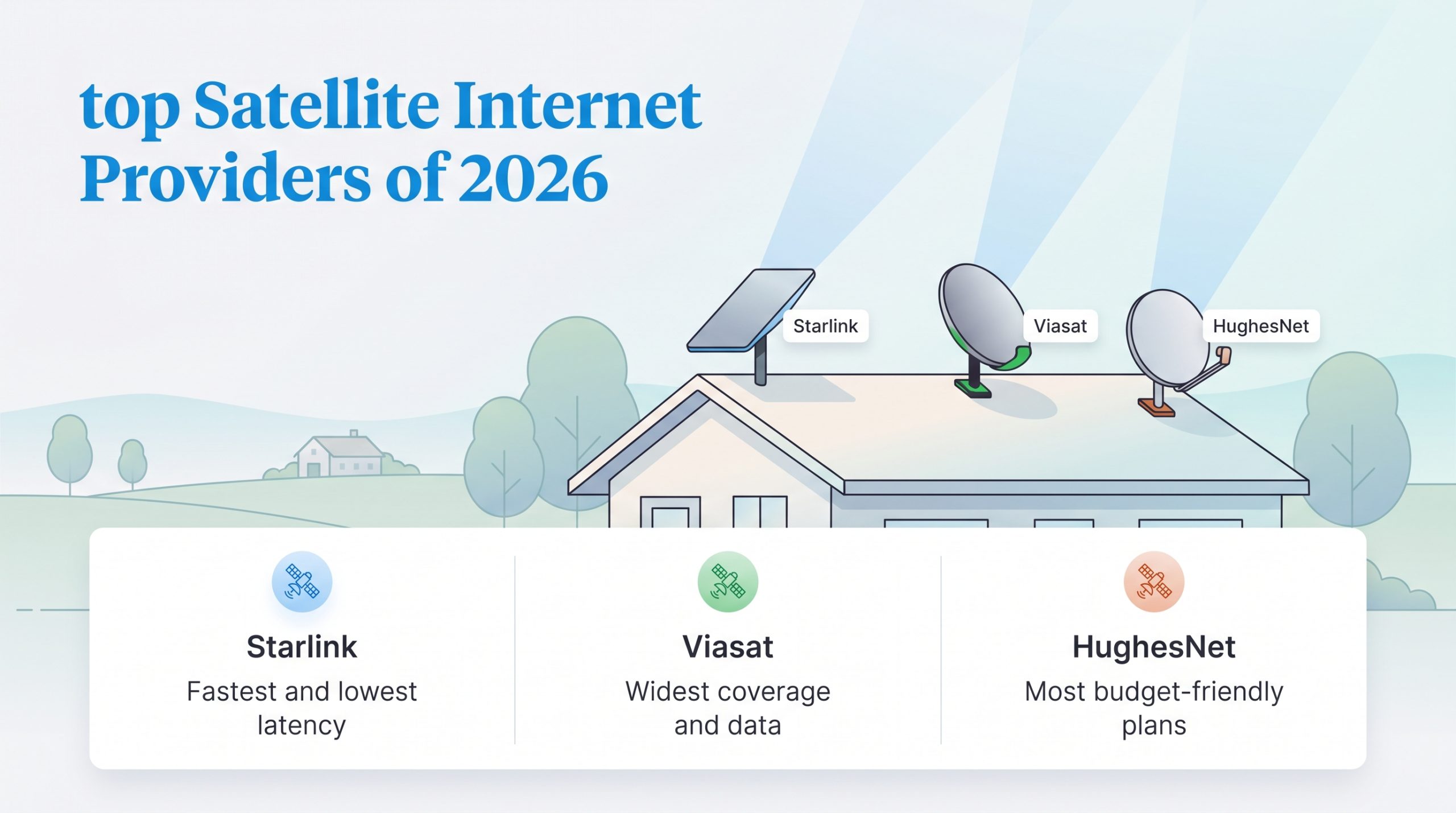
Internet Service Provider (ISP) / Wide Area Network (WAN): The ISP is the external telecommunications enterprise supplying the physical data pipe (fiber-optic cable, coaxial cable, DSL copper line, satellite signal, or fixed-wireless link) from your router's WAN port out to the global internet backbone.
Example: A home may use an ASUS Wi-Fi 6 router broadcasting a network named "Home_Network_5G", but the underlying physical infrastructure providing internet throughput to that router is operated by an ISP such as Charter Spectrum or CenturyLink.
Resolving Complex Scenarios and Edge Cases
In specific environment configurations, standard lookup methods can return unexpected or ambiguous results.
1. Resellers and Mobile Virtual Network Operators (MVNOs)
Many smaller or regional ISPs purchase wholesale bandwidth from Tier 1 transit carriers (such as Lumen, Zayo, or AT&T) and resell services under local commercial brands.
- The Symptom: Your monthly bill comes from "Local Regional Fiber Inc.", but online IP lookups display "Lumen Technologies" or "Cogent Communications".
- The Explanation: The upstream transport layer relies on the national provider's IP allocations, while your service tier, customer billing, and local line handoff are managed by the reseller.
2. Active Virtual Private Networks (VPNs) and Security Proxies
If your device operates an encrypted VPN client, corporate security agent, or privacy relay system, outbound network traffic is re-routed through secure servers.
- The Symptom: An IP lookup performed in a corporate environment or privacy-focused web browser indicates hostnames like "Cloudflare", "Amazon Web Services (AWS)", or "NordVPN".
- Resolution: Temporarily disable the security software or proxy connection, flush your local DNS cache (
ipconfig /flushdnson Windows orsudo dscacheutil -flushcacheon macOS), and re-run the IP lookup to identify the underlying local connection provider.
3. Carrier-Grade NAT (CGNAT)
Due to global IPv4 address exhaustion, many mobile network operators, rural wireless ISPs (WISPs), and modern fiber providers implement Carrier-Grade NAT (RFC 6598).
- The Symptom: Your router's internal WAN port displays an IP address in the
100.64.0.0/10range, while web-based tools report a completely different public IP address shared across hundreds of neighboring subscribers. - Resolution: While CGNAT obscures direct incoming connections to your home router, online IP lookups remain effective for identifying the primary carrier operating the CGNAT exit node.
Frequently Asked Questions
How do I find my ISP if I am currently connected to a VPN?
To identify your actual ISP while using a VPN, you must temporarily disconnect the VPN connection. VPNs mask your local public IP address by tunneling your internet traffic through a remote server. Disconnecting the VPN allows web-based diagnostic tools or command-line queries to view your direct, carrier-assigned public IP address.
Can my Wi-Fi network name (SSID) tell me who my ISP is?
Your Wi-Fi network name (SSID) only reveals your ISP if it was left at the manufacturer or carrier default settings during installation (e.g., "xfinitywifi", "ATT-Wi-Fi-2B4G", or "Spectrum Setup"). If anyone manually renamed the network during initial setup, the SSID will not reveal the ISP, requiring you to use an online IP lookup tool or check local hardware labels.
Why does my ISP lookup show a corporate data center name instead of a consumer provider?
If an IP lookup displays enterprise infrastructure hosts such as Amazon Web Services, DigitalOcean, Google Cloud, or Cloudflare, your device is routing traffic through a VPN, custom proxy, secure DNS filter, or corporate tunnel. Disabling these routing layers will reveal your residential or commercial telecommunications provider.
Does my public IP address change if I change my ISP?
Yes. IP address blocks are owned by or allocated to specific service providers. When you switch to a new ISP, your connection is migrated to that new provider's infrastructure, and your network equipment will receive a new public IP address assigned from the new ISP's registered network pool.
How can I identify which ISP services an address before moving in?
To determine available service providers for a specific physical address, check official telecommunications coverage tools such as the FCC National Broadband Map. Entering a street address into these databases reveals all documented wired, fiber, fixed wireless, and satellite providers operating active infrastructure at that location.
Practical Recommendations and Next Actions
Once you have identified your active Internet Service Provider, take the following steps to document and optimize your network management:
- Document Account Details: Store your primary ISP name, public IP address class (Dynamic or Static), and hardware MAC addresses in a secure password manager or network documentation file for quick access during technical support calls.
- Conduct Baseline Performance Testing: Test your line speeds via standardized diagnostic platforms while connected directly to your modem via ethernet. Compare the measured download and upload speeds against the performance tiers offered by your confirmed provider to ensure your connection meets your contracted throughput.
- Save NOC and Support Contacts: Record the technical support hotline and online outage reporting portals associated with your identified ISP. Knowing the exact network operator allows you to bypass general troubleshooting delays and report localized connection drops directly to the correct operations center.
Image Gallery