How to Make Blurry Text Readable Using Software, AI, and Manual Techniques
Making blurry text readable requires a combination of digital image processing, artificial intelligence sharpening tools, and careful manual adjustments to enhance contrast, resolution, and edge definition. Whether you are dealing with...
Making blurry text readable requires a combination of digital image processing, artificial intelligence sharpening tools, and careful manual adjustments to enhance contrast, resolution, and edge definition. Whether you are dealing with a poorly scanned historical document, an out-of-focus smartphone photo of a sign, or a heavily compressed screenshot from the internet, various methods can recover lost details and make the characters legible again.
Contents
Understanding Why Text Becomes Blurry
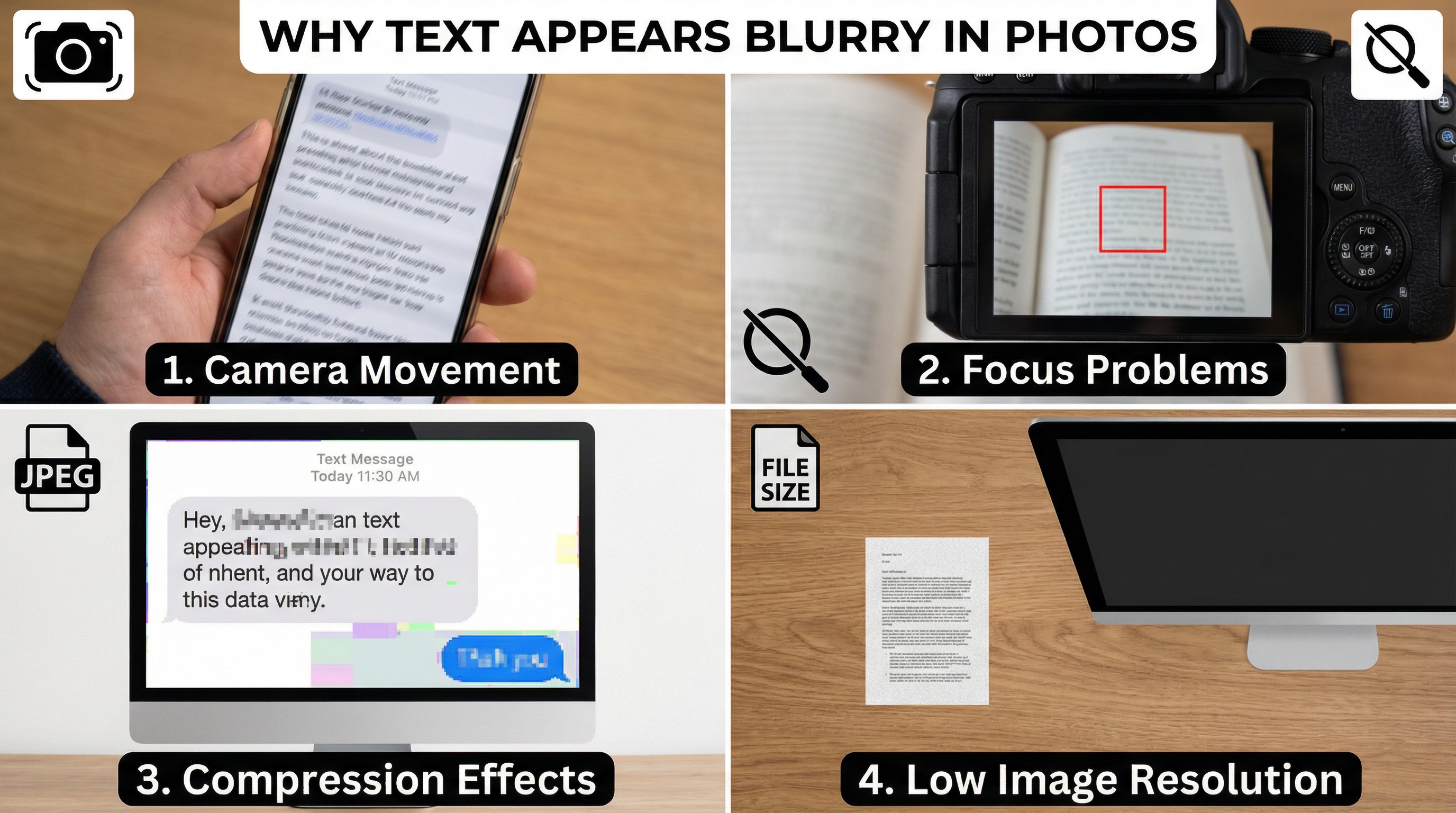
Before applying corrective measures, it helps to understand the underlying cause of the blur. Text degradation generally falls into three distinct categories: optical blur, digital compression, and resolution limits. Recognizing which issue you are facing determines whether you need to adjust contrast, apply deconvolution algorithms, or upscale the image dimensions.
Optical blur happens when a camera lens fails to focus correctly on the subject, resulting in a Gaussian blur where pixels bleed into their surrounding space. Digital compression, common in JPEGs sent via messaging apps or downloaded from social media, introduces artifacts and smudges text edges by grouping similar color values together. Resolution limits occur when an image has too few pixels per inch (PPI), forcing small fonts to render as jagged, blocky shapes that defy simple zooming.
Quick Adjustments: Contrast, Brightness, and Inversion
Often, you do not need advanced software to make blurry text readable; basic adjustments to tonal range can reveal hidden details. When text lacks contrast against its background, the human eye and optical character recognition (OCR) software struggle to define character boundaries.
Tweaking Contrast and Exposure
Open the image in any standard photo viewer or editor. Increase the contrast significantly while lowering the brightness slightly. This technique deepens dark strokes and brightens light backgrounds, effectively sharpening the transition zone between the text and the paper or screen.
Color Inversion
If you are struggling to read blurry white text on a dark background—or vice versa—inverting the colors can dramatically improve legibility. Many people find dark text on a light background much easier to process. Most operating systems feature a system-wide accessibility shortcut for color inversion, or you can use a basic image editor to invert the color channels.
Using Image Editing Software for Advanced Clarity
Professional and semi-professional image editors like Adobe Photoshop, GIMP, or Affinity Photo provide specialized filters designed to reverse blur effects.
Unsharp Mask and Smart Sharpen
The Unsharp Mask filter is a classic tool for enhancing text legibility. It works by locating pixels that differ significantly in color from their surrounding pixels and increasing the contrast along those edges. When configuring the Unsharp Mask, use a small radius (between 1 and 2 pixels) and a high threshold to avoid amplifying background grain.
For camera shake or motion blur, advanced editors offer Smart Sharpen or shake reduction algorithms. These tools use mathematical deconvolution models to estimate the trajectory of the blur and reverse it, reconstructing crisp pixel boundaries from smeared data.
Thresholding and Bitmap Conversion
For black-and-white documents like scanned receipts or book pages, converting the image to a pure black-and-white bitmap using a threshold filter can work wonders.
- Convert the image to grayscale.
- Apply a threshold adjustment layer.
- Slide the threshold marker until the gray fuzz disappears, leaving clean, solid black characters against a white background.
Leveraging AI-Powered Image Enahncers
Artificial intelligence has transformed how we restore degraded text. Modern AI upscalers and super-resolution models are trained on millions of text samples, allowing them to "hallucinate" missing details accurately—reconstructing a blurry letter e or a based on context and shape recognition rather than simple pixel interpolation.
How AI Super-Resolution Works
Traditional upscaling stretches pixels, resulting in pixelation. AI-based tools use deep learning neural networks to analyze low-resolution shapes and synthesize new, high-resolution pixels that match typographical standards. Tools like Topaz Photo AI, VanceAI, and various online upscalers can take an illegible, low-res screenshot and render the text crystal clear.
Limitations of AI Text Reconstruction
While powerful, AI tools can sometimes misinterpret heavily degraded characters. For example, a blurry h might be incorrectly reconstructed as an n if the crossbar is entirely lost. Always cross-reference AI-enhanced text against the original source if accuracy is legally or financially critical.
Software Comparison for Text Readability
| Tool Category | Best Used For | Pros | Cons |
|---|---|---|---|
| Basic Image Viewers | Quick contrast and brightness tweaks | Fast, free, built into OS | Limited sharpening control |
| GIMP / Photoshop | Manual edge sharpening and thresholding | High precision, granular control | Requires technical skill |
| AI Upscalers | Low-resolution screenshots and pixelated text | Excellent automatic reconstruction | May misinterpret heavily damaged letters |
| OCR Software | Extracting text to editable formats | Bypasses visual reading entirely | Struggles with severe background noise |
Extracting Text via Optical Character Recognition (OCR)
If visual reading proves impossible, let a computer read the text for you. Optical Character Recognition software scans images, identifies character shapes, and converts them into editable, searchable digital text.
Dedicated OCR Tools
Applications like Adobe Acrobat, Microsoft OneNote, Google Lens, and ABBYY FineReader excel at extracting text from difficult images. Google Lens, available on mobile devices and via desktop browsers, allows you to highlight a blurry image and instantly copy the recognized text to your clipboard.
Optimizing Images for OCR
To maximize OCR accuracy on blurry text:
- Crop the image tightly around the target text block to eliminate distracting background elements.
- Convert the image to grayscale before processing.
- Ensure the image is oriented correctly (not sideways or upside down).
Frequently Asked Questions
Can AI completely restore unreadable blurry text?
AI can significantly improve legibility for moderately blurry or low-resolution text by predicting missing pixel data based on standard typography. However, if the text is completely obliterated by severe motion blur or heavy pixelation, AI may hallucinate incorrect characters, meaning it should not be relied upon blindly for legal or financial documents.
What is the fastest way to read blurry text on a phone?
Using Google Lens or the built-in live text feature in iOS (Live Text) is the fastest method. Simply open your camera app or photo gallery, point at the blurry text, and tap the text selection icon to extract and display the characters clearly on your screen.
Why does zooming in on blurry text make it worse?
Zooming in on a standard digital image simply enlarges the existing pixels without adding new data, resulting in a blocky, pixelated appearance. To make text clearer at larger sizes, you must apply image upscaling algorithms or vectorization techniques.
Does changing the screen backlight help read blurry text?
Adjusting your device's screen brightness and turning on high-contrast display modes can reduce eye strain, but it cannot fix inherent blur caused by poor focus or low resolution. Digital image processing or filtering is required to alter the underlying file data.
How do I fix motion blur in a photo of text?
Motion blur caused by a shaky hand requires deconvolution software, such as the shake reduction filters found in advanced photo editing suites. These tools analyze the directional smear and attempt to mathematically reverse the camera movement.
Next Actions
To start making your blurry text readable right now, evaluate the nature of the file. If it is a simple contrast issue, open it in your default photo editor and boost the contrast and exposure. For low-resolution digital captures, run the image through an AI upscaler or use Google Lens to extract the text automatically. Always keep a backup of the original file before applying destructive edits.
Image Gallery