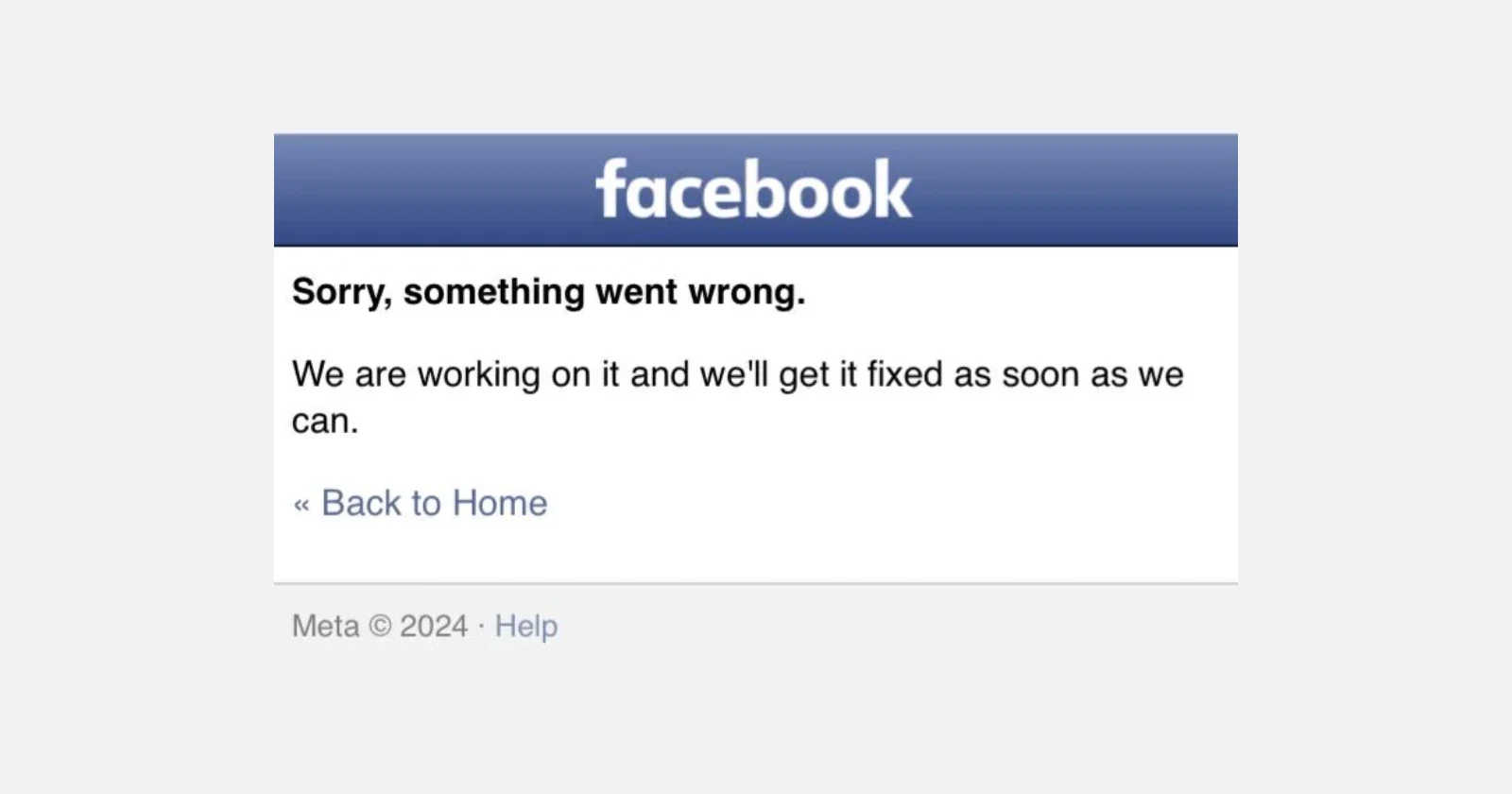
Troubleshooting Connectivity and Performance Errors on Grindr
When you encounter the "Something went wrong" error on Grindr, it typically indicates a communication failure between your device and the platform’s servers. This can result from unstable internet connections, corrupted local cache dat...
When you encounter the "Something went wrong" error on Grindr, it typically indicates a communication failure between your device and the platform’s servers. This can result from unstable internet connections, corrupted local cache data, outdated application versions, or temporary service outages. Resolving this issue often requires a systematic check of your network, your account status, and the application's configuration.
Contents
Understanding the Core Causes of Application Errors
The "Something went wrong" message is a generic catch-all notification used by the Grindr interface to signify that a request failed to complete. Because the application relies on constant synchronization with servers to update locations, profiles, and messages, any interruption in the data pipeline triggers this alert.
Network Instability
Mobile applications require a consistent data handshake. If you are switching between Wi-Fi and cellular data, or if you are in a location with weak signal strength, the application may fail to reach the server. VPNs (Virtual Private Networks) or aggressive ad-blockers can also interfere with the encrypted traffic required for Grindr to function, often causing the application to misinterpret the lack of a direct connection as a server error.
Cache and Data Corruption
Over time, the temporary files stored by your mobile operating system to speed up the app can become corrupted. When the application attempts to pull "stale" or conflicting data from this local cache, it may crash or display the error message. Clearing this data effectively resets the app to a "clean" state without necessarily deleting your profile, provided you are logged in correctly.
Server-Side Maintenance and Outages
While rare, Grindr servers occasionally undergo maintenance or experience unexpected downtime. If the issue is widespread, individual troubleshooting steps will prove ineffective. In such instances, the platform’s backend services are simply unavailable to process requests, and the only solution is to wait for the technical team to restore connectivity.
Step-by-Step Troubleshooting Sequence
Before assuming the problem is with your account or the device hardware, follow this logical progression to isolate the cause.
1. Verify Internet Connectivity
Start by toggling your connection. Switch from Wi-Fi to cellular data, or vice versa. If you are using a VPN, disable it temporarily to see if the connection error persists. A VPN often changes your IP address to a region that may be restricted or blocked by the platform's security firewalls, which can trigger connectivity failures.
2. Check for App Updates
Using an outdated version of Grindr can lead to compatibility issues. Developers frequently update the application to comply with new mobile operating system standards or to patch security vulnerabilities. If your version is significantly behind, the server may refuse to authorize your request. Visit the Apple App Store or Google Play Store to ensure you are running the latest version available in 2026.
3. Clear Cache and Re-authenticate
Clearing the application cache is a standard technical procedure for mobile troubleshooting.
- For Android: Navigate to Settings > Apps > Grindr > Storage > Clear Cache.
- For iOS: iOS does not offer a direct "Clear Cache" button for individual apps. The most effective method is to offload the app (which keeps your data) or delete and reinstall it. After clearing the cache, log out of the application entirely and sign back in. This forces the app to establish a fresh session token with the server.
4. Examine Device Permissions
Grindr relies heavily on Location Services (GPS) to function. If your location permissions have been revoked or restricted, or if the "Precision Location" toggle is disabled, the app may fail to populate the "Nearby" grid, resulting in an error message. Check your system privacy settings to ensure Grindr is permitted to access your location at all times.
Comparing Troubleshooting Strategies
The following table outlines the most common corrective actions and the scenarios in which they are most effective.
| Action | Primary Goal | Recommended If |
|---|---|---|
| Toggle Network | Refresh IP and Signal | Connection seems slow or interrupted |
| Disable VPN | Remove interference | You are using a proxy or privacy tool |
| Clear Cache | Reset local data | App is sluggish or freezing |
| Reinstall App | Repair binary files | Basic troubleshooting has failed |
| Check App Store | Update protocols | The app displays an error immediately upon launch |
Advanced Considerations and Account Status
If you have performed the basic troubleshooting steps and the error persists, consider the following deeper issues that might affect your ability to access the platform.
Account Suspension or Flagging
If your account has been flagged for a violation of the Terms of Service, the application may limit your functionality. In some cases, the "Something went wrong" message acts as a soft-block indicator. If you believe your account was suspended in error, you must consult the official Grindr support resources to file an appeal. Attempting to bypass a ban by creating a new account on the same device can lead to a device-level hardware ID ban, which is significantly more difficult to resolve.
Regional Restrictions and Censorship
Grindr operates under various international legal frameworks. In certain jurisdictions, access to the platform is restricted by local government regulations. If you are traveling or using a network that filters traffic based on content, you may encounter consistent connection failures. These are not technical "errors" in the traditional sense, but rather a reflection of the platform's inability to penetrate the local network infrastructure.
Device Compatibility
As of 2026, older mobile devices may struggle to support the latest iterations of the Grindr software. If your operating system is several versions behind the current standard, you may encounter persistent performance issues. Check the manufacturer's website for your device to ensure that your OS is still supported by the latest security patches.
Frequently Asked Questions
Is "Something went wrong" a permanent ban? Not necessarily. It is most often a network or server-side error. A permanent ban usually results in a specific notification stating that your account access has been restricted.
Does deleting the app delete my profile? No. Your profile, including your photos, chat history, and bio, is stored on Grindr's servers. Deleting and reinstalling the app from your device will not remove your account; however, you will need to log in again to regain access.
Why does the error occur only when I click on specific profiles? This is likely a sign that the profile you are trying to view has blocked you, has been deleted, or is experiencing a localized data fetch error. It is not an issue with your device.
Can public Wi-Fi cause this error? Yes. Many public Wi-Fi networks at schools, workplaces, or coffee shops implement firewalls that block social networking and dating applications. If you cannot access Grindr on public Wi-Fi, try switching to your mobile data to confirm if the network is the source of the blockage.
How do I contact Grindr support? The most direct way to contact support is through the help portal found in the settings menu of the app or via the official Grindr website. Ensure you provide your device type, OS version, and a screenshot of the error if possible.
Next Steps for Resolution
If you are still unable to resolve the issue after following the troubleshooting steps, wait at least one hour before trying again. Temporary server maintenance often resolves itself within this timeframe. If the problem persists for more than 24 hours, perform a full reinstallation of the application and ensure your device's date and time settings are set to "Automatic." Incorrect system time is a common but often overlooked cause of authentication failures, as it prevents the security certificates used by the app from syncing with the servers.
Image Gallery