How to Install and Customize Widgets on iPhone: A Complete 2026 Guide
To install widgets on your iPhone Home Screen, long-press any empty area until the icons begin to jiggle. Tap the + (plus) button in the top-left corner to open the widget gallery. Select an app, choose your preferred widget size, and...
To install widgets on your iPhone Home Screen, long-press any empty area until the icons begin to jiggle. Tap the + (plus) button in the top-left corner to open the widget gallery. Select an app, choose your preferred widget size, and tap Add Widget to place it on your screen.
Contents
Understanding the Role of Widgets in the Modern iOS Ecosystem
Since their significant overhaul in iOS 14, widgets have transformed from simple shortcuts into deep, interactive windows that provide real-time data without requiring you to open an application. By 2026, the utility of widgets has expanded across the Home Screen, Lock Screen, and even the StandBy interface, making them essential for productivity and personalization.
A widget is essentially a "glanceable" version of an app. Instead of tapping the Weather app to see if it will rain, a widget shows the hourly forecast directly on your grid. This reduces "app fatigue" and allows users to curate a digital environment that prioritizes information density according to their specific needs. Whether you are tracking stock market fluctuations, monitoring your daily caloric intake, or managing a complex project via a task manager, widgets serve as the frontline of your iPhone’s user interface.
Prerequisites for Using iPhone Widgets
Before attempting to install widgets, ensure your device meets the necessary software and hardware requirements. While basic widget functionality was introduced years ago, the most advanced features—such as interactive buttons and StandBy mode—require more recent versions of iOS.
- Software Version: To use Home Screen widgets, your iPhone must be running iOS 14 or later. For Lock Screen widgets, iOS 16 is required. For the most fluid experience and access to interactive widgets (which allow you to check off tasks or play music directly from the widget), you should ideally be running iOS 17 through the current 2026 standard, iOS 19 or iOS 20.
- App Compatibility: Not every app offers a widget. Developers must specifically build widget extensions for their applications. Most major productivity, social media, and utility apps have these available, but niche or older apps might not.
- Storage and Performance: While widgets are lightweight, having dozens of active, data-refreshing widgets can impact battery life on older devices. Ensure your iPhone has a stable internet connection, as most widgets rely on background data refreshes to stay current.
How to Add Widgets to Your iPhone Home Screen
Adding a widget to your Home Screen is the most common way to customize your device. The process is intuitive but offers several layers of customization regarding size and placement.
Step 1: Enter Jiggle Mode
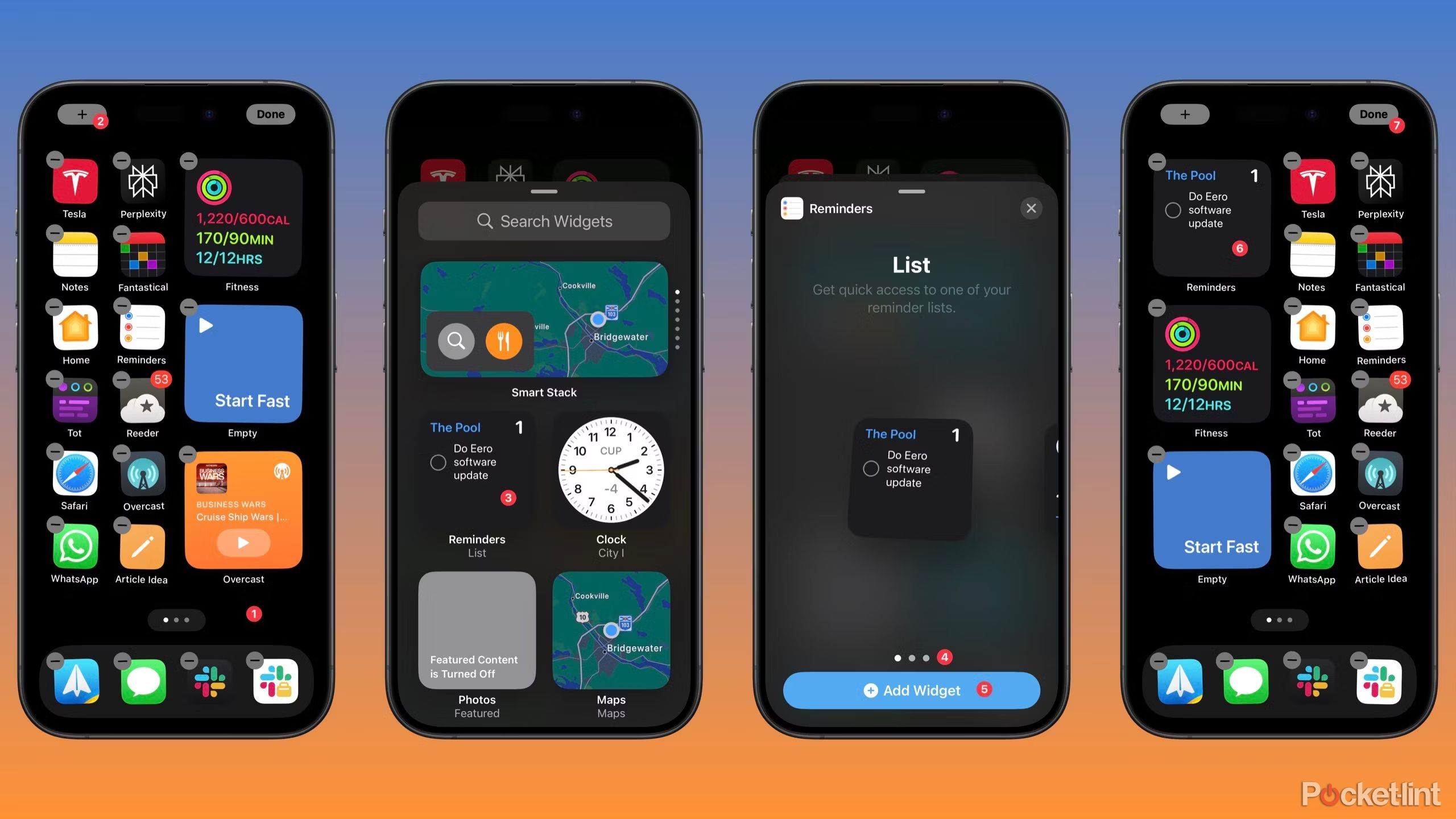
Navigate to the Home Screen page where you want to add the widget. Find a patch of "empty" space (where there are no icons) and press down firmly until the apps begin to shake. This is officially known as "Edit Mode," but commonly referred to as "jiggle mode."
Step 2: Access the Widget Gallery
Once the icons are jiggling, a + (plus) icon will appear in the top-left corner of the screen (or top-right, depending on your RTL settings). Tap this icon. This opens the Widget Gallery, a centralized hub where you can see all available widgets from both Apple’s native apps and your installed third-party applications.
Step 3: Select an App and Size
Scroll through the alphabetical list or use the search bar at the top to find a specific app. Once you tap on an app, you will be presented with different widget formats. Most apps offer three standard sizes:
- Small: Takes up the space of four app icons (2x2). Best for single data points like the temperature or a single calendar event.
- Medium: Takes up the space of eight icons (4x2). Best for lists, horizontal graphs, or news headlines.
- Large: Takes up the space of sixteen icons (4x4). Best for comprehensive data like full-day schedules or detailed weather maps.
Step 4: Finalize Placement
Once you have selected the size, tap Add Widget. The widget will drop onto your Home Screen. You can then drag it around just like a regular app icon to position it. When you are satisfied with the layout, tap Done in the top-right corner or swipe up from the bottom of the screen to exit Edit Mode.
Customizing the Lock Screen with Widgets
With the introduction of the redesigned Lock Screen in iOS 16 and its subsequent refinements, users can now view critical information without even unlocking their phones. Lock Screen widgets are smaller and more monochromatic to maintain readability against various wallpapers.
Accessing the Lock Screen Editor
To add widgets here, you must first wake your iPhone. While on the Lock Screen, long-press on the wallpaper. Tap the Customize button that appears at the bottom, then select Lock Screen.
Adding the Widget Row
You will see a rectangular box just below the digital clock. Tap this area to open the Lock Screen widget selector. Here, you can add up to four small square widgets or two rectangular widgets. These are particularly useful for:
- Battery Levels: Checking the charge of your Apple Watch or AirPods.
- Activity Rings: Monitoring your fitness progress throughout the day.
- Alarms: Seeing when your next wake-up call is scheduled.
- Calendar: Viewing your next upcoming meeting.
After selecting your widgets, tap the X to close the menu and then tap Done in the top-right. You can also link these Lock Screen configurations to specific Focus Modes, allowing different widgets to appear when you are at work versus when you are at home.
Managing Widget Stacks and Smart Stacks
If you want the benefits of multiple widgets but have limited screen real estate, Widget Stacks are the solution. A stack allows you to layer up to 10 widgets of the same size on top of one another.
How to Create a Manual Stack
- Add two widgets of the same size to your Home Screen using the steps outlined above.
- While in "jiggle mode," drag one widget directly on top of the other.
- Release it, and they will merge into a stack. You can then swipe up or down on the widget to cycle through the different layers.
Utilizing the Smart Stack
Apple also provides a pre-built Smart Stack. This uses on-device intelligence to rotate widgets based on your usage patterns. For example, it might show the News widget in the morning, your Calendar during work hours, and your Fitness summary in the evening. To enable or disable this intelligence, long-press a stack and select Edit Stack. From here, you can toggle Smart Rotate and Widget Suggestions on or off.
Advanced Widget Features: Interactive and StandBy
As of 2026, the most powerful way to use widgets involves interactivity and the StandBy display mode.
Interactive Widgets
Previously, tapping a widget simply launched the parent app. Interactive widgets allow for direct control. For instance, the Home app widget allows you to toggle lights on or off without leaving the Home Screen. The Reminders widget lets you check off completed tasks. When selecting widgets in the gallery, look for those that have buttons or checkboxes to maximize your efficiency.
StandBy Mode Widgets
When your iPhone is charging and placed on its side (horizontally), it enters StandBy Mode. This turns the device into a smart bedside or desk display.
- To customize this, long-press on either the left or right side of the StandBy screen.
- You can then add widgets specifically for this view, such as a large clock, a photo slideshow, or a dedicated music controller.
Comparison of Widget Types and Functions
| Widget Type | Best Use Case | Placement Options | Interactivity Level |
|---|---|---|---|
| Home Screen (Small) | Quick status checks (Weather, Battery) | Anywhere on Home Screen | Low (Usually opens app) |
| Home Screen (Medium/Large) | Data-heavy views (Calendar, Files) | Anywhere on Home Screen | Moderate (Links to specific content) |
| Lock Screen | Critical "At-a-glance" info | Below the clock | Low (System status) |
| Today View | Legacy widgets & utility tools | Swipe right from first Home Screen | High (Scrollable lists) |
| StandBy | Smart Home/Clock display | Horizontal charging only | Moderate (Music, Home controls) |
Troubleshooting Common Widget Issues
Sometimes, widgets may not behave as expected. Here are the most common solutions for 2026 iOS versions:
- Widget is Blank: This usually happens if the parent app hasn't been opened in a long time or if the app needs an update. Open the app, let it load its data, and then check the widget again.
- Information is Outdated: Widgets refresh on a schedule determined by iOS to save battery. If data is stuck, ensure Background App Refresh is enabled in Settings > General > Background App Refresh.
- Widget Missing from Gallery: If you just installed an app and its widget isn't appearing, you may need to launch the app at least once for the system to recognize the available widget extensions.
- Cannot Move Widget: Ensure you are fully in "jiggle mode." If the screen is unresponsive, a quick restart of the device usually resolves the UI glitch.
Frequently Asked Questions
Do widgets drain the iPhone battery significantly?
While widgets do consume some power because they refresh data in the background, the impact is generally minimal. iOS manages these refreshes intelligently, grouping them with other system tasks. However, using many "Large" widgets that require constant GPS or cellular data (like live maps) will result in a more noticeable battery draw than static widgets like a calendar.
Can I put widgets anywhere on the Home Screen?
With recent updates to iOS (including the major layout changes seen in 2024 and 2025), Apple has moved toward a more flexible grid. While you still generally follow a top-to-bottom, left-to-right flow, you can now leave empty spaces between icons and widgets to create more personalized "aesthetic" layouts that don't crowd your wallpaper.
How do I remove a widget?
Removing a widget is straightforward. Long-press the widget you wish to delete and select Remove Widget from the quick-action menu. Alternatively, enter "jiggle mode" and tap the minus (-) icon in the corner of the widget. This does not delete the app itself, only the widget view.
Why are some widgets only available in the Today View?
The Today View (accessed by swiping right on the Home Screen or Lock Screen) supports "Legacy Widgets." These are older widgets developed before the iOS 14 redesign. While most modern apps have migrated to the new Home Screen format, some older or highly specialized utility tools still reside only in the Today View.
Can I resize a widget after it's already on the screen?
No, you cannot "stretch" a widget to change its size. If you have a Small widget and want it to be Medium, you must delete the Small one and add the Medium version from the Widget Gallery. Your configuration settings (like which city is selected in a Weather widget) may need to be reapplied to the new size.
Practical Recommendation for Widget Organization
To get the most out of your iPhone in 2026, avoid cluttering every page with widgets. A professional recommendation is to use the Smart Stack on your primary Home Screen. Populate it with your three most-used tools (e.g., Calendar, Weather, and Activity). This keeps your interface clean while providing high utility. For specialized tasks like smart home management or deep work, create a dedicated Home Screen page filled with Large widgets and hide that page using Focus Modes when you don't need it.
Image Gallery