How to Cancel Your Roku Starz Subscription: A Complete Step-by-Step Guide
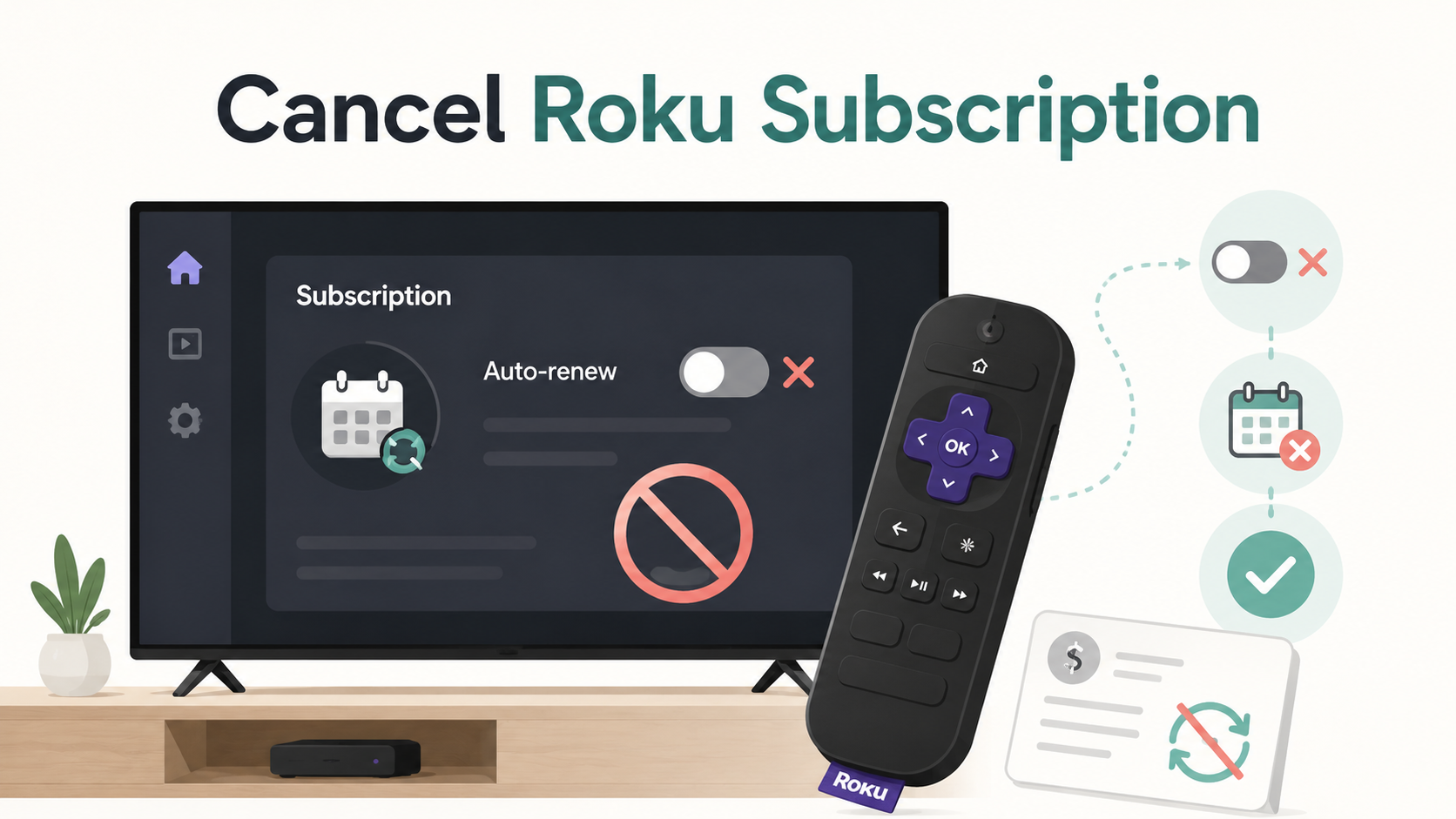
Canceling a Starz subscription billed through Roku requires managing the account directly via your Roku device or the official Roku web portal rather than through the Starz application itself. Because Roku acts as the third-party billi...
Canceling a Starz subscription billed through Roku requires managing the account directly via your Roku device or the official Roku web portal rather than through the Starz application itself. Because Roku acts as the third-party billing processor for subscriptions purchased through its channel store, users must cancel through the Roku billing interface to stop recurring monthly or annual charges.
Contents
Navigating third-party streaming billing systems can sometimes feel confusing, especially when multiple devices and login credentials are involved. Whether you signed up for a promotional trial that is about to expire, want to pause your entertainment spending, or simply prefer to manage your streaming services directly through the network provider, understanding the correct cancellation path saves you from unexpected renewal charges. This comprehensive guide covers everything you need to know about canceling your Roku Starz subscription, verifying the cancellation, avoiding common pitfalls, and managing alternative subscription options.
Understanding Roku Third-Party Billing for Premium Channels
When you add a premium channel like Starz to your Roku device using your Roku account remote or on-screen interface, Roku handles the entire financial transaction. This is known as third-party billing. Instead of entering your credit card information directly into the Starz website or mobile application, your payment details are securely stored within your Roku account profile.
This integration offers convenience, allowing you to manage multiple streaming services under a single roof with unified payment methods. However, it also means that managing, modifying, or terminating those subscriptions is strictly tied to the Roku ecosystem. If you attempt to cancel your subscription by logging into the Starz website or by deleting the Starz app from your Roku home screen, the billing cycle will continue uninterrupted.
Recognizing how this billing relationship functions prevents the common mistake of assuming an app deletion equates to an account cancellation. Roku bills subscriptions on a recurring basis until you manually turn off the auto-renewal feature or cancel the subscription through an authorized Roku management portal.
Prerequisites and Preparation Before You Cancel
Before you begin the cancellation process, taking a few preparatory steps ensures a smooth experience and protects your account security. Gather the necessary information and verify your account status to avoid potential roadblocks.
- Verify the Billing Source: Confirm that your Starz subscription is indeed billed through Roku. If you signed up directly on the Starz website or through a different platform like Apple, Amazon Prime Video, or Google Play, the Roku cancellation steps will not apply to you. Check your email receipts for statements originating from Roku.
- Locate Your Roku Login Credentials: You will need the email address and password associated with your Roku account to access your subscription management settings. If you use a PIN for purchases, have that ready as well.
- Understand Access Timelines: When you cancel a subscription through Roku, you typically retain access to the channel content until the end of your current pre-paid billing cycle. You will not lose access immediately upon cancellation, meaning you can cancel early without forfeiting days you have already paid for.
- Review Renewal Dates: Check your current subscription details to note the exact renewal date. It is best to cancel at least 24 hours before the next billing cycle begins to ensure you are not charged for the upcoming period.
Step-by-Step Instructions to Cancel Starz via the Roku Website
Managing your Roku subscriptions via a web browser on a computer or mobile device is often the fastest and most transparent method. It provides a clear overview of all active channels, expiration dates, and billing terms.
- Open a Web Browser: Navigate to the official Roku Account Portal using your preferred web browser.
- Log In to Your Account: Enter your Roku account email address and password. If you have two-factor authentication enabled, follow the on-screen prompt to verify your identity via your registered email.
- Navigate to Subscriptions: Once logged into your account page, locate and click on the Manage your subscriptions link under the "Manage account" section.
- Locate Starz: The subscriptions page displays a list of all active and recently expired subscriptions billed through Roku. Scroll through the list to find Starz.
- Select Cancel Subscription: Click on the Starz subscription entry to view its details. Select the option labeled Cancel subscription.
- Confirm the Cancellation: Roku will display a prompt confirming when your subscription will end and noting that you will retain access until that date. Confirm your choice by selecting Cancel subscription again when prompted.
- Save Your Confirmation: Once successfully canceled, you will see a confirmation screen and receive a confirmation email from Roku. Keep this email for your records.
| Cancellation Method | Device Required | Speed & Convenience | Best For |
|---|---|---|---|
| Roku Web Portal | Computer or Mobile Browser | High (Fastest overview) | Users who prefer a clear visual interface and keyboard entry. |
| Roku Streaming Device | Roku TV or Streaming Player | Moderate (Remote control entry) | Users currently watching TV who want to handle it directly on-screen. |
Step-by-Step Instructions to Cancel Starz via a Roku Device
If you do not have immediate access to a computer or mobile browser, you can manage and cancel your subscriptions directly from your Roku streaming player or Roku TV using your remote control.
- Turn On Your TV and Roku Device: Ensure your Roku device is powered on and you are on the home screen.
- Highlight the Starz Channel: Using your Roku remote control, navigate to the Starz channel icon on your home screen grid. Do not open the app.
- Open the Options Menu: With the Starz channel highlighted, press the Star (*) button on your Roku remote control to open the options menu.
- Manage Subscriptions: From the pop-up menu, select Manage subscription. This opens a dedicated menu showing your billing status and options.
- View Subscriptions: Select Cancel subscription from the choices provided.
- Confirm the Action: A confirmation window will appear explaining your remaining viewing time. Confirm the cancellation when prompted. A confirmation message will appear on your screen, and an email receipt will be sent to your account email address.
Alternative Scenarios: What If You Billed Elsewhere?
It is vital to double-check your billing origin if you cannot find Starz listed in your Roku account subscriptions. Many users experience confusion because they installed the Starz app on a Roku device but established their billing relationship through an entirely different provider.
- Billed Directly by Starz: If you signed up on the official Starz website, you must log in to your account profile on starz.com, navigate to your account settings or subscription management tab, and cancel directly through their web interface.
- Billed Through Apple, Amazon, or Google: If your subscription receipt shows Apple, Amazon Prime Video Channels, or Google Play, you must use the respective platform's subscription management center (such as the subscriptions menu in your Apple ID settings or Amazon Prime memberships page) to terminate the billing agreement.
Common Mistakes and Troubleshooting
When managing streaming subscriptions, users occasionally encounter minor hurdles. Being aware of these common missteps can save you frustration.
- Deleting the App Instead of Canceling: The single most frequent mistake is deleting the Starz channel icon from the Roku home screen. This merely removes the shortcut to the application from your device interface; it does not terminate your financial contract with Roku. You must follow the formal cancellation steps outlined above to stop billing.
- Missing the Renewal Window: Roku typically processes renewals on the exact anniversary of your sign-up date. If you attempt to cancel on the day of renewal, timezone differences or processing delays might result in a charge for the subsequent month. Always cancel a day or two in advance.
- Unable to Find the Subscription: If Starz does not appear under your Roku subscriptions list, verify that you are logged into the correct Roku account. Households with multiple Roku devices sometimes have different email addresses registered across different hardware units. Check your bank or credit card statements to see which exact account is being billed.
Summary of Next Actions and Verification
After completing the cancellation process through Roku, take a few moments to confirm that everything is finalized correctly. Check your inbox for the official cancellation confirmation email sent by Roku. This email serves as your definitive proof that auto-renewal has been disabled.
You can also return to the Manage your subscriptions page on your Roku account portal at any time to verify that Starz now displays an expiration date rather than a renewal date. Once your current billing period lapses, the channel will naturally deactivate, and no further charges will post to your account. If you ever wish to resume your subscription in the future, you can easily resubscribe through the Roku Channel Store at any time.
Image Gallery