How Much Data Do I Have Left? A Complete Guide to Checking Your Mobile and Home Internet Limits
Checking how much data you have left prevents unexpected overage fees, throttled connection speeds, and sudden interruptions during critical tasks like video calls or remote work. Whether you use a postpaid smartphone plan with a month...
Checking how much data you have left prevents unexpected overage fees, throttled connection speeds, and sudden interruptions during critical tasks like video calls or remote work. Whether you use a postpaid smartphone plan with a monthly cap, a prepaid mobile broadband device, or a fixed-wireless home internet service, monitoring your remaining gigabytes is an essential part of digital life.
Contents
Data management has evolved beyond manual meter readings or calling customer service hotlines. Modern telecommunications infrastructure provides multiple touchpoints—ranging from dedicated carrier apps and USSD shortcodes to built-in operating system meters—that let users track consumption down to the megabyte in real time.
Understanding Your Data Plan Types and Limits
Before you can accurately determine how much data you have left, you must understand the structural framework of your internet service agreement. Different plans track consumption, enforce limits, and apply penalties in vastly different ways. Knowing your specific plan type dictates which method you should use to check your remaining balance.
Postpaid Mobile Plans
Postpaid cellular contracts typically assign a fixed monthly high-speed data allowance, such as 20GB, 50GB, or an unlimited tier with specific high-speed thresholds. Once you exceed this threshold, carriers handle the overage in one of three ways:
- Hard Caps: The connection stops entirely until you purchase a data add-on or your billing cycle resets.
- Speed Throttling: Speeds drop significantly (often to 2G or low 3G speeds, such as 128kbps to 512kbps), making video streaming impossible while basic messaging remains functional.
- Automatic Overages: Each gigabyte consumed past your limit is automatically billed to your account at a premium rate.
Prepaid Mobile Plans
Prepaid plans operate on a pay-as-you-go or bundled-pack model. Data buckets usually have a strict expiration date, such as 7 days, 30 days, or a calendar month. Unused data may or may not roll over depending on the specific carrier and the tier of the prepaid bundle purchased. Checking your balance on prepaid accounts is vital because exhaustion of the data bucket terminates internet access immediately unless a backup balance is available.
Fixed Home Internet and Fixed-Wireless Broadband
Home internet service providers (ISPs) often impose data caps, frequently set between 1TB (1,000GB) and 1.2TB per month for standard cable or fiber connections, though many offer unlimited options for an extra fee. Fixed-wireless home internet (using cellular towers to provide home Wi-Fi) often features stricter monthly data thresholds. Exceeding these limits typically results in automated charges for blocks of additional data (e.g., $10 for an extra 50GB) up to a monthly ceiling.
How to Check Your Remaining Data on Mobile Devices
Checking data consumption directly on your smartphone is the fastest way to understand your usage patterns. Mobile operating systems and carrier networks offer distinct tools for this purpose.
Using Native Smartphone Data Trackers
Both Android and Apple iOS feature built-in data usage meters that track consumption across your billing cycle. While these tools do not show your exact carrier balance, they provide a reliable mirror of your consumption to help you cross-reference carrier statements.
- On Android: Navigate to Settings > Network & internet > Internet (or Connections > Data usage on Samsung devices). Tap on Mobile data usage to view a detailed graph. Here, you can set your exact billing cycle start date and data warning thresholds so the system alerts you before you run out.
- On Apple iOS: Open Settings > Cellular (or Mobile Data). Scroll down to view the total data used for the current period. Note that iOS does not automatically reset this counter based on your billing cycle; you must scroll to the bottom and tap Reset Statistics on the exact day your carrier's billing period renews.
Carrier Apps and Portal Access
The most accurate method for determining exact remaining gigabytes is accessing your carrier’s official digital ecosystem.
- Download and log into your carrier's official mobile application (such as the My Verizon app, AT&T app, T-Life, My Vodafone, or equivalent regional provider applications).
- The main dashboard or account overview screen typically displays a visual meter or numeric counter showing how many gigabytes remain and the exact date and time your cycle resets.
- If you prefer not to use an app, you can log into your customer portal via a web browser using your account credentials.
USSD Codes and SMS Shortcuts
Many telecommunications providers allow users to check data balances via quick text commands or Unstructured Supplementary Service Data (USSD) codes—short strings dialed from your phone's keypad like a phone number. For example, dialing a specific code such as *123# or sending a text with the word "BAL" or "DATA" to a designated service number triggers an automated reply detailing your remaining balance. Consult your carrier’s documentation for your region's specific codes.
Comparison of Data Monitoring Methods
Choosing the right method to check your data depends on whether you need instant convenience, deep historical analytics, or absolute billing accuracy.
| Monitoring Method | Accuracy Level | Setup Required | Best Used For |
|---|---|---|---|
| Carrier Mobile App | 100% (Real-time billing data) | Account login and internet connection | Checking exact remaining GBs and billing cycle resets. |
| USSD / SMS Codes | 100% (Carrier database) | None (Active cellular signal) | Quick balance checks on prepaid or feature phones. |
| Android / iOS Meters | Approximate (Device-measured) | Manual billing cycle configuration | Monitoring app-specific usage and setting early warnings. |
| ISP Web Portal | 100% (Billing system) | Account login via browser | Managing home internet caps, fixed-wireless, and fiber accounts. |
Checking Data on Home Internet and Router-Based Systems
If you need to know how much data you have left on a fixed home internet connection or a portable mobile hotspot router, smartphone settings will not help. You must interact directly with your ISP or networking hardware.
Accessing Home ISP Portals
Major landline and cable internet providers require you to use their proprietary web portals or mobile companion apps to track data caps.
- Log into your account dashboard on the provider's website.
- Look for sections labeled Usage, Internet Usage Meter, or Data Plan.
- Review your daily and monthly consumption graphs. Many ISPs send automated email or SMS alerts when you reach 75%, 90%, and 100% of your data allowance.
Checking MiFi and Mobile Hotspot Routers
Portable cellular routers (MiFi devices, pocket Wi-Fi, or home 4G/5G gateways) often feature an on-device LCD screen or a local web-management page.
- Turn on the device and check the small screen for a data counter or percentage indicator.
- Alternatively, connect a computer or phone to the router's Wi-Fi network, open a web browser, and enter the router’s local IP address (typically
192.168.1.1or192.168.0.1, printed on a sticker on the device). Log in with the administrator password to view exact data consumption statistics tracked by the internal modem.
Common Mistakes and Troubleshooting When Tracking Data
Users often encounter discrepancies between what their phone reports and what their monthly bill states. Understanding these pitfalls ensures accurate monitoring.
Billing Cycle Misalignment
The most common error occurs when a user's phone data tracker resets on the first day of the calendar month (e.g., October 1st), while their carrier's billing cycle actually resets on the 15th of the month. This mismatch causes the phone's meter to display incorrect remaining data relative to the carrier's billing system. Always verify your exact bill cycle closing date on your latest invoice.
Background Data and Tethering Discrepancies
Operating systems consume background data for cloud backups, software updates, push notifications, and app synchronization even when you are not actively browsing. Furthermore, if you share your connection via mobile hotspot (tethering) to a laptop, heavy background downloads on the computer (such as operating system patches) can drain your remaining data pool rapidly.
Delayed Carrier Reporting
Some carrier networks experience latency in updating their real-time data usage meters. Data consumed within the last two to four hours may not immediately appear in carrier apps or USSD balances. If you are precariously close to your limit, practice caution with heavy downloads until the meter refreshes.
Frequently Asked Questions
What happens when I run out of data completely?
Depending on your plan, your carrier will either cut off your internet access entirely, slow your connection speed down to minimal rates (throttling), or automatically charge your account for an extra data block. Review your carrier's terms of service to understand which policy applies to your specific subscription.
Do phone calls and text messages count against my data limit?
Standard cellular voice calls and traditional SMS text messages utilize circuit-switched or separate signaling channels that do not consume your mobile data allowance. However, internet-based messaging apps (like WhatsApp, iMessage over cellular, or FaceTime) and Voice over IP (VoIP) calls do consume mobile data.
How can I reduce my data consumption if I am running low?
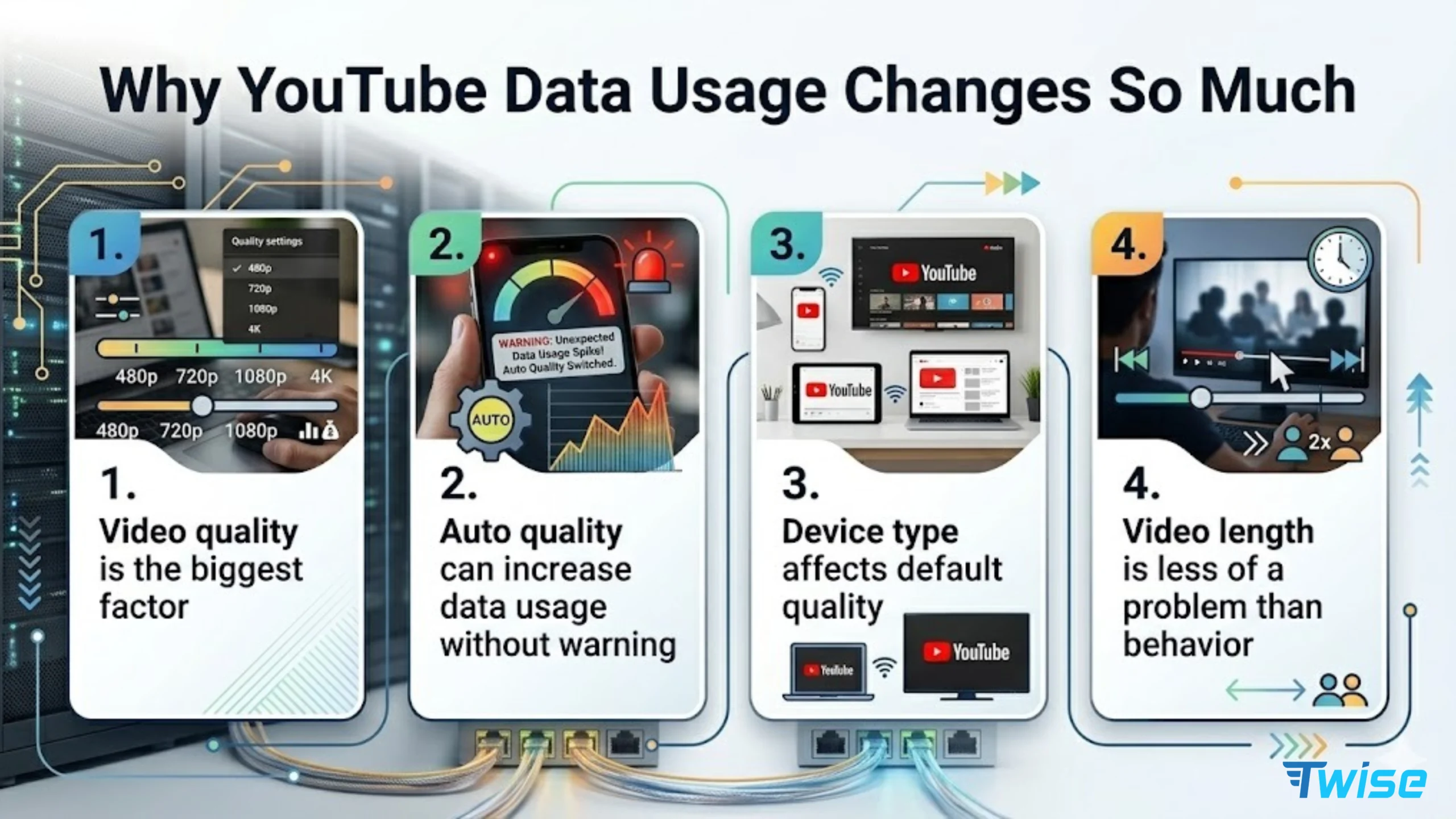
To conserve data, enable data saver modes in your device settings, restrict background app refresh, lower streaming video resolutions from 1080p or 4K down to 480p or 720p, download offline maps and media over Wi-Fi before leaving your home, and disable automatic software updates over cellular networks.
Does connected Wi-Fi affect my mobile data balance?
No. When your smartphone or tablet is actively connected to a secure Wi-Fi network, all internet traffic routes through your fixed broadband provider rather than your cellular network. Your mobile carrier data balance remains completely untouched while using Wi-Fi.
Next Actions for Managing Your Data
To maintain control over your remaining data, open your carrier's mobile application right now to record your exact balance and billing cycle reset date. Configure built-in data warnings on your smartphone operating system at the 80% mark, and enable low-data modes if you find yourself running low before your cycle renews. By establishing these baseline habits, you can eliminate unexpected overage charges and keep your devices connected when it matters most.
Image Gallery