How to Get a Blood Pressure App for Apple Watch
To get a blood pressure app for your Apple Watch, you must download a compatible third-party application from the App Store, such as Omron Connect, Withings Health Mate, or Qardio. Since the Apple Watch lacks a built-in blood pressure...
To get a blood pressure app for your Apple Watch, you must download a compatible third-party application from the App Store, such as Omron Connect, Withings Health Mate, or Qardio. Since the Apple Watch lacks a built-in blood pressure sensor, these apps function by syncing data from external Bluetooth-enabled blood pressure monitors directly to your wrist and the Apple Health app.
Contents
The Apple Watch has revolutionized personal health tracking by introducing features like ECG, blood oxygen monitoring, and fall detection. However, as of 2026, the device still does not possess the native hardware required to perform medical-grade oscillometric blood pressure measurements independently. For users looking to track their hypertension or general cardiovascular health, "getting a blood pressure app" involves a combination of software integration and external hardware synchronization.
Understanding Apple Watch Blood Pressure Capabilities in 2026
Before attempting to install an app, it is essential to understand the technical limitations of the Apple Watch hardware. Most consumer blood pressure monitors use the oscillometric method, which requires an inflatable cuff to momentarily restrict blood flow and measure the vibration of the arterial walls. The Apple Watch, which sits on the wrist, primarily uses Photoplethysmography (PPG) sensors—green and infrared lights that track heart rate and blood oxygen by measuring light absorption in the blood.
While research into cuffless blood pressure monitoring using PPG and pulse arrival time (PAT) has progressed significantly by 2026, the primary way to get accurate, actionable blood pressure data on an Apple Watch remains through third-party ecosystems. These ecosystems bridge the gap between a medical-grade external cuff and the convenience of the watch’s display.
The Role of Apple HealthKit
The "bridge" that allows these apps to work is Apple HealthKit. When you install a blood pressure app, it requests permission to write data to the Health app. Once your external monitor takes a reading, it sends that data via Bluetooth to your iPhone, which then reflects the data on the Apple Watch app interface. This integration ensures that your blood pressure trends are stored alongside your steps, sleep, and heart rate data.
Prerequisites for Monitoring Blood Pressure on Apple Watch
To successfully set up a blood pressure monitoring system on your Apple Watch, you need the following components:
- A Compatible Apple Watch: Most modern apps require watchOS 9 or later. In 2026, this includes Series 6 and newer, including the Ultra series and SE models.
- An iPhone: The companion iPhone is necessary for the initial setup, Bluetooth pairing, and data management.
- A Bluetooth Blood Pressure Monitor: You cannot measure blood pressure using the watch alone. You must purchase a smart cuff from brands like Omron, Withings, Qardio, or iHealth.
- An Active Apple ID: This is required to download apps from the App Store and to sync data across iCloud for backup.
Medical Disclaimer: The information provided here is for educational purposes only. Apple Watch and third-party apps are not intended to replace professional medical diagnosis or treatment. Always consult a healthcare provider for the management of hypertension or other cardiovascular conditions.
Step-by-Step Guide to Installing a Blood Pressure App
The process of getting the app onto your watch is straightforward, but the configuration of the data sync requires precision.
Step 1: Selecting and Downloading the App
Open the App Store on your iPhone. You should search for the specific brand of the blood pressure monitor you own. If you have not yet purchased a monitor, look for apps with high ratings and Apple Health integration. Popular choices include:
- Omron Connect
- Withings Health Mate
- Qardio Health
- Blood Pressure Monitor + (for manual entry)
Once you find the app, tap "Get" or the cloud icon to download it.
Step 2: Enabling the Apple Watch Component
By default, your iPhone may automatically install the watch version of the app. If it doesn't:
- Open the Watch app on your iPhone.
- Scroll down to the "Available Apps" section.
- Find your blood pressure app and tap Install.
- Ensure the toggle for "Show App on Apple Watch" is enabled.
Step 3: Configuring HealthKit Permissions
This is the most critical step for ensuring your data appears on your watch.
- Open the newly downloaded app on your iPhone.
- Follow the on-screen setup instructions to create an account.
- When prompted, select "Sync with Apple Health" or "Connect to HealthKit."
- The Apple Health permission screen will appear. Toggle "Blood Pressure" to On. It is also recommended to allow the app to write "Heart Rate" and "Oxygen Saturation" if applicable.
Step 4: Pairing the Hardware
Put your external blood pressure cuff into "Pairing Mode" (usually by holding the Bluetooth button). In the third-party app on your iPhone, go to the devices section and select "Add New Device." Once paired, any reading taken with the cuff will automatically transmit to the iPhone and, subsequently, to the Apple Watch app.
Top Blood Pressure App and Hardware Combinations
In 2026, several manufacturers offer seamless integration. The following table compares the most reliable options for Apple Watch users.
| Brand | App Name | Connectivity | Key Features | Clinical Validation |
|---|---|---|---|---|
| Withings | Health Mate | Bluetooth / Wi-Fi | ECG integration, multi-user support | FDA Cleared / CE Marked |
| Omron | Omron Connect | Bluetooth | Irregular heartbeat detection, cloud backup | AAMI / ESH Validated |
| Qardio | Qardio Health | Bluetooth | Weight/Activity correlation, photo notes | FDA Cleared |
| iHealth | iHealth MyVitals | Bluetooth | Simple UI, affordable hardware | FDA Cleared |
| Blood Pressure App | BP Monitor | Manual / Sync | Best for manual entry of office readings | N/A (Software only) |
How to View and Manage Data on the Apple Watch
Once the setup is complete, you no longer need your phone to view your history. On your Apple Watch, you can:
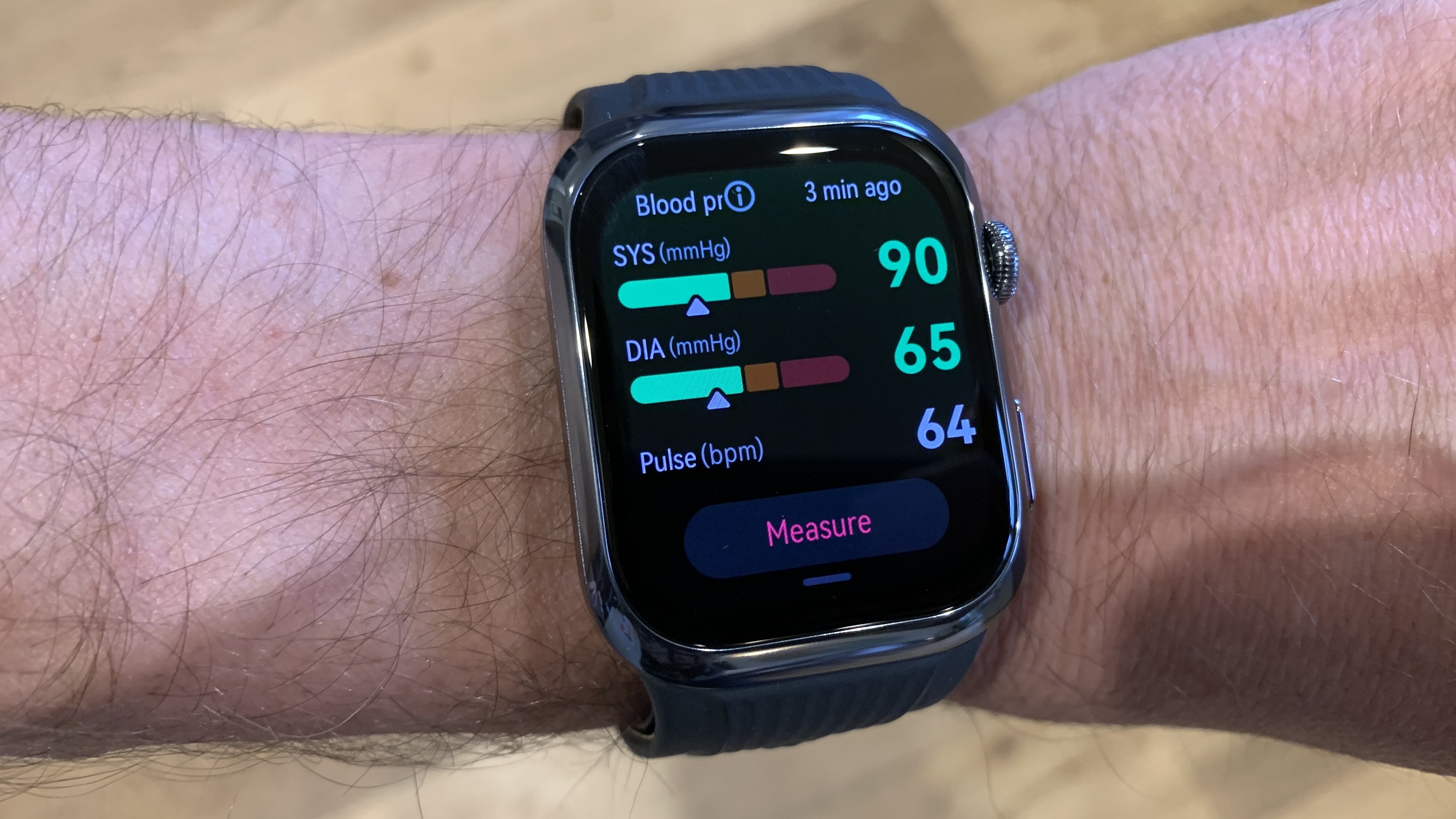
- Launch the App: Tap the app icon from the home screen or the App Grid. Most apps will show your last reading (Systolic, Diastolic, and Pulse) along with the date and time.
- Use Complications: Many blood pressure apps offer "Complications"—small widgets you can add to your watch face. This allows you to see your latest BP reading with a single glance at your wrist.
- Manual Entry: If you use a traditional non-Bluetooth cuff at a doctor's office, some apps like SmartBP allow you to manually input the numbers directly on the watch keypad, which then syncs back to your iPhone's Health database.
Troubleshooting Common Issues
Even with the advanced software available in 2026, users may encounter technical hurdles when syncing blood pressure data.
Data Not Syncing to the Watch
If your readings appear on your iPhone but not your Apple Watch, the most common culprit is a permission mismatch. Navigate to Settings > Health > Data Access & Devices on your iPhone. Select the specific app and ensure all "Allow App to Read" permissions are enabled. Sometimes, restarting both the iPhone and the Apple Watch is necessary to refresh the HealthKit background database.
Bluetooth Connection Failures
Smart cuffs can sometimes struggle to maintain a stable connection if paired with multiple devices. Ensure the cuff is not currently connected to another tablet or family member's phone. If the connection fails, "Forget" the device in your iPhone’s Bluetooth settings and re-pair it within the manufacturer's app.
Inaccurate Readings
While this is a hardware issue, it affects the app data. Ensure your arm is at heart level and you remain still during the measurement. The app may flag a reading as "Inaccurate" if it detects excessive movement or an irregular heartbeat during the inflation cycle.
The Future of Apple Watch Blood Pressure Monitoring
The landscape of wearable health technology continues to shift. By 2026, Apple has integrated "Vitals" and "Trends" more deeply into watchOS. While we still rely on external cuffs for diagnostic-grade accuracy, the Apple Watch can now use its existing sensors to provide Blood Pressure Trends.
This feature does not give you a "120/80" reading. Instead, it monitors changes in your cardiovascular baseline. If the watch detects your vascular resistance is increasing or your resting heart rate is fluctuating in a pattern consistent with high blood pressure, it may send a notification suggesting you take a formal measurement with your external smart cuff. This "proactive alerting" system is why having the app properly installed and synced is more important than ever.
FAQ
Can I measure blood pressure on Apple Watch without a cuff?
No, as of 2026, the Apple Watch cannot measure blood pressure independently without an external cuff. The apps available on the App Store act as displays and trackers for data captured by external medical devices.
Are there any free blood pressure apps for Apple Watch?
Yes, most manufacturers provide their apps for free (e.g., Omron Connect, Withings Health Mate). There are also free manual entry apps like SmartBP, though some advanced features like PDF report generation for doctors may require a one-time purchase or subscription.
Does the Apple Watch Series 10 or 11 have a built-in BP sensor?
While these models feature advanced sensors for sleep apnea and heart rate variability, they do not include an inflatable cuff or the specialized sensors required for medical-grade systolic and diastolic measurement. They rely on the "Vitals" app to track trends related to hypertension.
How do I share my Apple Watch blood pressure data with my doctor?
Most blood pressure apps include a "Export" or "Share" feature. You can generate a CSV or PDF report of your readings over 7, 30, or 90 days. Additionally, if your doctor uses a compatible health record system, you can share your Apple Health data directly through the "Sharing" tab in the Health app on your iPhone.
Why isn't there an official Apple Blood Pressure app?
Apple focuses on features it can validate with high clinical accuracy across all users. Because wrist-based cuffless measurement is highly sensitive to skin tone, wrist size, and movement, Apple currently uses the "Health" app as a central hub for third-party medical devices rather than releasing a native measurement app.
Practical Recommendation
For the best experience, purchase a Withings BPM Connect or an Omron Evolv. These devices are "all-in-one" cuffs that do not have tubes and sync directly via Wi-Fi or Bluetooth. Once you download their respective apps and link them to Apple Health, your blood pressure tracking becomes almost entirely automated, providing you with a comprehensive view of your cardiovascular health directly on your Apple Watch.
Image Gallery