The Definitive Guide to Crafting a Gmail Professional Email Signature in 2026
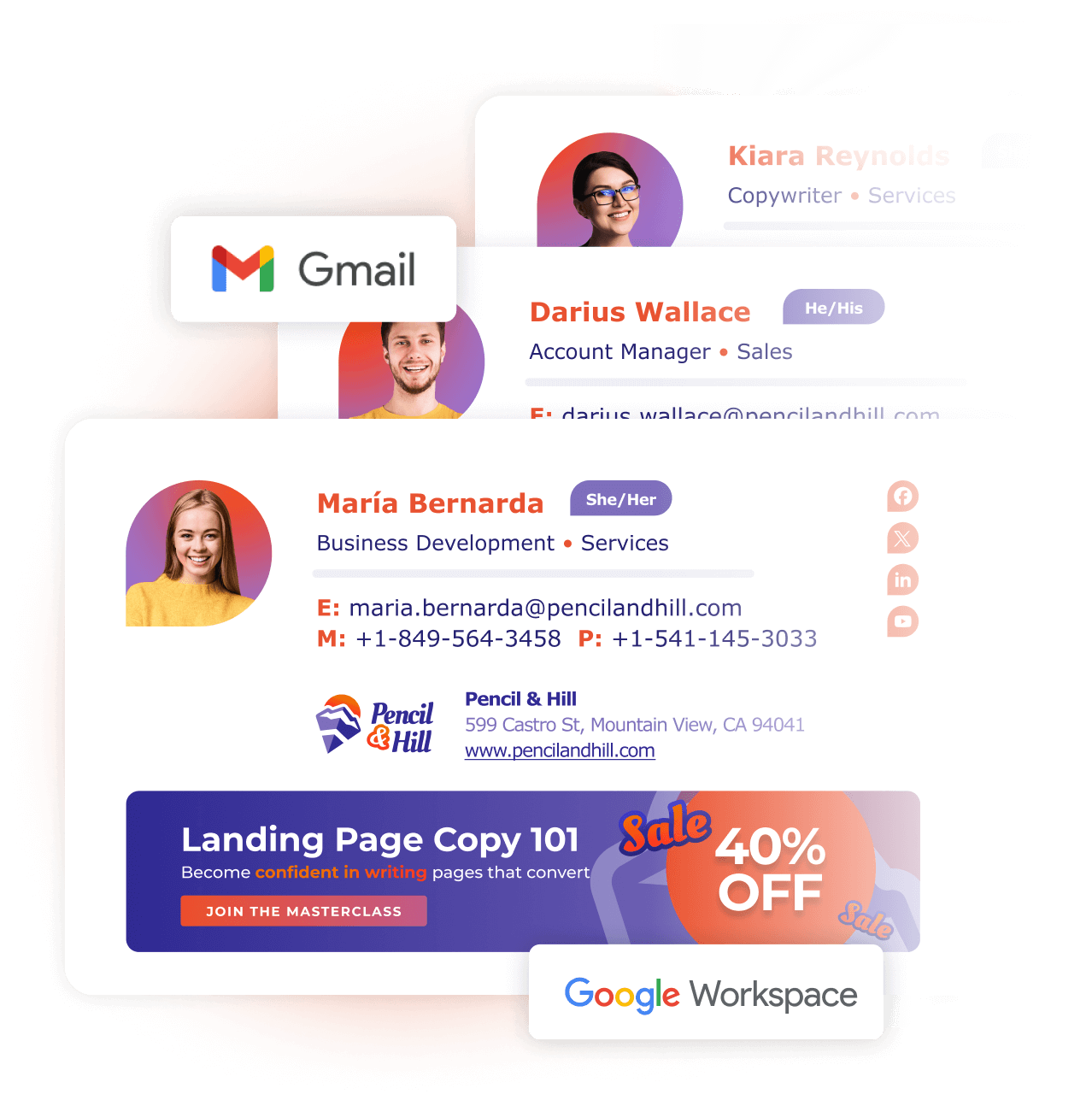
Creating a gmail professional email signature requires balancing clean visual hierarchy, cross-platform technical compatibility, and strategic personal branding. An optimized signature acts as a digital business card, reinforcing credi...
Creating a gmail professional email signature requires balancing clean visual hierarchy, cross-platform technical compatibility, and strategic personal branding. An optimized signature acts as a digital business card, reinforcing credibility and driving secondary traffic to your portfolio, scheduling link, or corporate website without cluttering your daily correspondence.
Contents
Understanding the Anatomy of an Effective Digital Signature
A well-structured email signature avoids the common trap of overloading the recipient with excessive graphics, massive image files, or unorganized text blocks. When designing for Google Workspace and standard Gmail accounts, understanding how the interface renders HTML elements is critical to preserving your layout across desktop browsers and mobile applications.
The foundational elements of a high-converting signature include:
- Full Name and Current Job Title
- Company Name and Department
- Direct Professional Phone Number
- Core Web Properties (Website, Portfolio, or Booking Link)
- Minimalist Brand Logo or Professional Headshot
- Social Proof or Verified Professional Profiles (LinkedIn)
Typography and Color Palette Best Practices
Adhering to web-safe fonts ensures that your signature looks identical whether opened in Gmail for Web, Apple Mail, or Microsoft Outlook. Standardizing your font choices prevents font fallback issues that can distort your layout.
Typography Guidelines: Always rely on system-native font families such as Arial, Helvetica, Georgia, Trebuchet MS, or Verdana. Set font sizes between 11px and 14px for body details, and bold your name and company title to create a distinct visual anchor. Avoid custom decorative web fonts that require external stylesheets, as most enterprise email clients block external font downloads by default.
Step-by-Step Implementation Guide for Gmail
Configuring your signature directly within the web interface takes only a few minutes when you have your assets prepared. Follow these sequential steps to deploy your standardized signature.
- Open Gmail in your web browser and click the Settings gear icon in the top right corner.
- Select "See all settings" to open the main configuration dashboard.
- Scroll down the General tab until you locate the "Signature" section.
- Click the "Create new" button and enter a descriptive identifier for your signature template.
- Paste your formatted HTML signature or build it directly using the rich-text editing toolbar.
- Scroll to the bottom of the settings page and click "Save Changes" to apply your new signature.
Managing Signature Defaults and Multiple Accounts
If you manage multiple email aliases or reply-to addresses within a single Gmail inbox, assigning specific signatures to distinct addresses is essential for brand consistency.
- For New Emails: Select your preferred signature from the dropdown menu under "For new emails use".
- For Replies/Forwards: Choose whether to use the same signature or opt for a shorter, compact version to keep threaded conversations clean.
- Alias Assignment: Use the signature defaults section to map specific signatures to individual sending addresses if you manage multiple domains or business entities.
Comparing Signature Creation Methods: Native Editor vs. HTML vs. Third-Party Generators
Choosing the right approach depends on your technical comfort level and the complexity of your branding requirements. The following comparison highlights the operational trade-offs of each method.
| Approach | Setup Complexity | Customization Limits | Mobile Rendering Stability | Best Suited For |
|---|---|---|---|---|
| Native Gmail Editor | Low | Moderate (Text, basic links, inline images) | High | Individuals needing a clean, straightforward text and logo setup |
| Custom HTML Code | High | Unlimited (Pixel-perfect styling, tables) | Variable (Requires responsive CSS coding) | Enterprise brands and developers requiring strict visual alignment |
| Third-Party Generators | Very Low | High (Pre-built templates, icon packs) | High (Optimized by provider) | Marketing teams and professionals wanting dynamic social icons |
Technical Specifications and Mobile Optimization Constraints
Designing signatures for mobile devices requires strict adherence to sizing constraints. Over 50% of professional emails are opened on mobile applications where viewport widths are significantly restricted.
Image Optimization and Hosting Rules
Never attach your signature images directly as raw file attachments, as this forces email clients to display them as downloadable files and clutters the message thread.
- Hosting: Host all signature images (logos, headshots, icons) on a secure, reliable server using HTTPS URLs.
- Dimensions: Keep headshots and logos constrained to a maximum width of 100px to 120px with proportional height scaling.
- File Formats: Utilize PNG-8 or compressed JPEG formats to minimize file weight, ensuring rapid loading times even on cellular data networks.
- Alt Text: Always include descriptive alternative text for every image asset so your branding remains contextual even if the email client blocks images by default.
Advanced Strategies and Compliance Considerations
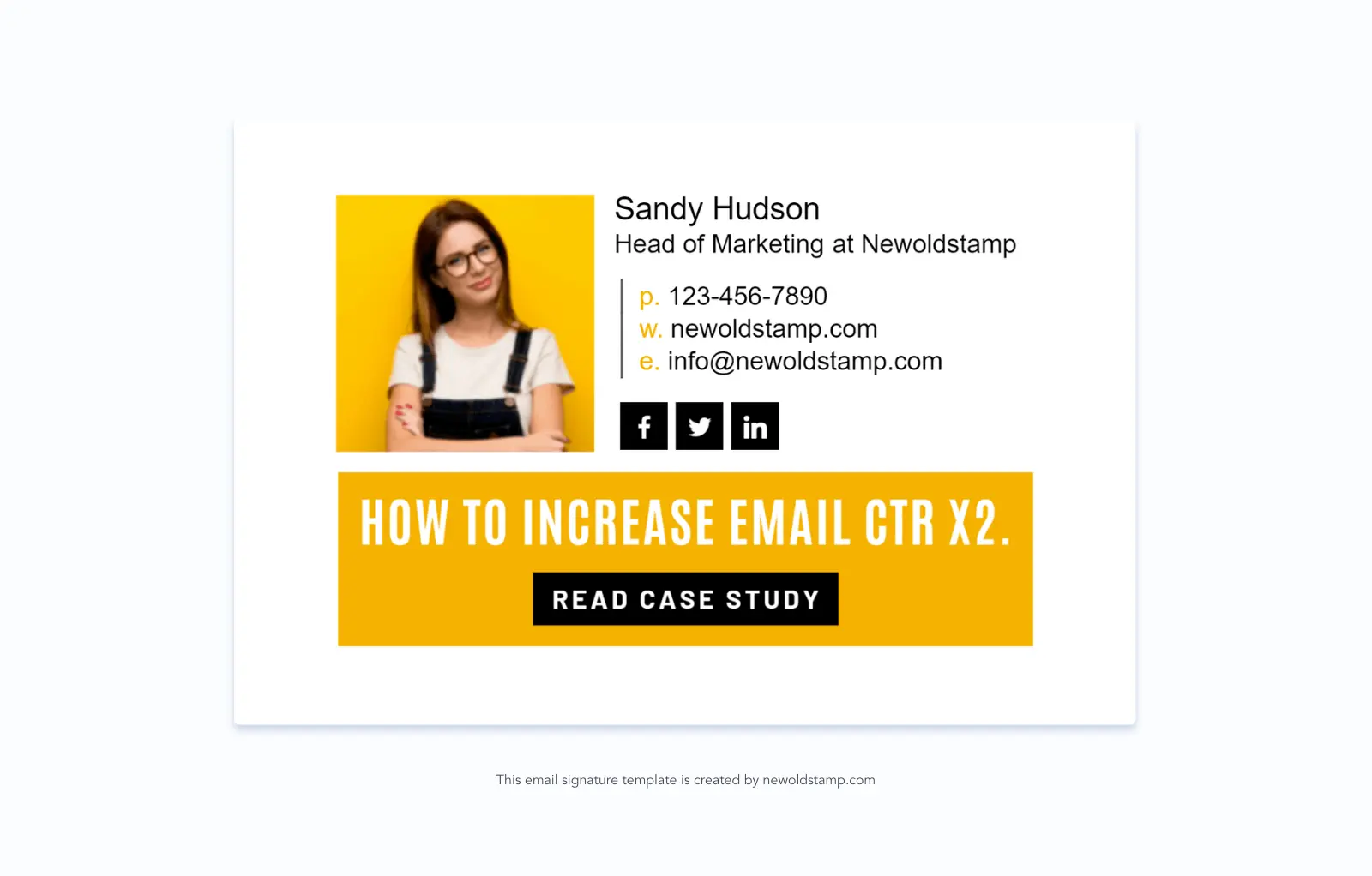
Integrating legal disclaimers, scheduling links, or promotional banners requires careful placement to avoid annoying recipients.
Incorporating Interactive Elements and Disclaimers
- Scheduling Links: Place a text link rather than a heavy button for tools like Calendly or HubSpot Meetings (e.g., "Schedule a 15-minute introductory call").
- Legal Disclaimers: If your industry (finance, healthcare, legal) mandates confidentiality notices, place them at the very bottom of the signature using a smaller font size (8px to 10px) and a muted gray color (#777777) to reduce visual interference.
- Social Icons: Limit social links to essential platforms like LinkedIn and GitHub, avoiding crowded rows of icons that dilute your primary call to action.
Frequently Asked Questions
Why does my Gmail signature look distorted on mobile devices?
Mobile email clients often override desktop CSS styles and expand text sizes automatically. To fix this, build your signature using HTML table structures with explicit pixel widths, and ensure all image elements have inline width and height attributes defined.
How do I prevent Gmail from adding dashes above my signature?
Gmail automatically prepends standard '--' dashes to signatures when replying to threads to separate the new reply from quoted text. This is a hardcoded feature of the Gmail client platform and cannot be permanently removed through standard user settings.
Can I use animated GIFs in my professional Gmail signature?
While technically possible, animated GIFs are strongly discouraged in professional email signatures. Many corporate email security filters flag animated images as spam, and they can appear distracting or unprofessional in formal business correspondence.
Should I include my personal phone number in a corporate signature?
You should include the phone number where you can be most efficiently reached during business hours, whether that is a direct office line, a corporate mobile number, or a verified VoIP business line. Avoid listing personal home numbers for security and privacy reasons.
How often should I update my Gmail signature?
Review your signature quarterly to ensure all links, job titles, office locations, and phone numbers remain accurate. If your company undergoes a rebrand or launches a major product, update your secondary promotional banner or web link accordingly.
Conclusion
A polished gmail professional email signature elevates your digital presence, establishes immediate authority, and removes friction for clients and colleagues looking to connect with you. By respecting technical constraints, prioritizing mobile responsiveness, and maintaining a clean visual hierarchy, your signature will reliably represent your professional identity across every device. Implement these standards today to optimize your daily communications and present a unified, trustworthy brand.
Image Gallery