How to Make Calls Go Straight to Voicemail on iPhone and Android
To send incoming calls directly to voicemail without your phone ringing, you can enable Do Not Disturb or Focus Mode, use the Silence Unknown Callers feature, or set up unconditional call forwarding to your carrier's voicemail access n...
To send incoming calls directly to voicemail without your phone ringing, you can enable Do Not Disturb or Focus Mode, use the Silence Unknown Callers feature, or set up unconditional call forwarding to your carrier's voicemail access number. These methods allow you to maintain privacy and focus without powering off your device.
Contents
Managing your availability in 2026 requires a nuanced understanding of how mobile operating systems handle incoming signals. Whether you are attempting to avoid a specific individual, reduce interruptions during a deep-work session, or filter out the persistent wave of AI-generated robocalls, several native and carrier-side tools can redirect traffic seamlessly to your digital mailbox.
Understanding the Mechanics of Call Redirection
When a call is "sent to voicemail," the mobile network intercepts the signal before it triggers the ringing state on your hardware. Depending on the method used, the caller may experience a single ring, no rings at all, or a specific greeting indicating that the subscriber is busy. In 2026, modern smartphones running iOS 19 or Android 16 utilize sophisticated Focus Filters and API-level call screening to automate this process.
There are three primary ways a call reaches voicemail:
- Software-level rejection: Your phone sees the call, checks your "Do Not Disturb" settings, and tells the network to stop ringing and move to the next step (voicemail).
- Network-level forwarding: The carrier (Verizon, T-Mobile, AT&T, etc.) redirects the call before it ever reaches your device.
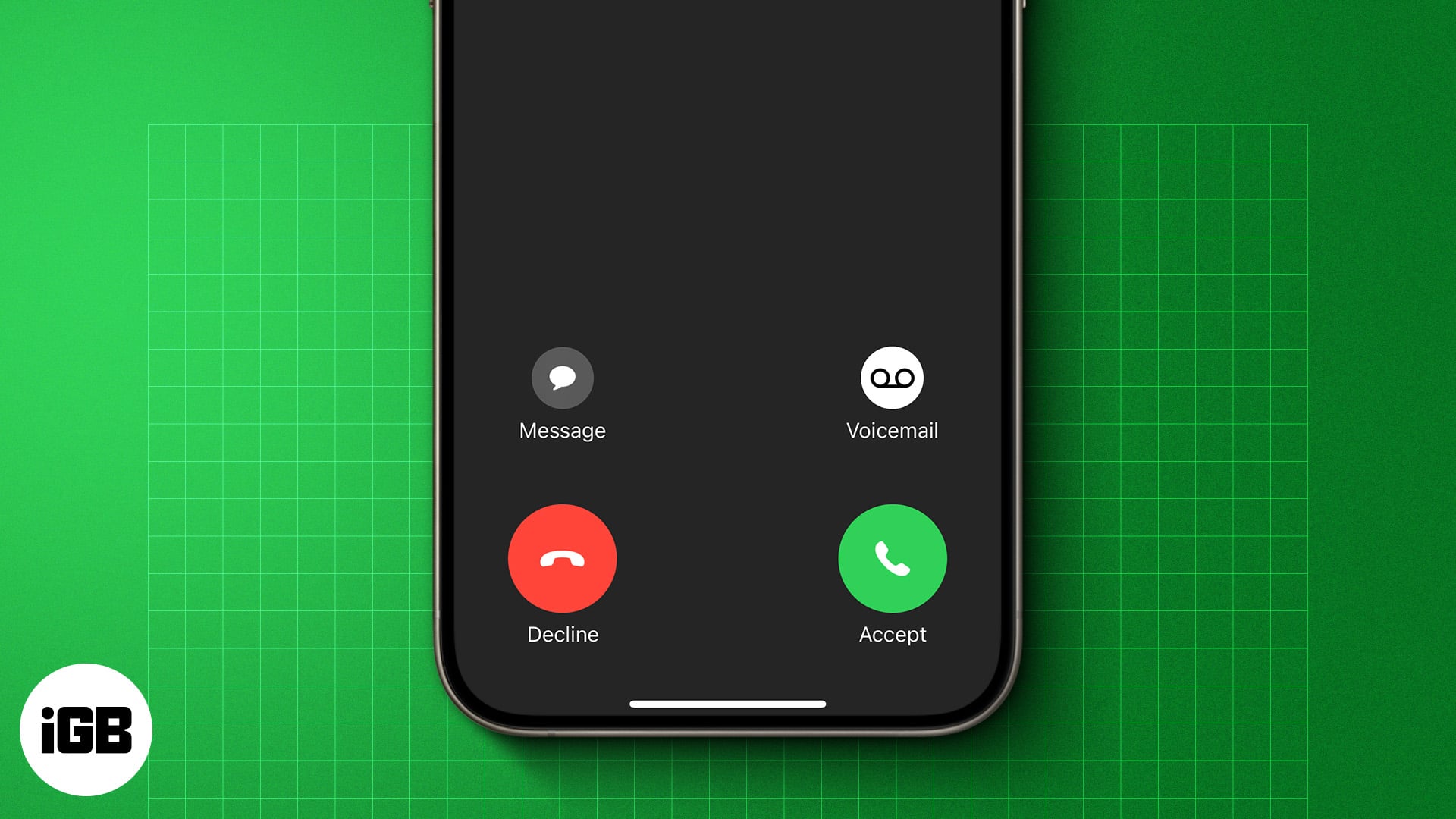
- Manual intervention: You "decline" the call, which triggers an immediate handoff to the voicemail server.
Method 1: Using Do Not Disturb and Focus Modes
The most common and least disruptive way to manage incoming calls is through the built-in Focus or Do Not Disturb (DND) settings. This method is ideal because it allows you to continue using your phone for data-heavy tasks, like navigation or browsing, while keeping the cellular "voice" line silent.
On iOS (iPhone)
Apple’s Focus Mode has evolved significantly. To send calls to voicemail on an iPhone:
- Open Settings and tap on Focus.
- Select Do Not Disturb or create a custom Focus profile (e.g., "Deep Work").
- Tap People and ensure that "Allow Calls From" is set to Allowed People Only (with no one on the list) or Favorites.
- Toggle Allow Repeated Calls to "Off" if you want to ensure a persistent caller cannot break through the silence.
When DND is active, the caller usually hears a standard number of rings before being diverted, but your handset remains completely silent and the screen does not light up.
On Android
Android’s implementation is highly customizable across different manufacturers (Samsung, Pixel, OnePlus):
- Swipe down to access the Quick Settings panel and long-press Do Not Disturb.
- Navigate to Schedules if you want this to happen automatically during work hours.
- Under Exceptions or People, select Calls.
- Set "Allow Calls" to None or Contacts only.
Android also features a "Flip to Shhh" gesture on many devices, where placing the phone face-down on a flat surface automatically triggers DND mode, effectively sending all incoming interruptions to voicemail instantly.
Method 2: Unconditional Call Forwarding
If you want every single call to go to voicemail without your phone even acknowledging the attempt, Unconditional Call Forwarding (UCF) is the most robust solution. This happens at the carrier level, meaning even if your phone is turned off or has no signal, the caller is immediately redirected.
To set this up, you need your carrier's voicemail access number. You can usually find this by dialing *#67# on your keypad. Once you have the number, you use "Mmi codes" to redirect traffic.
How to Enable UCF via Dialer Codes:
- The Command: Dial
*21*followed by the 10-digit voicemail number, then the#key. - Example: If your voicemail access number is 555-123-4567, you would dial
*21*5551234567#and press "Call." - The Result: Your phone will display a message saying "Setting Registration Was Successful." From this moment, all calls bypass your phone and go straight to your greeting.
To Deactivate:
Simply dial ##21# and press "Call." This resets the forwarding logic and allows calls to ring through to your device again. This method is particularly useful for professionals who want to "clock out" entirely without losing the ability to use their phone’s data for personal use.
Method 3: Silence Unknown Callers
A significant portion of the demand for "straight to voicemail" functionality comes from the desire to avoid telemarketers and unrecognized numbers. Both major operating systems now have dedicated toggles for this.
| Feature | Platform | Function | Impact on Caller |
|---|---|---|---|
| Silence Unknown Callers | iOS | Diverts numbers not in Contacts, Mail, or Messages. | Immediate redirection to voicemail. |
| Call Screen | Android (Pixel) | Google Assistant answers and asks why they are calling. | Caller must state intent; you see a transcript. |
| Manual Block | Both | Prevents a specific number from ringing or leaving voicemail (usually). | Caller hears a "not in service" or busy tone. |
| DND Exceptions | Both | Allows only specific people to ring. | All others go to voicemail after standard rings. |
To enable this on an iPhone, go to Settings > Phone > Silence Unknown Callers and toggle it on. On Android, open the Phone app, tap the three dots (Menu), go to Settings > Blocked Numbers, and toggle Unknown.
Method 4: Individual Contact Redirection
Sometimes, you don't want to silence the world—just one specific person. While "Blocking" is an option, it often prevents the person from leaving a voicemail at all, or it may give them a busy signal that alerts them to the fact they are blocked.
To send a specific contact to voicemail on Android:
- Open the Contacts app.
- Select the specific contact.
- Tap the three dots in the top right corner.
- Select Route to voicemail (or "All calls to voicemail").
On iOS, there is no native "Route to Voicemail" button for individual contacts without blocking them. However, a clever workaround is to assign that contact a "Silent" ringtone. The phone will technically "ring," but you won't hear it, and it will eventually expire and hit the voicemail server naturally.
Hardware and Network Limitations
While software solutions are elegant, they are subject to the state of your device and network. It is important to understand the technical limitations of these methods:
- Airplane Mode: Enabling Airplane Mode will send calls to voicemail, but it also disables Wi-Fi and Cellular Data. If you have "Wi-Fi Calling" enabled, some phones may still attempt to ring over the internet even in Airplane Mode unless Wi-Fi is also manually disabled.
- Carrier Interference: Some prepaid carriers do not support MMI codes like
*21*. If you receive an "Invalid MMI Code" error, you may need to use the phone's internal settings menu under Call Settings > Supplementary Services > Call Forwarding. - VoIP and Third-Party Apps: Apps like WhatsApp, Telegram, and Signal do not follow the cellular call-forwarding rules. You must configure the privacy settings within each individual app to ensure those "data calls" are also silenced.
Advanced Strategies: Third-Party Apps and AI Screeners
By 2026, AI-integrated call management has become the standard for high-volume users. Apps like Hiya, RoboKiller, and Truecaller offer "force to voicemail" features based on community-sourced spam lists.
These apps act as a gatekeeper. When a call comes in, the app checks the ID against a global database in real-time. If the number is flagged as "Potential Spam," the app uses a "conditional call forward" to intercept the call. The caller is often met with an AI bot designed to waste their time, or they are dropped directly into a recorded voicemail box without the user's phone ever vibrating.
Comparison of Redirection Methods
The following table compares the most effective ways to manage your incoming call flow based on your specific needs.
| Method | Best For | Technical Difficulty | Reversibility |
|---|---|---|---|
| Focus/DND | Temporary quiet time | Low | Instant toggle |
| Dialer Codes (21) | Total "Off-the-grid" status | Medium | Requires deactivation code |
| Silence Unknowns | Avoiding spam/telemarketers | Low | Persistent setting |
| Airplane Mode | Immediate, total silence | Low | Instant toggle |
| Route to Voicemail | Avoiding specific people | Medium | Per-contact basis |
Frequently Asked Questions
Will the caller know I sent them straight to voicemail?
If you use Do Not Disturb, the caller will hear the standard number of rings (usually 4 to 5) before being diverted. They will likely assume you are simply away from your phone. If you use Call Forwarding (21), the diversion is often instantaneous. A savvy caller might notice the lack of rings and realize you have forwarded your calls, but most will assume the phone is off or out of range.
Can I still receive text messages if calls go to voicemail?
Yes. Except for Airplane Mode, all the methods described—including DND, Silence Unknown Callers, and Call Forwarding—allow your SMS and data services to remain fully functional. Call forwarding only affects the voice "circuit" of your cellular connection.
Does "straight to voicemail" work for FaceTime or WhatsApp calls?
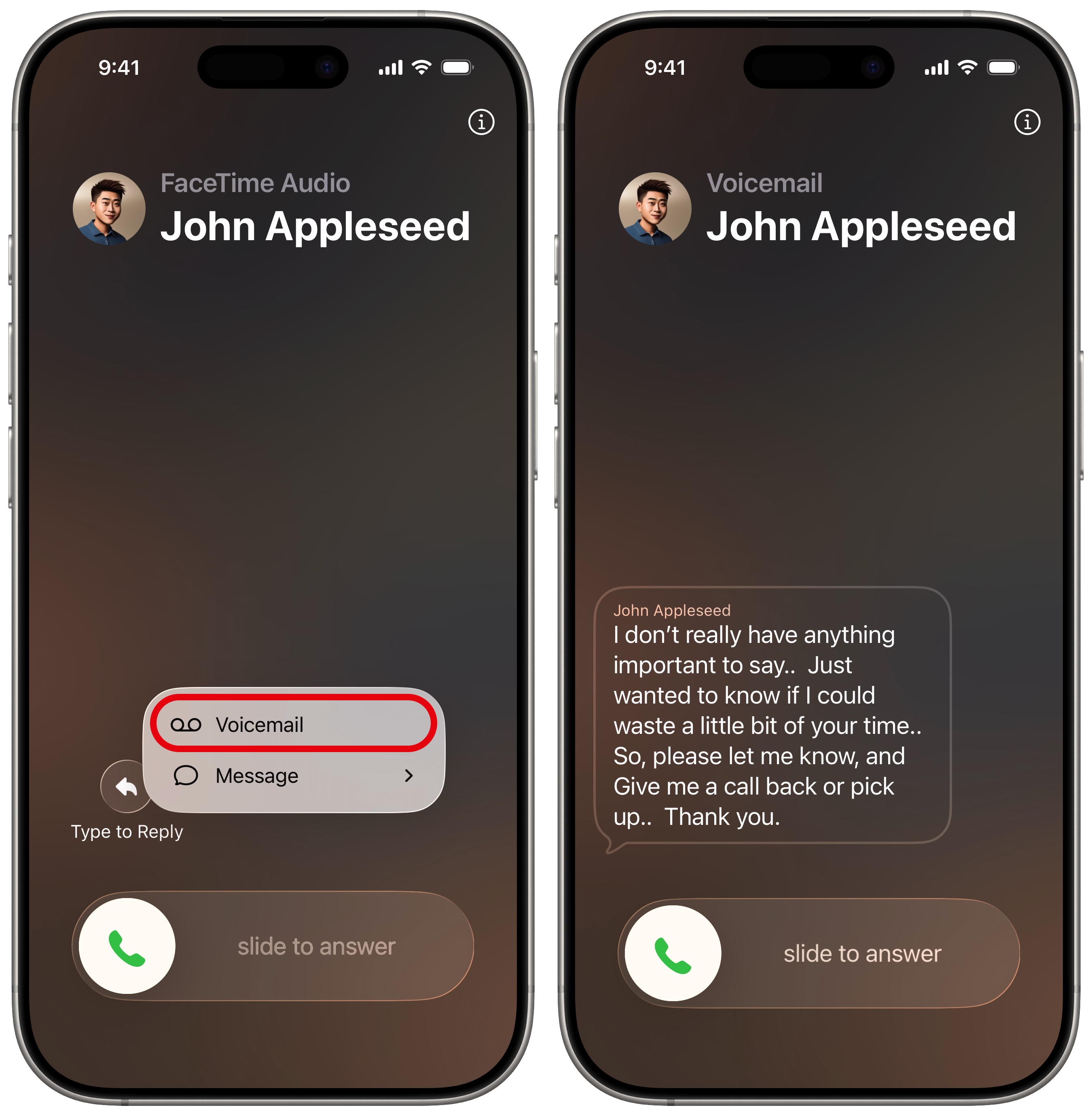
No. Standard cellular settings and carrier dialer codes only affect PSTN (Public Switched Telephone Network) calls. To send FaceTime calls to voicemail (or silence them), you must use Focus Mode/DND. For third-party apps like WhatsApp, you must navigate to Settings > Privacy > Calls within that specific app to silence unknown callers.
Why did my phone ring anyway even with DND turned on?
This is usually due to the "Repeated Calls" setting. In both iOS and Android, there is a safety feature that allows a call to "break through" if the same person calls twice within three minutes. You can disable this in the Focus or DND settings menu under "People" or "Exceptions."
Is there a way to send calls to voicemail without a greeting?
Not natively through smartphone settings. The greeting is handled by your carrier's server. To have a "silent" experience for the caller, you would need to record a period of silence as your outgoing voicemail greeting, though this may confuse callers into thinking the connection has dropped.
Recommendation for Optimal Privacy
For the best balance of privacy and functionality, I recommend using Custom Focus Modes on iOS or Work Profiles on Android. These allow you to whitelist essential contacts (like family or emergency services) while ensuring that all other traffic—including colleagues and acquaintances—is handled by your voicemail system. If you require a complete "digital detox," the *21* dialer code remains the most foolproof method to ensure your hardware remains silent regardless of who is calling.
Image Gallery