How to Update Safari on Your Mac: A Complete Guide
Updating Safari on your Mac is tied directly to the macOS version installed on your computer. Unlike standalone applications that can be updated via the App Store regardless of the operating system, Safari is an integral component of t...
Updating Safari on your Mac is tied directly to the macOS version installed on your computer. Unlike standalone applications that can be updated via the App Store regardless of the operating system, Safari is an integral component of the macOS environment. To update Safari, you must ensure your Mac is running the latest available version of the operating system supported by your hardware or install the latest available security patches for your current macOS version.
Contents
Understanding the Safari-macOS Relationship
The core engine of Safari—Webkit—is deeply embedded within the architecture of macOS. Because Apple treats the browser as a system component rather than a separate utility, you cannot download a "standalone" Safari installer from a website to upgrade your browser version.
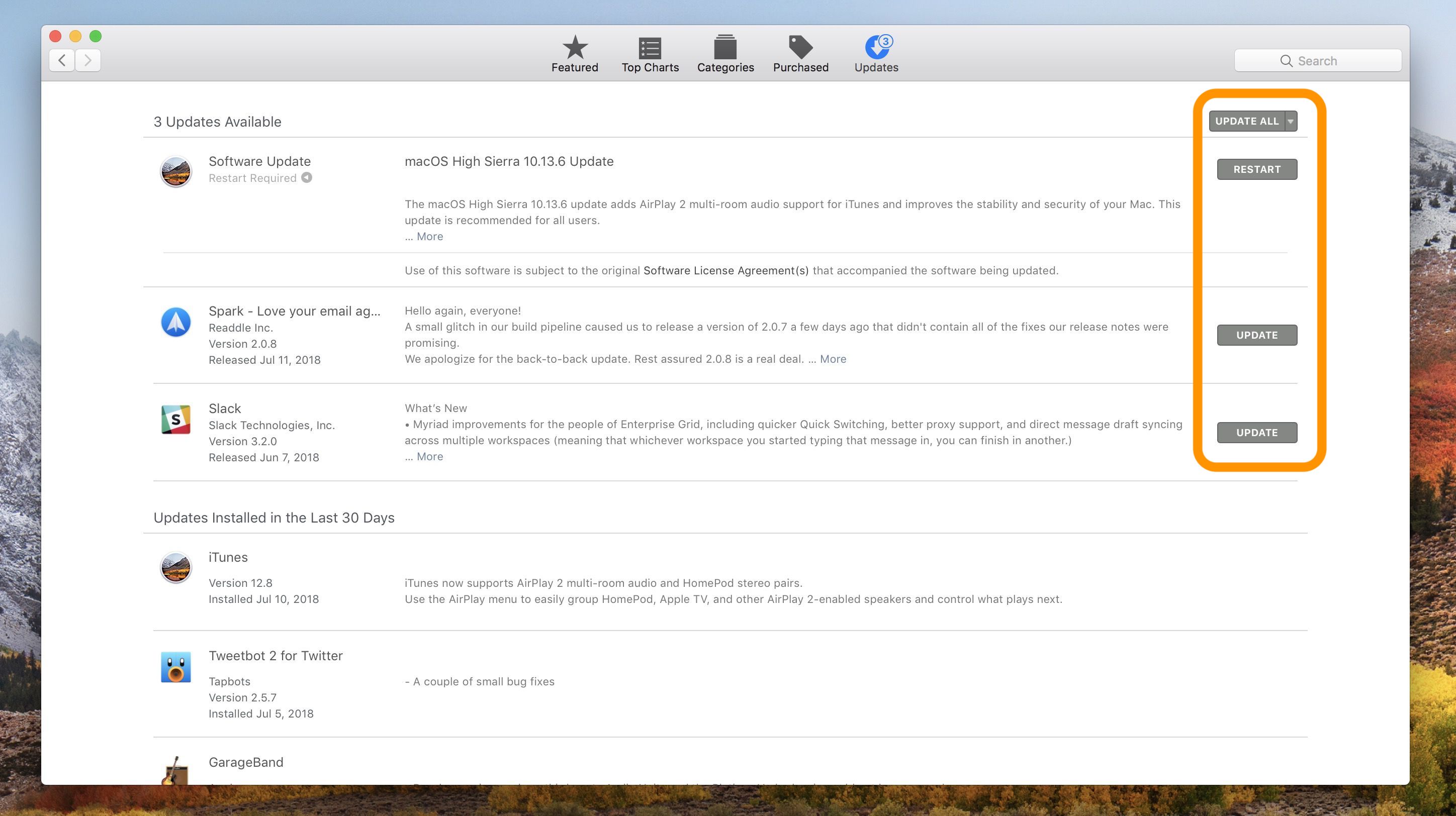
When you seek to update Safari, you are effectively seeking to update the browser’s codebase. This is handled through the macOS Software Update mechanism. Depending on which version of macOS you are currently running, the "update" process may mean two different things:
- Security Updates: If you are running an older version of macOS that Apple still supports with security patches, your Safari version will be updated as part of those system-wide security releases.
- Feature Updates: If you wish to use the absolute latest version of Safari featuring the newest Webkit advancements, you must perform a major operating system upgrade to the latest version of macOS supported by your Mac hardware.
Prerequisites Before Updating
Before initiating any software update process, it is essential to prepare your device to ensure data integrity and system stability.
- Check Hardware Compatibility: Not all Macs can run every version of macOS. Check Apple’s official documentation or the Software Update pane to see if a newer version of macOS is available for your specific model.
- Back Up Your Data: Always create a full backup of your Mac using Time Machine or a reliable cloud-based backup solution before starting a major system update. While updates are generally stable, a hardware failure or power interruption during the update process could lead to data loss.
- Ensure Power Stability: If you are using a MacBook, ensure it is plugged into a power source. Do not rely solely on battery power during an operating system installation.
- Verify Internet Connectivity: Ensure you have a stable, high-speed internet connection. Major macOS upgrades can be several gigabytes in size, and a dropped connection may corrupt the installation package.
How to Check for Safari and macOS Updates
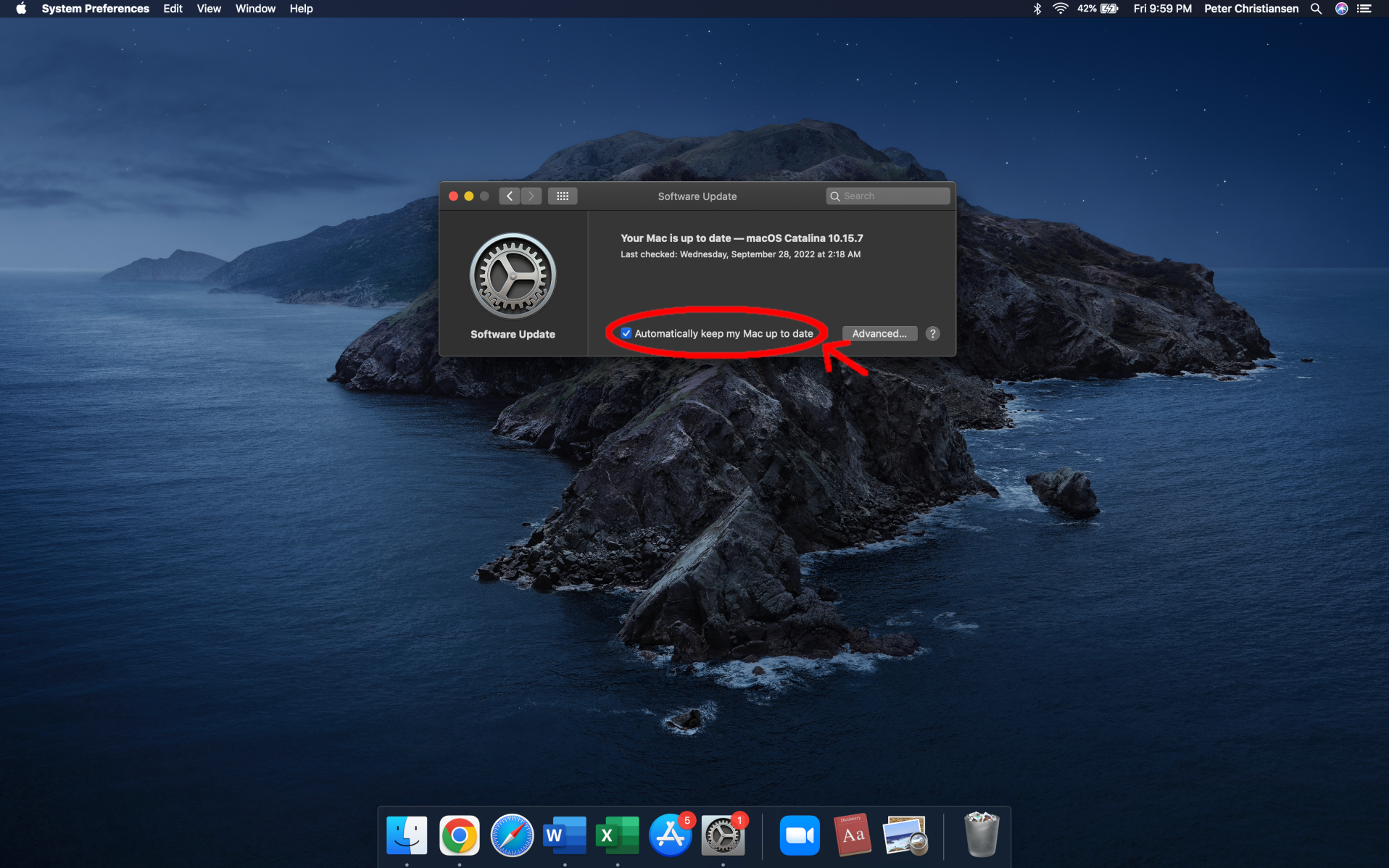
The process for updating Safari is consolidated under the "Software Update" settings in your System Settings (or System Preferences, depending on your version of macOS).
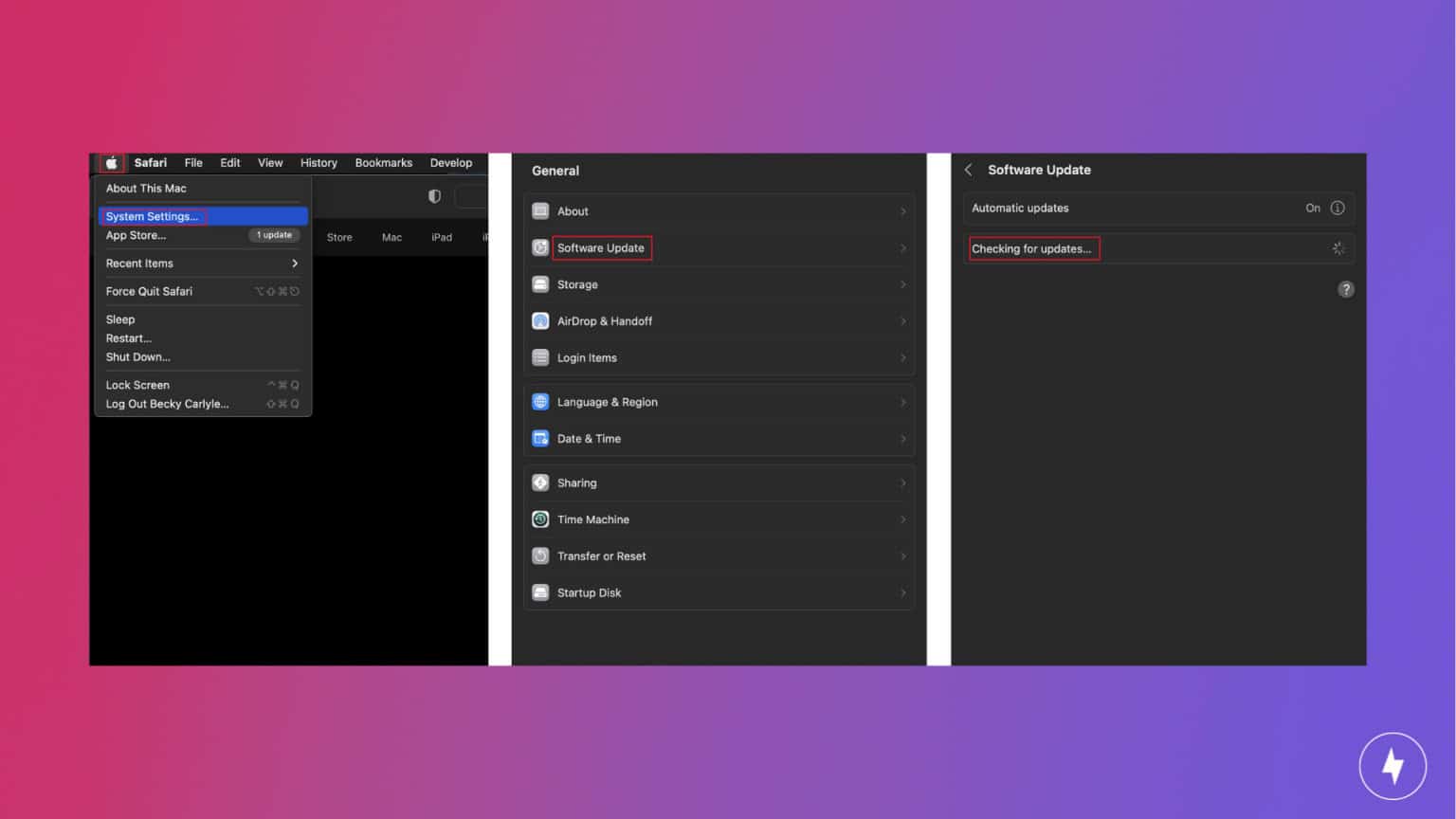
- Click the Apple Menu () in the top-left corner of your screen.
- Select System Settings (or System Preferences).
- Click on General in the sidebar.
- Click Software Update.
- Your Mac will automatically check for available updates.
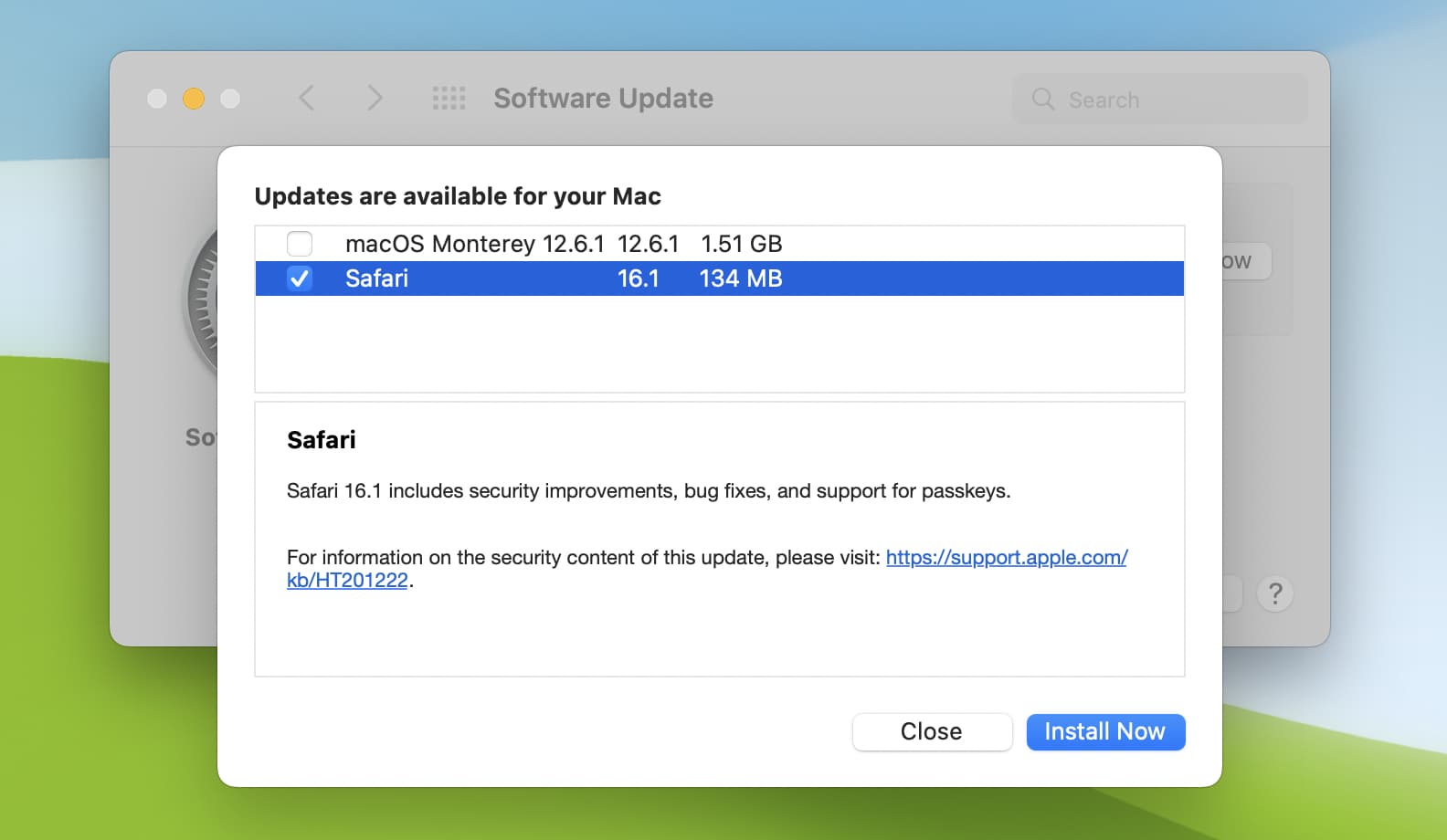
- If an update is available, you will see a list of available macOS updates or Safari-specific security patches.
- Click Update Now or Upgrade Now to begin the process.
If you are already on the latest version of your current macOS but there is a newer major release available, you may see an "Upgrade to macOS [Name]" option. Upgrading the operating system will automatically update Safari to the latest version compatible with that system.
Comparison of Update Types
It is important to distinguish between the two primary ways your browser receives updates, as the user experience differs slightly for each.
| Update Type | Frequency | Impact on Safari | Purpose |
|---|---|---|---|
| Security Patch | Periodic | Updates Safari to the latest stable minor version | Fixes vulnerabilities and bugs |
| Major OS Upgrade | Annual | Installs the latest Safari browser version | Adds new browser features and UI changes |
| Safari-only Patch | Occasional | Small updates within a major OS version | Addresses urgent security threats |
Troubleshooting Common Update Issues
If you encounter issues during the update process, follow these structured steps to diagnose the problem:
- Not Enough Storage Space: macOS updates require a significant amount of free storage space. If the installation fails, check your disk usage in Settings > General > Storage and remove unused files.
- "Update Not Found" Errors: If you believe an update should be available but the system reports your Mac is up to date, ensure your date and time settings are correct. Incorrect system clocks can cause communication failures with Apple’s servers.
- Stuck on "Checking for Updates": If the spinner runs indefinitely, force quit the System Settings app, restart your Mac, and try again. Occasionally, the cache for the update server can become corrupted; a simple restart usually clears this.
- Incompatible Hardware: If your Mac is older, it may have reached its "end of life" regarding official macOS support. In this scenario, you will not be able to update to the latest Safari version, as your hardware cannot support the underlying requirements of the new operating system.
Can You Use Another Browser?
If your Mac is too old to support the latest version of Safari, you may find that some modern websites do not render correctly or throw security warnings. This occurs because the outdated version of the Webkit engine cannot process modern encryption standards or new web technologies.
In these instances, installing a third-party browser like Google Chrome, Mozilla Firefox, or Brave can be a temporary solution. These browsers manage their own update schedules independently of the macOS version. However, be aware that even third-party browsers have minimum operating system requirements; eventually, even these will stop supporting older versions of macOS for security reasons.
Frequently Asked Questions
1. Is it possible to update just Safari without updating the whole macOS? Generally, no. Because Safari is tied to the macOS ecosystem, Apple does not release standalone installers for the browser. You must update your system through the Software Update menu to receive the latest version of Safari.
2. Why does my Safari version stay the same after an update? If you have performed a minor security update, Safari will remain on its current version number, but the underlying security patches will be applied. Only a major macOS upgrade will change the primary version number of your browser.
3. Does updating Safari delete my bookmarks or history? No. Updating your system or browser will not affect your user data, including bookmarks, browsing history, or saved passwords. These files are stored in a protected user library that remains intact during system processes.
4. How do I know which version of Safari I have? Open Safari, then click Safari in the top menu bar and select About Safari. A window will appear showing the current version number and build.
5. What should I do if my Mac no longer supports the latest Safari? If your Mac is too old for the latest macOS, it will not receive new versions of Safari. Consider using an alternative browser that still supports your version of macOS, or evaluate if a hardware upgrade is necessary for your security and workflow requirements.
Final Recommendation
To ensure the highest level of security and performance, keep your macOS updated to the latest version your hardware supports. If you are unable to upgrade your macOS, perform a search for the "Safari Technology Preview" only if you are a developer or power user who understands the risks of using pre-release software; otherwise, stick to the official updates provided through the system settings. If you remain on an unsupported version of macOS, consider transitioning to a modern, supported web browser to maintain better compatibility with contemporary web security protocols.
Image Gallery