Understanding Wi-Fi Networking: How Wireless Local Area Networks Work
Wi-Fi networking is a wireless technology that enables computers, smartphones, smart home hardware, and other devices to connect to the internet and communicate with one another over radio frequency signals. Standardized under the IEEE...
Wi-Fi networking is a wireless technology that enables computers, smartphones, smart home hardware, and other devices to connect to the internet and communicate with one another over radio frequency signals. Standardized under the IEEE 802.11 protocol suite, Wi-Fi replaces physical Ethernet cables with electromagnetic waves, forming a Wireless Local Area Network (WLAN).
Contents
What Is Wi-Fi Networking?
At its core, Wi-Fi networking refers to the method of transferring data packets wirelessly between devices using specific radio frequency bands. The term "Wi-Fi" is a registered trademark of the Wi-Fi Alliance, an international organization of technology companies that certifies wireless devices to guarantee interoperability across manufacturers.
In a traditional wired Local Area Network (LAN), devices connect to a central switch or router via copper Ethernet cables (such as Cat6 or Cat6a). Wi-Fi networking operates on the exact same networking fundamentals—assigning IP addresses, routing data packets via TCP/IP, and managing data traffic—but uses radio waves as the physical transmission medium.
When a client device (such as a laptop) sends data over Wi-Fi, its internal wireless adapter converts digital binary code ($1$s and $0$s) into an analog radio signal. A wireless access point or router receives this signal via its antennas, demodulates it back into digital data, and forwards it to its destination across the local network or out to the broader internet.
Core Components of a Wi-Fi Network
A functional Wi-Fi network relies on several hardware components working together to transmit, translate, and route data across physical and wireless environments.
- Internet (WAN)
- Modem / ONT
- Wireless Router (Combines Router, Switch, & Wireless Access Point functions)
- Wireless Client (Smartphone/Laptop)
- Wireless Access Point (AP)
- Wireless Client (Tablet)
- Wireless Client (Smart TV)
- Wireless Router (Combines Router, Switch, & Wireless Access Point functions)
- Modem / ONT
1. The Modem or Optical Network Terminal (ONT)
The modem (or Optical Network Terminal in fiber-optic setups) acts as the bridge between your local environment and your Internet Service Provider (ISP). It translates incoming signals from copper cable, coaxial, or fiber-optic lines into standard digital Ethernet data.
2. The Router
The router operates at Layer 3 (the Network Layer) of the Open Systems Interconnection (OSI) model. Its job is to direct traffic between different network segments—specifically, between your private local network and the public internet. The router manages network traffic by assigning local IP addresses via Dynamic Host Configuration Protocol (DHCP) and performing Network Address Translation (NAT) so multiple local devices can share a single public IP address.
3. The Wireless Access Point (WAP or AP)
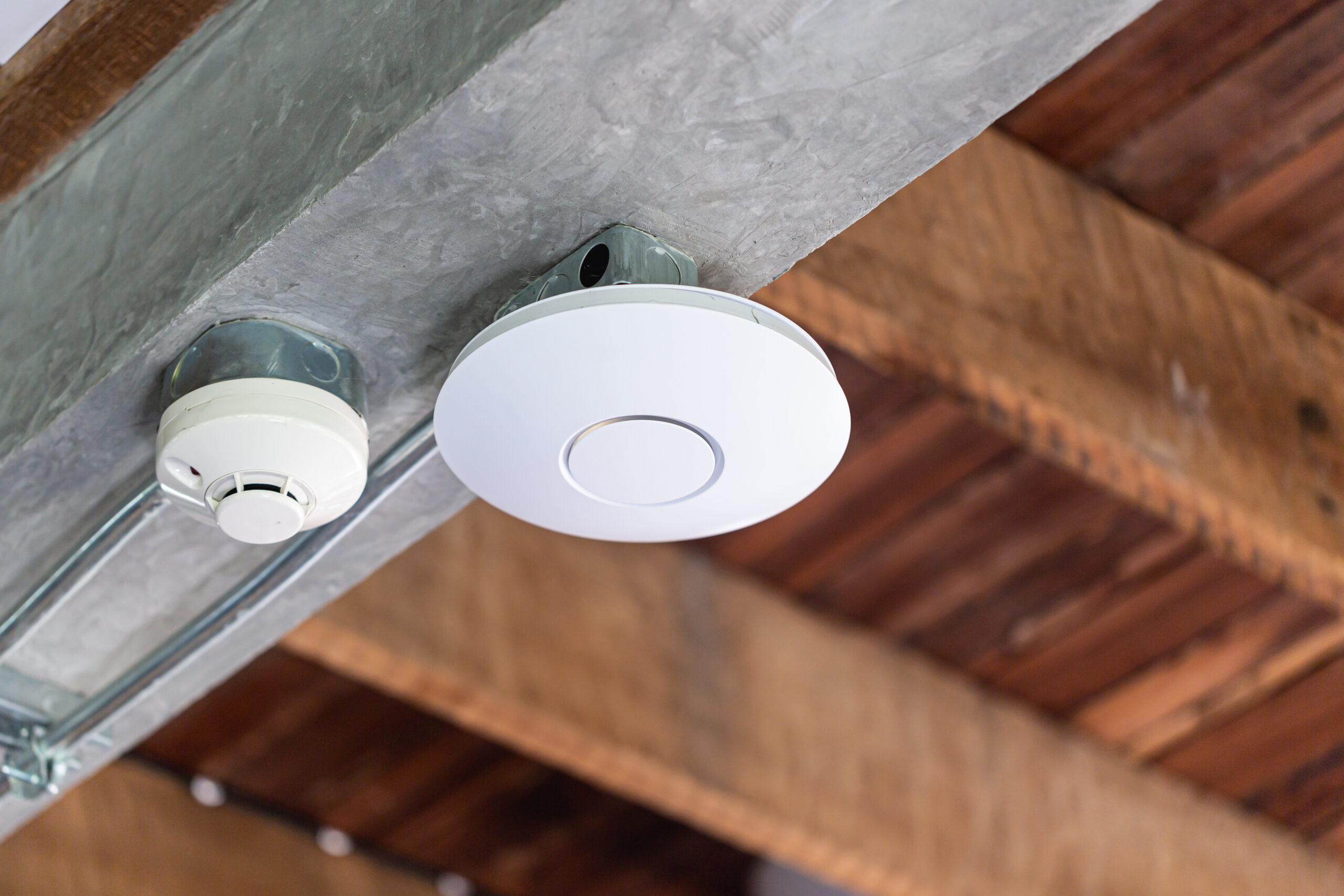
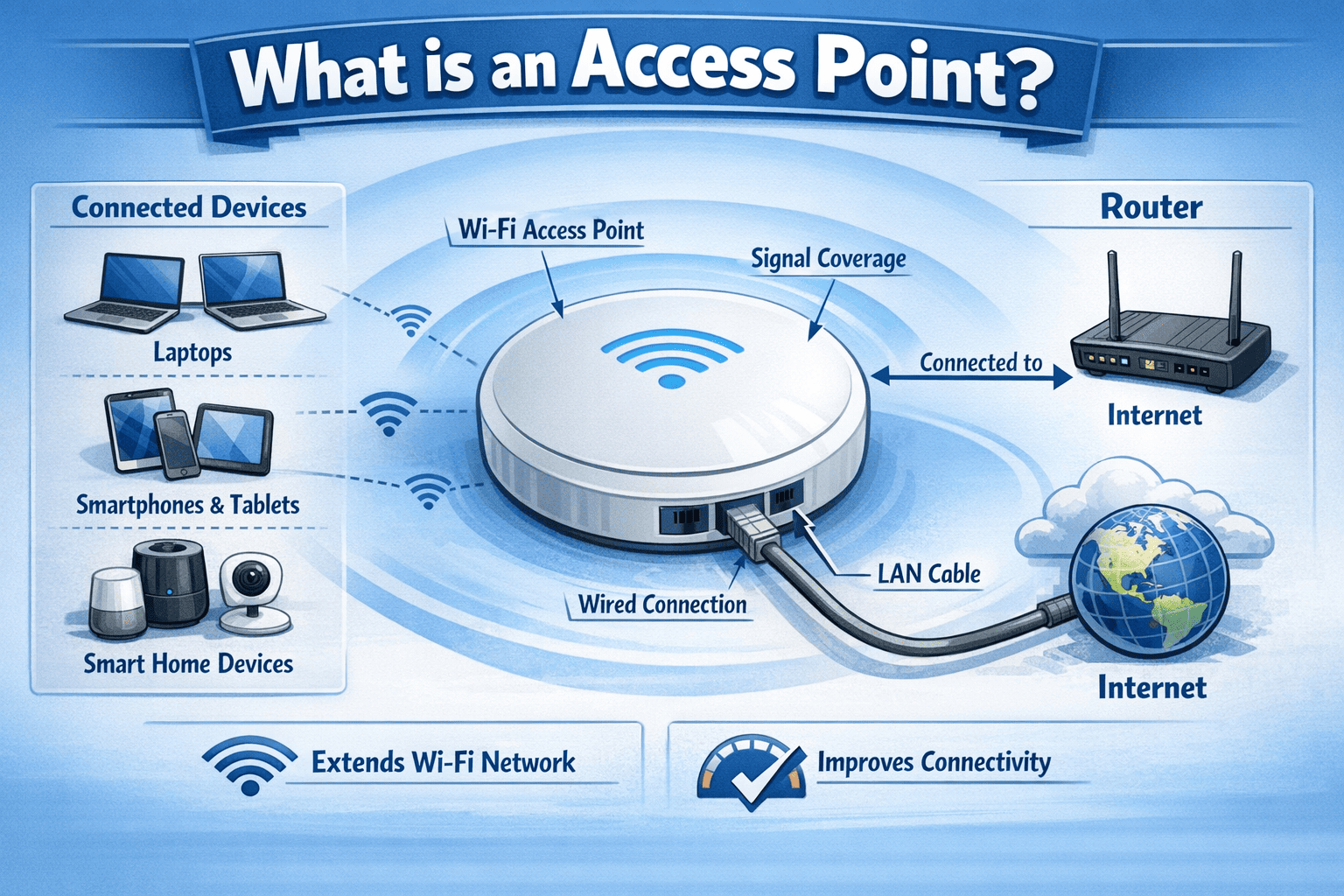
While a router directs data between networks, the Wireless Access Point is the transceiver that actually broadcasts and receives the Wi-Fi radio signals. In consumer environments, the router, network switch, and access point are usually combined into a single physical unit commonly called a "wireless router." In enterprise environments, access points are deployed as standalone devices mounted across ceilings to provide unified coverage over large physical areas.
4. Wireless Client Devices and Interface Cards (NICs)
Any hardware device that connects to a Wi-Fi network—whether a laptop, tablet, security camera, or gaming console—contains a Wireless Network Interface Card (Wireless NIC). The NIC houses radio transmitters, receivers, and dedicated controller chips that handle radio frequency modulation, radio power levels, and Wi-Fi security protocols.
Radio Frequency Bands: 2.4 GHz, 5 GHz, and 6 GHz
Wi-Fi networking relies on unlicensed radio frequency spectrum set aside by international regulatory bodies such as the Federal Communications Commission. Modern Wi-Fi operates primarily across three radio frequency bands, each offering distinct trade-offs between physical range, signal penetration, and bandwidth capacity.
The 2.4 GHz Band
The 2.4 GHz spectrum was the original band adopted for widespread Wi-Fi deployment.
- Advantages: Longer radio wavelengths allow 2.4 GHz signals to travel longer distances and pass easily through solid objects like brick, concrete, and drywall.
- Disadvantages: The 2.4 GHz band offers limited spectrum capacity (only 3 non-overlapping channels in most regions: 1, 6, and 11). It is prone to heavy interference because household items like microwaves, Bluetooth transmitters, baby monitors, and neighboring Wi-Fi networks share the same frequencies.
- Best Use: Smart home devices (IoT), basic web browsing, and connections required across long distances.
The 5 GHz Band
Introduced to relieve congestion on 2.4 GHz, the 5 GHz band provides significantly higher data throughput.
- Advantages: Shorter radio wavelengths allow for wider channel bonding (up to 80 MHz or 160 MHz channels), enabling much higher real-world speeds. The band features 24 non-overlapping channels, drastically reducing neighbor interference.
- Disadvantages: Higher frequencies decay faster over distance and struggle to penetrate solid walls or floors compared to 2.4 GHz signals.
- Best Use: High-bandwidth tasks such as 4K video streaming, online gaming, large file downloads, and video conferencing.
The 6 GHz Band
Introduced with Wi-Fi 6E and expanded under Wi-Fi 7, the 6 GHz band adds up to 1,200 MHz of continuous, ultra-clean spectrum.
- Advantages: Operates completely free of legacy Wi-Fi devices and household appliances. It supports ultra-wide 160 MHz and 320 MHz channels, providing multi-gigabit throughput with near-zero network latency.
- Disadvantages: Extremely limited range; physical obstacles like doors and walls drop 6 GHz signal strength rapidly. Legacy hardware cannot detect or connect to 6 GHz signals without specialized radio hardware.
- Best Use: Low-latency applications, high-density device deployments, local NAS storage transfers, and high-performance computing.
Evolution of Wi-Fi Standards and Generations
The IEEE 802.11 Working Group regularly updates the underlying standards governing wireless networking. To simplify these complex technical designations for consumers, the Wi-Fi Alliance established numerical generations (such as Wi-Fi 5, Wi-Fi 6, and Wi-Fi 7).
| Generation Name | Technical IEEE Standard | Year Released | Supported Frequency Bands | Maximum Theoretical Speed | Key Features & Technologies |
|---|---|---|---|---|---|
| Wi-Fi 4 | 802.11n | 2009 | 2.4 GHz, 5 GHz | Up to 600 Mbps | Introduced MIMO (Multiple-Input Multiple-Output) |
| Wi-Fi 5 | 802.11ac | 2014 | 5 GHz only | Up to 6.9 Gbps | Explicit Beamforming, 256-QAM, 80 MHz channels |
| Wi-Fi 6 | 802.11ax | 2019 | 2.4 GHz, 5 GHz | Up to 9.6 Gbps | OFDMA, MU-MIMO (Upload/Download), 1024-QAM |
| Wi-Fi 6E | 802.11ax (Extended) | 2021 | 2.4 GHz, 5 GHz, 6 GHz | Up to 9.6 Gbps | Access to the clean 6 GHz spectrum, 160 MHz channels |
| Wi-Fi 7 | 802.11be | 2024 | 2.4 GHz, 5 GHz, 6 GHz | Up to 46 Gbps | Multi-Link Operation (MLO), 4096-QAM, 320 MHz channels |
Core Technologies Powering Modern Wi-Fi
- MIMO and MU-MIMO: Multiple-Input Multiple-Output allows access points to use multiple antennas to transmit and receive several data streams simultaneously. Multi-User MIMO (MU-MIMO) enables an access point to communicate with multiple distinct client devices at the exact same millisecond, rather than forcing them to queue sequentially.
- OFDMA: Orthogonal Frequency-Division Multiple Access (introduced in Wi-Fi 6) breaks individual Wi-Fi channels down into smaller sub-carriers called Resource Units (RUs). This allows a single transmission to carry data packets intended for different devices simultaneously, reducing airtime congestion in busy environments.
- Beamforming: Instead of broadcasting radio signals uniformly in a full circle, beamforming detects the physical location of connected client devices and uses phase-shifted signals to concentrate the radio wave energy directly toward the target client.
- Multi-Link Operation (MLO): A breakthrough feature in Wi-Fi 7 that permits a client device to send and receive data across multiple frequency bands (e.g., 5 GHz and 6 GHz) concurrently, creating lower latency and higher fault tolerance against local radio interference.
Wi-Fi Security Protocols
Because radio waves travel through walls and open air, securing a Wi-Fi network requires robust encryption to prevent unauthorized interception, eavesdropping, and network intrusion. Over the decades, security standards have evolved to patch critical vulnerabilities.
- Unsecured Transmission (WEP / Open Networks - Vulnerable)
- Client
- Plaintext (Readable Data)
- Eavesdropper
- Secured Transmission (WPA3 / WPA2 - Encrypted)
- Encrypted (Scrambled Data)
- Access Pt
WEP (Wired Equivalent Privacy) — Obsolete
Introduced in 1997, WEP was designed to provide safety comparable to a wired network. However, cryptographic flaws made its 48-bit initialization vector easy to crack within minutes using automated software. WEP is completely insecure and should never be used.
WPA and WPA2 (Wi-Fi Protected Access)
- WPA: A temporary fix released to patch WEP, replacing its algorithm with Temporal Key Integrity Protocol (TKIP).
- WPA2 (802.11i): Released in 2004, WPA2 introduced mandatory AES (Advanced Encryption Standard) encryption using Counter Mode Cipher Block Chaining Message Authentication Code Protocol (CCMP). WPA2-Personal relies on a pre-shared key (PSK) or passphrase, while WPA2-Enterprise uses 802.1X authentication servers for enterprise setups.
WPA3 (Wi-Fi Protected Access 3)
Formalized by the Wi-Fi Alliance in 2018, WPA3 represents the current baseline for modern wireless security.
- Simultaneous Authentication of Equals (SAE): Replaces WPA2's pre-shared key exchange with a secure Dragonfly key exchange. SAE protects users against offline dictionary attacks, meaning hackers cannot capture a handshake and run brute-force password guesses off-site.
- Forward Secrecy: Ensures that even if an attacker manages to compromise a network passphrase in the future, they cannot decrypt past captured traffic.
- Protected Management Frames (PMF): Mandated under WPA3 to protect management packets from being forged, defending the network against common de-authentication and disconnection attacks.
Network Architecture: Traditional Routers vs. Mesh Systems
When building a wireless network, choosing the right topology depends on physical space, structural obstacles, and coverage requirements.
- Traditional Router Setup (Single Point of Failure)
- Central Router
- Client
- Client
- Dead Zone
- Central Router
- Mesh Network Setup (Interconnected Wireless Nodes)
- Primary Node
- Mesh Node (Wireless)
- Client
- Mesh Node (Wireless)
- Client
- Mesh Node (Wireless)
- Primary Node
Single-Point Wireless Routers
A traditional setup features a single combination router/AP placed near the incoming internet line.
- Best For: Small apartments, single-story homes, or compact office spaces.
- Limitations: Walls, metal appliances, and distance cause radio signals to degrade quickly. Outer rooms often suffer from "dead zones" where signals drop entirely.
Mesh Wi-Fi Networks
Mesh systems use a primary router node connected to the modem, along with several satellite nodes placed throughout the building.
- Seamless Roaming: Unlike standard range extenders that create separate network names (SSIDs), mesh systems share a single SSID. The network automatically transfers client devices from node to node as users walk through the facility using standards like 802.11k/v/r.
- Dedicated Backhaul: High-performance mesh systems use a dedicated wireless radio band (or a hardwired Ethernet backhaul) exclusively to pass data between nodes, leaving client bands clear of network overhead.
Practical Setup and Optimization Guide
Optimizing a Wi-Fi network ensures consistent speed, lower latency, and broad coverage. Follow these steps to diagnose and improve network performance:
1. Optimize Physical Placement
- Place the wireless access point in a central, elevated location rather than on the floor, inside a closed cabinet, or behind a television.
- Keep the access point away from large metal objects, thick concrete walls, and interfering appliances like microwave ovens and cordless home phones.
2. Manage Channel Selection and Width
- 2.4 GHz Tuning: Set channel width to 20 MHz to prevent overlapping into adjacent frequencies. Manually select channels 1, 6, or 11.
- 5 GHz / 6 GHz Tuning: Use 40 MHz or 80 MHz channel widths in crowded residential areas to maintain a balance between raw throughput and resistance to neighboring channel noise.
3. Implement Network Segmentation
Create a isolated Guest Network or a separate IoT Virtual LAN (VLAN) for smart appliances (thermostats, cameras, smart plugs). This prevents unsecured smart home accessories from serving as entry points to sensitive computing devices like work laptops or personal file servers.
Frequently Asked Questions
What is the difference between Wi-Fi and the Internet?
The internet is a global network of interconnected computer networks that transfers data across oceans and continents via massive fiber-optic cables and routing infrastructure. Wi-Fi is simply the localized, wireless bridge that connects your client device to your local router—which then links you out to the broader internet. You can have a fully functional Wi-Fi network that allows local devices to share files or print documents even if your internet connection is down.
Why is my Wi-Fi speed slower than my wired Ethernet speed?
Wi-Fi uses radio waves traveling through open space, making it susceptible to environmental interference, physical obstacles (walls, glass, metals), distance decay, and shared bandwidth overhead. Ethernet cables use shielded copper conductors to transmit dedicated electrical signals directly to the router without spatial interference or contention from nearby wireless networks.
Can I connect a device with Wi-Fi 5 to a Wi-Fi 6 or Wi-Fi 7 router?
Yes. Wi-Fi standards maintain backward compatibility. A Wi-Fi 5 device will connect to a Wi-Fi 6 or Wi-Fi 7 router without issue, but it will operate using the maximum features and speed caps supported by the Wi-Fi 5 standard.
What is the difference between 2.4 GHz and 5 GHz Wi-Fi?
The 2.4 GHz band offers longer coverage range and better signal penetration through physical walls, but at lower overall data speeds and higher exposure to radio congestion. The 5 GHz band delivers faster speeds and wider channels over shorter distances, but struggles to penetrate dense physical structures.
Does a Wi-Fi extender work the same way as a Mesh Wi-Fi system?
No. A basic Wi-Fi extender picks up an existing wireless signal, re-amplifies it, and broadcasts it out as a separate, secondary network (often appending "_EXT" to the name). This forces your device to manually disconnect and reconnect as you move around. Extenders also cut bandwidth in half because they receive and retransmit packets on the same single radio channel. Mesh systems use unified network names, intelligent seamless roaming protocols, and dedicated backhaul channels to preserve network performance.
Next Actions for Building a Better Wireless Network
To get the best performance from your wireless environment, evaluate your current hardware and physical layout:
- Audit Hardware Capabilities: Verify whether your current router and client devices support modern standards (Wi-Fi 6, 6E, or Wi-Fi 7) and update outdated equipment that runs on legacy standards like 802.11n (Wi-Fi 4).
- Upgrade Security Controls: Access your router's administrative dashboard, disable legacy WEP or WPA security options, and enable WPA3-Personal or WPA2/WPA3 Mixed Mode with a complex passphrase.
- Plan Cable Backhauls: If building or upgrading a large location, install hardwired Cat6 Ethernet cabling to connect multiple access points directly to your primary router. Ethernet backhauls eliminate wireless link degradation and provide predictable multi-gigabit throughput across every area of your network.
Image Gallery