Mastering Samsung Home Screen Icons: A Complete Guide to Customization and Organization
Samsung home screen icons are the primary interactive elements of the One UI interface, representing applications, folders, and widgets. You can customize these icons by changing their size, shape, and style through Galaxy Themes, the...
Samsung home screen icons are the primary interactive elements of the One UI interface, representing applications, folders, and widgets. You can customize these icons by changing their size, shape, and style through Galaxy Themes, the Good Lock app, or third-party icon packs to enhance both the aesthetic appeal and functional efficiency of your mobile device.
Contents
The home screen is the heart of the Samsung Galaxy experience. As we move through 2026, Samsung’s One UI has evolved into a highly sophisticated environment where icons are no longer just static images but dynamic gateways to your digital life. Whether you are using a flagship Galaxy S-series, a versatile Foldable, or an efficient A-series device, understanding how to manipulate these icons is essential for a streamlined workflow.
The Fundamentals of Managing Samsung Home Screen Icons
Before diving into deep customization, it is vital to master the basic mechanics of icon management. Samsung’s One UI provides a tactile and intuitive way to arrange your workspace, but there are several nuances that users often overlook.
Adding and Removing Icons
To add an icon to your home screen, you typically navigate to the App Drawer (swipe up from the bottom). Long-press the desired application and select "Add to Home." Alternatively, you can simply drag the icon to the top of the screen to place it manually.
To remove an icon, long-press it and select "Remove." It is important to distinguish between "Remove" and "Uninstall." Removing an icon only deletes the shortcut from the home screen, while the app remains in your library. Uninstalling, found in the same long-press menu, completely deletes the application from the device.
Moving and Positioning
One UI uses a "magnetic" grid system. When you move an icon, others will shift to make room. To move icons between different home screen panels, drag the icon to the very edge of the screen and hold it there until the page flips. In 2026, Samsung has refined the haptic feedback during this process, providing a subtle "click" sensation when an icon snaps into a valid grid position.
Locking the Home Screen Layout
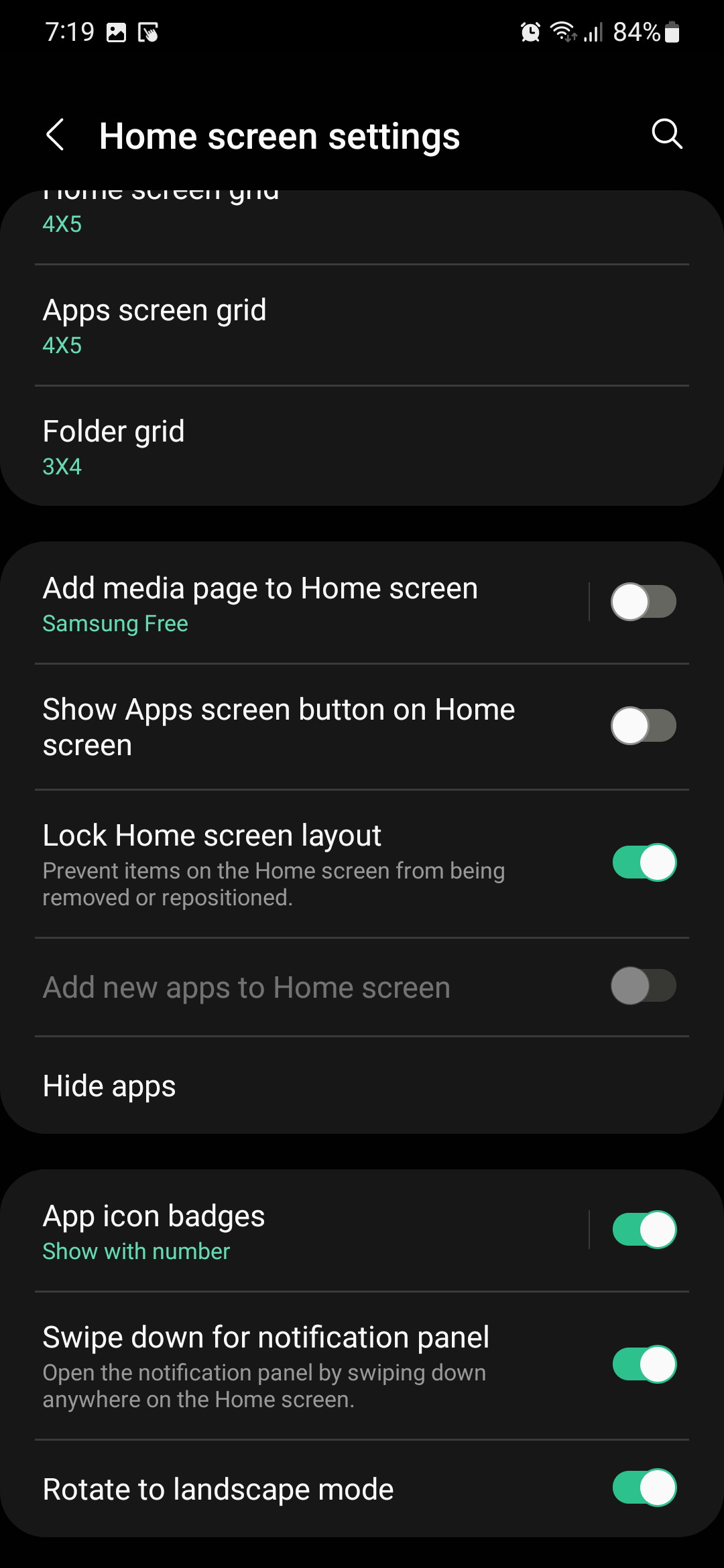
A common frustration is accidentally moving icons while the phone is in a pocket or handled by a child. To prevent this, go to Settings > Home Screen and toggle on Lock Home Screen Layout. This freezes all icons and widgets in their current positions until you manually unlock the setting.
Advanced Customization: Changing the Look and Feel
Standard icons are functional, but they may not suit everyone's taste. Samsung offers multiple layers of customization, ranging from simple color changes to complete overhauls.
Galaxy Themes and Official Icon Packs
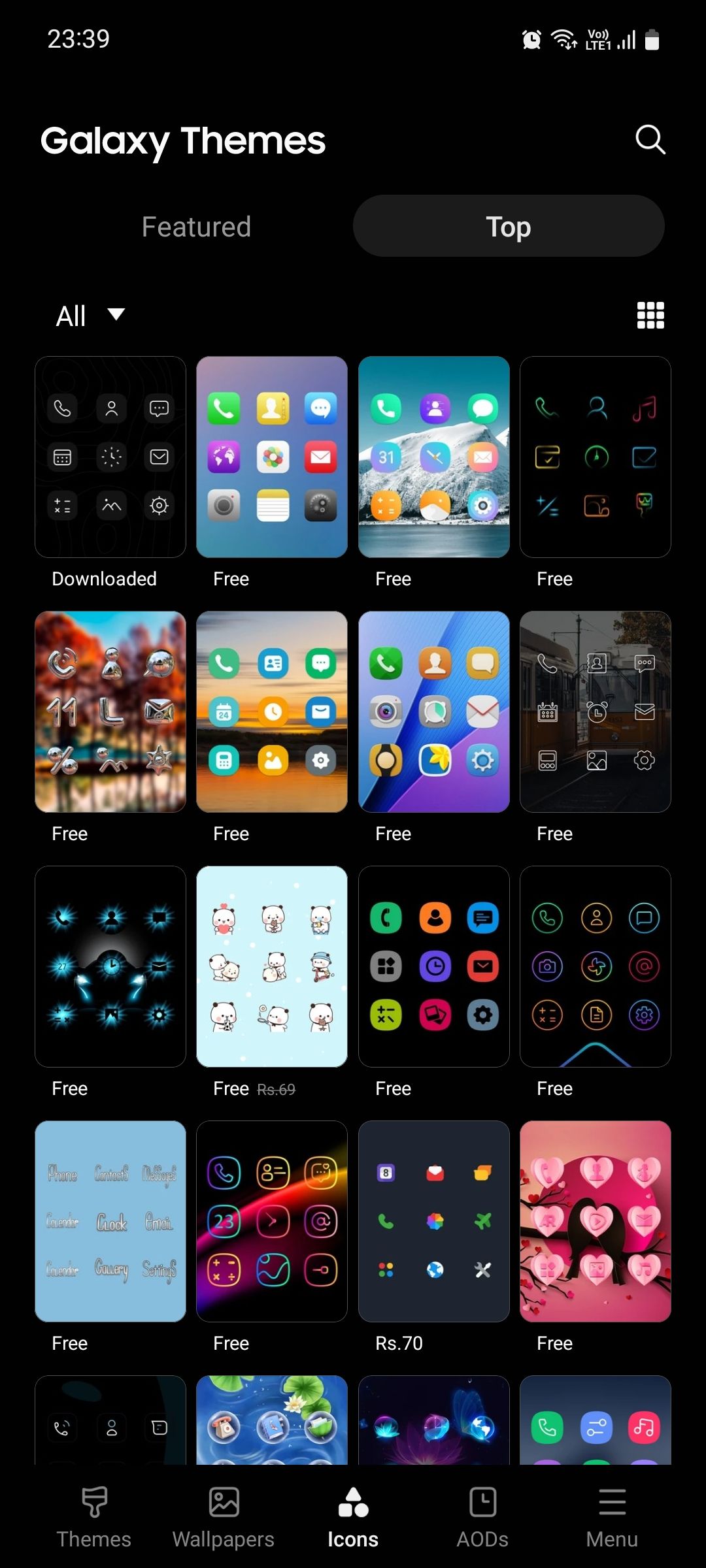
The most straightforward way to change icons is through the Galaxy Themes store. By long-pressing an empty space on the home screen and selecting "Themes," you can access thousands of icon packs.
- Integrated Design: Official themes often change the background, font, and icons simultaneously for a cohesive look.
- Icon Only Packs: You can choose to apply only the icons from a specific theme without changing your wallpaper.
Material You and Color Palettes
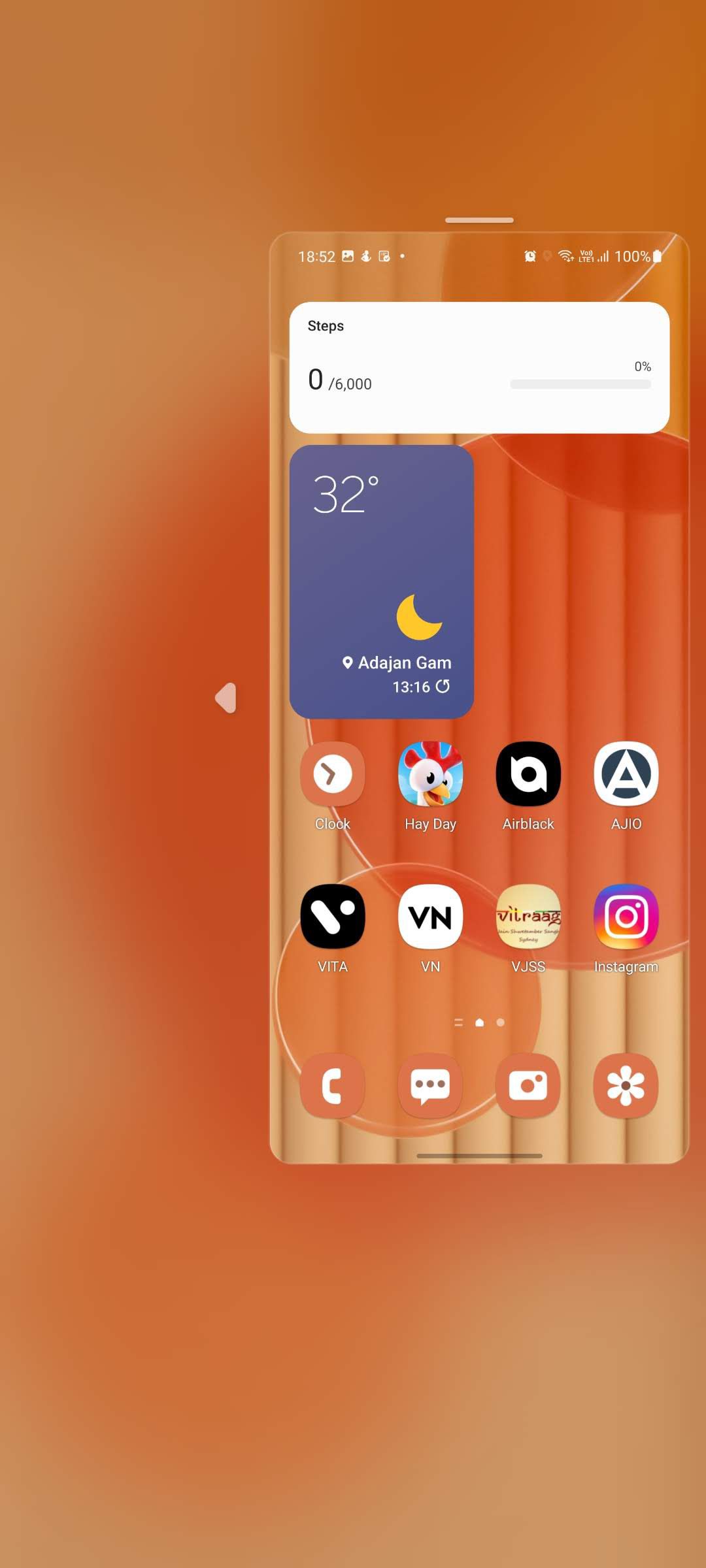
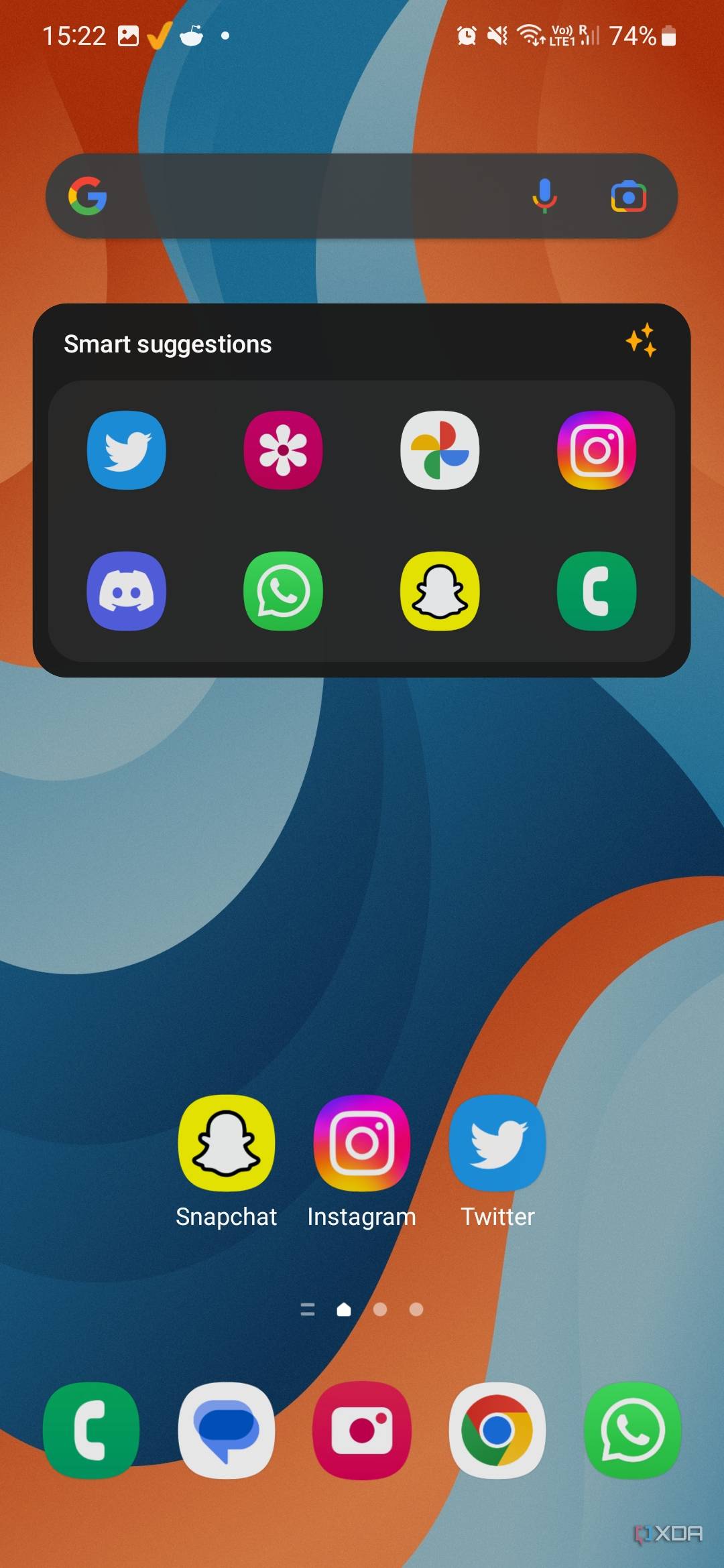
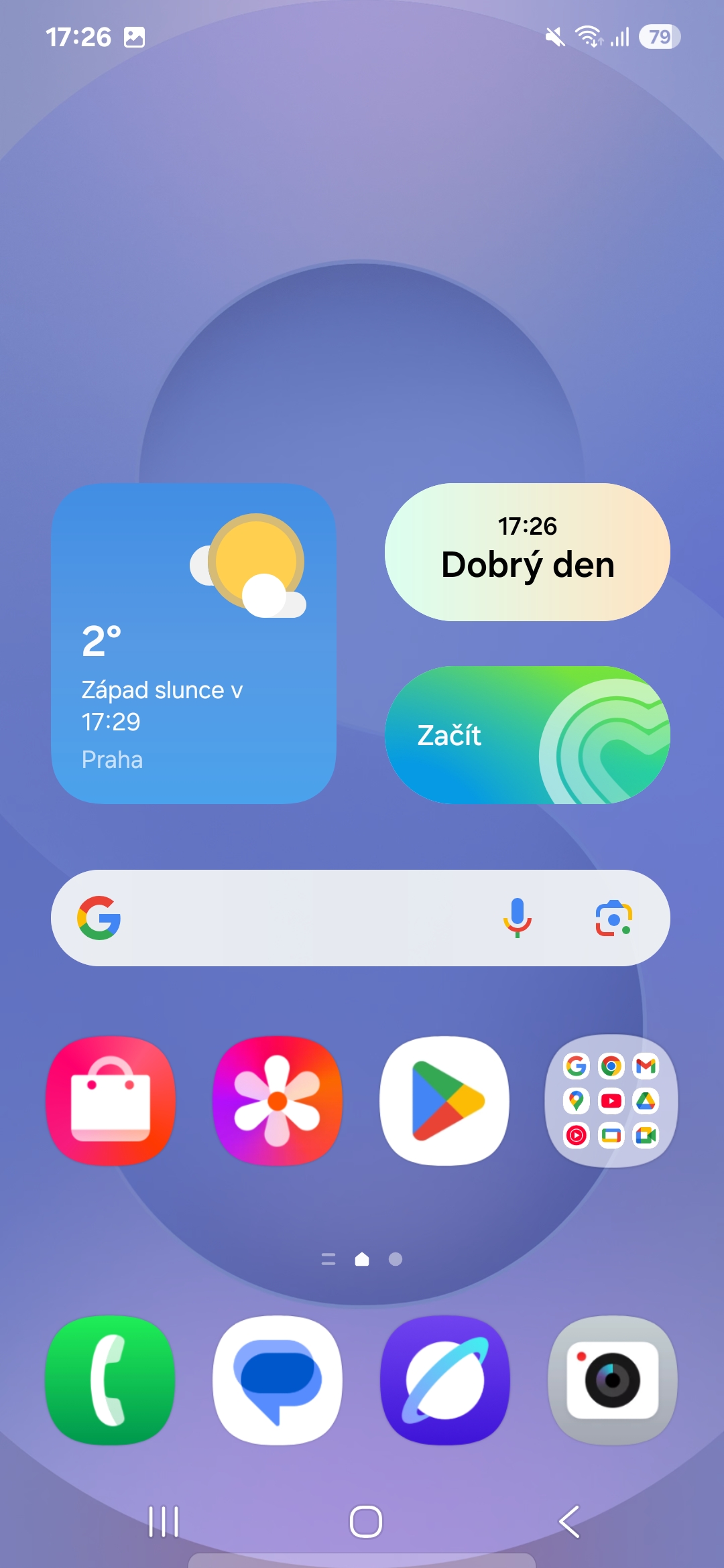
Introduced in earlier versions of Android and perfected in the current One UI 8/9 versions of 2026, the Color Palette feature allows icons to adopt colors from your wallpaper.
- Long-press the home screen and select Wallpaper and Style.
- Tap on Color Palette.
- Enable Apply palette to app icons. This creates a minimalist, monochromatic look that is highly popular for professional setups. Note that this primarily affects Samsung's system apps and third-party apps that have adopted the "Adaptive Icon" standard.
Using Good Lock for Granular Control
For power users, Samsung’s Good Lock suite is indispensable. The Theme Park module within Good Lock allows you to create custom icon packs from scratch. You can change the shape (circle, square, squircle, teardrop), adjust the saturation, and even change the size of the icons beyond what the standard settings allow. This level of control is unique to Samsung and remains a key selling point for the brand in 2026.
Optimizing Organization with Folders and Grids
Efficiency is often a matter of how many icons you can access with minimal movement. Samsung provides two primary ways to manage screen real estate: adjusting the grid size and using folders.
Adjusting the Home Screen Grid
The grid determines how many icons fit on a single screen. To change this, go to Settings > Home Screen > Home Screen Grid. Common options include:
- 4x5 or 4x6: Best for users who prefer larger, easily tappable icons or have visual impairments.
- 5x5 or 5x6: The standard for most users, balancing density and visibility.
- AI-Optimized Grids: In 2026, One UI features an "Adaptive Grid" that suggests layouts based on your most-used apps and screen size (particularly useful for the Galaxy Z Fold series).
Managing App Folders
Folders are created by dragging one icon directly on top of another.
- Naming and Coloring: You can name a folder and assign it a background color for quick visual identification.
- Nested Folders: While One UI doesn't natively support folders inside folders in a deep hierarchy, you can organize large volumes of apps by using the "Add apps" (+) button within a folder to quickly pull in related utilities.
Comparison of Customization Methods
The following table compares the different ways to modify your Samsung home screen icons to help you decide which method fits your technical comfort level.
| Method | Ease of Use | Customization Depth | Requires Extra Software |
|---|---|---|---|
| Default Settings | High | Low (Size/Grid only) | No |
| Galaxy Themes | High | Medium (Pre-set styles) | No |
| Color Palette | High | Medium (Color sync) | No |
| Good Lock (Theme Park) | Medium | High (Shape/Individual icons) | Yes (via Galaxy Store) |
| Third-Party Launchers | Low | Very High (Complete UI swap) | Yes (via Play Store) |
Troubleshooting Common Icon Issues
Even the most stable systems can encounter glitches. Here is how to resolve common problems with Samsung home screen icons.
Missing Icons
If an icon disappears, first check the App Drawer. If it is there, drag it back. If it is missing from the drawer as well, check Settings > Home Screen > Hide Apps. You may have accidentally hidden the application. In 2026, the search bar in the app drawer is the fastest way to locate an app that has been moved into a deep folder.
"Ghost" Icons or Placeholders
Sometimes, after an app update or a restored backup, an icon may appear grayed out or show a generic Android logo. This usually indicates that the app is still installing or that there is a data mismatch. Restarting the device or clearing the "Home Screen" app cache (Settings > Apps > One UI Home > Storage > Clear Cache) usually resolves this.
Icon Alignment Issues
If icons are overlapping or not snapping to the grid correctly, it is often due to a conflict with a third-party widget or an experimental Good Lock setting. Resetting the grid size to a standard 5x5 often forces the UI to recalibrate and align the icons properly.
Practical Recommendations for 2026
To get the most out of your Samsung device this year, we recommend a "minimalist-functional" approach. Use the Color Palette feature to keep the UI from becoming visually cluttered. Reserve your primary home screen for your top 8 most-used apps and use Edge Panels (swipe from the side of the screen) for secondary tools.
If you find yourself overwhelmed by the number of icons, utilize the Search function (Finder) by swiping down on the home screen. In the current iteration of One UI, the search is instantaneous and often faster than hunting through folders.
Frequently Asked Questions
How do I change an icon for a single specific app?
To change a single app icon without changing the entire theme, you must use the Good Lock app's Theme Park module. Open Theme Park, go to the Icon section, create a new theme, and tap the three dots to "Change Icons." This allows you to select an individual app and replace its icon with an image from your Gallery or a different icon pack.
Why are some of my icons different shapes?
This is usually because some developers do not use "Adaptive Icons." You can force uniformity by going to Settings > Home Screen and looking for the "Icon Masks" or "App Icon Styles" setting. Alternatively, applying a theme from the Galaxy Store will usually apply a uniform mask to all icons to ensure they all appear as circles or squircles.
Can I remove the text labels under icons?
Natively, One UI does not allow you to hide icon labels on the home screen. However, you can achieve this using the Good Lock module called Home Up. In the Home Up settings, under "Home Screen," there is a toggle to "Hide App Icon Label."
How do I restore the original Samsung icons after applying a theme?
To revert to the stock look, long-press the home screen, select Themes, go to Menu > My Stuff, and select the "Default" theme. This will reset all icons, wallpapers, and menus to the factory-standard Samsung appearance.
What is the "App Icon Badges" setting?
App icon badges are the small numbers or dots that appear on the corner of an icon to indicate unread notifications. You can toggle these in Settings > Notifications > Advanced Settings > App Icon Badges. You can choose between showing the actual number of notifications or a simple dot.
Can I use icons from the Google Play Store on my Samsung phone?
Yes, but not directly with the default One UI launcher. To use icon packs downloaded from the Play Store, you either need to use a third-party launcher like Nova Launcher or use the Theme Park module in Good Lock, which allows you to import Play Store icon packs into the standard Samsung interface.
Next Steps for a Better Home Screen
Start by auditing your current home screen: remove any apps you haven't opened in the last thirty days. Once cleaned, explore the Color Palette settings to see if a unified color scheme improves your focus. If you want more control, download Good Lock from the Galaxy Store—it remains the single most powerful tool for any Samsung owner looking to master their device's interface in 2026.
Image Gallery