How to Create and Manage an iCloud Email for Free in 2026
An iCloud email account is free for any user who creates an Apple ID. Every account includes 5GB of complimentary storage, which is shared across iCloud Mail, iCloud Photos, and device backups. While setting up a new @icloud.com addres...
An iCloud email account is free for any user who creates an Apple ID. Every account includes 5GB of complimentary storage, which is shared across iCloud Mail, iCloud Photos, and device backups. While setting up a new @icloud.com address usually requires an Apple device, the service itself remains a zero-cost feature of the Apple ecosystem.
Contents
Understanding the Free Tier of iCloud Mail
As we move through 2026, Apple continues to provide iCloud Mail as a foundational service for its users. Unlike many third-party email providers that monetize through data mining or advertising, Apple’s model for the free tier focuses on ecosystem retention. When you sign up for an iCloud email, you are essentially creating an Apple ID that serves as your digital passport for the App Store, iMessage, FaceTime, and Find My services.
The "free" aspect of iCloud email comes with a specific caveat: the 5GB storage limit. This 5GB is not dedicated solely to your inbox. It is a shared pool used by:
- iCloud Mail: All messages and attachments.
- iCloud Photos: High-resolution photos and videos synced from your devices.
- iCloud Drive: Documents, PDFs, and app data.
- Device Backups: System settings and app data from iPhones and iPads.
Because this storage is shared, users who do not intend to pay for an iCloud+ subscription must be diligent about managing their data. If your photo library exceeds 5GB, your email service will eventually stop receiving new messages because the storage "bucket" is full.
Prerequisites for Creating a Free iCloud Email
Before you can claim your @icloud.com address, there are specific requirements you must meet. In 2026, Apple has maintained strict verification standards to prevent spam and bot account creation.
- An Apple Device: While you can access iCloud Mail via the web, you generally need an iPhone, iPad, or Mac to create the actual @icloud.com email address for the first time.
- A Valid Apple ID: If you already have an Apple ID (created with a Gmail or Outlook address), you can "add" an iCloud email to it. If you don't have one, you will create it during the setup process.
- Two-Factor Authentication (2FA): Apple now mandates 2FA for all new accounts to ensure security. This requires a trusted phone number that can receive SMS or phone calls.
- Internet Connectivity: A stable connection is required to verify the account with Apple’s servers.
Step-by-Step Guide: Setting Up iCloud Mail on iPhone and iPad
Setting up your free email on a mobile device is the most common method. Follow these steps to ensure the account is configured correctly for 2026 standards.
Initial Account Creation
- Open the Settings app on your iPhone or iPad.
- Tap on your name at the top of the menu (or "Sign in to your iPhone" if you haven't logged in).
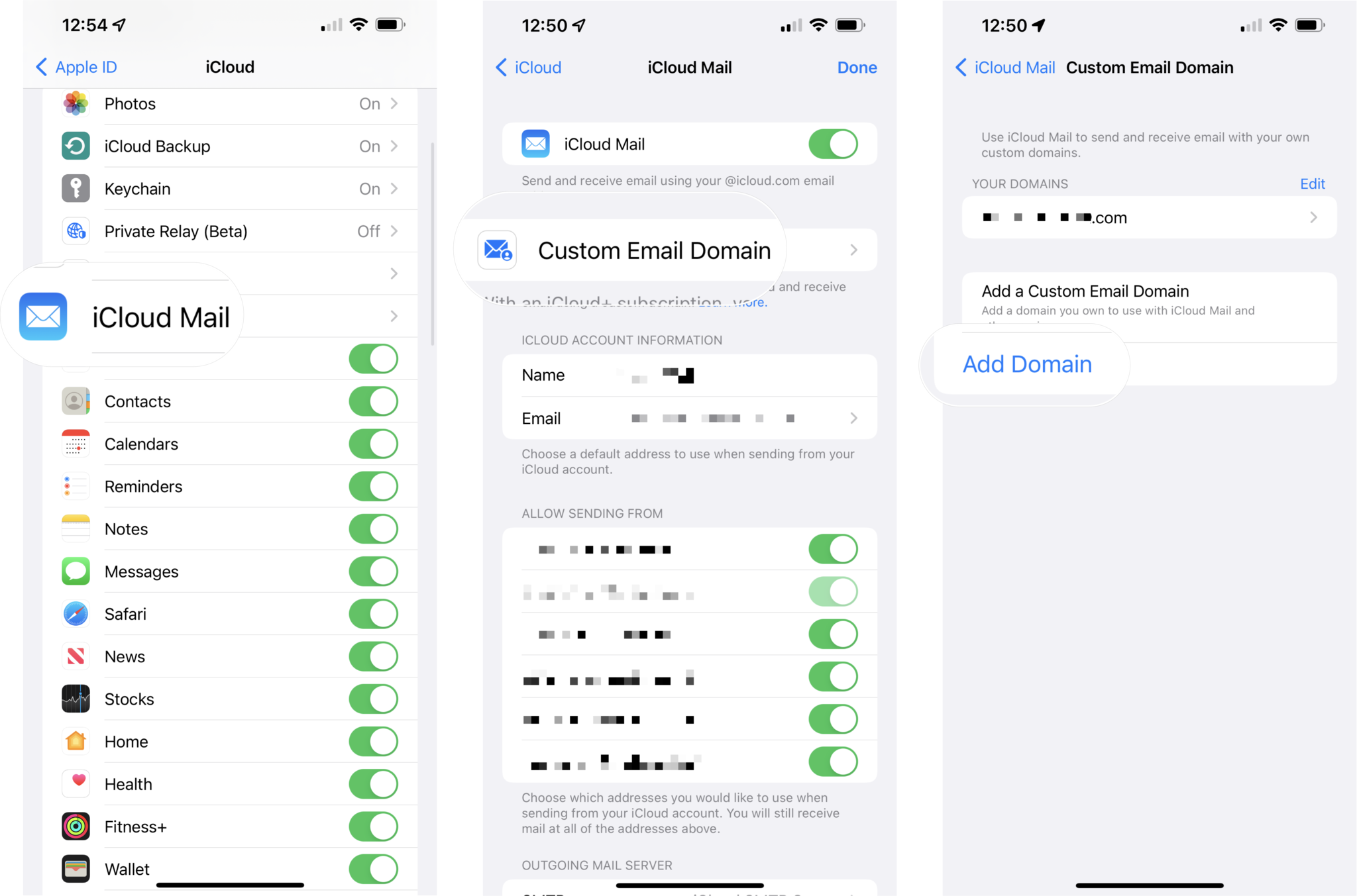
- Navigate to iCloud.
- Look for the iCloud Mail option. If it is "Off," tap it.
- Toggle the switch for Use on this iPhone.
- A prompt will appear asking you to create an email address. Tap Create.
- Choose your desired username. Note that popular names are likely taken, so you may need to add numbers or periods.
Finalizing the Setup
Once you have selected your address, Apple will ask you to confirm. After confirmation, this address is permanently linked to your Apple ID. You can now use it to send and receive emails via the built-in Mail app or through the iCloud website.
Setting Up iCloud Mail on a Mac
If you prefer using a desktop environment, the process is equally straightforward on macOS.
- Click the Apple Menu () and select System Settings.
- Click on your Apple ID (your name) at the top of the sidebar.
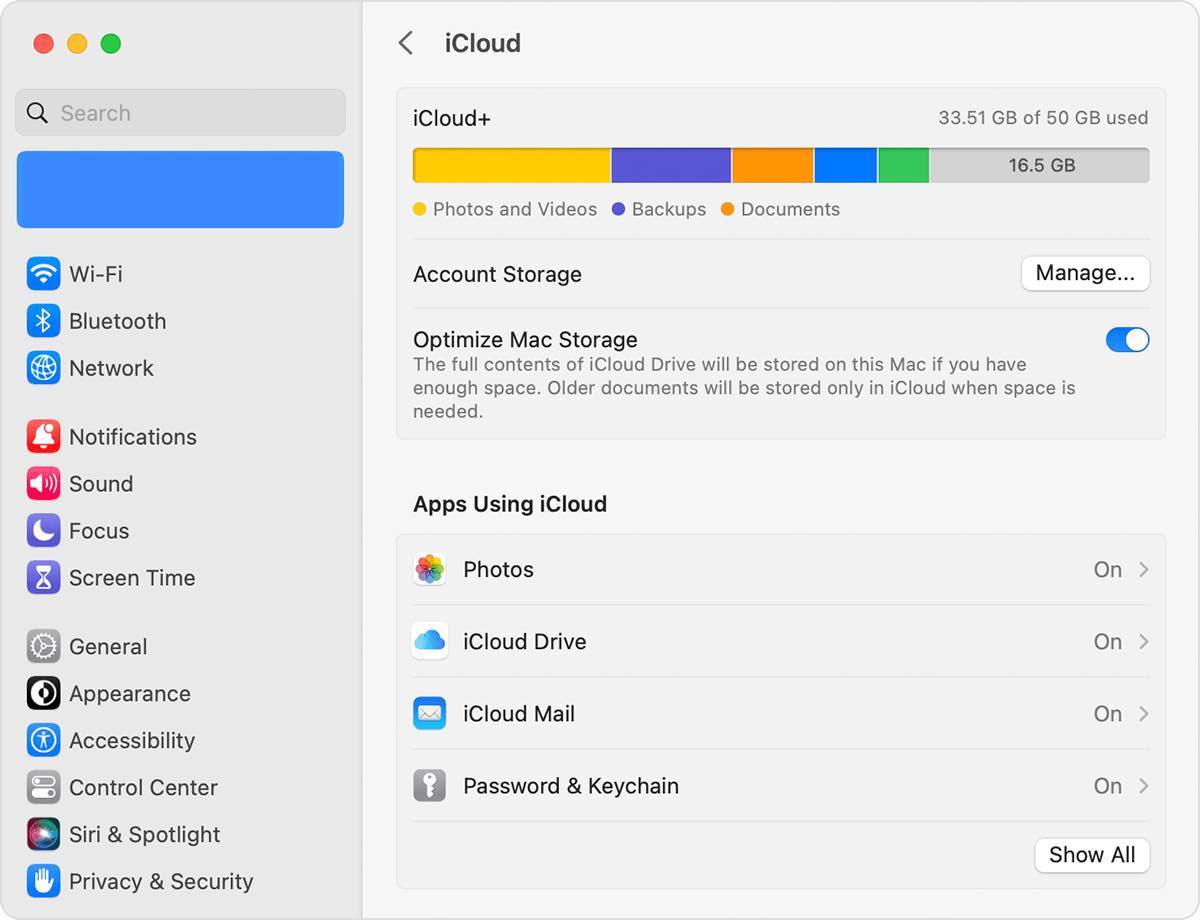
- Select iCloud from the right-hand pane.
- Scroll down to find iCloud Mail and ensure it is toggled on.
- If you haven't created an address yet, you will be prompted to follow the "Create Address" flow, similar to the iOS process.
- Once activated, your Mac will automatically configure the Mail app to include your new iCloud inbox.
Accessing iCloud Mail via the Web (PC and Android)
One of the most frequent questions in 2026 is whether you can use iCloud email without owning an Apple product. While you can use the email service on a PC or Android device, the initial creation almost always requires an Apple device.
However, once the account exists:
- Web Access: Go to iCloud.com on any browser (Chrome, Edge, Firefox). Sign in with your Apple ID and click on the Mail icon. This gives you a full-featured webmail interface.
- Windows Integration: You can download "iCloud for Windows" from the Microsoft Store. This allows you to sync your iCloud Mail with Microsoft Outlook.
- Android/Third-Party Apps: To use your free iCloud email on an Android device or a client like Thunderbird, you must generate an App-Specific Password. Since your main Apple ID password is protected by 2FA, third-party apps cannot use it directly. You can generate these passwords at the Apple ID management page.
Technical Specifications and Limits of the Free Tier
To use the service effectively, it is important to understand the technical constraints of the free iCloud email tier.
| Feature | Free iCloud Mail Specification |
|---|---|
| Storage Capacity | 5 GB (Shared with Photos/Backups) |
| Max Message Size | 20 MB (Up to 5 GB with Mail Drop) |
| Daily Sending Limit | Approximately 1,000 messages |
| Recipient Limit | Up to 500 recipients per message |
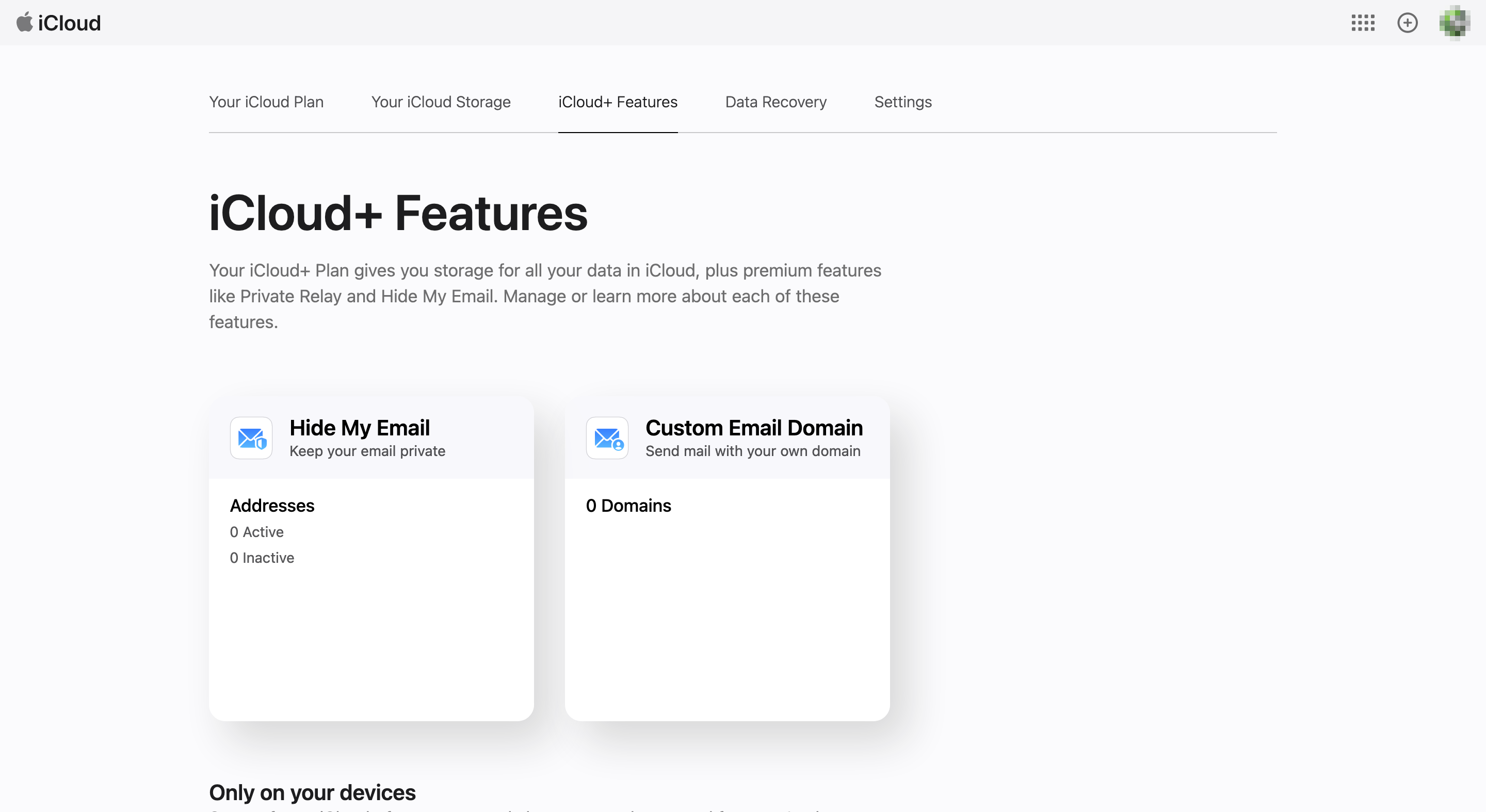
| Custom Domains | Not included (Requires iCloud+) |
| Hide My Email | Limited (System-generated only) |
| Security Protocols | IMAP / SMTP (TLS/SSL required) |
The Mail Drop Advantage
Even on the free tier, Apple offers a feature called Mail Drop. If you need to send a file larger than 20MB (up to 5GB), the file is automatically uploaded to iCloud. The recipient receives a download link instead of a massive attachment. Crucially, these attachments do not count against your 5GB storage limit and expire after 30 days.
Managing the 5GB Storage Limit
The primary challenge of a free iCloud account is the storage ceiling. Once you hit 5GB, you will receive a "Storage Full" notification, and all incoming emails will be bounced back to the sender. To prevent this without paying for an upgrade, consider these strategies:
1. Frequent Attachment Audits
In the Mail app, you can search for "Attachments" and sort by size. Deleting a few emails with large PDF or video attachments can free up hundreds of megabytes instantly.
2. Offloading Backups
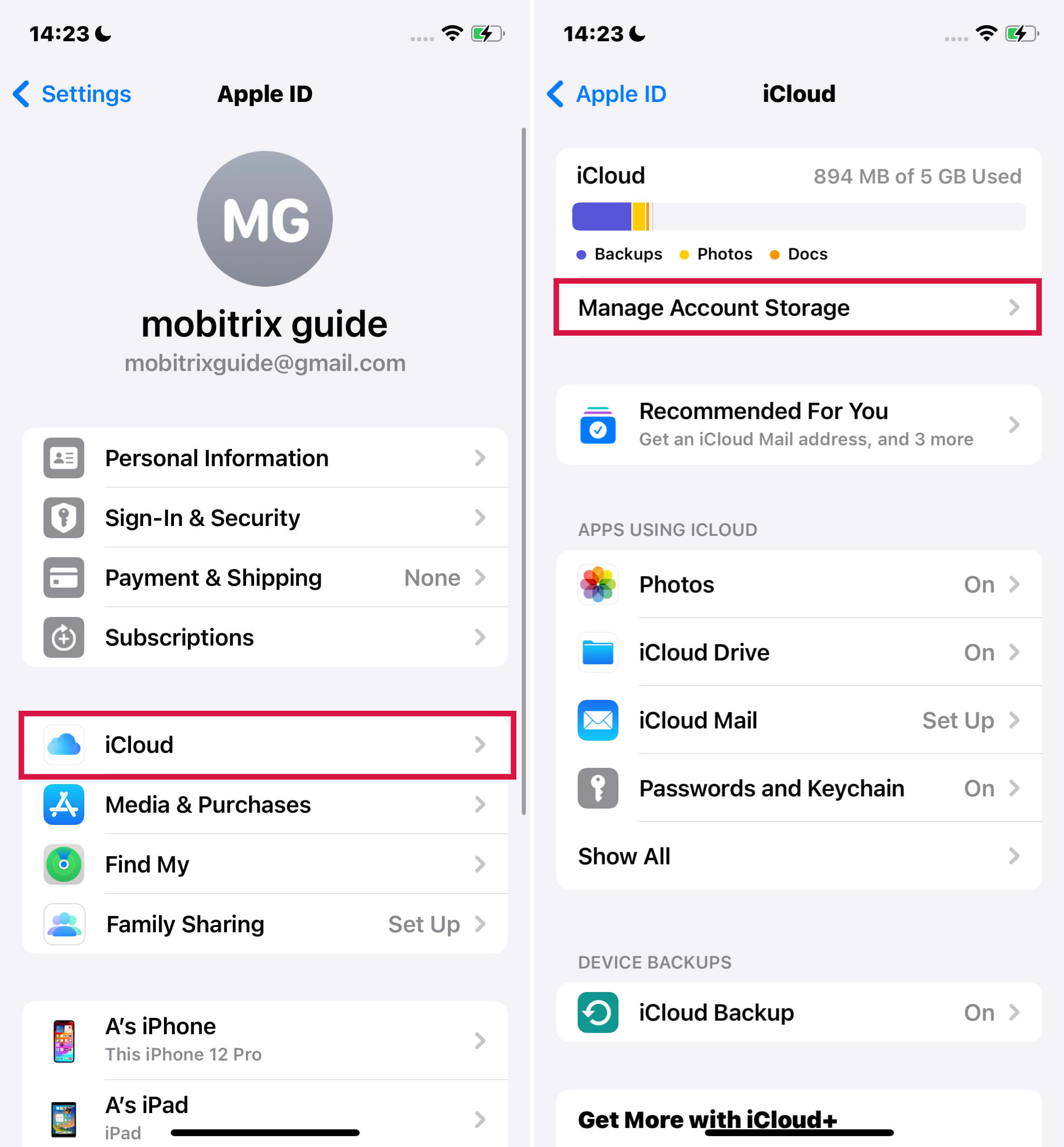
By default, your iPhone might be backing up every app's data to iCloud. Go to Settings > [Name] > iCloud > Manage Account Storage > Backups and select your device. Toggle off apps that don't need cloud backup (such as high-storage games or third-party media players) to save space for your email.
3. Clearing the Trash and Junk Folders
Deleted emails still count toward your storage until the Trash folder is emptied. In 2026, iCloud Mail is configured to empty the trash automatically every 30 days, but manual purging is recommended if you are close to your limit.
Privacy and Security Features
Even on the free tier, Apple includes robust security measures. All iCloud emails are encrypted in transit. Furthermore, Apple’s server-side filtering for spam and phishing is among the most aggressive in the industry.
- Advanced Data Protection: Users can opt into this feature, which provides end-to-end encryption for many iCloud categories. While email metadata (like headers and subject lines) must remain unencrypted for server routing, the integration with Apple’s security suite makes it a highly secure choice for personal use.
- Two-Factor Authentication: This is no longer optional in 2026. This prevents unauthorized access even if your password is compromised.
Comparing Free iCloud Mail to Competitors
| Feature | iCloud (Free) | Gmail (Free) | Outlook (Free) |
|---|---|---|---|
| Base Storage | 5 GB | 15 GB | 15 GB |
| Ad-Free? | Yes | No | No |
| Ecosystem Focus | iOS/macOS | Android/Web | Windows/Office |
| Custom Domains | No | No | No |
| Large File Support | Mail Drop (5GB) | Google Drive Link | OneDrive Link |
While iCloud offers less storage (5GB vs. 15GB), many users prefer it because the interface is completely ad-free. Gmail and Outlook often insert "Promotional" emails or sidebar ads into their free versions, whereas Apple treats the Mail app as a clean, utility-focused tool.
Common Troubleshooting Tips
Unable to Send or Receive
If your mail stops working, first check your storage levels at iCloud.com/storage. If you have space, verify that your "Outgoing Mail Server (SMTP)" settings are correct. For iCloud, the server is always smtp.mail.me.com using Port 587 and SSL/TLS.
"Account Not Eligible" Error
This error occurs if you try to create a new iCloud email from a device that has already reached the maximum number of free accounts (usually three per physical device). To resolve this, you must create the account on a different Apple device and then sign in on your current one.
Frequently Asked Questions
Can I get an iCloud email without an iPhone?
Yes, but it is difficult. You can create an Apple ID on the web, but you often cannot activate the @icloud.com email functionality until you sign into that Apple ID on a physical Mac, iPhone, or iPad. If you do not own one, you may need to borrow a device briefly to initialize the inbox.
Is there a way to get more than 5GB for free?
No. Apple does not currently offer "referral bonuses" or tasks to increase storage. To get more storage, you must upgrade to iCloud+. However, by managing your device backups and photos carefully, 5GB is more than enough for several years of standard text-based emailing.
What happens if I delete my iCloud email?
If you delete an @icloud.com alias or the main account, Apple typically does not allow that specific username to be reused. This is a security measure to prevent "account hijacking" where a new user claims an old address to receive the previous owner's sensitive information.
Does iCloud Mail work on Android?
Yes. You can add your iCloud email to any Android mail app (like Gmail or Samsung Mail) using the IMAP settings and an App-Specific Password generated from your Apple ID account page.
Practical Recommendation
For users who primarily use Apple devices, a free iCloud email is an essential tool for seamless synchronization. If you are a high-volume user who receives many attachments, we recommend using iCloud Mail for your primary correspondence but offloading your photo backups to a physical hard drive or a different cloud service to ensure your 5GB of "free" storage remains available for your inbox. If you find yourself constantly hitting the limit, the 50GB iCloud+ tier is traditionally the most cost-effective next step, but with diligent management, the free tier is perfectly viable for a decade or more.
Image Gallery