Wii FTP Server Overview: Enabling Wireless File Transfers
A Wii FTP server is a homebrew application that allows a modified Nintendo Wii console to act as a File Transfer Protocol (FTP) host, enabling wireless bidirectional file movement between the console and a computer. This utility is pri...
A Wii FTP server is a homebrew application that allows a modified Nintendo Wii console to act as a File Transfer Protocol (FTP) host, enabling wireless bidirectional file movement between the console and a computer. This utility is primarily used for managing save files, homebrew applications, configuration files, and game data on the console’s SD card or internal NAND memory.
Contents
Understanding the Role of FTP on the Wii
The Nintendo Wii, while primarily designed as a closed-system gaming console, has a robust "homebrew" ecosystem. Because the official Wii operating system lacks native file management features accessible to the user, enthusiasts developed the Homebrew Channel (HBC). An FTP server application for the Wii is a specific type of homebrew software that taps into the console’s network capabilities.
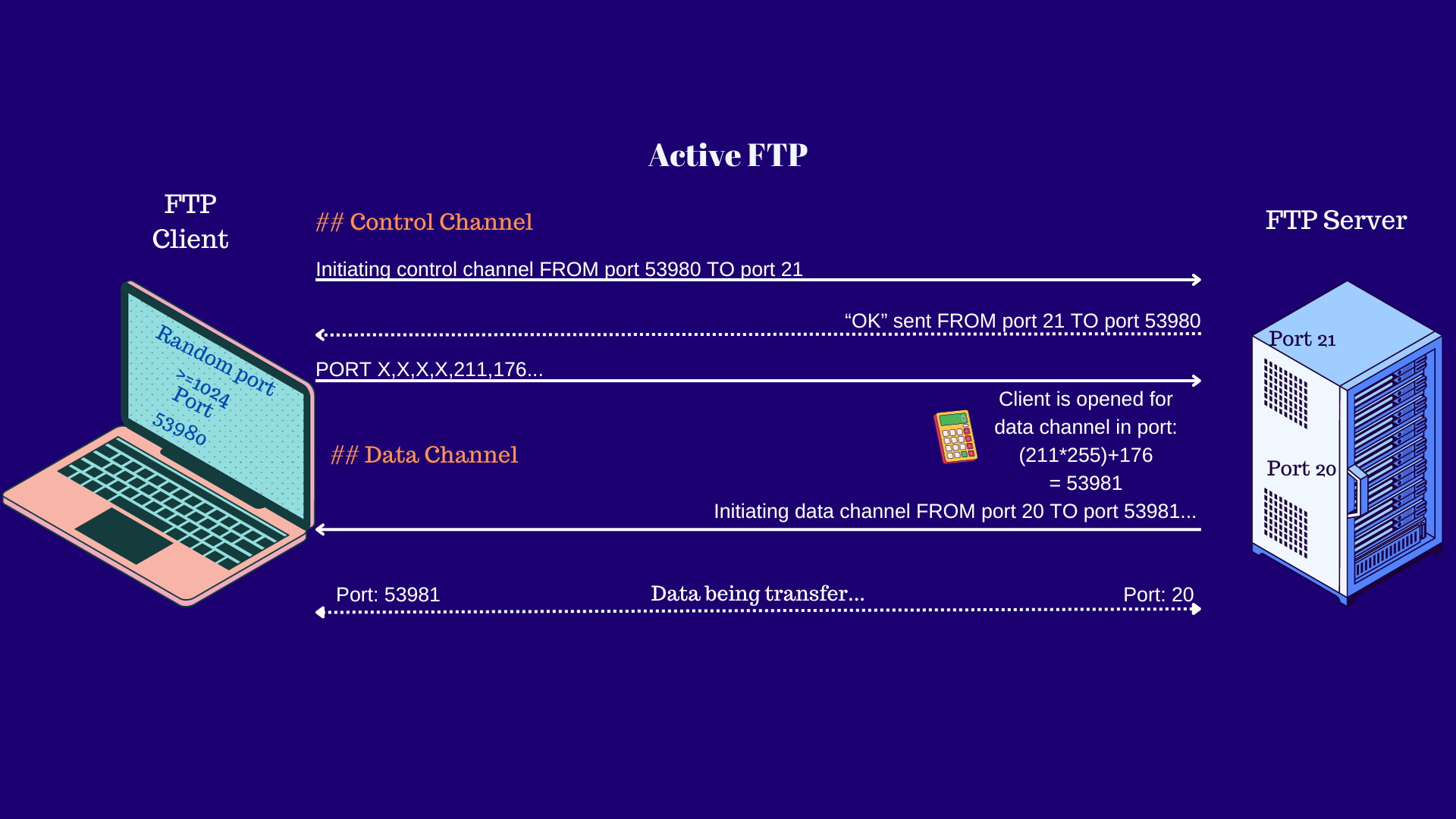
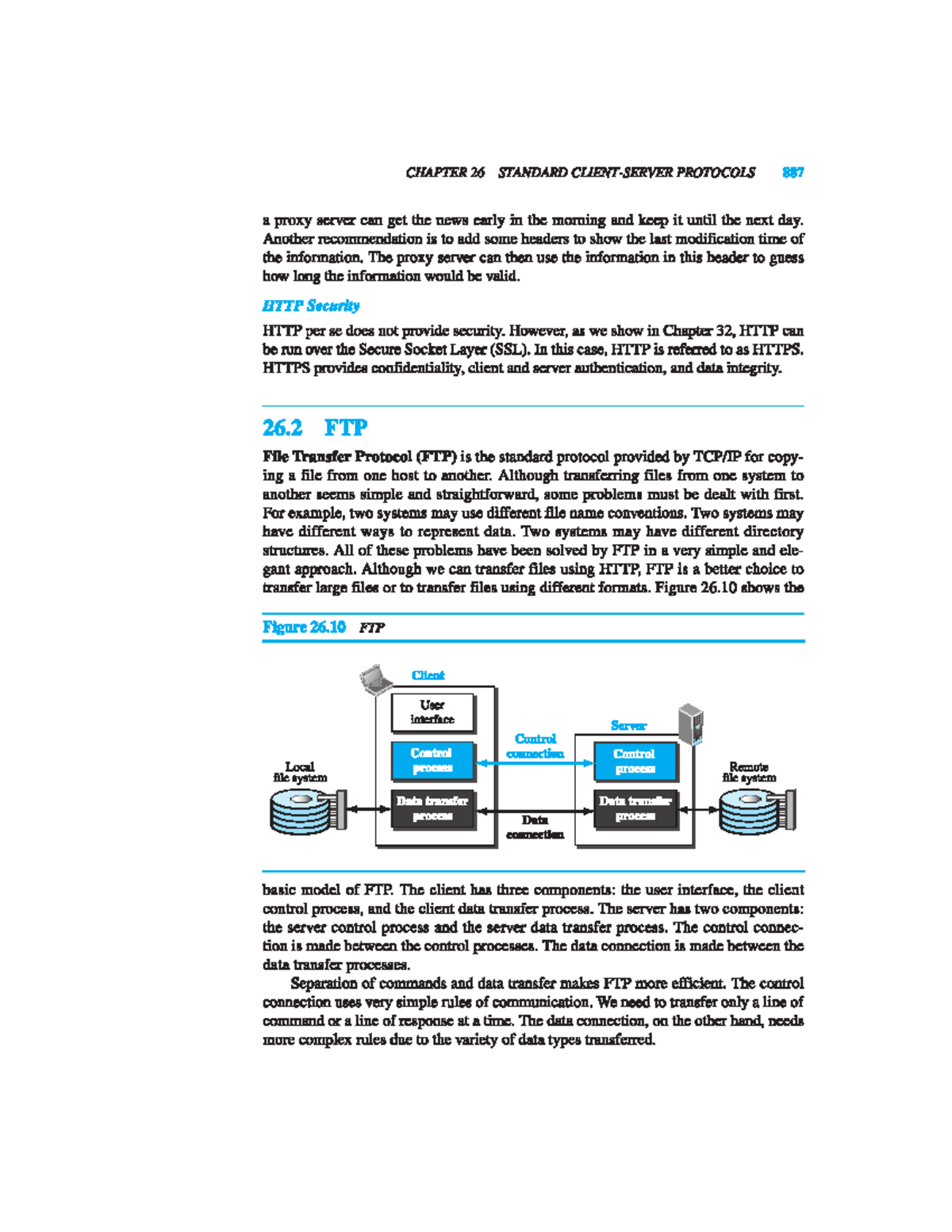
By running an FTP server, the Wii opens a communication port on your local network. A desktop or laptop computer running an FTP client—such as FileZilla or WinSCP—can then connect to the Wii’s IP address. This connection creates a virtual bridge, allowing you to drag and drop files to and from the console’s storage media without needing to physically remove the SD card from the console.
Prerequisites for FTP Connectivity
Before attempting to establish an FTP connection, several conditions must be met regarding your console hardware and network configuration.
Console Requirements
- Modified Console: The Wii must be soft-modded to run unofficial code. This typically requires the installation of the Homebrew Channel.
- Network Hardware: The Wii must be connected to a local area network (LAN), either via the integrated Wi-Fi or the official Wii LAN adapter.
- Homebrew Application: You need a compatible FTP server application. Historically, Homebrew FTPii and FTPiiU have been the standards for this task.
Network Requirements
- Local Network Access: Both the computer and the Wii must be connected to the same local network, preferably on the same subnet.
- IP Address Identification: You must know the local IP address assigned to your Wii. This is usually displayed on the screen once the FTP server application is launched on the console.
- Firewall Permissions: Ensure that your computer's firewall or security software does not block local FTP traffic, which usually occurs over port 21.
Operational Workflow: Step-by-Step
Establishing a connection is a standardized process that relies on the interaction between the client (your PC) and the server (your Wii).
- Launch the Server: On the Wii, navigate to the Homebrew Channel and select the FTP server application. Upon startup, the screen will typically display the console’s current local IP address (e.g., 192.168.1.XX).
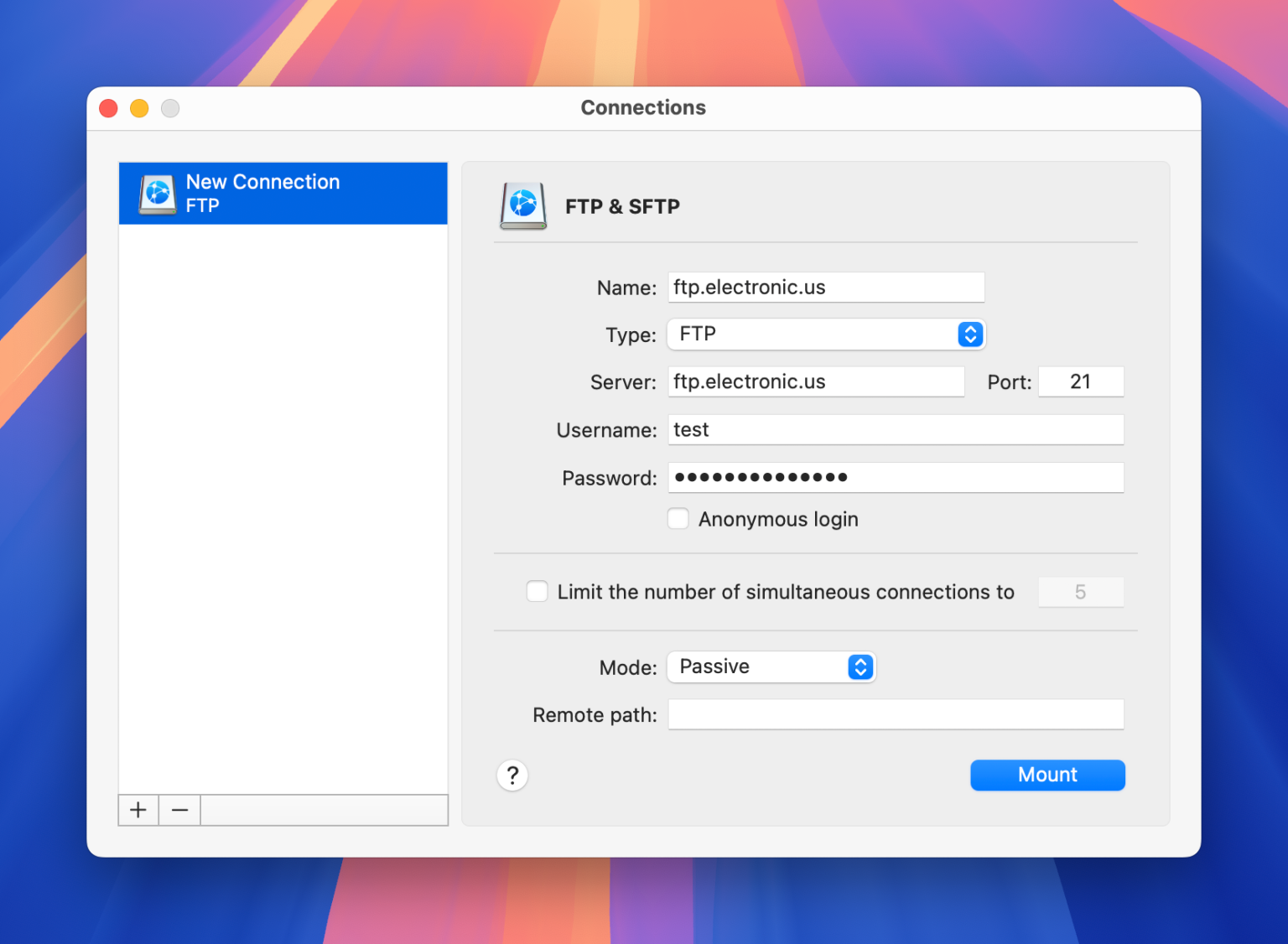
- Configure the Client: Open your preferred FTP client on your PC. Create a new site entry. Set the Protocol to FTP and enter the IP address displayed on your TV screen. Set the port to 21.
- Authentication: Most Wii FTP applications do not require a username or password for local network access, though some may default to generic credentials like "admin/admin" or simply accept blank fields.
- Initiate Connection: Connect to the host. If successful, the file directory of your SD card (and sometimes the NAND, depending on the application’s permissions) will populate in the client window.
- Data Transfer: You can now transfer files. It is important to note that transfer speeds are limited by the Wii’s internal Wi-Fi hardware (802.11b/g), which is significantly slower than modern standards.
Comparative Overview of Common Transfer Methods
When managing files on a modified Wii, users generally choose between physical media transfer and network transfer.
| Feature | Physical SD Removal | FTP Server Transfer |
|---|---|---|
| Speed | Faster (Limited by SD card speed) | Slower (Limited by 802.11g Wi-Fi) |
| Convenience | Low (Requires physical access) | High (Remote access) |
| Risk | Wear on SD slot | Potential network timeouts |
| Ease of Use | Simple file management | Requires client configuration |
Operational Limitations and Safety Considerations
While using an FTP server is a powerful tool, it introduces specific risks regarding system stability.
The Risk of NAND Modification
Advanced FTP servers allow access to the Wii’s NAND (internal memory). Modifying or deleting system files within the NAND can lead to a "brick," a state where the console fails to boot. Unless you are an advanced user performing specific system maintenance, you should avoid modifying any files outside of the apps or sdcard directories.
Network Stability
The Wii’s wireless antenna is notoriously weak by modern standards. Large file transfers may be interrupted if the console enters a power-saving state or if the Wi-Fi signal fluctuates. It is recommended to perform small to medium transfers rather than attempting to backup an entire high-capacity SD card in a single session.
Technical Limitations
- Transfer Speeds: Users should expect significantly lower speeds than standard USB 2.0 or 3.0 transfers. If you are moving gigabytes of data, physical SD card management remains the more efficient choice.
- Encoding Issues: Older homebrew applications may have trouble with non-standard file naming conventions or hidden characters, which can result in transfer errors or corrupted file names on the console.
Troubleshooting Common Connectivity Issues
If you cannot establish a connection, systematically address the most common points of failure.
- Network Isolation: Ensure your computer is not connected to a Guest Wi-Fi network that prevents communication between wireless devices (AP isolation).
- IP Conflict: Verify that the IP address shown on the Wii matches the one entered into the FTP client. If the Wii IP changes, you may need to update the settings in your client.
- Protocol Mismatch: Ensure your client is set to standard FTP rather than SFTP or FTPS. Most legacy Wii homebrew applications do not support modern encryption protocols.
- Service Interruption: If the connection drops during a transfer, restart the application on the Wii. The console may occasionally hang if the network socket is not properly closed by the client.
Frequently Asked Questions
Is it safe to leave the Wii FTP server running?
No. The FTP server should only be active when you are actively transferring files. Leaving the server open keeps an open port on your network, which is unnecessary and potentially insecure if your network is not properly protected.
Do I need a special FTP client for the Wii?
No, any standard FTP client will work. FileZilla, WinSCP, and even some file managers with built-in FTP capabilities are sufficient for connecting to the console.
Can I use FTP to install games to the Wii?
You can use FTP to copy game files, such as WAD files or game data folders, to the SD card. However, these files must still be processed or installed via the appropriate Wii homebrew managers (such as a WAD manager) once they are on the card.
Why is my file transfer speed extremely slow?
The Wii uses the 802.11g Wi-Fi standard, which has a theoretical maximum of 54 Mbps, but real-world throughput is often much lower. Furthermore, the Wii’s processor limits the overhead of the FTP protocol. This is normal behavior for the hardware.
Can I access the Wii’s internal memory safely?
You can read the internal memory, but writing to it is high-risk. Only perform write operations to the internal memory if you have a reliable backup (like a BootMii NAND backup) and understand the specific purpose of the file being moved.
Next Steps for Users
For users who have successfully established a connection, the next logical step is to organize your homebrew library. Use the FTP interface to remove outdated applications, back up your current game save files to your PC as a safety measure, and update your apps folder structure. If you find the Wi-Fi speeds too restrictive for your needs, consider investing in a high-quality, high-speed SD card to minimize the frequency of needing remote file management. Always keep a fresh NAND backup of your console stored on an external drive as a best practice for any soft-modded system.
Image Gallery