How to Update Your Browser on a Laptop: Step-by-Step Guide
To update your web browser on a laptop, open the browser, click the main menu icon (usually three dots or lines) in the top-right corner, navigate to Help, and select About [Browser Name]. The browser will automatically check for, down...
To update your web browser on a laptop, open the browser, click the main menu icon (usually three dots or lines) in the top-right corner, navigate to Help, and select About [Browser Name]. The browser will automatically check for, download, and install available updates. Restart the browser when prompted to complete the installation process.
Contents
Keeping your laptop's web browser updated is one of the simplest and most effective steps you can take to maintain your computer's security, speed, and overall performance. Modern web browsers regularly release updates that patch security vulnerabilities, improve system resource efficiency, and support new web standards.
While most modern browsers download updates automatically in the background, background processes can sometimes stall, system settings may restrict automated downloads, or your laptop might require a manual restart to apply pending patches. This comprehensive guide provides step-by-step instructions for updating every major web browser on Windows, macOS, ChromeOS, and Linux laptops, along with troubleshooting steps for common update errors.
Why Updating Your Laptop Web Browser Is Essential
Web browsers serve as your primary window to the internet, making them the most frequently targeted vector for cyber threats. Understanding why browser updates matter helps prioritize keeping your software current.
1. Security Vulnerability Patching
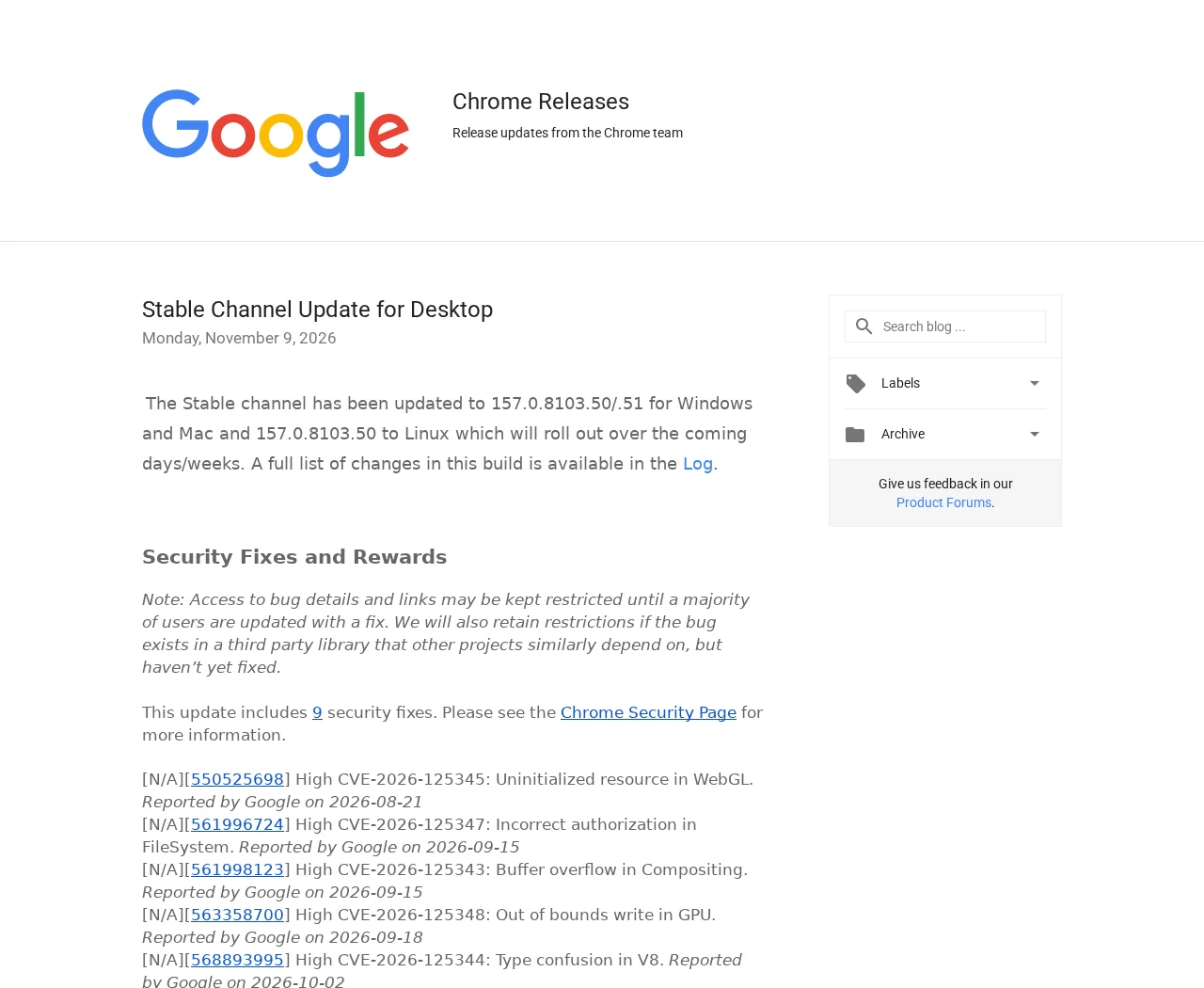
Cybersecurity research firms and independent developers regularly discover security flaws, known as Common Vulnerabilities and Exposures (CVEs), within browser rendering engines. Exploits such as "zero-day" vulnerabilities allow malicious websites to execute unauthorized code, steal session cookies, or install malware on your laptop without user interaction. Developers patch these vulnerabilities rapidly; updating ensures your laptop is protected against newly discovered exploits.
2. Performance and Battery Optimizations
Web browsers are notoriously resource-intensive, often consuming substantial memory (RAM) and processor cycles. Updates frequently include optimizations for JavaScript engines (such as V8 in Chromium or SpiderMonkey in Firefox), memory allocation improvements, and power-saving features specifically engineered to extend laptop battery life during multi-tab browsing.
3. Compatibility with Modern Web Technologies
The web is constantly evolving. Modern websites rely on updated standards for rendering graphics, streaming high-definition video, enforcing secure encryption protocols (such as TLS), and delivering interactive web applications. Running an outdated browser can lead to broken layouts, media playback errors, or unrendered page elements.
How to Update Google Chrome on Windows and Mac Laptops
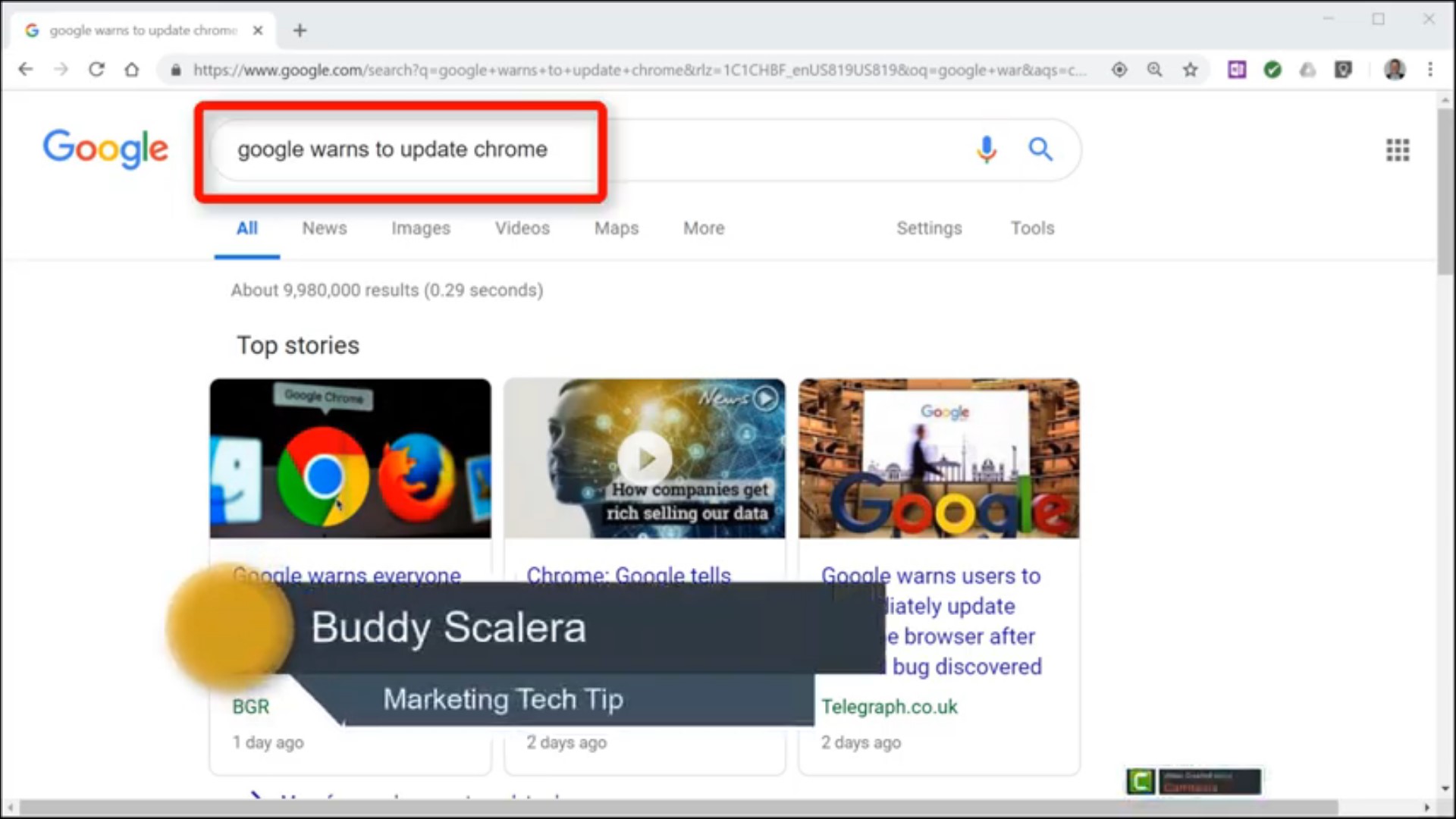
Google Chrome uses a streamlined update mechanism built directly into its interface. Follow these steps to check for and apply updates manually:
- Open Google Chrome on your laptop.
- Click the three vertical dots menu icon located in the upper-right corner of the window.
- Hover over Help near the bottom of the drop-down menu.
- Click About Google Chrome.
[Three Dots Menu] ➔ Help ➔ About Google Chrome
Chrome will automatically check for available updates on Google's servers. If an update is detected, the browser will download it immediately.
Once the download reaches 100%, an Relaunch button will appear. Click Relaunch to restart Chrome and apply the update. Chrome automatically restores your open tabs and windows upon restarting (excluding Incognito tabs).
Understanding Chrome's Visual Update Indicators
Chrome alerts users to pending updates through color-coded indicators on the main menu button:
- Green: An update was released less than 2 days ago.
- Orange: An update was released 4 days ago.
- Red: An update was released 7 or more days ago.
If you see these colored indicators, click the menu button and select Update Google Chrome to apply the patch immediately. For detailed documentation on Chrome release management, refer to the official Google Chrome Help Center.
How to Update Microsoft Edge on Your Laptop
Microsoft Edge comes pre-installed on Windows laptops and is also widely used on macOS. Because Edge is built on the open-source Chromium engine, its update process closely resembles Chrome's.
- Launch Microsoft Edge.
- Click the three horizontal dots (
...) in the top-right corner. - Hover over Help and feedback.
- Select About Microsoft Edge.
[...] Menu ➔ Help and feedback ➔ About Microsoft Edge
Edge will navigate to its internal settings page (edge://settings/help) and initiate a scan for the latest build. If a build is available, Edge will download it automatically over your connection.
When the download finishes, click Restart to apply the update. If you use Edge on a Windows laptop connected to a corporate network, background update policies managed by your organization's IT department may control when updates occur. For additional assistance with Edge configuration, consult Microsoft Edge Support.
How to Update Mozilla Firefox on Your Laptop
Mozilla Firefox handles updates independently of system software management, using its built-in background updater service.
- Open Mozilla Firefox.
- Click the application menu button (represented by three horizontal lines) in the upper-right corner.
- Click Help at the bottom of the menu.
- Select About Firefox.
[Three Lines Menu] ➔ Help ➔ About Firefox
A dedicated About Mozilla Firefox pop-up window will open. Firefox will automatically check for updates and display a progress bar as the update file downloads.
Once complete, click Restart to update Firefox. The browser will temporarily close and reopen with your active session intact. You can view full release notes and update details via the official Mozilla Support Documentation.
How to Update Apple Safari on macOS Laptops
Unlike cross-platform browsers, Apple Safari is deeply integrated into macOS. You cannot update Safari from inside the browser's own menu settings. Instead, Safari updates are delivered via macOS System Settings.
Updating Safari on macOS Ventura, Sonoma, Sequoia, and Later
- Click the Apple logo () in the upper-left corner of your MacBook screen.
- Select System Settings from the drop-down menu.
- Click General in the left sidebar.
- Select Software Update on the right pane.
Apple Menu () ➔ System Settings ➔ General ➔ Software Update
The system will scan for available macOS updates. Because Safari updates are bundled into macOS system patches and security updates, any available update for Safari will appear here. If an update is available, click Update Now or Upgrade Now and follow the on-screen prompts.
Updating Safari on Older macOS Versions (Monterey, Big Sur, Catalina)
- Open the Apple menu () and choose System Preferences.
- Click Software Update.
- If updates are available, click Update Now to install both system patches and Safari updates.
For full guidance on maintaining Apple software on Mac hardware, visit the Apple macOS Support Guide.
Updating Alternative Laptop Browsers (Brave, Opera, Vivaldi)
If you use an alternative web browser on your laptop, the procedure generally matches standard Chromium workflows:
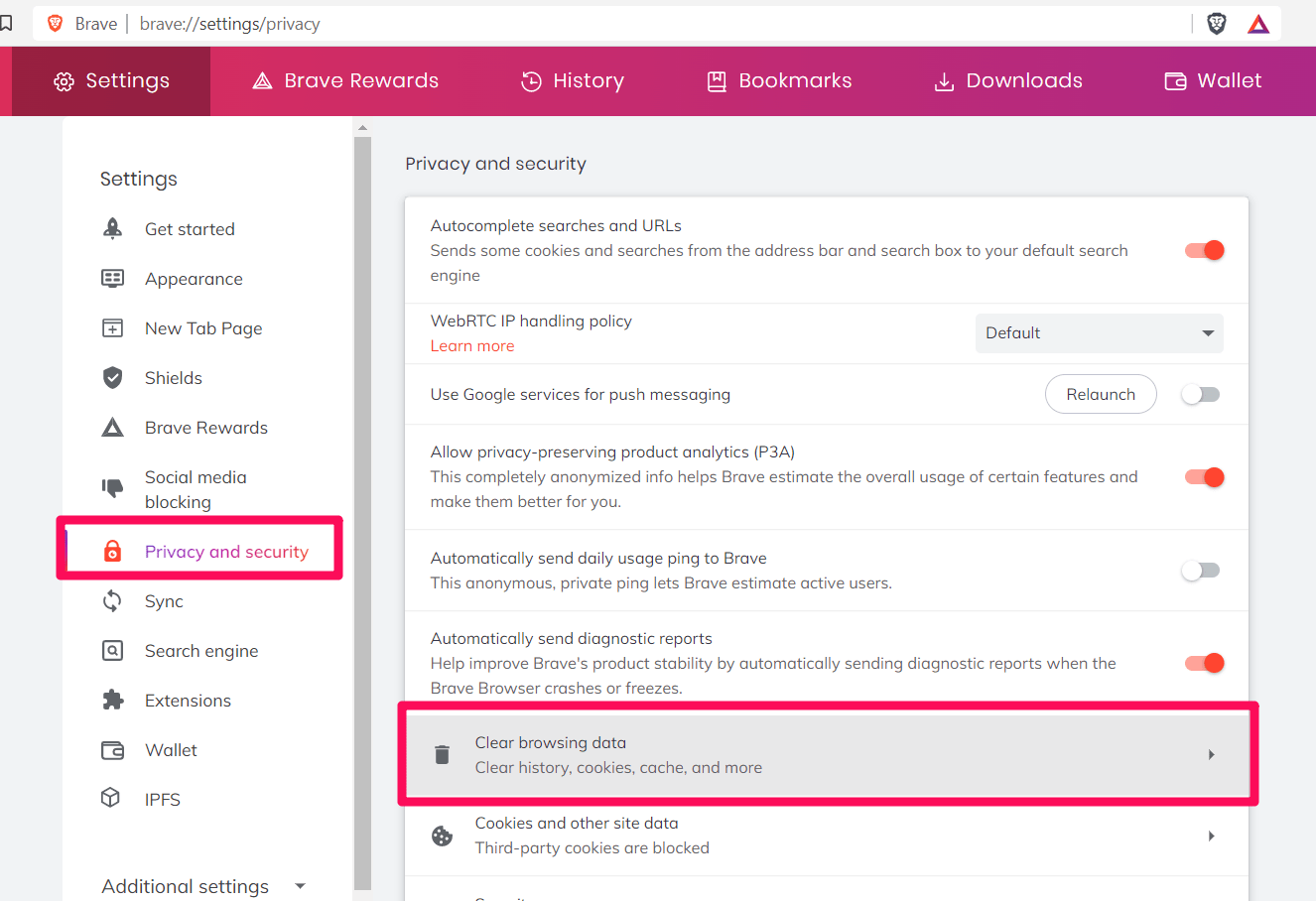
- Brave Browser: Click the hamburger menu icon (three lines) in the top-right corner ➔ Select About Brave. Brave will fetch the update and display a relaunch prompt.
- Opera Browser: Click the Opera logo in the top-left corner (or main menu) ➔ Click Update & Recovery... ➔ Allow Opera to check for updates, then click Relaunch now.
- Vivaldi: Click the Vivaldi icon (top left) ➔ Select Help ➔ Click Check for Updates.
Laptop Browser Update Comparison
The table below outlines the menu paths, automatic update settings, and restart requirements across major laptop web browsers.
| Web Browser | Operating Systems Supported | Manual Update Menu Path | Automatic Updates Enabled by Default? | Restart Required to Complete? |
|---|---|---|---|---|
| Google Chrome | Windows, macOS, Linux, ChromeOS | Menu ➔ Help ➔ About Google Chrome |
Yes | Yes (Relaunch) |
| Microsoft Edge | Windows, macOS, Linux | Menu (...) ➔ Help and feedback ➔ About Microsoft Edge |
Yes | Yes (Restart) |
| Mozilla Firefox | Windows, macOS, Linux | Menu (≡) ➔ Help ➔ About Firefox |
Yes | Yes (Restart) |
| Apple Safari | macOS | Apple Menu () ➔ System Settings ➔ General ➔ Software Update |
Yes (System preference) | Sometimes (depends on OS patch scope) |
| Brave Browser | Windows, macOS, Linux | Menu (≡) ➔ About Brave |
Yes | Yes (Relaunch) |
| Opera | Windows, macOS, Linux | Opera Menu ➔ Update & Recovery... |
Yes | Yes (Relaunch) |
Troubleshooting Common Laptop Browser Update Failures
Occasionally, browser updates stall, return error messages, or fail to install completely. Below are solutions to the most common update issues encountered on laptops.
1. Chrome Update Error 3 or Error 7 (Server Unreachable)
These error codes indicate that Chrome’s update utility cannot establish communication with Google’s servers.
- Check Network Connection: Ensure your laptop has an active internet connection and is not blocked by a restrictive public Wi-Fi portal.
- Disable Third-Party VPNs/Firewalls: Temporarily disable active VPN software or strict third-party firewall rules that might block background connections to updater domains.
- Verify Update Services (Windows): Press
Win + R, typeservices.msc, and press Enter. Ensure Google Update Service (gupdate) and Google Update Service (gupdatem) are set to Automatic or Manual startup types.
2. "Updates Are Disabled by Your Administrator"
If your laptop was supplied by an employer or educational institution, administrative group policies (GPO) or Mobile Device Management (MDM) profiles may lock browser update controls.
- Contact your organization's IT helpdesk to push necessary software updates.
- If the laptop is personal but previously connected to a work account, review your system accounts under Settings ➔ Accounts ➔ Access work or school and disconnect unneeded profiles.
3. Updating Gets Stuck Midway
If an update hangs indefinitely while downloading:
- Close all active browser windows completely.
- Open your laptop's Task Manager (Windows:
Ctrl + Shift + Esc) or Activity Monitor (macOS:Cmd + Space, search for Activity Monitor). - End any lingering background processes related to the browser (e.g.,
chrome.exe,firefox.exe). - Reopen the browser and retry the update process.
4. Reinstalling over an Existing Installation
If error messages persist, download the latest installer package directly from the browser developer's official website using an alternative browser. Run the installer—it will overwrite broken application files while retaining your personal data, bookmarks, browsing history, and saved passwords.
How to Enable or Verify Automatic Browser Updates
Relying on manual updates leaves windows of vulnerability if you forget to check regularly. Ensuring automatic background updates are functioning protects your laptop continuously.
Verifying Chrome and Edge Auto-Updates
On Windows laptops, Chrome and Edge install background services during initial setup (GoogleUpdate.exe and MicrosoftEdgeUpdate.exe). These utilities check for patches periodically even when the browser is closed. Avoid disabling scheduled tasks or startup entries linked to these update managers in system configuration tools.
Verifying Firefox Auto-Updates
To verify automatic update settings in Firefox:
- Open Firefox and enter
about:preferencesinto the address bar. - Scroll down to the Firefox Updates section under the General panel.
- Select Automatically install updates (recommended).
- Ensure the checkbox for Use a background service to install updates is checked.
Managing Safari Auto-Updates on Mac
- Open System Settings ➔ General ➔ Software Update.
- Click the small Information icon (i) next to Automatic Updates.
- Toggle on Install macOS updates and Install application updates from the App Store.
Frequently Asked Questions
How do I know if my browser is up to date?
Navigate to the About page of your specific browser (Help ➔ About [Browser]). If your software is current, the status screen will display a message such as "Google Chrome is up to date," "Firefox is up to date," or "Microsoft Edge is up to date," alongside the current version number.
Will updating my laptop browser delete my bookmarks or saved passwords?
No. Updating your browser only replaces executable system and rendering files. Personal user profile data—including bookmarks, extensions, browsing history, cookies, and saved passwords—is stored in a separate directory on your laptop's storage drive and remains untouched during routine software updates.
Why can't I update Safari on my MacBook?
Safari updates are tied directly to macOS updates. If your MacBook is running an older version of macOS that Apple no longer supports with security patches, Safari cannot be updated to newer major builds. In such cases, switching to a supported third-party browser like Chrome or Firefox allows you to keep browsing securely.
Is it dangerous to use an outdated web browser on a laptop?
Yes. Outdated web browsers leave your laptop exposed to unpatched security vulnerabilities. Cybercriminals continuously monitor release notes to exploit known flaws in older browser builds, which can lead to drive-by malware downloads, credential theft, and unauthorized access to personal data.
How often should I check for browser updates?
Most browsers auto-check for updates daily. However, manually checking once or twice a month—or immediately after news of a zero-day vulnerability security patch—is good digital hygiene to ensure updates are actively applied.
Next Steps for Laptop Security and Maintenance
Updating your browser is a vital component of device maintenance, but comprehensive protection requires a multi-layered approach:
- Keep Your Operating System Current: Ensure your laptop's primary OS (Windows 11/10, macOS, ChromeOS, or Linux) receives regular security updates alongside browser updates.
- Audit Browser Extensions: Periodically open your browser's extension manager (
chrome://extensions,about:addons, oredge://extensions) to remove unused or unverified add-ons, which can introduce security flaws or degrade laptop performance. - Restart Your Laptop Regularly: Software updates often sit in a pending state until applications or operating systems complete a full reboot. Restarting your laptop at least once a week ensures all pending patches are fully executed.
Image Gallery