Understanding PPI Properties: A Guide to Pixel Density and Image Quality
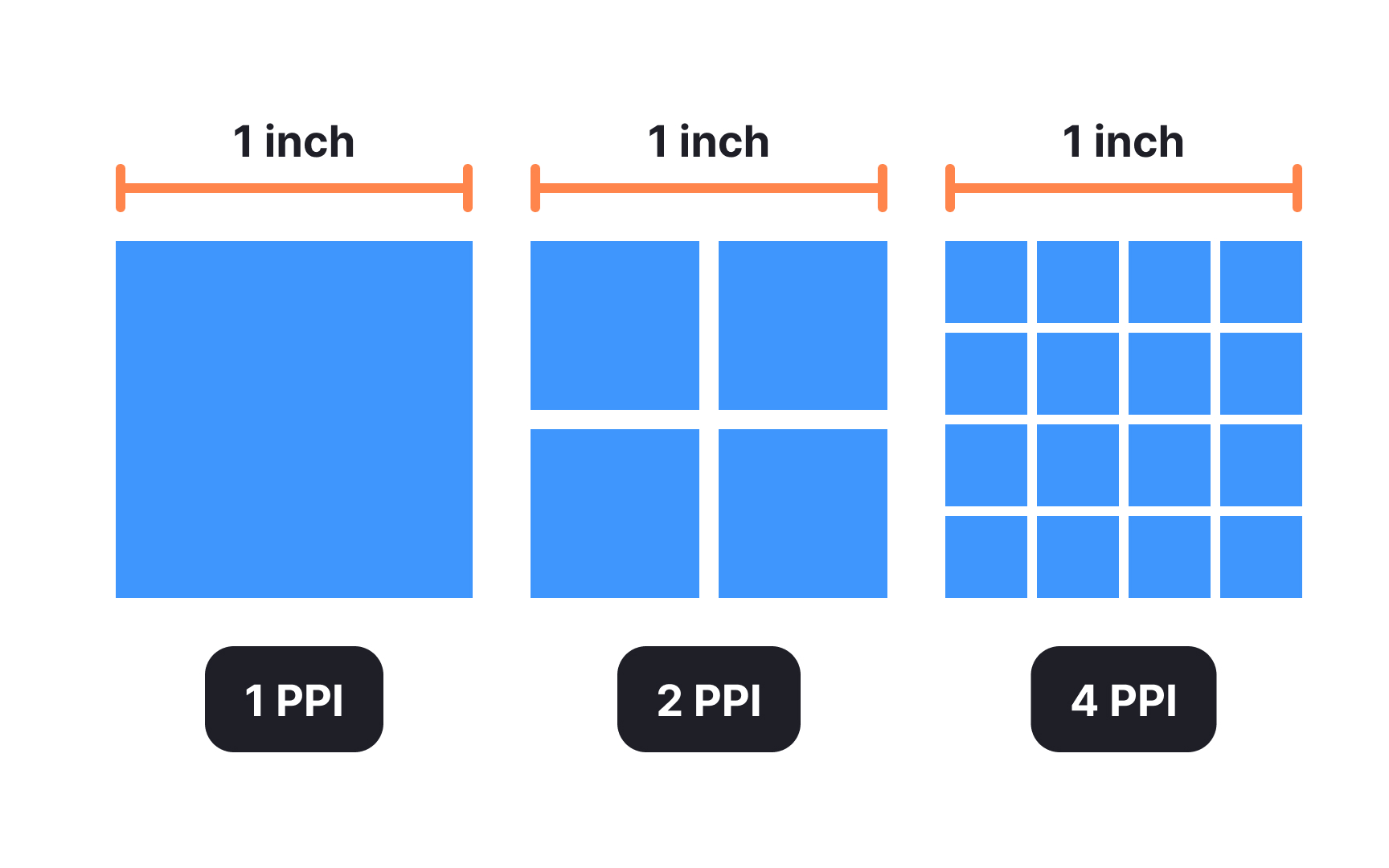
PPI (Pixels Per Inch) is the measurement used to define the pixel density of a digital image or hardware display. It determines how much visual information is packed into a physical inch, directly impacting the perceived sharpness and...
PPI (Pixels Per Inch) is the measurement used to define the pixel density of a digital image or hardware display. It determines how much visual information is packed into a physical inch, directly impacting the perceived sharpness and clarity of an image when viewed or printed at specific sizes.
Contents
In the digital landscape of 2026, where ultra-high-definition displays and advanced printing technologies are the standard, understanding the properties of PPI is essential for photographers, graphic designers, and tech enthusiasts. While the term is often used interchangeably with DPI (Dots Per Inch), the two serve distinct roles in the lifecycle of an image. Mastering PPI properties ensures that your visual content maintains professional integrity from the screen to the physical medium.
The Core Definition of PPI and Pixel Density
PPI, or Pixels Per Inch, describes the fixed number of pixels a screen can display or the number of pixels within a digital image's metadata relative to its physical dimensions. Pixel density is the concentration of these pixels. As the PPI increases, the size of each individual pixel decreases, allowing for finer details and smoother gradients.
When we discuss pixel density in 2026, we are looking at a spectrum of hardware. A standard 27-inch 4K monitor typically sits around 163 PPI, while modern flagship smartphones often exceed 500 PPI. This density determines the "screen door effect"—the ability of the human eye to distinguish individual pixels. At higher PPI levels, the grid of pixels becomes invisible to the naked eye, creating a continuous, lifelike image.
The Relationship Between Resolution and PPI
Resolution refers to the total count of pixels (e.g., 3840 x 2160), whereas PPI refers to how those pixels are distributed across a physical space. An image with a resolution of 3000 x 2000 pixels has a fixed amount of data. If you print that image at 10 inches wide, the PPI is 300. If you print the same image at 20 inches wide, the density drops to 150 PPI.
Understanding this inverse relationship is critical. You cannot simply "increase" the PPI of a low-resolution image to improve quality without "resampling." Resampling involves the software inventing new pixels based on existing data, which often results in a soft or blurry appearance. True image quality is a product of high native resolution combined with an appropriate PPI for the intended output size.
PPI vs. DPI: Resolving the Industry Confusion
One of the most persistent misunderstandings in digital imaging is the conflation of PPI and DPI. While they both measure density, they apply to different stages of the production process.
- PPI (Pixels Per Inch): This is a digital property. It applies to monitors, camera sensors, and digital image files. It defines how many square blocks of light/color exist per inch.
- DPI (Dots Per Inch): This is a physical property of printers. It refers to the number of physical ink droplets a printer places on a page to recreate the pixels from the digital file.
A professional printer might have a resolution of 2400 DPI, but it only needs a 300 PPI file to produce a high-quality photo. This is because the printer uses multiple dots of various ink colors to represent a single pixel of digital information. When preparing files for professional output, you should focus on setting the correct PPI in your editing software, such as Adobe Photoshop, rather than worrying about the printer's internal DPI settings.
How PPI Affects Perceived Image Quality
The "quality" of an image is subjective and heavily dependent on viewing distance. This concept, often referred to as visual acuity, suggests that the further away a viewer is from an object, the lower the required PPI needs to be to maintain the illusion of a sharp image.
The Impact of Viewing Distance
For a handheld smartphone, a high PPI (400+) is necessary because the device is held roughly 10–12 inches from the face. At this distance, the human eye can discern significant detail. However, for a billboard located 50 feet above a highway, a PPI as low as 15 to 30 is perfectly acceptable. Despite the low density, the distance makes the image appear sharp and cohesive to the driver below.
This principle is why 8K televisions (which have very high PPI) are often criticized as unnecessary for small living rooms; unless the viewer is sitting very close to the screen, the human eye cannot physically distinguish the extra detail provided over a 4K display.
Optimal PPI for Different Mediums
The following table outlines the standard PPI requirements for various professional applications as of 2026.
| Medium | Recommended PPI | Typical Viewing Distance | Reason for Standard |
|---|---|---|---|
| High-End Photo Print | 300 - 600 | 1 - 2 feet | Standard for magazines and gallery prints to ensure no visible pixelation. |
| Web & Mobile Apps | 72 - 160+ | 1 - 3 feet | Digital screens vary; 72 is legacy, but "Retina" standards now demand 160-400. |
| Indoor Posters | 150 - 200 | 3 - 5 feet | Viewed from a moderate distance; allows for larger formats without massive file sizes. |
| Outdoor Vinyl Banners | 50 - 100 | 10+ feet | Larger pixels are invisible from across a street or parking lot. |
| Digital Billboards | 10 - 30 | 50+ feet | Extreme distance allows for very low density while maintaining image integrity. |
Technical Calculation of PPI
To calculate the PPI of a physical display or a printed image, you must know the pixel dimensions and the physical size.
The formula for screen PPI is based on the Pythagorean theorem:
- Square the horizontal pixel count and the vertical pixel count.
- Add the two squares together.
- Take the square root of the sum (this gives the diagonal pixel count).
- Divide the diagonal pixel count by the diagonal size of the screen in inches.
Example: For a standard 2026 laptop with a 14-inch screen and a resolution of 2880 x 1800.
- $2880^2 + 1800^2 = 8,294,400 + 3,240,000 = 11,534,400$
- $\sqrt{11,534,400} \approx 3396$
- $3396 / 14 \approx 242$ PPI
For a print, the calculation is simpler: Total Pixels / Physical Inches = PPI. If you have a 3000-pixel wide image and you want to print it at 10 inches wide, your result is 300 PPI.
Software PPI and Metadata
When you save a digital file (like a JPEG or TIFF), the PPI is often stored in the metadata. However, this number is frequently misunderstood. For web display, the PPI metadata is largely irrelevant. A browser will display an image based on its pixel dimensions and the CSS/HTML scaling applied, regardless of whether the metadata says 72 PPI or 300 PPI.
The metadata becomes vital only when the file is sent to a layout program (like Adobe InDesign) or a printer. These systems read the PPI metadata to determine the "default" physical size of the image on the page. If you change the PPI from 72 to 300 in a software's "Image Size" dialog without resampling, you are not changing the amount of data; you are simply telling the printer to pack those pixels closer together, resulting in a smaller but sharper physical print.
Common Pitfalls in Managing Pixel Density
1. Upsampling Low-Resolution Images
A common mistake is taking a web-resolution image (e.g., 800 pixels wide) and forcing it to 300 PPI for a large print. Software algorithms can fill in gaps using interpolation, but they cannot recreate lost detail. The result is almost always a "fuzzy" or "plastic" look.
2. Ignoring Hardware Scaling
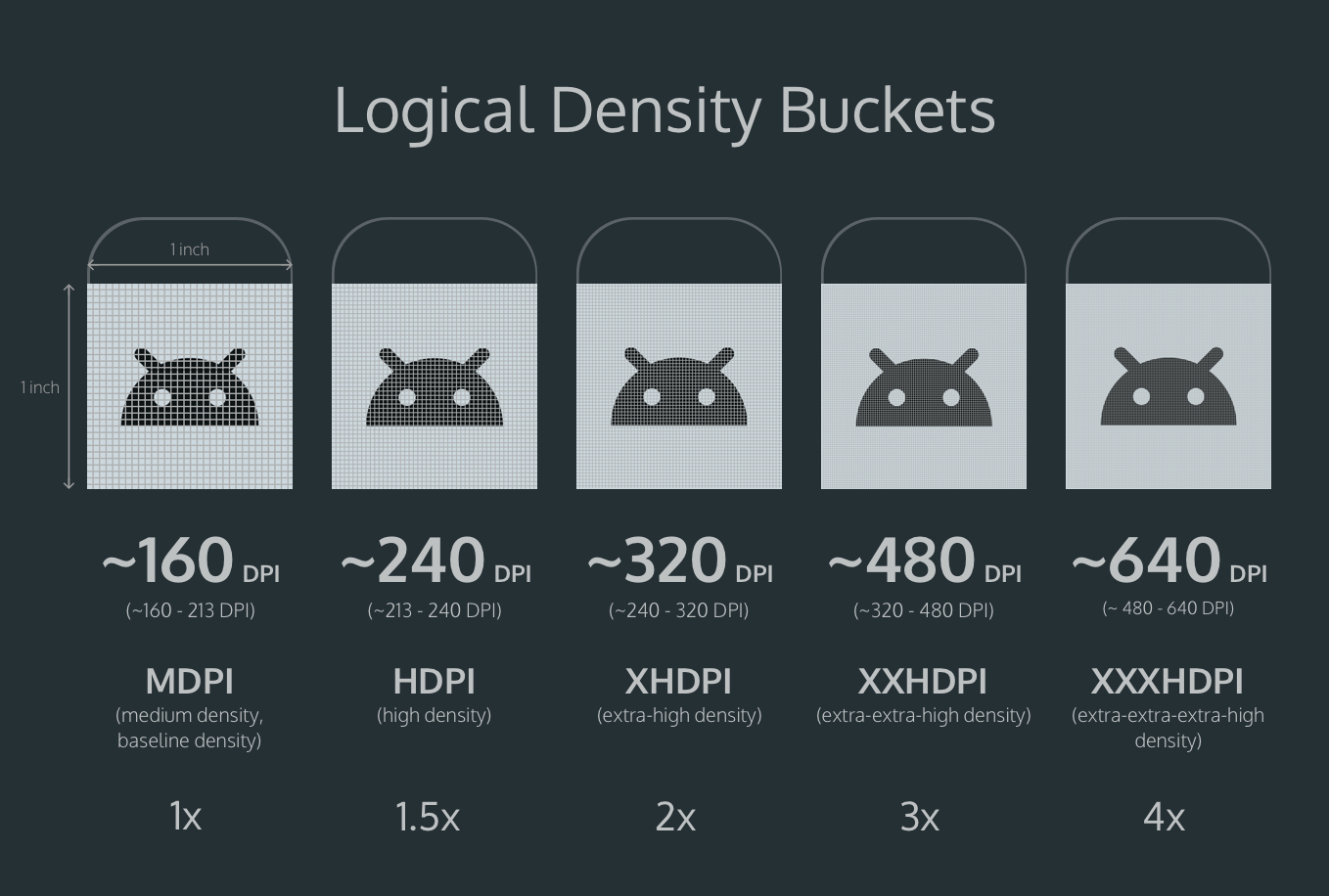
In 2026, most operating systems use "scaling" for high-PPI monitors. If you have a 13-inch 4K laptop, the native PPI is so high that icons would be microscopic. The OS scales the UI by 200% or more. Web designers must provide "2x" or "3x" image assets (using the srcset attribute) to ensure images look sharp on these high-density displays.
3. File Size Overkill
Providing a 600 PPI image for a 20-foot banner is a waste of resources. The resulting file would be gigabytes in size, slowing down processing and printing times without providing any visible benefit to the viewer standing 20 feet away.
Frequently Asked Questions
Does 72 PPI still matter for the web?
While 72 PPI was the standard for cathode-ray tube (CRT) monitors decades ago, it is largely a legacy value today. Modern screens range from 100 to over 500 PPI. When designing for the web, focus on the total pixel dimensions and responsive breakpoints rather than the PPI metadata in the file.
Can I turn a low PPI image into a high PPI image?
You can increase the PPI setting, but unless you have enough total pixels, the image will need to be "resampled." Resampling adds pixels that weren't there originally. While AI-driven upscalers in 2026 have improved this process significantly, it is always better to start with a high-resolution original.
What is the best PPI for professional photography?
For most professional photographic prints, 300 PPI is the industry standard. It provides enough detail for the eye to perceive a continuous-tone image without creating unnecessarily large files. For fine-art prints viewed under a magnifying glass, some professionals prefer 360 or 600 PPI.
Is PPI the same as "Resolution"?
Not exactly. Resolution is the total count of pixels (e.g., 20 megapixels), while PPI is the density of those pixels when applied to a physical measurement. You can have a high-resolution image that has a low PPI if you spread those pixels over a very large area.
How does PPI affect battery life on mobile devices?
Higher PPI screens require more power. Driving a higher number of pixels requires more processing power from the GPU and more intense backlighting (or power to individual OLED pixels). This is why some 2026 devices allow users to lower the "rendering resolution" in settings to save battery life.
Practical Recommendation for Professionals
To ensure the highest image quality, always work in the highest native resolution possible from the start of your project. When preparing for print, verify your "Effective PPI"—the density of the image at its final placed size in your layout—rather than just the PPI of the source file. For digital-first projects, prioritize "2x" and "3x" asset versions to accommodate the high-density displays that have become standard in 2026. By aligning your PPI settings with the intended viewing distance and medium, you will produce visuals that are consistently sharp, professional, and optimized for performance.
Image Gallery