How to Stop the Flashing Red Light on a Samsung Remote
To stop the flashing red light on a Samsung remote, point the remote at your TV and press and hold the Return (Back) and Play/Pause buttons simultaneously for 3 to 5 seconds. If re-pairing does not stop the blinking LED, replace the AA...
To stop the flashing red light on a Samsung remote, point the remote at your TV and press and hold the Return (Back) and Play/Pause buttons simultaneously for 3 to 5 seconds. If re-pairing does not stop the blinking LED, replace the AAA batteries or recharge the built-in SolarCell battery via USB-C, and power cycle your TV by unplugging it for 60 seconds.
Contents
Why Is Your Samsung Remote Red Light Flashing?
A flashing red LED light at the top of a Samsung remote control is a built-in diagnostic indicator. While standard infrared (IR) remotes only pulse red when a button is actively pressed, modern Samsung Smart Remotes—including the SolarCell and Voice Remote models—use both infrared and Bluetooth Low Energy (BLE) to communicate with your television.
When the red light flashes continuously or blinks rapidly without input, it signifies that the remote is unable to maintain a stable operational state. The most common underlying causes include:
- Lost Bluetooth Pairing: The remote has disconnected from the TV's internal Bluetooth receiver and is actively trying to broadcast a pairing request.
- Low Battery Voltage: Depleted AAA batteries or a discharged internal lithium-ion cell cannot supply sufficient current to maintain the Bluetooth link, causing the status LED to signal low voltage.
- Stuck or Jammed Buttons: A button stuck in a semi-pressed state continuously fires signals, keeping the indicator light illuminated or flashing.
- Corrupted Temporary Memory: Microcontroller glitches in either the remote control's onboard chip or the TV’s main board Bluetooth module can freeze communication loops.
- Infrared Sensor Obstruction: Signals between the remote's optical emitter and the TV receiver are blocked or experiencing active radio frequency (RF) interference.
Understanding which model of Samsung remote you own—a traditional battery-operated IR remote or a modern Bluetooth Smart Remote—helps determine the exact sequence of troubleshooting steps required to restore functionality.
Step-by-Step Solutions to Stop the Flashing Red Light
Follow these diagnostic and repair procedures in order. They progress from quick software adjustments to hardware resets and power management.
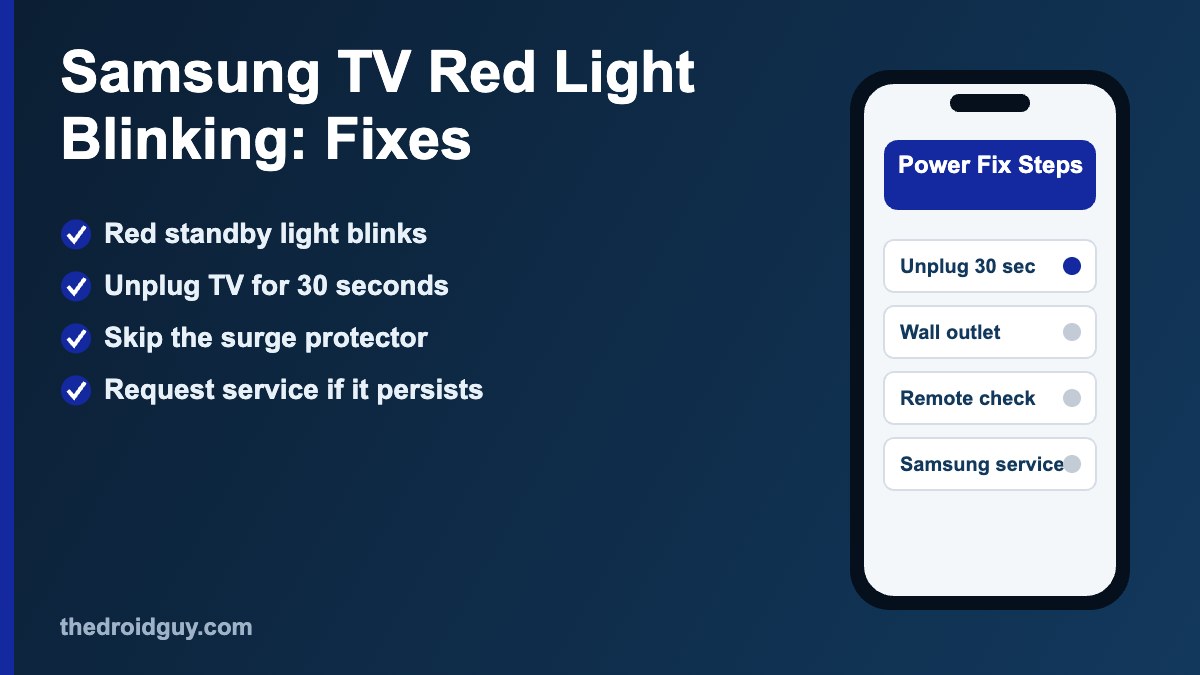
- Re-pair Bluetooth : Hold (Return) + (Play/Pause) for 3-5s
- Battery Check : Replace AAAs OR Charge SolarCell (USB-C)
- Remote Reset : Remove batteries / hold Power button 8s
- TV Power Cycle : Unplug TV from wall outlet for 60s
Solution 1: Re-Pair the Remote to Your Samsung TV
For Samsung Smart Remotes (models manufactured from 2016 through 2026), a blinking red light most frequently points to a broken Bluetooth connection. Re-establishing the handshake between the TV and the remote clears the signal attempt and stabilizes the LED.
- Turn on your Samsung TV manually using the physical power button located under the logo on the bottom frame of the television.
- Hold the remote control within 1 to 2 feet of the TV’s front receiver.
- Simultaneously press and hold the Return (represented by a curved back arrow) and Play/Pause buttons.
- Keep both buttons held down for at least 3 to 5 seconds.
- Watch the TV screen. A progress popup indicating "Connecting to the Samsung Smart Remote" will appear.
- Release the buttons once the screen displays a message stating that pairing is complete. The red light will turn off and return to normal operation.
If the pairing pop-up fails to appear and the red light continues to blink, move on to checking the power supply.
Solution 2: Replace or Recharge the Batteries
Insufficient voltage causes the remote control's internal chip to reset repeatedly, resulting in an endless red LED blink.
For Standard Remotes (Using AAA Batteries)
- Slide open the back battery compartment cover.
- Remove both AAA batteries.
- Inspect the metal terminals inside the compartment for corrosion, white dust, or oxidation. Clean dirty contacts using a dry cotton swab or a small drop of isopropyl alcohol.
- Insert two brand-new, high-quality alkaline batteries. Avoid mixing old and new batteries, or combining carbon-zinc and alkaline types, as voltage mismatches cause circuit instability.
For SolarCell Remotes (Rechargeable Models)
Samsung SolarCell remotes feature a built-in lithium-ion battery charged by light exposure or USB. If the battery voltage drops below critical levels, the LED blinks rapidly.
- Connect a standard USB-C cable to the charging port located at the bottom edge of the remote.
- Plug the cable into a 5V/1A wall adapter or an active USB port on your TV.
- Allow the remote to charge uninterrupted for at least 30 minutes.
- To maintain battery charge naturally, store the remote face-down when not in use so the solar panel on the back receives indoor ambient light or indirect sunlight.
Solution 3: Perform a Hard Reset on the Remote Control
Clearing residual static electricity and resetting the remote controller micro-processor resolves temporary logic loops that cause endless flashing.
Resetting a Standard Battery-Powered Remote
- Take out both AAA batteries from the compartment.
- Press and hold the physical Power button on the remote control for 8 to 10 seconds. This drains all residual charge from the internal capacitors.
- Release the power button.
- Press every single button on the remote pad at least once (massaging the keys) to dislodge any stuck contacts or trapped debris.
- Reinsert the batteries, ensuring correct polarity (
+and-).
Resetting a SolarCell / Smart Remote
- Press and hold the Return button and the Enter (center directional pad) button together for at least 10 seconds.
- Alternatively, on newer Smart Remotes, press and hold the Power button until the red LED stops flashing entirely and turns off (roughly 12 seconds).
- Attempt to use the remote to verify if the flashing has stopped.
Solution 4: Fix Stuck Buttons and Clean Internal Contacts
A button stuck beneath the bezel sends continuous signals over infrared or Bluetooth. Because the status light blinks every time a signal transfers, a jammed key causes continuous flashing.
- Examine the remote buttons closely. Look for keys that sit lower than adjacent buttons or feel spongy when pressed.
- Systematically push down and roll your thumb over every button, including the volume and channel rocker switches.
- If fluid, food debris, or grime has accumulated around the keys, dampen a lint-free microfiber cloth with 90%+ isopropyl alcohol.
- Wipe thoroughly around the edges of the buttons while pressing them repeatedly to clean the contact pads beneath.
- Dry the surface completely before attempting to re-pair the device.
Solution 5: Power Cycle the Samsung Smart TV
Sometimes the issue originates within the TV's internal system memory rather than the remote control itself. If the TV's Bluetooth module freezes, it will refuse incoming connections from the remote, causing the remote light to flash in vain.
- While the TV is powered on, unplug its power cord directly from the wall outlet or surge protector.
- Leave the TV completely unplugged for 60 seconds.
- While unplugged, press and hold the physical Power button on the TV frame for 5 seconds to drain its internal board capacitors.
- Plug the power cord back into the wall outlet.
- Turn on the TV and test the remote. In most cases, the TV will automatically reconnect to the paired Bluetooth remote upon startup.
Samsung Remote Diagnostic Matrix
Use this matrix to identify the issue based on the pattern of the red light and the symptoms of the remote.
| LED Light Pattern | Likely Root Cause | Primary Fix Strategy | Resolution Time |
|---|---|---|---|
| Blinking rapidly endlessly | Unpaired Bluetooth or low battery voltage | Re-pair using Return + Play/Pause; charge SolarCell remote |
2 – 5 minutes |
| Blinks 5 times, then stops | Failed TV handshake / Bluetooth connection drop | Hard reset remote and power cycle TV | 3 – 5 minutes |
| Solid red light (No blinking) | Stuck button or internal circuit short | Massage buttons; clean keys with isopropyl alcohol | 5 minutes |
| Flashes only when buttons pressed, but TV ignores signal | Line-of-sight obstruction or degraded IR sensor | Clear path to TV IR sensor; replace AAA batteries | 1 – 2 minutes |
| Flashes slowly twice per second | SolarCell low-battery warning state | Charge via USB-C cable for 30–60 minutes | 30 minutes |
Advanced Troubleshooting: When the Red Light Won't Stop Blinking
If standard pairing and battery replacements do not solve the problem, perform these technical verification steps.
Step 1: Verify Infrared (IR) Signal Output
Even Bluetooth Smart Remotes rely on IR signals to execute the initial power-on command. You can verify whether the remote's optical transmitter is firing continuously using a smartphone digital camera:
Open the Camera app on your smartphone. (If using an iPhone, use the front-facing selfie camera, as back cameras often have IR filters).
Point the top edge of the Samsung remote directly into the camera lens.
Look at the smartphone screen while pressing buttons on the remote.
Diagnostic Result:
- If you see a bright purple/pink flashing light on your phone screen without touching any remote buttons, a button is stuck or the remote logic board has a short circuit.
- If you see no light at all when pressing buttons, the remote power supply (batteries/board) has failed.
- If it flashes pink only when pressing buttons, the optical hardware works properly, pointing the problem toward software pairing or TV mainboard Bluetooth bugs.
Open phone front camera.
Point remote top lens toward phone camera.
Observe screen readout:
- Constant Pink Light = Stuck Button / Internal Short Circuit
- Pink Light on Press = Hardware OK (Issue is Bluetooth/Pairing)
- No Light At All = Completely Dead Batteries or Board
Step 2: Clear Wireless RF and Bluetooth Interference
Samsung Smart Remotes operate over the 2.4 GHz ISM band for Bluetooth communication. Heavy radio interference located right next to the TV can drop packets between the remote and the internal Bluetooth module, leading to repeated pairing attempts and flashing lights.
- Move Wi-Fi routers, mesh nodes, or cordless phone bases at least 3 to 5 feet away from the TV chassis.
- Disconnect third-party Bluetooth accessories (like external gaming controllers or wireless headphones) temporarily to test if the TV's Bluetooth bus is overloaded.
- Avoid blocking the bottom bezel of the TV where the integrated IR receiver and Bluetooth antenna modules sit.
Step 3: Update Samsung TV System Firmware
Outdated system software can introduce bugs into the Tizen OS Bluetooth driver stack. If you can control the TV temporarily via the physical directional button or a smartphone app, perform a system update:
- Navigate to Settings on your TV.
- Select Support > Software Update.
- Choose Update Now.
- Allow the TV to download and install the update, then reboot the television.
Using the Samsung SmartThings App as a Temporary Remote
While diagnosing or replacing a broken physical remote, you can control your TV using your mobile device over your local network.
- Download the official Samsung SmartThings app from the Apple App Store or Google Play Store.
- Connect your mobile device to the same Wi-Fi network as your Samsung Smart TV.
- Open the SmartThings app, tap the + (Add) icon in the top right corner, and select Device.
- Choose TV, select Samsung, and follow the on-screen instructions to register your television.
- Tap your TV from the dashboard within the app to open the full digital remote control interface (volume, navigation pad, power, and smart hub access).
This temporary workaround enables full control over your TV while waiting for a replacement physical remote or charging a dead SolarCell unit.
Frequently Asked Questions
Why is my Samsung remote red light blinking 5 times?
A Samsung remote blinking red 5 times indicates that the remote's Bluetooth signal sent to the TV failed to receive an acknowledgment response. This usually occurs when the TV has just booted up, when pairing memory becomes corrupted, or when the remote batteries have dropped below operational voltage thresholds. Re-pair the remote using the Return + Play/Pause button combination to resolve it.
How do I know if my SolarCell Samsung remote is fully charged?
When you plug a USB-C charging cable into a Samsung SolarCell remote, the small LED near the charging port or on top of the remote will illuminate. Once the internal battery reaches full capacity, this LED will turn off or change color depending on the model generation. A 30-to-60-minute charge over USB-C generally restores full battery life.
Can I use a Samsung Smart Remote without Bluetooth pairing?
Yes, but with limited functionality. If Bluetooth pairing fails, basic functions like turning the TV on or off may still work via fallback Infrared (IR) signals, provided there is a direct line of sight to the lower bezel of the TV. However, advanced features such as Voice Commands (Bixby/Alexa), mouse pointer control, and non-directional operations require an active Bluetooth link.
What should I do if re-pairing fails repeatedly?
If holding Return and Play/Pause displays a "Pairing Unsuccessful" error on the TV screen, perform a complete power cycle on the TV by unplugging its power cord for 60 seconds. In addition, perform a hard reset on the remote by removing the batteries and holding the remote's Power button for 8 seconds. Once the TV boots back up, retry the pairing process.
Does a flashing red light mean I need a replacement remote?
Not necessarily. In over 90% of cases, a flashing red light is fixed by re-pairing the Bluetooth connection, charging/replacing the batteries, or power cycling the television. You only need a replacement remote if the IR camera test reveals zero light output despite fresh batteries, or if physical damage has rendered the buttons unresponsive after cleaning.
Recommended Next Actions
If you have followed all troubleshooting steps and your Samsung remote continues to flash its red light continuously, follow these steps to restore control:
- Test with SmartThings: Use the Samsung SmartThings app on your smartphone to ensure the TV's internal software and network systems are functioning correctly.
- Verify Warranty Coverage: Check your Samsung TV or accessory purchase date. Original remotes included with Samsung televisions are typically covered under the standard manufacturer 1-year limited warranty.
- Obtain an OEM Replacement: If hardware failure is confirmed, order an authentic replacement remote using your TV's exact model number (found on the sticker on the back of the TV frame or under Settings > Support > About This TV). Avoid unbranded, universal third-party knockoffs if you require native voice control and SolarCell charging capability.
Image Gallery