Using an iPad for Project Management: The 2026 Definitive Guide
Using an iPad for project management is entirely viable for professionals seeking a mobile, touch-centric workflow, provided it is paired with native tablet-optimized apps like Notion, Trello, and OmniFocus, alongside hardware accessor...
Using an iPad for project management is entirely viable for professionals seeking a mobile, touch-centric workflow, provided it is paired with native tablet-optimized apps like Notion, Trello, and OmniFocus, alongside hardware accessories such as the Magic Keyboard and Apple Pencil. While traditional desktop multitasking has historical limits, modern iPadOS hardware powered by M-series Apple Silicon provides the raw processing power required to handle complex project portfolios, real-time collaboration, and data visualization on the go.
Contents
Core Capabilities and Hardware Requirements for iPad Project Management
Evaluating the iPad as a primary project management workstation requires understanding how modern hardware specifications translate to enterprise and freelance workflows. Tablet computing relies on distinct ergonomic and processing advantages that differ from traditional desktop environments.
Processing Power and Hardware Configurations
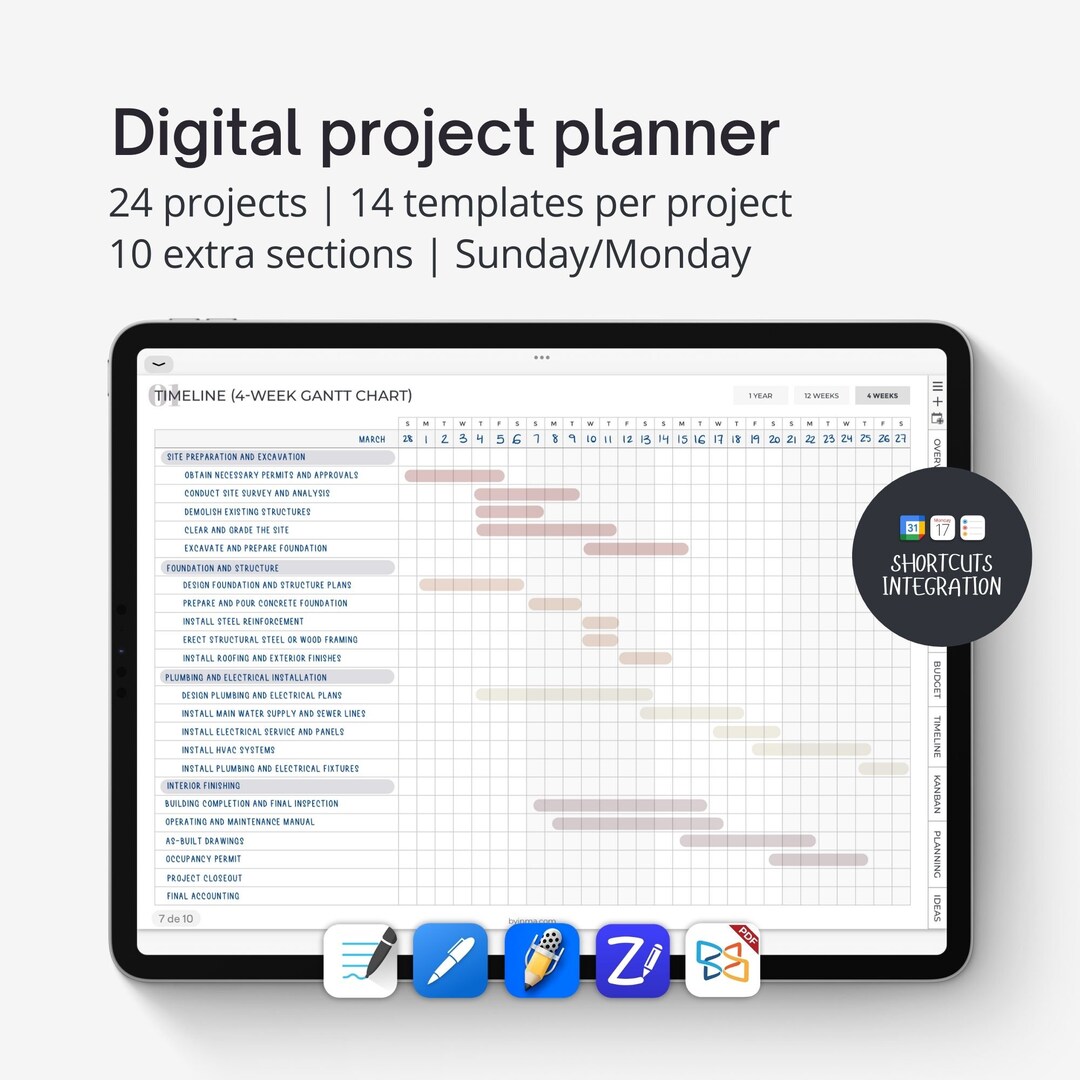
Modern Apple Silicon chips, including the M4 processors found in current iPad Pro models and the M2 chips in iPad Air variants, deliver computational capabilities that frequently exceed traditional laptop performance benchmarks. For project managers, this means zero latency when rendering dense Gantt charts, managing thousands of tasks across multiple boards, or running split-screen video conferences while simultaneously updating project schedules.
Essential Accessories for Productivity
Attempting to run a project management workflow using touch input alone introduces friction. Achieving desktop-class efficiency on an iPad requires specific hardware add-ons:
- The Magic Keyboard: Provides a stable, lap-friendly typing surface, an integrated trackpad with full multi-touch gesture support, and an extra USB-C charging port.
- Apple Pencil Pro or Apple Pencil (USB-C): Essential for hand-drawn wireframes, real-time whiteboard annotations during stakeholder meetings, and signing digital project proposals.
- External Display Connectivity: Stage Manager allows connection to external monitors via USB-C, transforming the iPad into a dual-screen command center for resource allocation and timeline tracking.
Essential Software Ecosystem and Application Landscape
Project management on iPadOS depends heavily on applications engineered specifically for touch and tablet ergonomics. The application landscape bridges the gap between lightweight task trackers and heavy enterprise resource planning tools.
Task and Workflow Tracking Platforms
Project tracking on an iPad is anchored by applications that leverage cloud synchronization to ensure data integrity across devices:
- Notion: Offers infinite workspace customizability, enabling project managers to build relational databases, wikis, and tracker dashboards that look and function identically to their desktop counterparts.
- Trello and Asana: Provide touch-optimized Kanban boards where dragging and dropping cards, assigning tags, and updating progress indicators feels exceptionally fluid with an Apple Pencil or trackpad.
- Monday.com: Delivers robust dashboard views, allowing managers to monitor high-level project health through visual status columns and automated workflows.
Advanced Planning and Resource Management
For traditional waterfall methodologies and complex dependency mapping, specialized applications are required:
- OmniPlan: Brings professional-grade Gantt charting, critical path method (CPM) analysis, and resource levelling directly to the iPad.
- Microsoft Project Web / Planner: Accessible via Safari or native applications, allowing enterprise project managers to interact with standard corporate scheduling structures.
Comparative Analysis: iPad vs. Traditional Desktop for Project Management
Choosing the right form factor requires a clear understanding of where mobile tablets excel and where traditional desktop environments retain a competitive edge.
| Feature / Workflow | iPad (with Magic Keyboard) | Traditional Laptop / Desktop |
|---|---|---|
| Portability & Form Factor | Superior; ultra-thin, lightweight, instant-on cellular connectivity. | Moderate to heavy; requires a bag and manual setup. |
| Input Versatility | Touchscreen, Apple Pencil stylus, trackpad, and external keyboard. | Standard keyboard and trackpad/mouse (touchscreens are rare). |
| Multitasking & Window Management | Stage Manager allows floating, resizable windows with limits on external display scaling. | Unrestricted window management, native multi-monitor support, and infinite app layering. |
| File System Management | Files app handles cloud integration well, but local directory manipulation is sandboxed. | Full root directory access, legacy software support, and advanced local script execution. |
| Battery Life & Standby | Exceptional all-day battery with instantaneous standby resumption. | Variable; often requires carrying a power brick for heavy workloads. |
Step-by-Step Guide to Setting Up Your iPad Project Management Hub
Deploying an iPad into a professional project management role requires a structured approach to app configuration, cloud storage integration, and notification management.
- Configure Stage Manager and Display Settings: Navigate to Settings, select Multitasking & Gestures, and ensure Stage Manager is enabled. This allows you to group related project windows—such as your Gantt chart and communication channel—together for instant switching.
- Establish Centralized Cloud Storage: Connect the native Files app to your primary cloud repositories (iCloud Drive, Microsoft OneDrive, or Google Drive) to ensure seamless document retrieval without downloading heavy local files.
- Install and Authenticate Core Tools: Download your organization's required suite (Slack, Microsoft Teams, Notion, Jira) and configure biometric authentication via Face ID or Touch ID for rapid, secure login.
- Optimize Notification Granularity: Project management generates constant alerts. Go to Settings > Notifications, and restrict non-urgent applications to scheduled summaries to maintain deep focus during planning phases.
- Configure Apple Pencil Shortcuts: Set up custom double-tap gestures on the Apple Pencil to instantly launch Quick Notes or take screenshot annotations during client review calls.
Pros and Cons of Mobile-First Project Management
Adopting an iPad as a primary project hub introduces distinct strategic advantages and operational limitations that must be weighed carefully.
Advantages
- Instantaneous Portability: Transitioning from a boardroom presentation to an active job site is seamless without the bulk of a traditional laptop.
- Natural Collaboration: The Apple Pencil enables real-time visual collaboration, diagramming, and markup during dynamic team sessions.
- Simplified Focus: Single-app view and streamlined notification handling reduce digital distractions common on desktop operating systems.
Disadvantages
- File System Sandboxing: Working with complex, locally hosted project files or legacy proprietary software formats can be restricted by iPadOS security architecture.
- Screen Real Estate Limits: Even on the 13-inch iPad Pro, viewing massive Gantt charts or multi-column data sheets requires more panning and zooming than a dual-monitor desktop setup.
- Accessory Costs: Equipping an iPad with an Apple Pencil and Magic Keyboard often matches or exceeds the cost of a fully functional business laptop.
Frequently Asked Questions
Can an iPad completely replace a laptop for project management?
Yes, for agile project managers, consultants, and Scrum Masters whose workflows rely on cloud-based dashboards, task boards, and communication apps. However, professionals who require heavy local data processing, legacy desktop applications, or complex macro-driven spreadsheets may still need a traditional desktop.
How do I manage offline project work on an iPad?
Most modern project management apps like Notion, Trello, and OmniPlan offer offline caching capabilities. Changes made while offline automatically synchronize to the cloud as soon as the iPad reconnects to Wi-Fi or cellular networks.
Is the 11-inch or 13-inch iPad better for project management?
The 13-inch iPad model is generally superior for project management because its larger screen real estate makes split-screen multitasking, reading detailed spreadsheets, and reviewing Gantt charts significantly more comfortable.
Do project management apps on iPad support external mouse and keyboard input?
Yes, iPadOS features full cursor support. Connecting a Bluetooth mouse, trackpad, or the Magic Keyboard provides cursor tracking and keyboard shortcuts that mirror standard desktop navigation.
How does battery life hold up during heavy project management use?
Modern M-series iPads typically deliver 9 to 10 hours of continuous active usage—including video calls, multi-app multitasking, and cloud synchronization—allowing project managers to work remotely throughout the workday without hunting for power outlets.
Strategic Recommendation for Deployment
Transitioning a project management workflow to an iPad requires auditing your core toolstack to ensure your primary software providers offer robust tablet applications or responsive web interfaces. By combining modern M-series hardware with the right suite of cloud-connected tools and ergonomic accessories, project leaders can achieve a nimble, high-performance mobile workstation that adapts to any professional environment.
Image Gallery