How LogMeIn Control Works for Remote Support: A Technical Guide
LogMeIn control works by establishing a secure, encrypted tunnel between a technician’s console and a remote device via a small, temporary applet or a pre-installed agent. This connection allows the technician to view the screen, contr...
LogMeIn control works by establishing a secure, encrypted tunnel between a technician’s console and a remote device via a small, temporary applet or a pre-installed agent. This connection allows the technician to view the screen, control mouse and keyboard inputs, and manage system files through a high-speed cloud gateway, effectively bypassing firewall barriers without requiring complex network configuration.
Contents
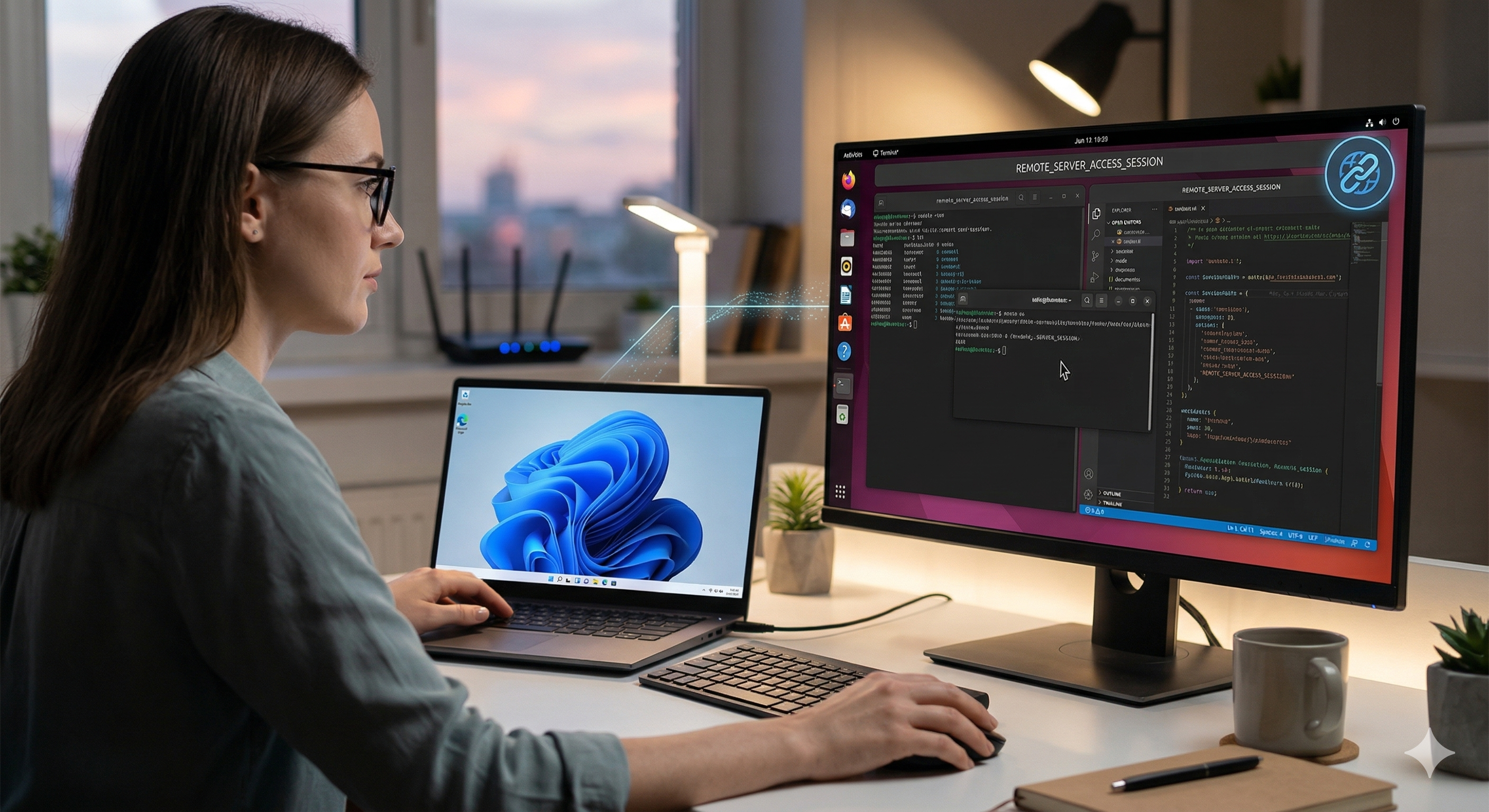
Remote support has evolved from simple screen sharing into a sophisticated suite of diagnostic and administrative tools. While LogMeIn rebranded its corporate identity to GoTo in 2022, the underlying "LogMeIn" technology—specifically within products like LogMeIn Rescue and LogMeIn Pro—remains a gold standard for enterprise-grade remote assistance. Understanding how this system operates in 2026 requires a look at its architecture, security protocols, and the specific handshake process that enables a technician to "take control" of a machine thousands of miles away.
The Architecture of LogMeIn Remote Control
At its core, the LogMeIn control mechanism relies on a broker-based architecture. Unlike older remote desktop protocols (like standard RDP) that require the destination computer to have a specific port open to the internet, LogMeIn uses an outbound connection strategy. This is critical for remote support because it allows technicians to reach users behind strict corporate firewalls or home routers without manual port forwarding.
The system consists of three primary components:
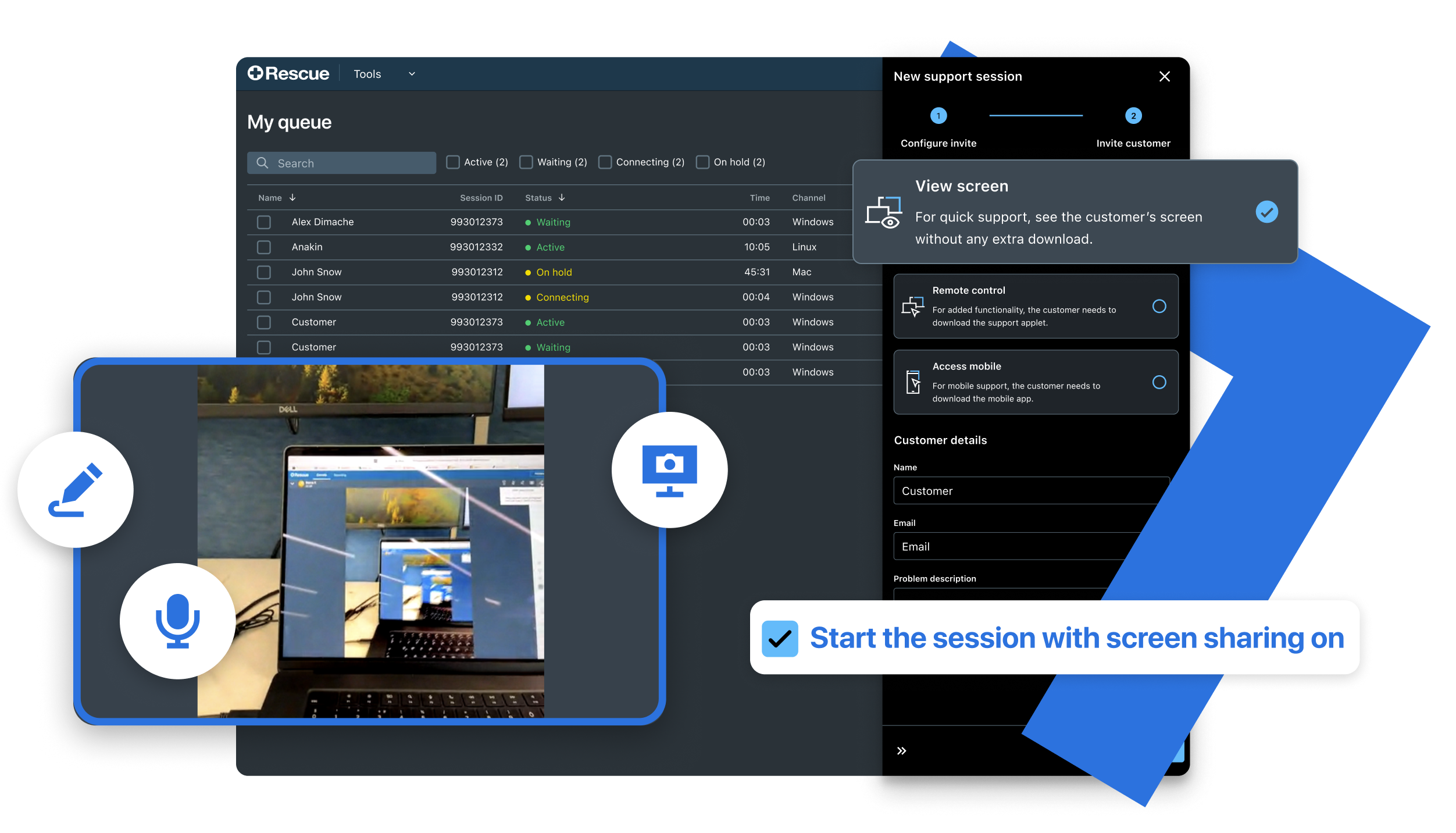
- The Technician Console: The interface used by the support agent to initiate sessions and view the remote screen.
- The Gateway/Broker: A cloud-based server infrastructure maintained by GoTo that facilitates the initial "handshake" between the two parties.
- The Client Applet or Agent: A lightweight piece of software that runs on the end-user's device.
When a technician starts a session, they don't connect directly to the user's IP address. Instead, both the technician and the user connect to a central LogMeIn gateway. Once both sides have authenticated, the gateway creates a secure "pipe" through which data can flow. If the network conditions allow, the system may attempt to establish a Peer-to-Peer (P2P) connection to reduce latency, but the gateway remains as a fallback to ensure 100% connectivity.
The Connection Workflow: From PIN Code to Active Control
The process of gaining "LogMeIn control" is designed to be as frictionless as possible for the end user, who may not be tech-savvy. This workflow typically follows a structured sequence of events:
1. Session Initiation
The technician generates a unique 6-digit PIN code or sends a direct URL link to the customer via email or chat. This PIN serves as a temporary, one-time-use cryptographic key that tells the LogMeIn gateway which two connections should be linked.
2. The Applet Download
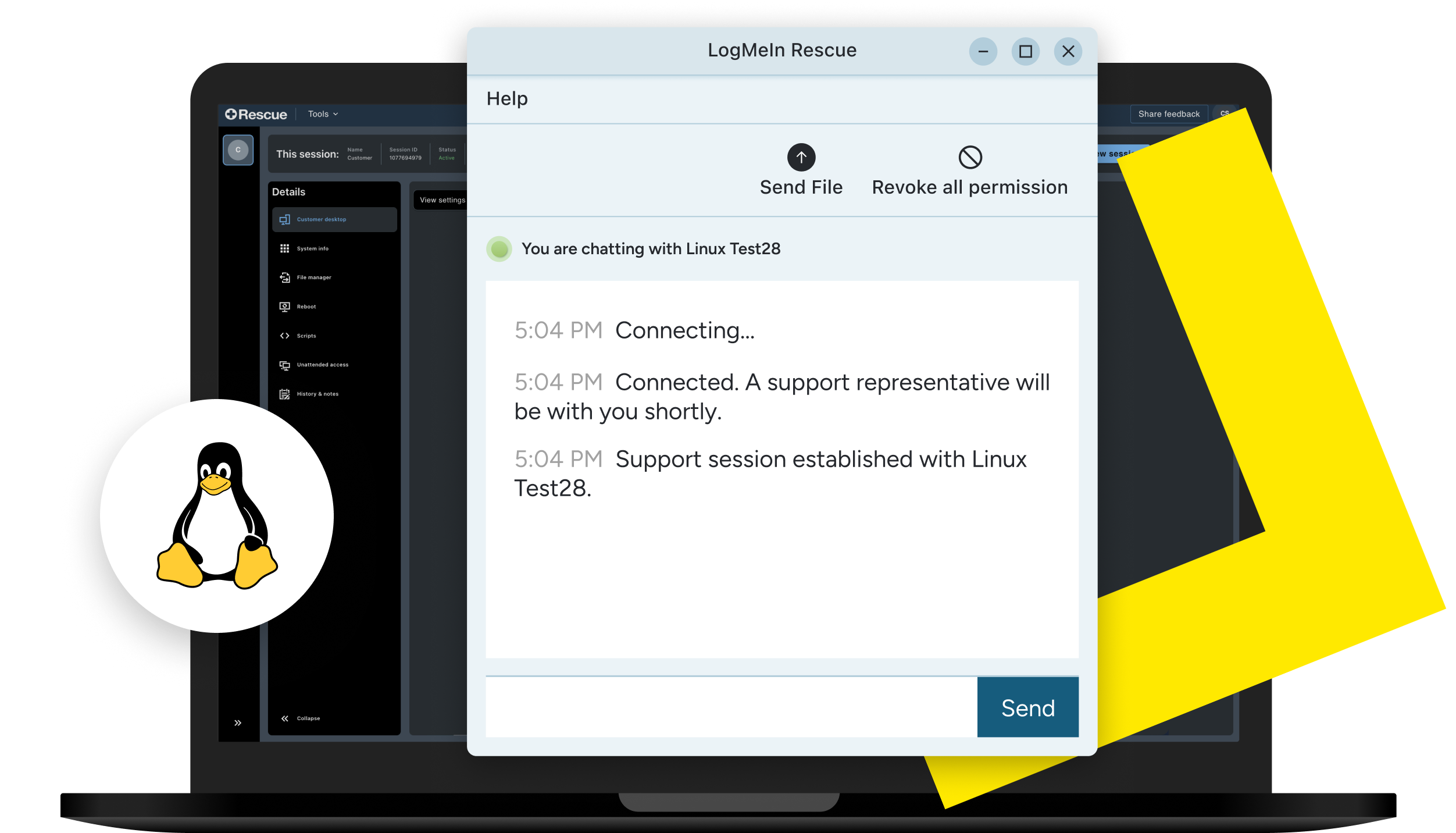
The user enters the PIN code on a portal (such as logmein123.com). This triggers the download of a small executable applet. In 2026, these applets are highly optimized for modern operating systems like Windows 11, macOS, and various Linux distributions. The applet is often "disposable," meaning it deletes itself once the session ends, leaving no footprint on the customer's machine.
3. Permission and Escalation
Before the technician can see anything, the user must explicitly grant permission through a system prompt. On modern macOS versions, this involves granting "Accessibility" and "Screen Recording" permissions under System Settings—a security measure enforced by Apple to prevent unauthorized spying. If the technician needs to perform administrative tasks (like installing software), the applet will request "elevation" to run as a system service.
4. Active Remote Control
Once the connection is established, the applet captures the video buffer of the remote screen, compresses it using proprietary codecs, and sends it to the technician's console. Conversely, any mouse movements or keystrokes made by the technician are sent back through the tunnel and injected into the remote OS's input stream.
Security Protocols and Data Protection
Security is the primary concern for any remote support tool. LogMeIn utilizes a multi-layered security model to ensure that sessions cannot be intercepted or hijacked.
- Encryption: Every session is protected by TLS 1.2 or TLS 1.3 transport security, utilizing AES 256-bit encryption. This is the same level of security used by global financial institutions.
- Authentication: Technicians must use Multi-Factor Authentication (MFA) to access their consoles. On the user side, the PIN code system ensures that only the intended technician can gain access.
- Session Logging: Every action taken during a session is logged. Many organizations use the built-in "Session Recording" feature, which saves a video of the entire support interaction. This provides an audit trail for compliance with regulations like HIPAA or GDPR.
- End-User Overriding: A critical safety feature of LogMeIn control is that the end user always maintains "master" control. If the user moves their mouse, it overrides the technician’s input. The user can also terminate the session at any time with a single click on the "X" or "Disconnect" button.
Advanced Features of LogMeIn Rescue and Pro
The "control" aspect of LogMeIn goes far beyond just moving a mouse. To provide efficient support, the software includes several specialized sub-systems:
File Transfer and Management
Technicians can open a dedicated file manager that looks similar to Windows Explorer. This allows them to drag and drop drivers, patches, or log files between the two machines without interrupting the user's screen view.
Remote Diagnostics
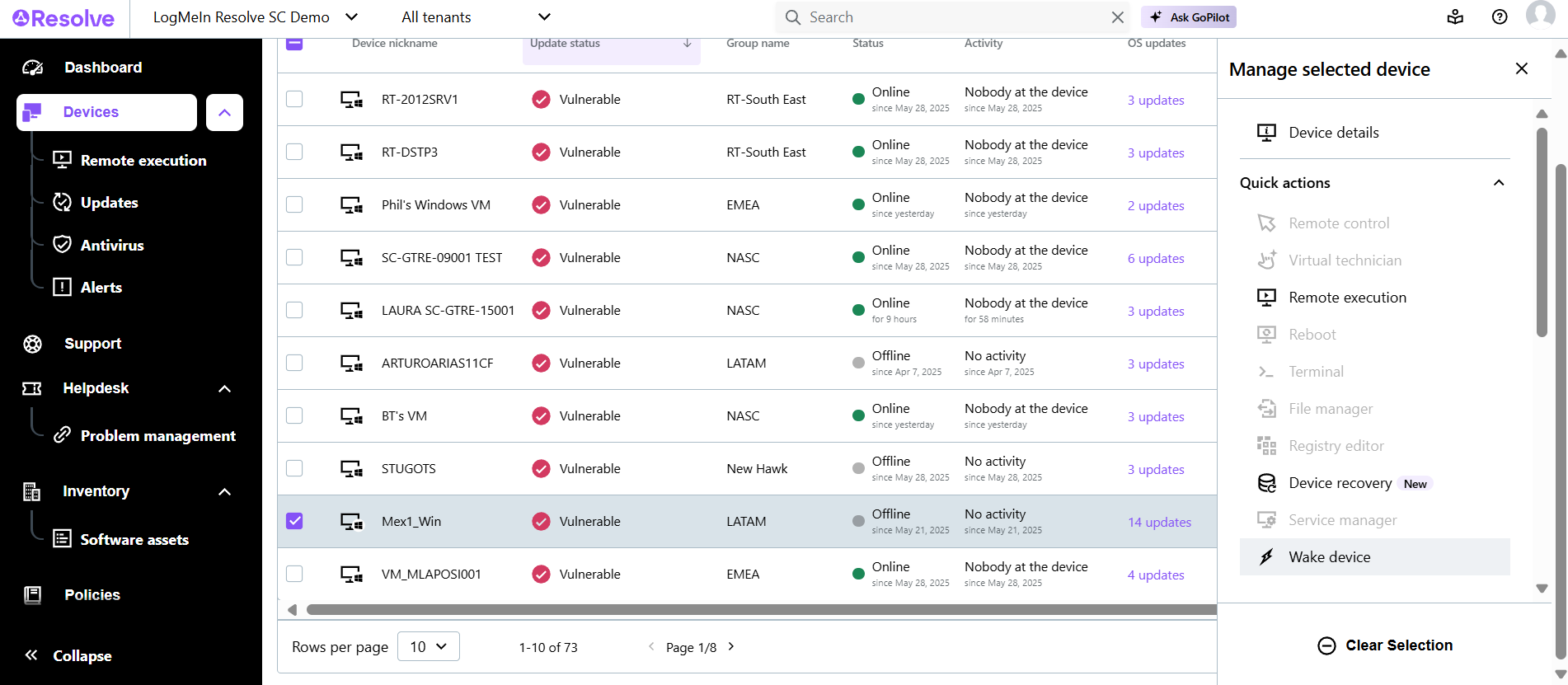
LogMeIn can pull a comprehensive "Snapshot" of the remote system's health. This includes CPU usage, RAM availability, running processes, installed software, and network configuration. Viewing this data allows a technician to identify the root cause of a problem without manually clicking through various menus on the user's screen.
Remote Reboot and Reconnect
One of the most powerful features is the ability to reboot the remote computer and have it automatically reconnect to the same support session. This includes booting into Safe Mode with Networking. LogMeIn manages the credentials securely so the technician can log back into the Windows or Mac user account after the restart.
Multi-Monitor Support
For users with complex setups, LogMeIn allows the technician to toggle between multiple monitors or view them all simultaneously in a "split-screen" mode.
Comparing LogMeIn Control Versions
LogMeIn technology is packaged into different products depending on the use case. The following table highlights the differences in how "control" is managed across these platforms as of 2026.
| Feature | LogMeIn Rescue | LogMeIn Pro / Central | GoTo Resolve |
|---|---|---|---|
| Primary Use Case | Ad-hoc support for external customers. | Unattended access for employees or servers. | Modern RMM (Remote Monitoring & Management). |
| Deployment | Temporary applet (no install). | Permanent background agent. | Permanent agent with "Zero Trust." |
| Connection Method | PIN code or URL. | Log in to web portal. | Dashboard or Conversational Ticketing. |
| System Diagnostics | Deep hardware/software logs. | Basic system health. | Real-time monitoring and alerting. |
| Reboot & Reconnect | Yes, including Safe Mode. | Yes. | Yes, via automated scripts. |
Network and Technical Requirements
For LogMeIn control to function smoothly, certain network conditions must be met. While the software is designed to work over low-bandwidth connections, high-latency environments (like satellite internet) can cause "lag" in the technician's view.
- Bandwidth: A minimum of 256 Kbps upload speed is recommended for the remote device, though 1 Mbps+ provides a much better experience for high-resolution displays.
- Ports: LogMeIn primarily communicates over Port 443 (HTTPS). Since this port is almost always open for web browsing, specific firewall rules are rarely needed.
- Operating Systems: In 2026, LogMeIn supports Windows 10/11, Windows Server 2019/2022/2025, macOS (current and two previous versions), and major mobile OSs like Android 12+ and iOS 15+.
Troubleshooting Common Control Issues
Occasionally, a technician may be able to see the screen but cannot interact with it. This is usually due to OS-level security restrictions.
- macOS Permissions: If the mouse won't move on a Mac, the user likely hasn't enabled "LogMeIn" under System Settings > Privacy & Security > Accessibility.
- UAC Prompts: On Windows, if the technician cannot click on a "User Account Control" prompt, the session must be "elevated" to run as a service. This usually requires the technician to enter administrative credentials.
- Black Screens: If the technician sees a black screen, it may be due to the remote device being at a lock screen, or a conflict with certain high-end graphics drivers. Disabling hardware acceleration in the LogMeIn settings often resolves this.
Frequently Asked Questions
Can someone use LogMeIn to control my computer without my knowledge?
No. For LogMeIn Rescue (the support version), a session can only be initiated if you manually run the applet and provide the PIN code. For LogMeIn Pro/Central, an agent must be pre-installed with administrative rights, usually by your company's IT department for "unattended access." In all cases, a notification banner appears on the screen whenever a remote session is active.
Does LogMeIn work on mobile phones?
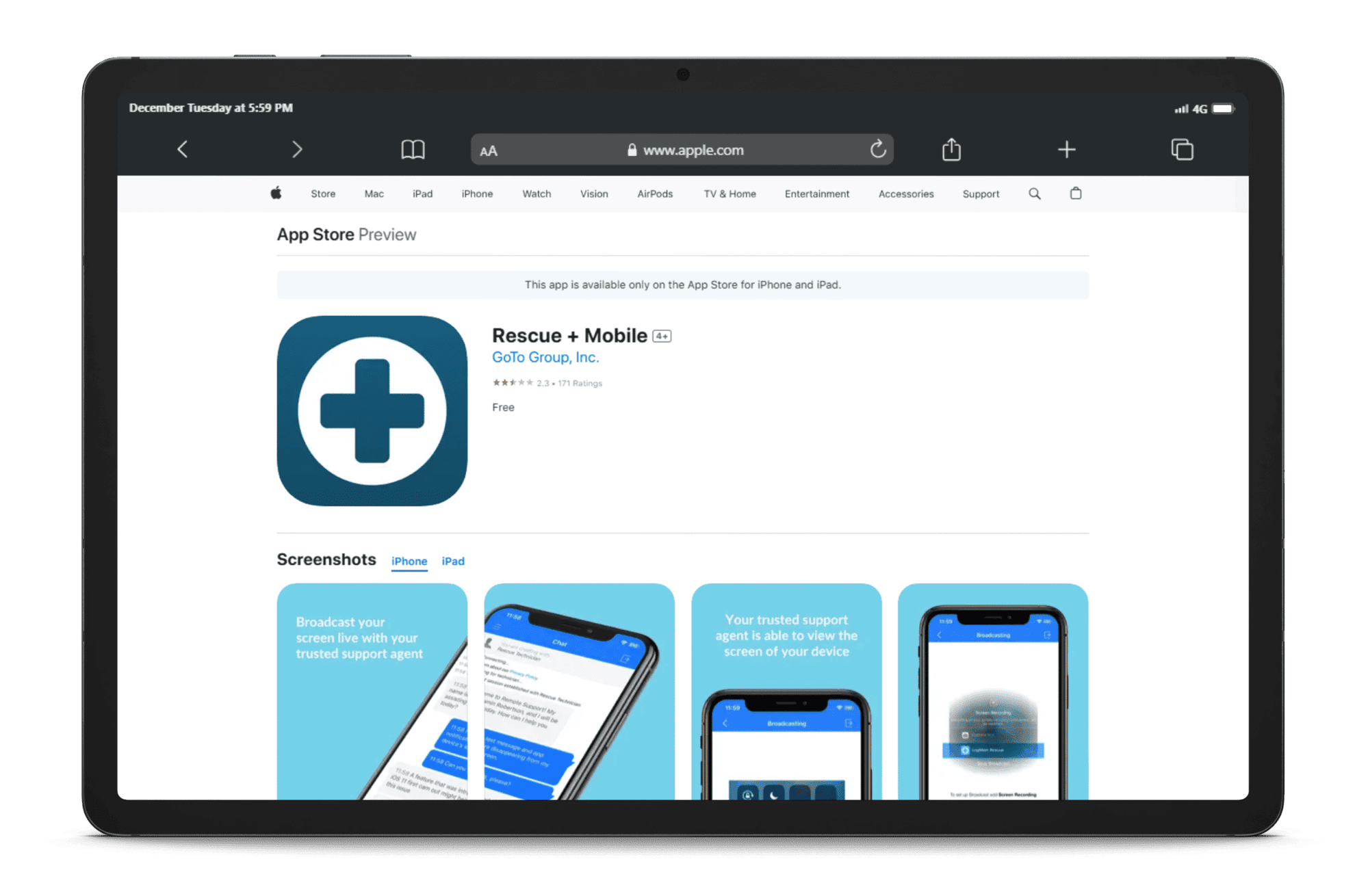
Yes. LogMeIn provides a mobile applet that allows technicians to view the screens of iPhones and Android devices. On Android, full remote control is often possible depending on the manufacturer. On iOS, due to Apple's restrictions, technicians are generally limited to screen viewing and "chatting" rather than direct touch control.
Is LogMeIn control better than Zoom or Teams screen sharing?
For technical support, yes. While Zoom and Teams allow for basic screen sharing, they lack the "system-level" tools found in LogMeIn, such as remote reboot, Safe Mode access, file system management, and the ability to interact with administrative system prompts that are often blocked in standard video conferencing apps.
What happens to the LogMeIn software after the session ends?
If the technician is using LogMeIn Rescue, the applet automatically uninstalls and deletes its temporary files once the "End Session" button is clicked. If you are using LogMeIn Pro or Central, the software remains installed as a background service to allow your IT team to perform maintenance tasks while you are away from your desk.
Summary and Next Steps
LogMeIn control remains a powerful tool in the arsenal of modern IT departments. Its ability to navigate complex networks through secure cloud gateways, combined with its robust encryption and diagnostic features, makes it a reliable choice for remote support.
If you are an IT professional looking to implement LogMeIn technology in 2026, your first step should be to evaluate whether you need ad-hoc support (Rescue) or unattended management (Central/Resolve). For end users, the best practice is to always ensure you are on the official logmein123.com or your company's specific support portal before entering a PIN code, ensuring that your remote support experience is both helpful and secure.
Image Gallery