How to Master Advanced System Properties for Windows Performance and Stability
Mastering advanced system properties involves navigating the sysdm.cpl interface to configure core operating system behaviors, including environment variables, performance tuning, and system recovery. By fine-tuning these low-level set...
Mastering advanced system properties involves navigating the sysdm.cpl interface to configure core operating system behaviors, including environment variables, performance tuning, and system recovery. By fine-tuning these low-level settings, administrators and power users can optimize virtual memory allocation, manage user profiles, and ensure robust hardware-software synchronization for peak efficiency.
Contents
The "Advanced System Properties" menu remains one of the most critical legacy components within the Windows environment. Even in 2026, as Microsoft continues to migrate traditional Control Panel elements into the modern Settings app, this specific interface provides granular control that high-level menus lack. Whether you are troubleshooting application path errors, managing high-speed NVMe storage paging, or configuring remote access for a corporate fleet, understanding these settings is a prerequisite for professional system administration.
Accessing Advanced System Properties in 2026
While modern operating systems prioritize streamlined user interfaces, the most direct route to advanced settings often involves legacy shortcuts. Mastering these access methods ensures efficiency regardless of the current UI shell.
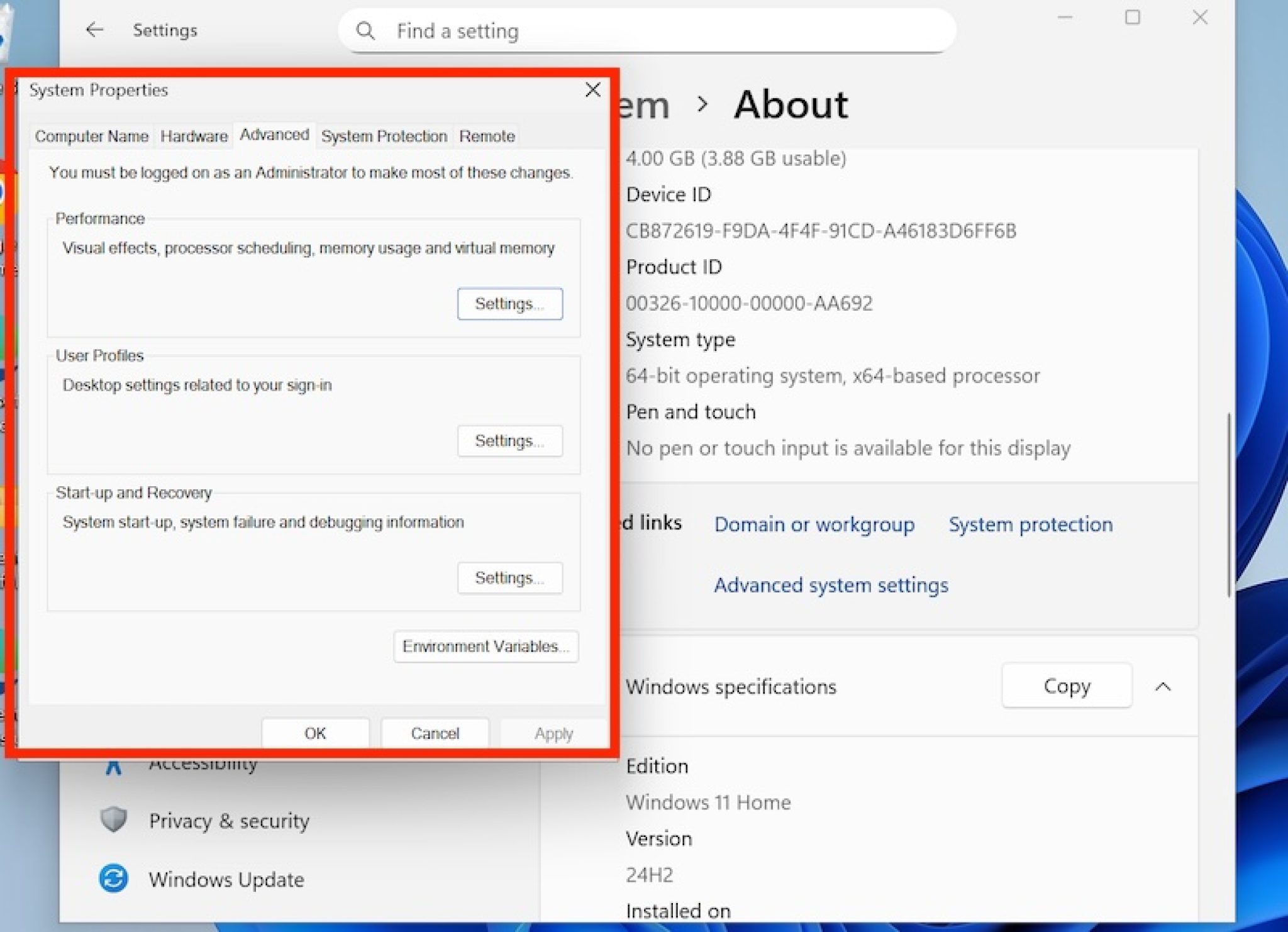
The fastest way to access the Advanced System Properties dialog is by using the Run command. Press Windows Key + R, type sysdm.cpl, and hit Enter. This bypasses several layers of the modern Settings menu, landing you directly on the System Properties window. Alternatively, you can navigate through Settings > System > About and select Advanced system settings from the related links section.
For automation and script-based management, PowerShell remains the preferred tool. Professionals often use the command Start-Process "control.exe" "sysdm.cpl,,3" to open the dialog directly to the "Advanced" tab. Understanding these entry points is the first step toward reducing administrative friction.
Optimizing the Performance Tab
The Performance section is arguably the most impactful area within Advanced System Properties. It is divided into three primary categories: Visual Effects, Advanced, and Data Execution Prevention.
Visual Effects and UI Responsiveness
In 2026, even entry-level hardware handles standard transparency and animations with ease. However, for virtualized environments (VDI) or high-frequency trading stations where every millisecond of latency counts, choosing "Adjust for best performance" can significantly reduce GPU overhead and input lag. This disables non-essential animations, shadows, and smooth edges for screen fonts, prioritizing functional speed over aesthetic polish.
Advanced: Processor Scheduling and Virtual Memory
The Advanced sub-tab allows you to dictate how the OS allocates CPU cycles. For most users, "Programs" should remain selected. However, if the machine is acting as a local server—hosting database services or background rendering tasks—selecting "Background services" ensures that hidden processes receive equitable processing time, preventing foreground stutters during heavy loads.
Virtual Memory (the Paging File) is the other critical component here. By default, Windows manages this automatically. However, mastery involves manual override for specific workflows. On systems with ultra-fast PCIe Gen6 storage, setting a static paging file size can prevent the fragmentation that occurs when Windows dynamically resizes the file. A common rule of thumb for 2026 systems with 32GB+ of RAM is to set a small static paging file (e.g., 4GB to 8GB) to allow for crash dumps without consuming excessive disk space.
Managing Environment Variables
Environment variables are strings containing information about the system environment and the currently logged-on user. They are used by applications to determine where to find specific files or how to behave in certain contexts.
System vs. User Variables
Variables are split into two categories. User variables apply only to the specific profile currently logged in, while System variables apply globally. The most critical variable is the Path variable. When you type a command into a terminal, the OS searches every directory listed in the Path variable to find the executable.
Mastering this area requires caution. Adding a new directory to the Path allows you to run custom scripts or specialized software (like Python or Docker) from any command prompt. Conversely, deleting a critical entry can "break" software that relies on those directories to find dynamic link libraries (DLLs). When editing, always use the "Edit Text" feature for a full view of the string, ensuring that no semicolons are misplaced.
Startup and Recovery Configuration
The Startup and Recovery section dictates how the system behaves during a "Stop Error" or System Crash (BSOD). For developers and IT troubleshooters, this is the primary hub for diagnostic configuration.
System Failure and Memory Dumps
When a system crashes, it creates a memory dump file. In 2026, the "Automatic memory dump" is the standard. However, if you are debugging a driver conflict or kernel-level instability, you may need to switch to a "Complete memory dump." This captures the entire contents of the system RAM at the time of the crash, providing the maximum amount of data for analysis in tools like WinDbg.
Time to Display List of Operating Systems
For users running dual-boot configurations—perhaps Windows 11 alongside a Linux distribution or an older Windows version—this setting controls how long the bootloader waits for user input. Reducing this from 30 seconds to 5 seconds can significantly decrease total boot time without removing the ability to choose an alternative OS.
System Protection and Hardware Settings
The remaining tabs in the System Properties dialog handle how the OS interacts with physical hardware and how it safeguards its own state.
Hardware and Device Installation
The Hardware tab contains the "Device Installation Settings." This is a vital setting for users who prefer to use specific, manufacturer-provided drivers rather than the generic versions provided by Windows Update. By disabling automatic driver downloads here, you prevent the OS from overwriting optimized GPU or audio drivers with older, WHQL-certified versions that might lack modern features.
System Protection
This tab manages System Restore points. Mastering this involves configuring the disk space usage for protection. If you frequently install new software or experimental drivers, ensuring that System Protection is "On" for your C: drive is essential. It creates a snapshot of system files and the registry before major changes. In 2026, while cloud backups are common, a local Restore Point remains the fastest way to revert a "broken" registry without a full OS reinstall.
Comparative Summary of Advanced Settings
The following table outlines the impact and risk levels of modifying key system properties.
| Feature Category | Primary Use Case | Impact Level | Risk Level |
|---|---|---|---|
| Visual Effects | Reducing UI latency on low-end or VDI hardware. | Low | Negligible |
| Processor Scheduling | Optimizing for server roles or background tasks. | Moderate | Low |
| Virtual Memory | Preventing disk thrashing and managing SSD space. | High | Moderate |
| Environment Variables | Mapping software paths and developer tools. | High | High |
| Memory Dumps | Debugging system crashes and driver issues. | Low (Diagnostic) | Low |
| System Restore | Reverting the OS to a previous stable state. | High | Low |
Common Pitfalls and Troubleshooting
When mastering advanced system properties, several common mistakes can lead to system instability or boot loops.
- Improper Path Formatting: In the Environment Variables menu, a missing semicolon or an extra space in the Path variable can cause software to fail to launch. Always verify the directory exists before adding it.
- Disabling the Paging File: Some users believe that having 64GB of RAM means they can disable the paging file entirely. This is a mistake. Many legacy applications and system diagnostics require a paging file to function, regardless of physical RAM capacity. Disabling it can cause "Out of Memory" errors even when RAM is available.
- Ignoring the Dump File Path: If you change the location of the memory dump file to a drive that is not initialized early in the boot process (like an external USB drive), the system will fail to record crash data. Always keep the dump file on the primary boot volume.
Frequently Asked Questions
Can I move the Paging File to a secondary drive?
Yes, moving the paging file to a secondary SSD can improve performance if your primary drive is nearly full or significantly slower. However, for the fastest results in 2026, the paging file should reside on the fastest NVMe drive available. You must leave at least a small paging file (approx. 800MB) on the C: drive to allow the system to write a crash dump header.
What is the difference between User and System Environment Variables?
User variables are specific to the account currently logged in. If you have multiple users on one machine, a User variable set for "Admin" will not be visible to "Guest." System variables are global and apply to every user and every background service. Always use User variables for personal software and System variables for core tools that need to be accessible by the OS itself.
Why doesn't the "Best Performance" setting make my PC feel faster?
The "Best Performance" setting primarily reduces graphical overhead. If your PC has a modern dedicated GPU, the impact will be minimal because the hardware is already more than capable of handling those animations. This setting is most effective on systems with integrated graphics, older hardware, or when using Remote Desktop where animations consume extra bandwidth.
Is System Restore the same as a full backup?
No. System Restore only tracks changes to system files, the registry, and executable files (.exe, .dll). It does not back up personal documents, photos, or emails. You should still maintain a separate backup solution (like OneDrive or an external drive) for your personal data.
How do I reset Environment Variables if I break them?
There is no "Reset to Default" button for Environment Variables. Before making changes, it is highly recommended to take a screenshot of the current variables or copy the Path string into a text file. If you have already broken them, your best option is to use a System Restore point created prior to the modification.
Strategic Recommendation
To truly master advanced system properties, adopt a "documentation-first" approach. Before altering virtual memory sizes or editing the Path variable, record the original values. In professional enterprise environments, these settings should be managed via Group Policy Objects (GPO) or MDM solutions rather than manual intervention. For individual power users, the most effective strategy is to keep the paging file system-managed unless you have a specific storage-constrained use case, and to use System Protection religiously before installing unverified drivers or complex development environments.
Image Gallery