How to Make a Non-Editable PDF Editable: Complete Guide for 2026
Making a non-editable PDF editable requires understanding why the document is locked, whether it contains scanned images or text layers, and choosing the appropriate conversion tool, OCR software, or editing suite to restore modificati...
Making a non-editable PDF editable requires understanding why the document is locked, whether it contains scanned images or text layers, and choosing the appropriate conversion tool, OCR software, or editing suite to restore modification capabilities.
Contents
Understanding Non-Editable PDFs
A PDF can be non-editable for several distinct reasons, and identifying the root cause is the most critical first step before attempting any modifications. Users frequently encounter files that look like standard documents but refuse to let a cursor click, highlight text, or accept typing. This frustration usually stems from one of three primary technical states: scanned document images, security-restricted files, or flattened form layers.
Scanned Documents vs. Digital Text Layers
The most common reason a PDF resists editing is that it is essentially a digital photograph wrapped inside a PDF container. When someone scans a physical piece of paper using an office machine, the scanner captures an image of the text rather than recognizing the individual letters, words, and paragraphs.
- Scanned PDFs: Composed entirely of pixels. Without Optical Character Recognition (OCR), computer software sees only a picture of a page, making direct text alterations impossible.
- Native Digital PDFs: Created directly from word processors or design software. These files contain actual font data and character encodings. If they cannot be edited, the barrier is almost always security or permission settings rather than a lack of a text layer.
Security Restrictions and Passwords
Document creators frequently apply digital rights management (DRM) or password protections to prevent unauthorized alterations, copying, or printing. These restrictions operate at the file architecture level.
If a document has an owner password applied to restrict editing, standard PDF readers will display viewing permissions but block editing tools. Conversely, if a document requires an open password, you cannot even open the file without entering the correct alphanumeric key. Bypassing security permissions legally requires knowing the administrative password or utilizing authorized administrative workflows within enterprise document management systems.
Method 1: Converting Scanned PDFs Using OCR Software
When dealing with a non-editable PDF that consists of flat image layers, you must employ Optical Character Recognition (OCR) technology. OCR software analyzes the shapes of pixels within the image, matches them against a library of character glyphs, and generates an invisible, selectable text layer over the underlying image.
Step-by-Step OCR Conversion Process
- Open the Document: Launch your chosen desktop PDF suite or cloud utility that features built-in OCR capabilities.
- Locate the OCR Tool: Navigate to the tools menu (often labeled as "Enhance Scans," "Recognize Text," or "OCR").
- Select Language and Parameters: Choose the primary language of the document to ensure the recognition engine correctly interprets accented characters, regional spelling variations, and specific typography.
- Run the Engine: Execute the scan process. The software will process each page, converting pixel maps into active, editable strings of text.
- Verify and Correct: Review the output for recognition errors, particularly with unusual fonts, low-resolution scans, or specialized terminology. Once verified, save the file as a searchable PDF.
Method 2: Converting PDFs to Word or Other Editable Formats
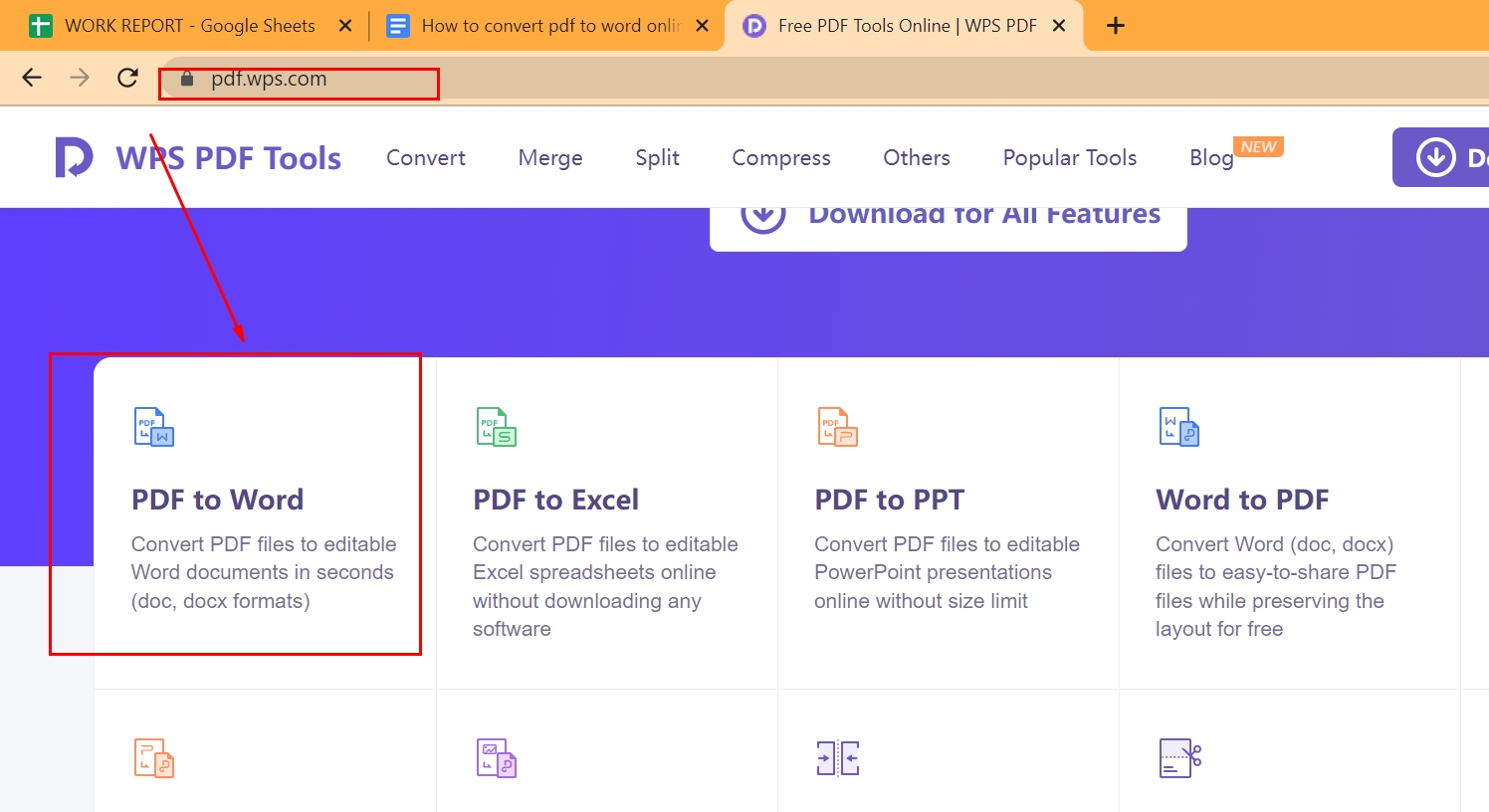
If you need to make extensive structural changes, restructure paragraphs, or completely redesign the layout of a non-editable PDF, converting the file into a dedicated word processing format is frequently more efficient than editing it natively.
Popular Conversion Pathways
- Microsoft Word (.docx): Ideal for text-heavy documents, reports, and contracts. Modern word processors automatically interpret headers, footers, bullet points, and paragraph styles.
- Rich Text Format (.rtf) or Plain Text (.txt): Useful when you need to strip away all formatting and extract purely raw text for reassembly in a publishing pipeline.
- Spreadsheet Formats (.xlsx): Essential for non-editable PDFs containing complex financial tables, data ledgers, and tabular reports.
Managing Layout Discrepancies
During conversion, software must interpret absolute positioning rules from the PDF structure and translate them into relative flow layouts in word processors. This translation can occasionally cause formatting artifacts, such as broken tables, orphaned headers, or misaligned graphics. Always review the converted file side-by-side with the original non-editable document to ensure no critical contractual clauses, numerical figures, or regulatory disclosures were distorted during the translation process.
Method 3: Removing Security and Permission Restrictions
If a native digital PDF is non-editable solely because the author applied administrative permission locks, you must clear those restrictions before modifying the content.
Legal and Compliance Boundaries
Before attempting to remove security restrictions, verify that you possess the legal authority or administrative ownership of the document. Removing security protections from proprietary, copyrighted, or legally binding documents without authorization violates corporate compliance policies and, in certain jurisdictions, legal statutes governing digital security mechanisms.
Authorization Workflows
- Enter the Master Password: If you know the owner password, open the document security properties panel within your PDF editor, select "Remove Security," and enter the authorized credential.
- Request an Unrestricted Copy: Contact the document originator or administrative controller to request an unprotected version or a copy with editing permissions explicitly enabled.
Comparison of PDF Editing Solutions
Selecting the right approach depends on the nature of the file and the depth of modifications required. The following matrix outlines the primary methods, their ideal use cases, and technical requirements.
| Method | Primary Use Case | Technical Requirement | Limitation |
|---|---|---|---|
| OCR Conversion | Scanned paper documents | OCR-capable PDF software | Accuracy drops on low-resolution scans |
| Export to Word | Extensive structural rewrites | Word processor or converter tool | Complex layouts may require manual reformatting |
| Permission Removal | Password-locked native PDFs | Owner password or admin rights | Ineffective without proper authorization credentials |
| Browser-Based Editors | Quick text fixes and form filling | Active internet connection and web browser | Privacy risks with sensitive data files |
Common Mistakes to Avoid
When attempting to make non-editable PDFs editable, users frequently make avoidable errors that compromise document integrity or waste valuable time.
- Skipping Quality Checks After OCR: Assuming an automated OCR scan is one hundred percent accurate can lead to embarrassing typos in official correspondence or critical errors in financial figures. Always proofread the generated text layer.
- Using Untrusted Online Converters for Confidential Data: Uploading private legal contracts, financial audits, or medical records to unverified, free third-party web tools exposes sensitive data to security risks. Always use enterprise-grade software or offline desktop utilities for confidential files.
- Ignoring Font Mismatch Issues: When editing native text in a PDF, failing to install or match the original font family will result in jagged typography, inconsistent sizing, and unprofessional document presentation.
Frequently Asked Questions
Can I make a non-editable PDF editable without paying for software?
Yes. Several free options exist, including built-in operating system tools, open-source office suites, and reputable web-based utilities. However, free cloud tools often impose file size limits, page restrictions, or privacy compromises, making offline desktop software preferable for sensitive documents.
Why is my PDF still not editable after I remove the password?
If removing the permission password does not allow editing, the document is likely a scanned image rather than a native digital file. Passwords only restrict security permissions, whereas scanned documents lack an underlying text layer entirely and require OCR processing before any modifications can occur.
How do I edit a PDF that has been flattened?
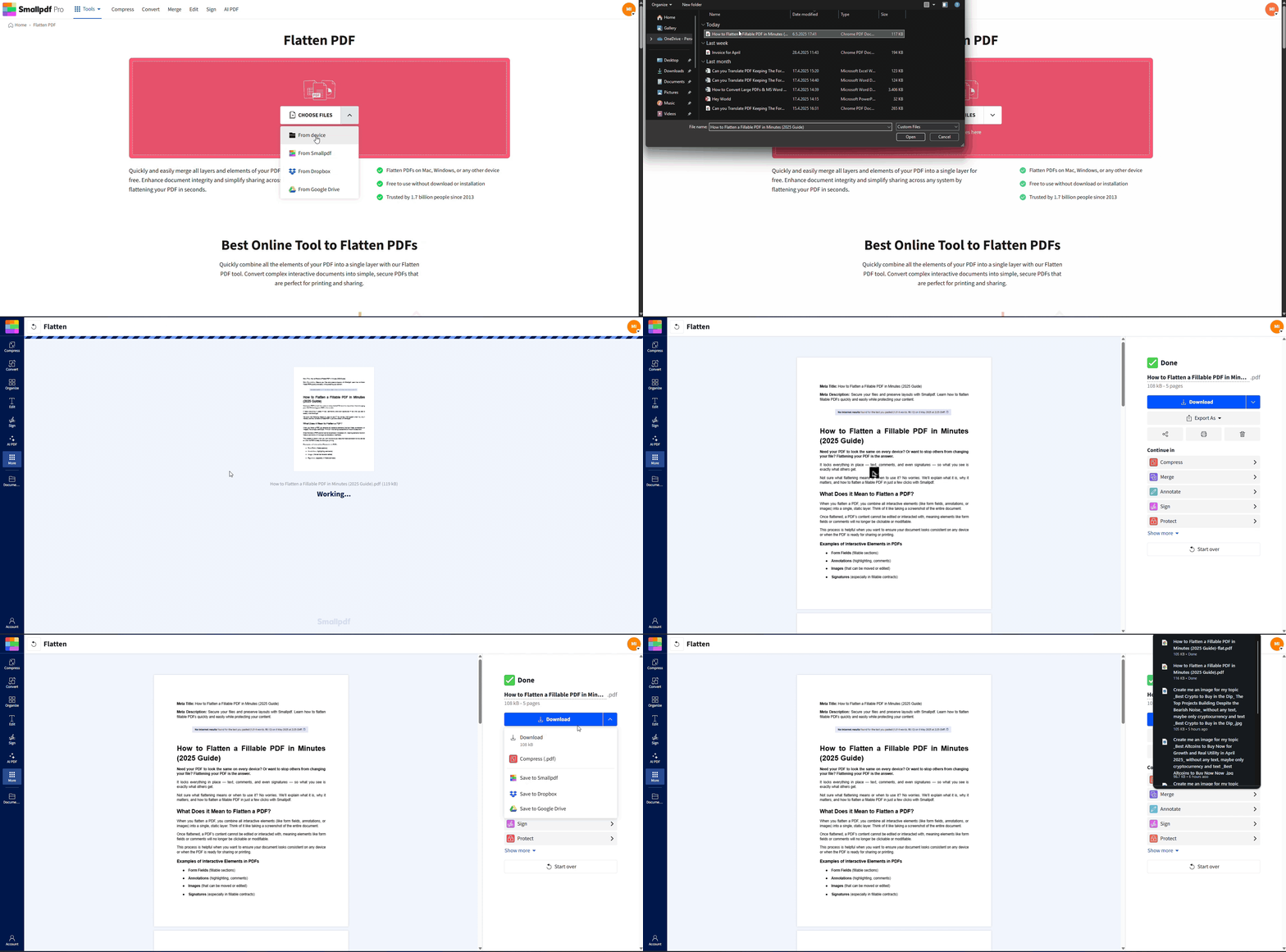
Flattening a PDF merges form fields, annotations, and vector graphics directly into the static page background. To make a flattened document editable again, you must run an OCR scan to rebuild the text layer or export the file into a graphics editing or word processing program to manually reconstruct the elements.
Is it possible to edit a non-editable PDF on a mobile device?
Yes. Modern mobile operating systems and dedicated document management apps for iOS and Android offer built-in markup, annotation, and basic editing features. For advanced OCR and layout restructuring, however, a desktop workstation remains significantly more reliable.
Final Recommendation
To successfully transform a non-editable PDF into an editable document, first diagnose whether the file is a scanned image or a security-locked native file. For scanned pages, deploy an accredited OCR utility to generate a searchable text layer. For layout overhauls, export the document into an editable word processor, and always verify your final output against the original source to ensure complete fidelity.
Image Gallery