Understanding the WhatsApp Message Status: A Comprehensive Guide to Every Icon
WhatsApp message statuses are visual indicators—ranging from a simple clock to double blue checkmarks—that inform users about the delivery and "read" state of their communication. By interpreting these icons, users can determine if a m...
WhatsApp message statuses are visual indicators—ranging from a simple clock to double blue checkmarks—that inform users about the delivery and "read" state of their communication. By interpreting these icons, users can determine if a message is still on their device, held at the server, delivered to the recipient’s hardware, or successfully viewed.
Contents
With over two billion active users globally in 2026, WhatsApp remains the primary communication tool for both personal and professional spheres. However, the nuances of its "tick" system often lead to confusion or social anxiety. Understanding the technical logic behind these statuses helps manage expectations and troubleshoot connectivity issues effectively. This guide provides an exhaustive breakdown of every WhatsApp message status, the impact of privacy settings, and how group dynamics alter these indicators.
The Technical Lifecycle of a WhatsApp Message
To understand the icons, one must first understand the journey a message takes. WhatsApp utilizes a customized version of the Extensible Messaging and Presence Protocol (XMPP) combined with Signal Protocol encryption. When you press "send," the message follows a specific path:
- Local Client: The message is generated and encrypted on your device.
- Transit to Server: The message travels via your ISP or mobile data to WhatsApp’s servers.
- Server Queue: The server acknowledges receipt and stores the encrypted message until the recipient's device is online.
- Delivery to Recipient: The server pushes the message to the recipient's device.
- Read Acknowledgment: Once the recipient opens the specific chat, a signal is sent back to the server and then to you.
Each phase of this journey is represented by a specific status icon.
The Four Primary Message Status Icons
Understanding the hierarchy of icons is the first step in mastering the platform. Each icon represents a specific milestone in the delivery process.
1. The Clock Icon (Pending)
The clock icon indicates that the message has not yet left your device. It is a local status, meaning WhatsApp’s servers are unaware that you have even tried to send a message.
- Why it happens: This is almost always due to a lack of an active internet connection on the sender's end. It can also occur if the app is restricted by background data limits or battery-saving modes on Android and iOS.
- What to do: Check your Wi-Fi or cellular signal. If you are in a "dead zone" or airplane mode, the clock will persist until a handshake with the server is established.
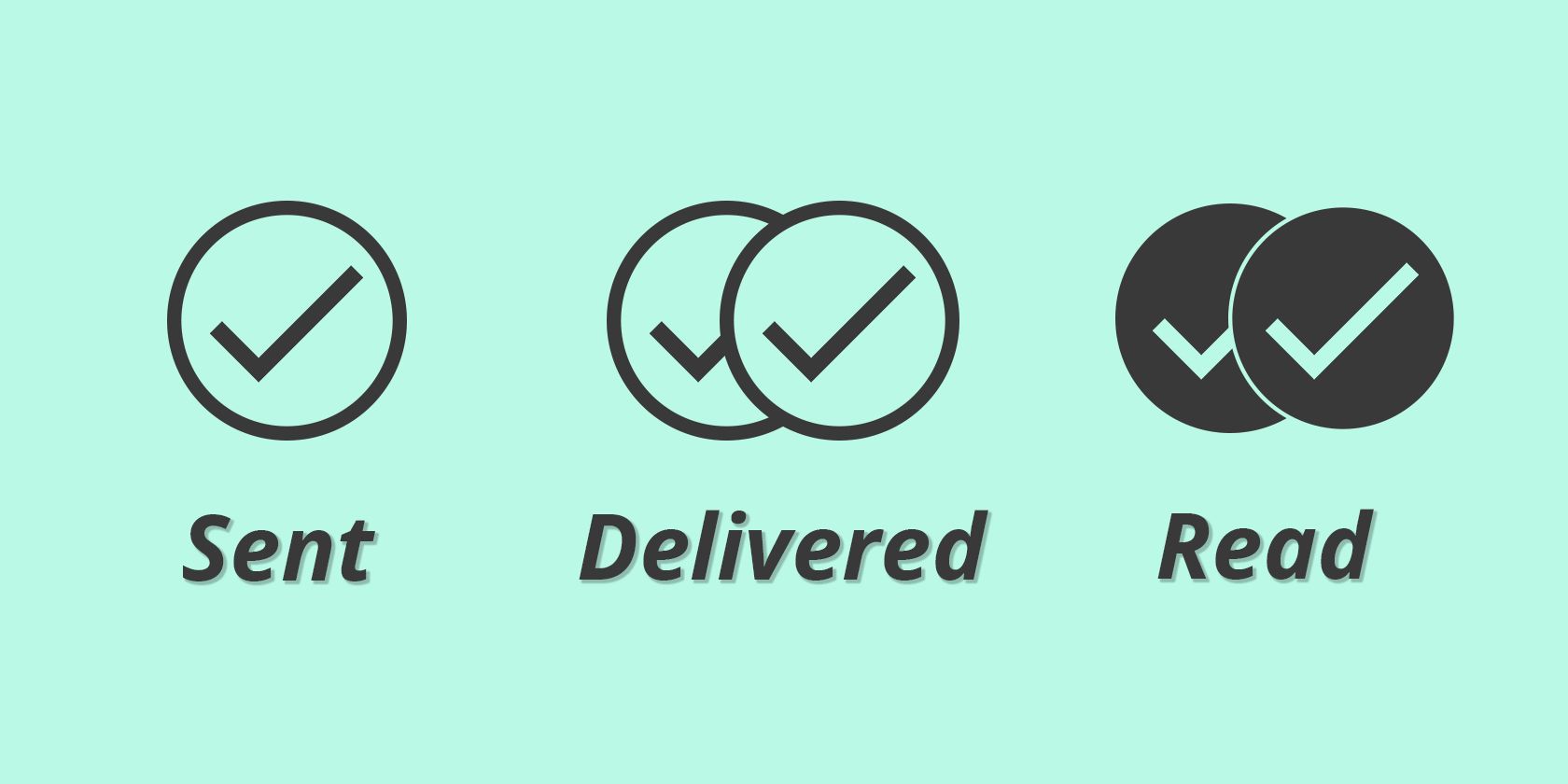
2. Single Gray Checkmark (Sent)
A single gray tick means the message has successfully reached the WhatsApp server. The "responsibility" for the message has shifted from your device to Meta’s infrastructure.
- Status meaning: The message is sent but not yet delivered to the recipient’s phone.
- Common causes for a single tick: The recipient’s phone is turned off, they have no internet connection, their battery is dead, or they have blocked you. In rare cases, it could mean the recipient has uninstalled the app without deleting their account.
3. Double Gray Checkmarks (Delivered)
Two gray ticks signify that the message has been successfully delivered to the recipient’s device (or any of their linked devices, such as WhatsApp Web or Desktop).
- Technical nuance: This does not mean the person has seen the message; it only confirms that the data packet has arrived at their hardware and a notification has likely been triggered.
- Edge cases: If a user has "Background App Refresh" turned off on an iPhone, the message might technically be on the device, but the double tick might occasionally lag until the user actually opens the app.
4. Double Blue Checkmarks (Read)
The "Blue Tick" is the final stage of the lifecycle. It confirms that the recipient has opened the chat and, presumably, viewed the message.
- Privacy Impact: This is the most controversial status. While it provides certainty for the sender, it can create pressure for the recipient.
- Technicality: In the case of voice notes, the blue ticks also indicate that the audio file has been played, not just that the chat was opened.
Detailed Comparison of WhatsApp Message Statuses
The following table summarizes the status icons, their meanings, and the typical reasons for delays in transition.
| Icon | Official Name | Meaning | Common Delay Causes |
|---|---|---|---|
| Clock | Pending | Message is on your device. | No internet; Airplane mode; App sync issues. |
| Single Gray Tick | Sent | Message is on WhatsApp servers. | Recipient phone off; No data; User blocked you. |
| Double Gray Tick | Delivered | Message reached recipient's phone. | User hasn't opened the chat yet. |
| Double Blue Tick | Read | Recipient viewed the message. | Read receipts are off (stays gray). |
Group Chat Statuses: A Different Logic
In group conversations, the message status logic shifts from a binary state to a cumulative one. You will not see double ticks or blue ticks until specific thresholds are met.
Delivery in Groups
You will only see the double gray ticks when every single member of the group has received the message on their device. If even one person has their phone turned off or is out of coverage, the status remains a single gray tick. This can be misleading in large groups, as it may appear a message hasn't been sent when, in reality, 49 out of 50 people have received it.
Read Receipts in Groups
Similarly, the double blue ticks only appear once every member of the group has read the message. In active groups, this rarely happens quickly.
How to Check Individual Progress
To see exactly who has received or read your message in a group, you can use the Message Info feature:
- Long-press the specific message you sent.
- Tap the three dots (Android) or "Info" (iOS).
- You will see two lists: "Read by" and "Delivered to." This provides granular data on who is ignoring the thread and who simply hasn't received the data yet.
Privacy Settings and "Ghosting" Statuses
One of the most frequent questions regarding WhatsApp message status is why a message remains gray even if you know the person is active. This is governed by Read Receipts settings.
Disabling Read Receipts
Users can opt out of the blue tick system by going to Settings > Privacy > Read Receipts. If a user turns this off:
- They will not send blue ticks when they read your messages.
- They will also not be able to see blue ticks when you read theirs.
Note: Disabling read receipts does not apply to group chats. Even if you have them turned off, your "read" status will still be visible to others in a group setting.
The "Last Seen" and "Online" Correlation
Message status is often analyzed alongside a user's "Last Seen" or "Online" status. In 2026, WhatsApp's privacy controls allow users to hide their online status even from people they are currently messaging. If you see a single tick but the person is "Online," it usually suggests a network sync error or that they have blocked you recently, as the "Online" status might linger for a few seconds during a session termination.
Troubleshooting: Why Is a Message Stuck?
If a message status isn't advancing as expected, several factors could be at play.
Network Latency and Server Issues
Occasionally, WhatsApp’s servers experience localized outages. During these times, messages may stay at the "Clock" or "Single Tick" stage even if your internet is fine. You can verify this through third-party status monitors or official Meta platforms.
Blocking Indicators
While WhatsApp does not explicitly tell you if you have been blocked, the message status is a primary clue. If you are blocked:
- Your messages will always show a single gray tick.
- They will never transition to double ticks because the server is prohibited from delivering the message to the target device.
- You will also likely lose access to their profile picture and "Last Seen" status.
Large Files and Media
When sending high-resolution videos or large documents (which can be up to 2GB in 2026), the "Clock" icon may remain visible for a longer duration. This isn't necessarily a connectivity failure but rather the time required for the device to upload the file to the server before the "Sent" status can be triggered.
WhatsApp Business Status Nuances
For those using WhatsApp Business, message statuses carry professional weight.
- Quick Replies: When using automated "Away" or "Greeting" messages, these trigger their own status icons.
- Catalog Links: If you send a product from your catalog, the read receipt informs you if the customer is currently browsing your offerings.
- API Usage: For larger enterprises using the WhatsApp Business API, "Read" statuses are often used to trigger automated follow-ups in CRM systems.
Ethical and Social Considerations
While the technology provides transparency, it has significant social implications. The transition from "Delivered" to "Read" without a subsequent reply is often termed "seen-zoning."
To maintain healthy digital boundaries:
- Respect Privacy: If a contact has disabled read receipts, respect their choice to consume information without the pressure of an immediate response.
- Don't Over-Analyze: A single tick doesn't always mean you're blocked; it often means a dead battery or a "digital detox" moment.
- Use "Info" Sparingly: Constantly checking the "Message Info" pane in groups can lead to unnecessary frustration regarding colleague or friend responsiveness.
Summary of Next Actions
To master your WhatsApp communications, keep these practical steps in mind:
- Verify your connection if you see a clock icon for more than a few seconds.
- Check "Message Info" in groups if you need to know if a specific person has seen an urgent update.
- Audit your privacy settings if you feel overwhelmed by the pressure of the blue ticks; remember that turning them off is a reciprocal setting.
- Update the app regularly to ensure that status reporting bugs are patched, as outdated versions can sometimes misreport delivery states.
By understanding the technical infrastructure behind each tick, you can move from guessing to knowing, ensuring your digital communication remains efficient and stress-free in 2026.
FAQs
Can I see if someone read my message if they have read receipts off?
No. If a recipient disables read receipts, you will only see double gray ticks, even if they have opened and read the message multiple times. The only exception is in group chats, where read receipts are always active regardless of individual settings.
Why does a message show "Delivered" but not "Read" for a long time?
The recipient might have read the message via their notification shade (lock screen) without actually opening the app. On modern smartphones, users can expand notifications to read long texts or view images; since the app hasn't been "opened" to that specific chat, the blue ticks aren't triggered.
Is there a way to read a message without triggering the blue ticks?
Yes. You can read messages from the notification bar, or use a "WhatsApp Widget" on Android. Some users also turn on Airplane Mode, read the message, close the app completely, and then turn Airplane Mode off, though this is less reliable with modern background syncing.
Does a single tick always mean I'm blocked?
No. A single tick simply means the message is on the server but not the device. The recipient could have their phone off, be in a location with no service, have an expired data plan, or have uninstalled the app. Blocking is only one of many possibilities.
What does it mean if the ticks turn blue immediately?
This indicates that the recipient currently has your chat window open on their screen. They were likely waiting for your message or were already looking at your conversation history when the new message arrived.
Image Gallery