Master Flight Planning in Infinite Flight: A Complete Navigation Guide
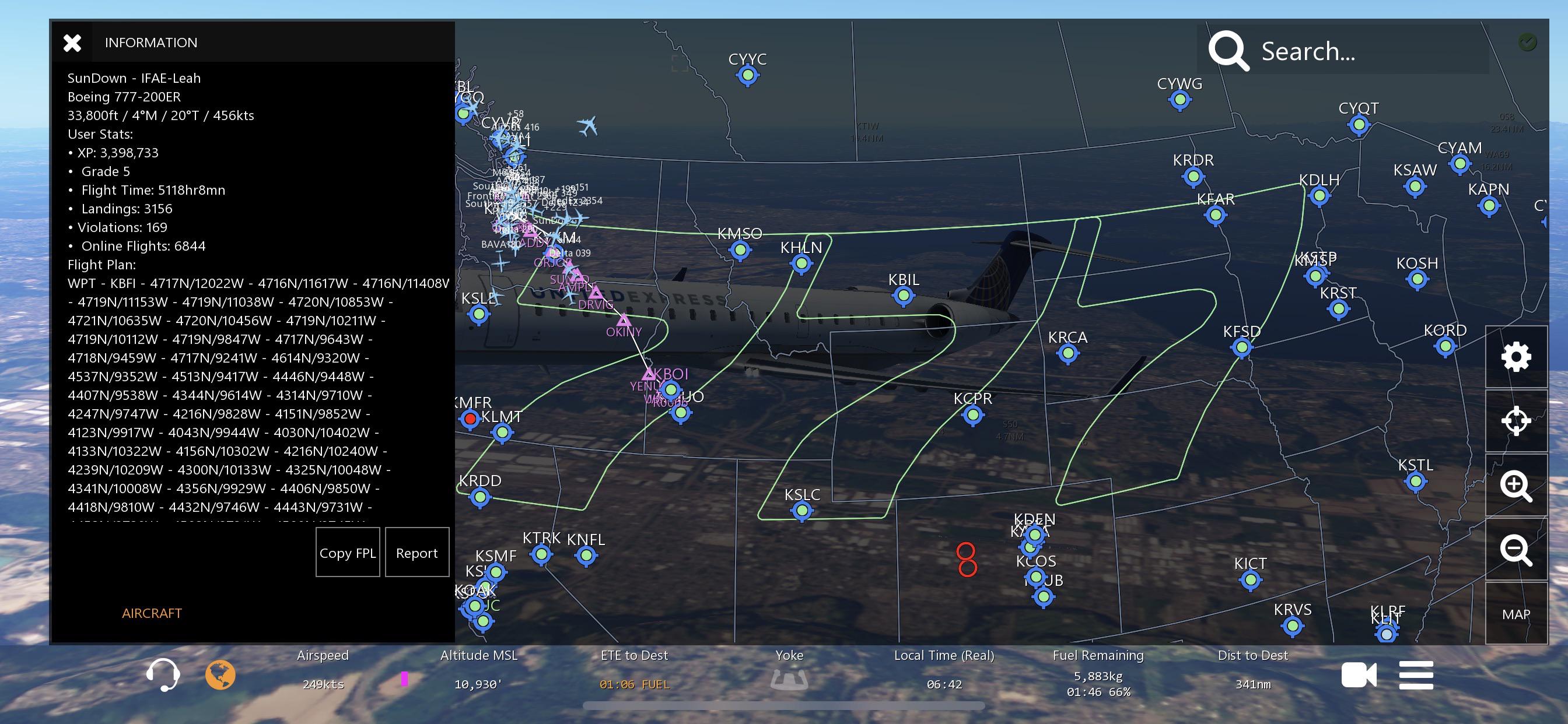
Creating a flight plan in Infinite Flight requires opening the map menu, selecting your origin and destination airports, and inserting intermediate waypoints or published SID, STAR, and approach procedures. Pilots can manually add fixe...
Creating a flight plan in Infinite Flight requires opening the map menu, selecting your origin and destination airports, and inserting intermediate waypoints or published SID, STAR, and approach procedures. Pilots can manually add fixes, paste route strings, or import directly from SimBrief to configure lateral navigation (LNAV) and vertical navigation (VNAV) profiles.
Contents
Core Concepts of Flight Planning in Infinite Flight
Flight planning is the foundation of realistic virtual aviation. In Infinite Flight, a flight plan serves as the primary instructions for your aircraft's Flight Management System (FMS), driving both Lateral Navigation (LNAV) and Vertical Navigation (VNAV). LNAV controls the aircraft's heading to track over ground waypoints, while VNAV manages altitude changes, climb gradients, and descent profiles to meet speed and altitude constraints.
Whether you fly on the Casual Server or interact with live Air Traffic Control (ATC) on the Expert Server, an accurate flight plan ensures smooth routing and regulatory compliance. ATC controllers rely on your filed flight plan to anticipate your intent, clear you along standard routes, and maintain separation from surrounding traffic.
FLIGHT PLAN STRUCTURE
- [ORIGIN] (Airport)
- [SID] (Departure)
- [ENROUTE FIXES/AIRWAYS] (Waypoints / Jetways)
- [STAR] (Arrival)
- [APPROACH] (ILS/RNAV)
- [DESTINATION] (Airport)
Understanding the basic components of a modern flight plan is essential before configuring your cockpit:
- ICAO Identifiers: Four-letter codes used worldwide to designate airports (for example,
KJFKfor John F. Kennedy International Airport orEGLLfor London Heathrow Airport). - Waypoints and Navaids: Five-letter named locations (such as
BAYGEorMERIT) or ground-based radials (VORs and NDBs) that define the horizontal path of your flight. - SIDs (Standard Instrument Departures): Published flight procedures that transition an aircraft from the departure runway onto the enroute airway system while avoiding terrain and noise-sensitive areas.
- STARs (Standard Terminal Arrival Routes): Published procedures that transition an aircraft from the enroute airway system to the approach phase at the destination airport.
- Approach Procedures: Precision (such as ILS) or non-precision (such as RNAV/RNP or Visual) guidance paths that align your aircraft with the landing runway.
Prerequisites Before Creating Your Flight Plan
Before opening the Flight Plan (FPL) menu in Infinite Flight, ensure your aircraft and environment are set up correctly:
- Select Your Aircraft and Weight Configuration: Aircraft gross weight impacts your target cruising altitude, climb performance, and fuel burn. Adjust payload and fuel in the Weight & Balance menu before finalizing VNAV profiles.
- Check Environmental Conditions: Verify active runways using the airport information tab. Always plan departures and landings into the wind whenever operational limits permit.
- Determine Cruising Altitude: Follow standard flight level rules. In general westbound flights (headings 180° to 359°) fly at even altitudes (such as 32,000 feet / FL320), while eastbound flights (headings 000° to 179°) fly at odd altitudes (such as 33,000 feet / FL330).
How to Build a Flight Plan Manually in Infinite Flight
Building a flight plan directly within the simulator map gives you complete control over your route and procedures.
Step 1: Set Origin and Destination
- Tap the Map icon on the main flight user interface.
- Tap your departure airport or search for its four-letter ICAO code using the search bar.
- Tap Add to FPL (or tap the Origin designation button).
- Search for your destination airport ICAO code, select it, and tap Add to FPL (or designate it as Destination).
Step 2: Add Departure Procedures (SIDs)
- Tap the departure airport icon on the map or in your flight plan list.
- Select Proc (Procedures) from the contextual pop-up menu.
- Tap Departure.
- Select your departure runway based on current wind direction.
- Choose the appropriate SID for your route direction.
- Select your transition waypoint if required, then tap Add to Flight Plan.
Step 3: Insert Enroute Waypoints and Airways
To connect your departure procedure to your arrival area, insert intermediate waypoints:
- Direct Map Selection: Tap any fix, VOR, or NDB displayed on the map view and tap Add to FPL.
- Search Bar Entry: Type specific waypoint names into the search box at the top right of the map screen and select Add to FPL.
- Reordering Waypoints: Open the FPL list panel, press and hold the reorder handle (three horizontal lines) next to any waypoint, and drag it to the correct sequential order.
Step 4: Add Arrival Procedures (STARs) and Approaches
- Tap your destination airport icon and select Proc.
- Tap Arrival to pick the STAR that connects with your enroute path.
- Select the arrival runway and transition fix, then tap Add to Flight Plan.
- Return to Proc, select Approach, and choose your designated approach type (for example,
ILS 26LorRNAV 08R). - Select the initial approach fix (IAF) and add it to your plan to complete the lateral lateral path.
Importing Flight Plans via SimBrief and External Tools
While manual creation works well for short domestic routes, long-haul and commercial real-world operations benefit from detailed flight planning engines. Infinite Flight features built-in integration with SimBrief by Navigraph, allowing direct import of fully calculated operational flight plans (OFPs).
SIMBRIEF INTEGRATION FLOW
- Generate Flight Plan on SimBrief.com
- Enter SimBrief Pilot ID in Infinite Flight Settings
- Open Map -> Tap FPL -> Tap "Import from SimBrief"
- Verify Waypoints, SIDs, STARs, and Altitude Profile
Method 1: Direct SimBrief Integration
- Generate an Operational Flight Plan on SimBrief.
- In Infinite Flight, open Settings > Account and link your SimBrief Username or Pilot ID.
- Start a flight session, open the Map, and select the FPL tab on the left panel.
- Tap Import from SimBrief.
- The system automatically populates the route, including departure procedures, airways, oceanic tracks, arrival procedures, initial altitude profiles, and fuel requirements.
Method 2: Copying and Pasting Route Strings
If you use external flight planning software such as SkyVector, ForeFlight, or custom flight plan generators:
- Copy the raw text route string (for example:
KDFW SUPER7 TEX TNV AEX SJI KORRY1 KATL). - Open the FPL menu in Infinite Flight.
- Tap the Search Bar or Edit Route String field.
- Paste the route string and press Enter or tap Add.
- Review the populated map path to ensure all fixes resolved without formatting errors.
Configuring Altitude Profiles and Speed Restrictions for VNAV
Vertical Navigation (VNAV) automates vertical path management, calculating smooth descent profiles and maintaining mandatory altitude constraints published on charts.
Setting Custom Altitude Constraints
- Open the FPL panel.
- Tap the altitude box next to any waypoint in your list.
- Enter a target altitude (e.g.,
10000for 10,000 feet) or choose between:- At: Aircraft must hit the waypoint at the exact altitude specified.
- At or Above (+): Aircraft must cross the waypoint at or above the target altitude.
- At or Below (-): Aircraft must cross at or below the target altitude.
Cruising Altitude and Step Climbs
Set your target cruising altitude on the top-most enroute waypoints. On long-haul flights, your aircraft burns fuel and becomes lighter over time. You can program Step Climbs by increasing waypoint target altitudes further along your route (for example, starting at FL320 and increasing to FL360 halfway through the cruise phase).
Altitude Profile vs. Distance:
- 0 ft: Departure / Climb
- 30,000 ft: FL300 (Initial Cruise)
- 34,000 ft
- 38,000 ft: FL380 (Step Climb)
Understanding Top of Descent (TOD)
Once altitude constraints are set for your arrival and approach procedures, Infinite Flight calculates your Top of Descent (TOD) point:
- The TOD point appears on your map navigation display as a green arc or ring labeled TOD.
- When your aircraft approaches TOD (typically 2 to 5 minutes away), arm VNAV by tapping the VNAV button on the autopilot control panel (AP).
- When the aircraft reaches the green TOD indicator, VNAV initiates a controlled descent (usually at a 3-degree glide angle) to hit every altitude restriction down to the final approach phase automatically.
Flight Planning Methods Comparison
Choose the flight planning workflow that best matches your mission profile:
| Feature / Metric | Manual Map Entry | SimBrief Import | Copy/Paste Route String | External EFB (e.g., ForeFlight) |
|---|---|---|---|---|
| Setup Speed | Moderate (3–8 mins) | Fast (< 30 seconds) | Fast (1–2 mins) | Slow (5–10 mins) |
| Route Accuracy | Basic / Visual | Real-World AIRAC | Depends on source string | Real-World AIRAC |
| Procedure Loading (SIDs/STARs) | Manual selection required | Auto-imported | Manual procedure addition | Manual overlay required |
| VNAV Profile Pre-fill | Manual altitude inputs | Automatic target profile | Manual altitude inputs | Manual altitude inputs |
| Fuel & Weight Sync | Manual calculation | Integrated fuel loading | Manual calculation | External performance graphs |
| Best Used For | Short VFR/IFR flights | Commercial & Long-Haul | Quick copy from web databases | Complex simulated flight ops |
Troubleshooting Common Flight Plan Errors
Even experienced virtual pilots encounter routing and autopilot issues. Here is how to diagnose and correct the most common problems:
1. Route Discontinuities (Flight Plan Breaks)
- Symptom: A dotted line appears on the map screen, or the aircraft stops following LNAV after reaching a specific fix.
- Cause: Adding a procedure (SID/STAR) or manual waypoint created an orphaned sequence where two waypoints do not connect logically.
- Solution: Open the FPL list. Look for red warning indicators or blank lines. Tap the discontinuous waypoint, select Delete, or drag subsequent waypoints up to close the gap.
2. VNAV Fails to Engage or Descend
- Symptom: The VNAV button remains inactive, turns off unexpectedly, or fails to descend when crossing the Top of Descent (TOD) point.
- Cause: Autopilot altitude selector is set above your target constraint, or no downstream waypoints have lower altitude restrictions programmed.
- Solution: Set your main Autopilot ALT selector dial to your lowest cleared altitude (e.g., 3,000 feet) before reaching TOD. VNAV will not descend below the altitude set in the main AP window, serving as a safety floor.
VNAV DESCENT CHECKLIST
- Flight Plan has lower altitude constraints set downstream
- AP Main Altitude dial set LOWER than current altitude
- LNAV is active and tracking route
- Aircraft speed is managed (Airspeed < 250kts below 10,000ft)
- VNAV button ARMED before reaching green TOD arc
3. Waypoint Overshooting and Oscillations
- Symptom: The aircraft weaves side to side (S-turns) or overshoots sharp turns along the flight plan.
- Cause: The airspeed is too high for sharp waypoint transitions, or flight plan fixes are spaced too closely together.
- Solution: Reduce airspeed prior to tight turn sequences. Remove duplicate or closely clustered fix entries within SIDs or STARs.
4. Speed Violations Below 10,000 Feet
- Symptom: Receiving ATC warnings or violations for exceeding 250 knots IAS below 10,000 feet.
- Cause: Throttle control is left in manual mode during VNAV descent without speed constraints programmed.
- Solution: Enable Auto-Throttle (SPD) and set speed targets (or configure speed restrictions inside the waypoint details panel for automatic speed management).
Frequently Asked Questions
How do I clear an individual waypoint without deleting my entire flight plan?
Open the FPL side menu on the map screen. Tap the specific waypoint name you wish to remove, then tap the red Delete or trash icon. The flight plan will automatically connect the preceding waypoint to the following one.
Can I save a custom flight plan in Infinite Flight to use again later?
Yes. Open the FPL menu, tap the Share / Save icon, and save the .fpl file directly to your mobile device's local storage. You can re-import this saved file during future sessions using the Load FPL button.
What is the difference between a SID, a STAR, and an Approach procedure?
A SID (Standard Instrument Departure) guides your aircraft safely from takeoff up to the enroute airway network. A STAR (Standard Terminal Arrival Route) transitions your aircraft from high-altitude cruise down toward the airport terminal area. An Approach guides your aircraft from the end of the STAR directly onto the landing runway center-line.
Why does SimBrief fail to import my route into Infinite Flight?
This usually occurs if your SimBrief Pilot ID or Username is typed incorrectly in Infinite Flight's Account Settings, or if you have not generated a new Operational Flight Plan (OFP) on SimBrief's website prior to hitting import. Ensure your SimBrief plan is generated and active.
How do I handle vectoring from Air Traffic Control (ATC) on the Expert Server?
When an ATC controller issues heading vectors (e.g., "Fly heading 180"), disengage LNAV and manually set the heading selector on your Autopilot. Once the controller clears you "Direct to [Waypoint]" or "Resume own navigation," tap that waypoint in your FPL menu, select Direct To, and re-engage LNAV.
Practical Recommendations for Your Next Flight
To achieve smooth navigation on your next flight in Infinite Flight:
- Plan Outside the Simulator: Use tools like SimBrief to generate realistic routes based on current weather, active runways, and real-world AIRAC cycle updates.
- Verify Waypoints and Altitudes On the Ground: Always review your entire flight plan sequence and altitude profile while parked at the gate before starting engines.
- Set Your AP Safety Altitude: Before reaching your Top of Descent (TOD), set your Autopilot altitude target below your current cruise level so VNAV can initiate descent without manual intervention.
Image Gallery