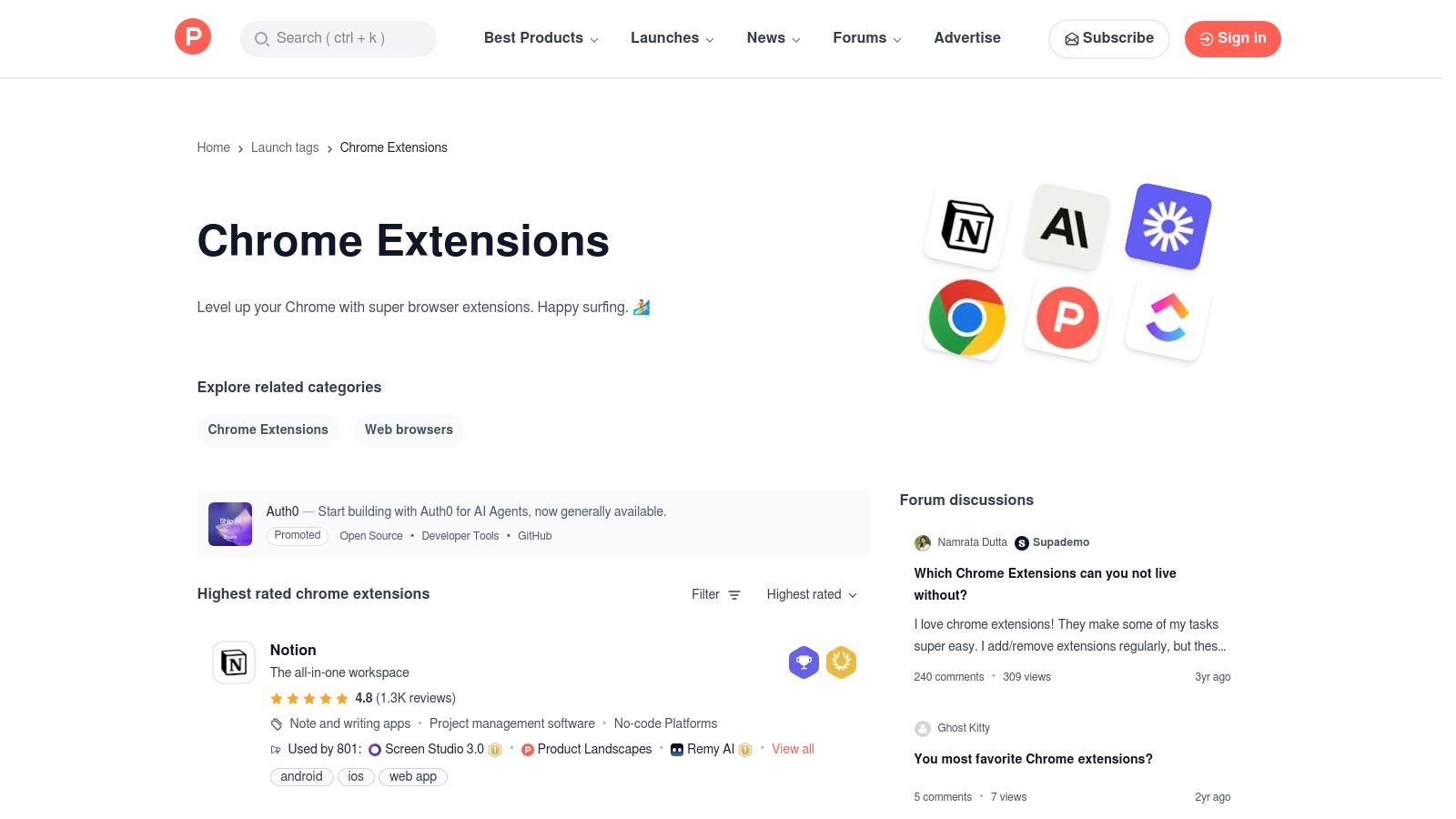
What Are Extensions on Google Chrome?
Google Chrome extensions are small, modular software programs built on web technologies like HTML, CSS, and JavaScript that enable users to customize and enhance their browsing experience. They "extend" the browser's native capabilitie...
Google Chrome extensions are small, modular software programs built on web technologies like HTML, CSS, and JavaScript that enable users to customize and enhance their browsing experience. They "extend" the browser's native capabilities, allowing you to add new features, automate repetitive tasks, and integrate third-party services directly into your web interface.
Contents
As of 2026, the Google Chrome extension ecosystem remains the largest and most diverse browser add-on marketplace in the world. Extensions serve as the bridge between a generic web browser and a personalized workstation. Whether you are looking to block intrusive advertisements, manage complex passwords, or translate entire webpages in real-time, extensions provide the functional framework to modify how the browser behaves and how content is displayed.
The Technical Architecture of Chrome Extensions
To understand what extensions are, it is helpful to look at how they are built. Unlike standalone software applications that run directly on your operating system (like Windows or macOS), extensions run within the Chromium process model. This means they are lightweight and isolated, ensuring that if an extension crashes, it is unlikely to take down your entire browser or computer.
Manifest V3 and Modern Standards
In 2026, the ecosystem has fully matured under the Manifest V3 standard. This technical specification dictates how extensions interact with the Chrome browser. The transition to Manifest V3 was designed to improve security, privacy, and performance. One of the most significant changes involves how extensions handle network requests. By moving toward the declarativeNetRequest API, Google ensured that extensions can no longer "observe" all of a user's traffic in the same way they could previously, which significantly bolsters user privacy.
The Components of an Extension
Most extensions consist of four primary parts:
- The Manifest File: A JSON file that acts as the "ID card" for the extension, listing its name, version, and the permissions it requires.
- Background Scripts: These run in the background to handle long-term tasks or respond to specific browser events, such as opening a new tab.
- Content Scripts: These are files that run in the context of a specific webpage. They can "read" the details of the web pages you visit and make changes to them (e.g., changing the font color or hiding a specific element).
- UI Elements: This includes the popup window that appears when you click the extension icon in your toolbar.
Why Use Chrome Extensions?
The primary value of extensions lies in personalization. Google Chrome is designed to be a "fast and lean" browser out of the box. Instead of bloating the browser with thousands of features that only a few people use, Google provides the core engine and allows users to "bolt on" the specific tools they need.
Boosting Productivity and Workflow
For many professionals, extensions are essential for daily tasks. Grammar checkers like Grammarly or LanguageTool provide real-time editing within any text field. Project management tools like Todoist or Asana allow users to add tasks to their lists without leaving the tab they are currently working on. These integrations reduce "context switching"—the mental tax paid when moving between different apps.
Enhancing Security and Privacy
While Chrome has built-in security features, extensions can take protection further. Password managers (such as Bitwarden or 1Password) generate and store complex credentials, while specialized privacy tools can block invisible trackers that follow your activity across different websites. In 2026, many security extensions also utilize AI-driven heuristics to detect phishing sites before they are even reported to global databases.
Customizing the Visual Experience
Extensions also cater to aesthetic preferences and accessibility needs. High-contrast modes, dark mode toggles for sites that don't support them, and font-adjusting tools help users with visual impairments or those who simply prefer a different look.
How to Find and Install Extensions
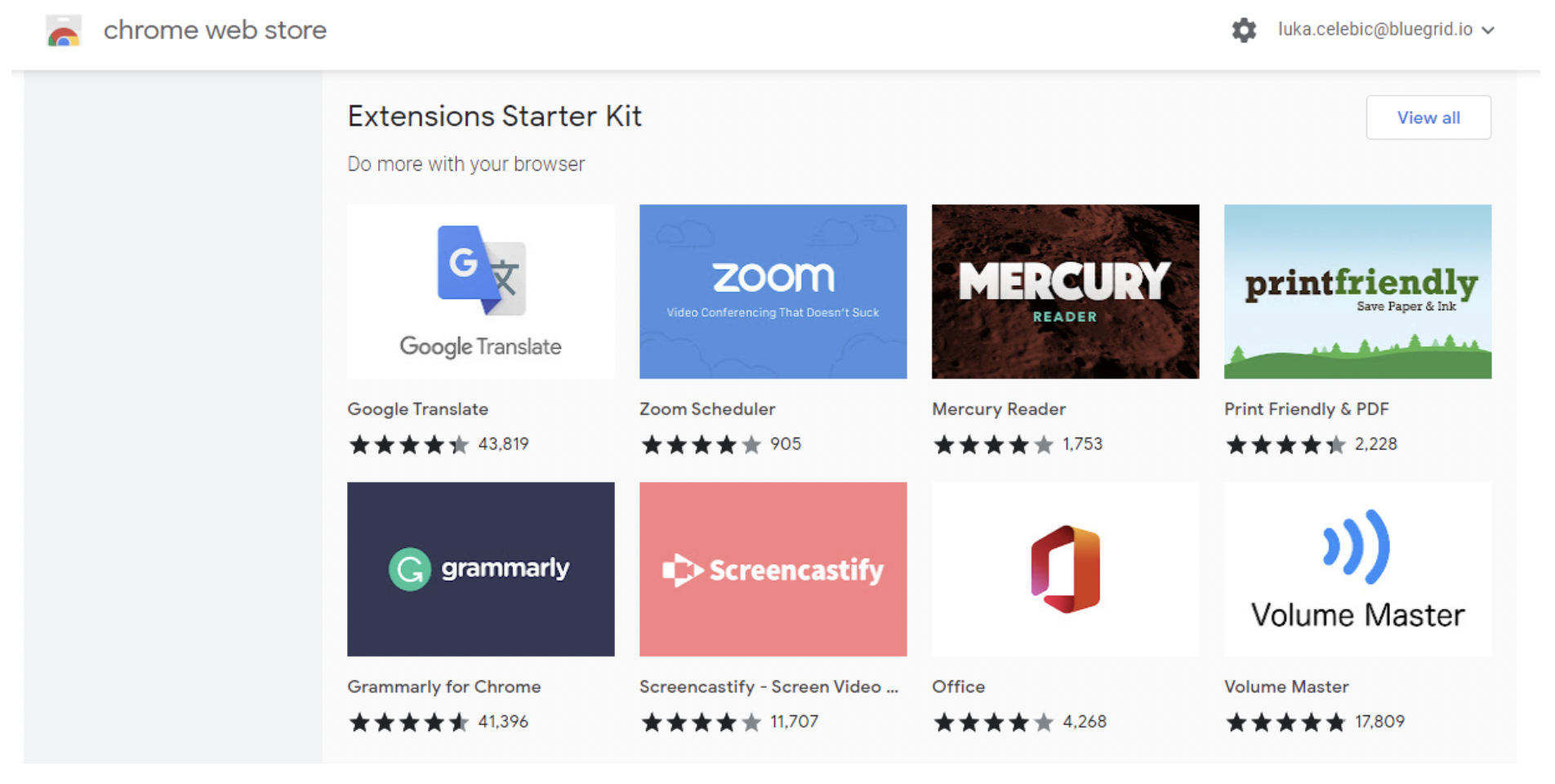
Finding extensions is a centralized process through the Chrome Web Store. This digital storefront is managed by Google and serves as the primary distribution point for verified add-ons.
Steps to Install an Extension
- Navigate to the Store: Open Chrome and visit the Chrome Web Store.
- Search or Browse: Use the search bar to find a specific tool (e.g., "dark mode") or browse categories like Productivity or Developer Tools.
- Review the Details: Click on an extension to see its description, user reviews, privacy practices, and developer information.
- Add to Chrome: Click the "Add to Chrome" button. A dialog box will appear explaining what data the extension can access.
- Confirm Permissions: Click "Add extension" to complete the installation. The icon will typically appear in your toolbar or under the "Extensions" (puzzle piece) menu.
Verification and Safety
Before an extension is published to the store, it undergoes a review process. Google uses automated scanners and human reviewers to check for malicious code. In 2026, the store also highlights "Featured" extensions and those from "Verified Developers," providing an extra layer of trust for users concerned about security.
Managing Your Chrome Extensions
Once you have installed several extensions, managing them becomes important to maintain browser performance. Chrome provides a dedicated management dashboard located at chrome://extensions/.
The Extensions Toolbar
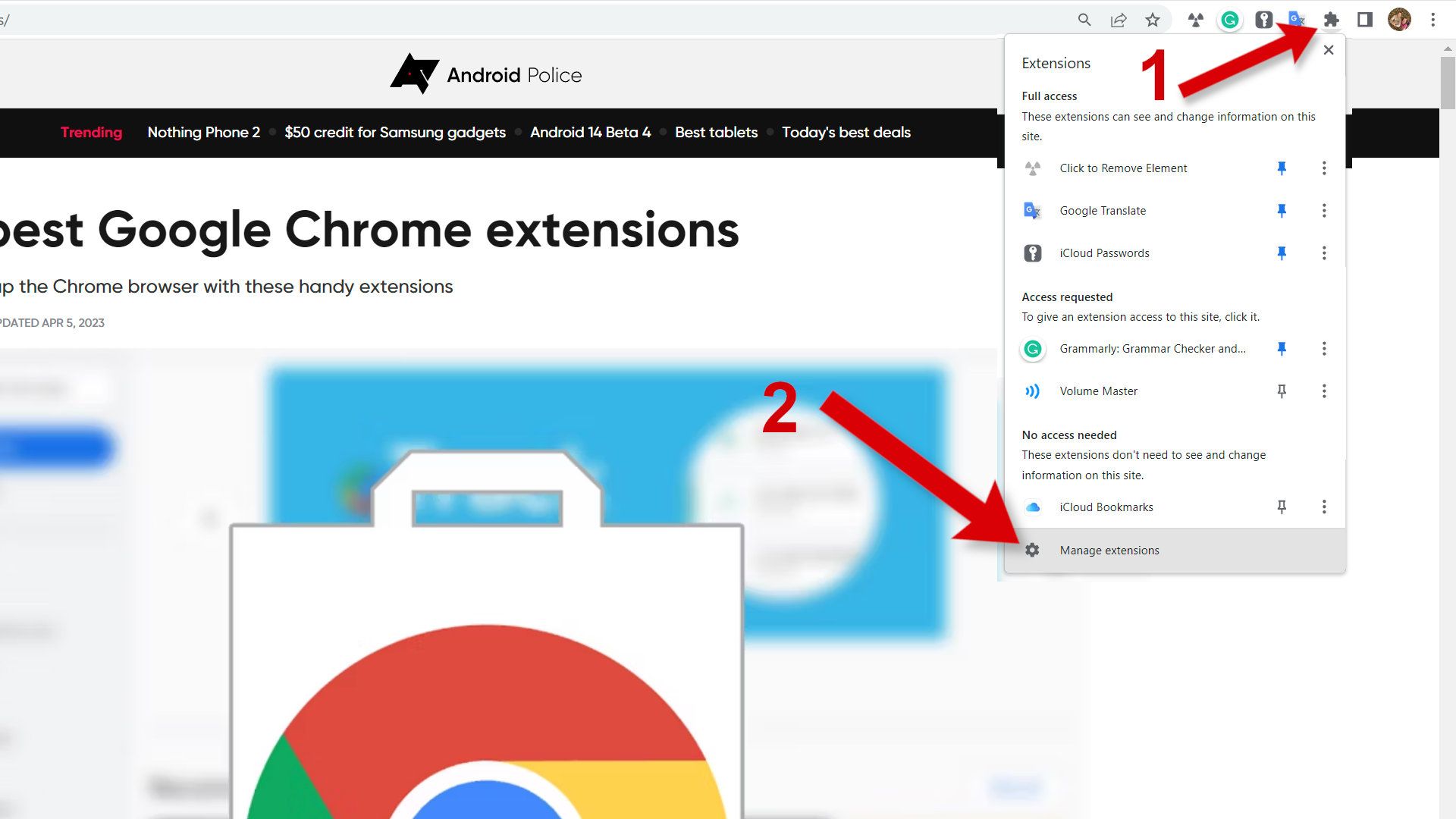
Most users interact with extensions via the puzzle piece icon located to the right of the address bar. Clicking this icon opens a dropdown menu where you can:
- Pin/Unpin: Pinned extensions appear permanently on your toolbar for quick access.
- Access Settings: Click the three dots next to an extension to change its options or remove it.
- Manage Access: You can control which websites an extension is allowed to see and change.
Site Access Permissions
A critical feature in modern Chrome is the ability to limit extension permissions on a per-site basis. Instead of giving an extension permission to read "all your data on all websites," you can right-click the extension and choose:
- When you click the extension: The extension only activates when you manually trigger it.
- On [specific site]: The extension only works on the current domain (e.g., only on Wikipedia).
- On all sites: The default setting for tools that need to work everywhere, like ad blockers.
Comparison: Extensions vs. Web Apps vs. Themes
Users often confuse extensions with other browser-based technologies. The following table clarifies these distinctions:
| Feature | Chrome Extensions | Progressive Web Apps (PWAs) | Chrome Themes |
|---|---|---|---|
| Primary Purpose | To add functionality to the browser itself. | To provide an app-like experience for a website. | To change the visual appearance of the browser UI. |
| User Interface | Popups, toolbars, and context menus. | Full-window interface, often launchable from the desktop. | Changes colors and background images. |
| Interaction | Can modify the content of other websites. | Operates within its own "sandbox" or window. | No functional interaction with websites. |
| Example | An ad blocker or a currency converter. | Spotify, Twitter (X), or Google Docs. | A "Space" theme or "High Contrast" skin. |
| Resource Use | Runs in background; uses RAM based on active tasks. | Uses resources only when the app window is open. | Negligible impact on system resources. |
The Impact on Browser Performance
While extensions are powerful, they are not "free" in terms of system resources. Every active extension consumes a portion of your computer's RAM (Random Access Memory) and CPU.
The Chrome Task Manager
If you notice your browser is running slowly, you can use the built-in Chrome Task Manager (Shift + Esc) to see exactly how much memory each extension is using. In 2026, Chrome's "Memory Saver" mode helps mitigate this by hibernating inactive tabs, but background extensions often stay active to perform their functions.
Best Practices for Performance
- Audit Regularly: Disable or remove extensions you no longer use.
- Avoid Redundancy: Don't use three different extensions that all do the same thing (e.g., three different ad blockers).
- Check "Background" Activity: Some extensions continue to run even after you close the browser. You can disable this in Chrome's System settings if it's unnecessary.
Safety and Privacy Considerations
Because extensions have the power to "read and change" your data, they are high-value targets for bad actors. Although Google’s security measures are robust, users must remain vigilant.
Risks of Abandoned Extensions
Sometimes, a developer may sell a popular extension to a third party. The new owners might introduce tracking code or advertisements into what was previously a "clean" tool. This is why Chrome now issues warnings if an extension you are using is no longer in the Web Store or has been flagged for a policy violation.
Minimum Viable Permissions
When installing a new tool, always ask: Does this extension really need access to my browsing history? For example, a "calculator" extension should not require access to your data on all websites. If the permissions seem excessive for the functionality provided, it is best to look for an alternative.
Frequently Asked Questions
Can I use Chrome extensions on my Android or iPhone?
No, the mobile versions of Google Chrome (on both Android and iOS) do not currently support desktop-style extensions. This is primarily due to performance constraints and security models on mobile operating systems. However, some mobile browsers based on Chromium, such as Kiwi Browser or Yandex, have enabled experimental support for certain extensions.
Are Chrome extensions free?
The vast majority of extensions are free to install. However, many operate on a "freemium" model, where the basic features are free, but advanced functionality requires a subscription or a one-time payment. Some extensions are simply "wrappers" for paid services (like a VPN or a premium SEO tool).
Can extensions see my passwords?
Technically, if an extension has permission to "read and change all your data on the websites you visit," it could see what you type into a password field. This is why it is vital to only install extensions from reputable, well-reviewed developers and to use the "Site Access" settings to limit where sensitive extensions can run.
Why did some of my extensions stop working in 2024–2025?
This was likely due to the full transition to Manifest V3. Older extensions built on Manifest V2 became incompatible with newer versions of Chrome. Developers had to update their code to meet the new security and performance standards. If an extension wasn't updated by its creator, Google eventually disabled it to protect user security.
Do extensions work in Incognito mode?
By default, extensions are disabled in Incognito mode to ensure your privacy. If you want a specific extension (like a password manager) to work while browsing privately, you must manually enable it by going to chrome://extensions/, clicking "Details" on the specific extension, and toggling "Allow in Incognito."
Practical Recommendation
To get the most out of Chrome extensions without compromising your computer's speed or your personal privacy, follow a "less is more" philosophy. Start by installing only three essential tools: a reputable password manager, a privacy/ad-blocker, and one productivity tool specific to your work. Every few months, visit chrome://extensions/ to audit your list and remove anything you haven't used in the last 30 days. This keeps your browser lean, fast, and secure.
Image Gallery