Effective Methods to Stop Ads on iPhone Games for Free in 2026
You can stop ads on iPhone games for free by enabling Airplane Mode for offline titles or by configuring a custom DNS profile, such as AdGuard or NextDNS, in your iOS settings. These techniques block the connection between your device...
You can stop ads on iPhone games for free by enabling Airplane Mode for offline titles or by configuring a custom DNS profile, such as AdGuard or NextDNS, in your iOS settings. These techniques block the connection between your device and ad servers, effectively removing interruptions without requiring a paid subscription or a jailbroken device.
Contents
Understanding How Mobile Game Ads Function
Before implementing a solution, it is essential to understand the mechanism behind mobile advertisements. Most free-to-play games on the App Store utilize Client-Side Ad Insertion. In this model, the game code contains "hooks" that call out to an external ad network (like Google AdMob or Unity Ads) when a specific trigger is met—such as completing a level or clicking a menu button.
When these hooks are triggered, the game sends a request over the internet to an ad server. If the server responds with an ad package, the game displays it. By interrupting this communication cycle, you can prevent the ad from ever loading. In 2026, while ad delivery systems have become more sophisticated, they still rely on basic DNS (Domain Name System) lookups and active internet connections, which remain the primary vulnerabilities for those seeking to block them.
Method 1: The Offline Approach (Airplane Mode)
The most straightforward and oldest method to stop ads on iPhone games for free is to disconnect from the internet entirely. Since most mobile ads require an active connection to fetch video or banner content, cutting the data flow renders the ad-serving mechanism inert.
How to Implement Airplane Mode
- Open the Control Center by swiping down from the top-right corner of your iPhone screen.
- Tap the Airplane Mode icon (the airplane silhouette).
- Ensure that Wi-Fi and Cellular Data are also toggled off, as Airplane Mode sometimes leaves Wi-Fi active if it was used recently.
When to Use This Method
This method is highly effective for single-player games that do not require a server connection to function. However, it is unsuitable for multiplayer titles, games with cloud-save requirements, or apps that perform "always-online" DRM (Digital Rights Management) checks. Furthermore, using Airplane Mode prevents you from receiving important notifications, calls, or messages, making it a situational rather than a permanent solution.
Method 2: System-Wide DNS Blocking (The "Gold Standard")
The most effective "set-and-forget" method in 2026 is configuring a custom DNS provider. DNS acts like a phonebook for the internet; when a game tries to contact ads.unity3d.com, the DNS provider tells your phone where that server is located. An ad-blocking DNS simply "blackholes" those requests, telling the phone that the ad server does not exist.
Using AdGuard DNS or NextDNS
Several providers offer free tiers that are more than sufficient for individual gaming needs. AdGuard and NextDNS are the two most prominent services that provide public DNS-over-HTTPS (DoH) profiles for iOS.
Steps to Install a DNS Profile:
- Navigate to a reputable provider like AdGuard DNS.
- Select the "iOS" setup option to download a Configuration Profile.
- Go to Settings > Profile Downloaded and tap Install.
- Once installed, go to Settings > General > VPN & Device Management > DNS.
- Select the ad-blocking DNS profile instead of "Automatic."
Technical Advantages of DNS Profiles
Unlike traditional ad-blockers that only work in Safari, a DNS profile works at the system level. This means it filters traffic from every app on your device, including games. Because it blocks the request at the resolution stage, it consumes virtually no extra battery power compared to VPN-based apps that must constantly process data packets.
Method 3: Utilizing Ad-Blocking Applications
While DNS profiles are efficient, some users prefer the interface of a dedicated application. In 2026, several free tools remain viable for iOS users. These apps often create a "Local VPN" on your device. This is not a real VPN that tunnels your traffic to another country; instead, it is a filter that sits on your device and discards ad traffic before it reaches your screen.
Top Free App Options
- Lockdown Privacy: An open-source app that allows you to block specific trackers and ad domains. It is entirely free and does not collect user data.
- DNSBlock: A lightweight utility designed to simplify the process of switching between different ad-blocking DNS servers.
Warning on "Free" VPNs: Be cautious of apps marketed as "Free VPNs for Adblocking." Many of these monetize your browsing data or inject their own ads into your experience. Stick to open-source or highly reputable privacy tools that specifically mention "Local VPN" or "On-Device Filtering."
Method 4: Modifying iOS Privacy and Tracking Settings
While Apple’s App Tracking Transparency (ATT) and "Limit Ad Tracking" features do not stop ads from appearing, they significantly impact the type of ads you see. By restricting the data games can collect, you make your profile less valuable to advertisers, which can occasionally result in fewer high-quality video ads being available for your device.
How to Tighten Privacy Settings
- Go to Settings > Privacy & Security > Tracking.
- Ensure that "Allow Apps to Request to Track" is toggled off.
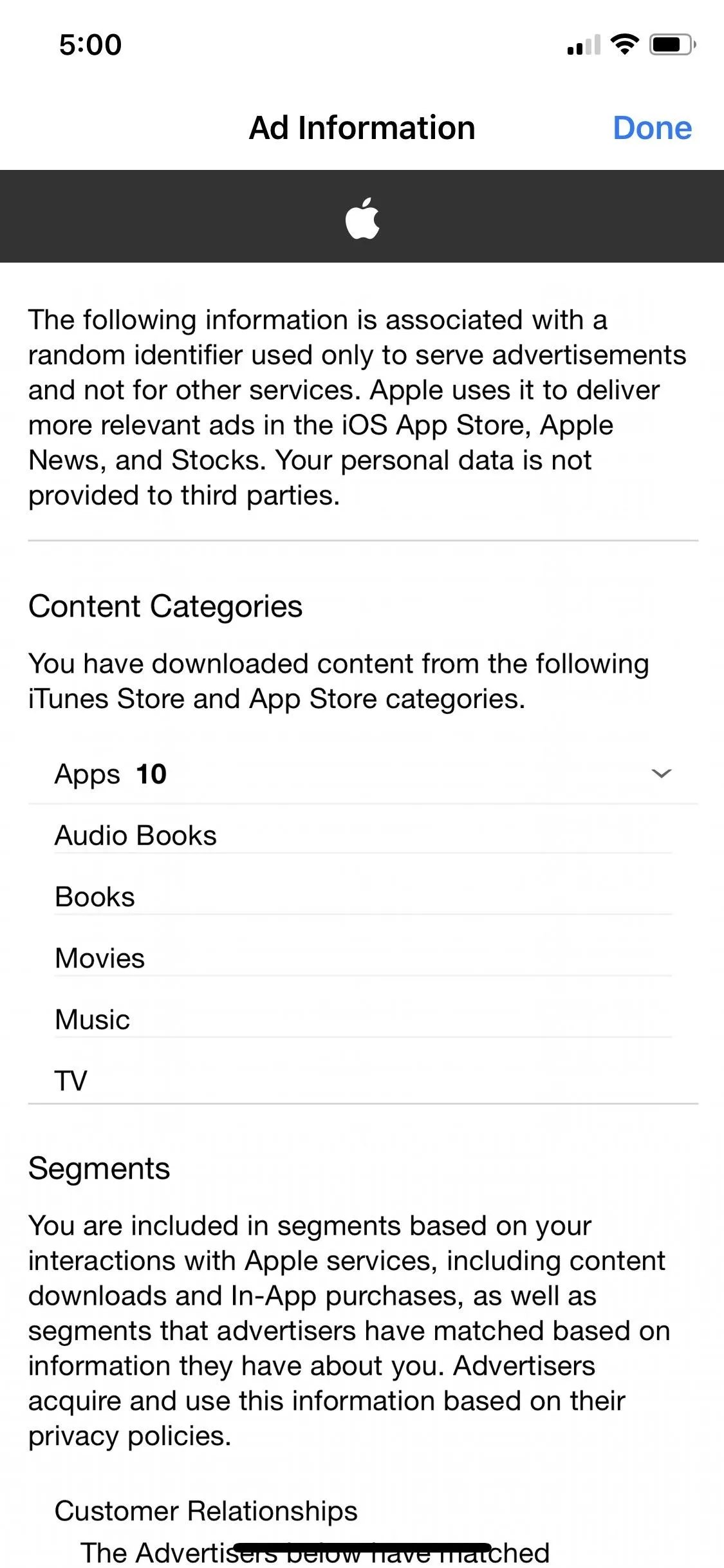
- Go to Settings > Privacy & Security > Apple Advertising and turn off Personalized Ads.
By disabling these, you stop games from sharing your "IDFA" (Identifier for Advertisers) with third parties. While you will still see ads, they will be generic rather than targeted, and the lack of tracking can sometimes disrupt the "rewarded video" systems that rely on verifying your engagement.
Comparison of Free Ad-Blocking Methods for iOS
| Method | Effectiveness | Ease of Setup | Works with Multiplayer? | Battery Impact |
|---|---|---|---|---|
| Airplane Mode | High (Offline only) | Very Easy | No | Positive (Saves power) |
| Custom DNS Profile | High (System-wide) | Moderate | Yes | Neutral |
| Ad-Blocking Apps | High | Easy | Yes | Low to Moderate |
| Privacy Settings | Low (Limits tracking) | Easy | Yes | Neutral |
The Ethical and Functional Trade-offs
Blocking ads is not without consequences. Most free-to-play games are subsidized by ad revenue. When you block ads, the developers—many of whom are small independent studios—do not receive compensation for your playtime.
"Broken" Game Mechanics
Many modern games use "Rewarded Ads," where you watch a 30-second clip in exchange for extra lives, currency, or items. If you use a DNS blocker or Airplane Mode, these buttons will often become unresponsive or show a "No Video Available" error. To regain these rewards, you must temporarily disable your ad-blocker or reconnect to the internet.
App Store Policy Compliance
In 2026, Apple remains strict about apps that interfere with the functionality of other apps. This is why most effective ad-blockers for games use DNS profiles or local VPNs rather than direct code interference, as the latter would violate the iOS sandbox security model.
Troubleshooting Common Issues
If you have implemented a DNS blocker but still see ads, or if your games are failing to load, consider the following steps:
- Clear the DNS Cache: Toggle Airplane Mode on and off after installing a DNS profile to force the system to reset its connections.
- Check for Hard-Coded IPs: Some sophisticated games (and apps like YouTube or Instagram) hard-code the IP addresses of their ad servers, bypassing DNS entirely. These ads are nearly impossible to block on iOS without a proxy or a paid service.
- App Crashes: If a game crashes upon launch, it may be performing an "integrity check" to see if it can reach its ad servers. If it cannot, it may refuse to run. In this case, you must whitelist that specific game or disable the blocker while playing.
- Wi-Fi Specific Settings: If you manually configured DNS for a specific Wi-Fi network, those settings will not carry over to Cellular data or other Wi-Fi networks. Using a Configuration Profile is the only way to ensure the blocking persists across all connections.
Summary of Recommendations
For the best balance of performance and ease of use, installing a DNS Configuration Profile (like AdGuard) is the superior free method for stopping ads in iPhone games. It provides a system-wide solution that works on both Wi-Fi and Cellular data without the need to toggle settings every time you open a game. If you are playing an older, offline title, simply using Airplane Mode remains the quickest and most effective shortcut.
Frequently Asked Questions
Does blocking ads on my iPhone void my warranty? No. Changing your DNS settings or using an app-based ad blocker uses standard iOS features and does not void your warranty or violate Apple's Terms of Service. It is entirely different from "jailbreaking," which involves modifying the underlying operating system.
Can I block ads in games like YouTube or Facebook for free? Blocking ads within "first-party" apps like YouTube, Facebook, or Instagram is significantly harder because these platforms serve ads from the same domains as their content. DNS blockers and Airplane Mode are generally ineffective against these. You would typically need a modified app or a premium subscription to remove ads in those specific ecosystems.
Is it safe to use a free DNS profile? Using a DNS profile from a reputable provider like AdGuard, NextDNS, or Cloudflare is generally safe. These providers have clear privacy policies. However, avoid using DNS profiles from unknown or unverified sources, as a malicious DNS provider could theoretically redirect your web traffic to phishing sites.
Why do some ads still appear even with a blocker active? Some games cache ads (download them in advance) while you are on a non-blocked connection. If you see ads immediately after setting up a blocker, try deleting the game and reinstalling it, or clear your "Website Data" in Settings > Safari > Advanced, as this can sometimes clear cached ad identifiers used by games.
Do ad blockers work on both Wi-Fi and Cellular data? If you use a Configuration Profile (.mobileconfig), the ad-blocking will work on both Wi-Fi and Cellular. If you manually entered DNS numbers into your Wi-Fi settings, the blocking will only work for that specific Wi-Fi network and will stop the moment you switch to LTE or 5G.
Image Gallery