How to Make an EA ID: A Complete Step-by-Step Guide
To make an EA ID, navigate to the official Electronic Arts portal or launch the EA App, select Create Account, enter your birthdate and country, and provide a valid email address and password. During registration, enter your desired di...
To make an EA ID, navigate to the official Electronic Arts portal or launch the EA App, select Create Account, enter your birthdate and country, and provide a valid email address and password. During registration, enter your desired display handle in the EA Public ID field. You can also generate and link an EA ID directly when launching an EA game on PlayStation, Xbox, or Nintendo Switch.
Contents
Understanding the EA Account vs. the EA Public ID
Before creating your account, it is helpful to distinguish between an EA Account and an EA Public ID, as the two terms are frequently used interchangeably despite serving different roles within the Electronic Arts ecosystem:
- EA Account: The primary master profile tied to your email address. It stores your purchase history, security credentials, active subscriptions (such as EA Play), linked console profiles, and billing information.
- EA Public ID: The unique username or handle attached to your EA Account. This is the public identity displayed in multiplayer lobbies, leaderboards, and friend lists across titles like Apex Legends, EA SPORTS FC, Madden NFL, Battlefield, and The Sims 4.
When you register for an EA Account, you automatically create an EA Public ID during the setup wizard. Your EA ID enables cross-platform friendship requests and matchmaking, allowing players on PC, PlayStation, Xbox, and Nintendo systems to find and add each other seamlessly.
Prerequisites and Registration Requirements
Preparing the required information prior to registration ensures a smooth sign-up process without verification delays or account access issues:
- Valid Email Address: You need access to an active email address that is not currently tied to another EA profile. EA sends a six-digit verification code during setup that must be confirmed before activation.
- Date of Birth Requirements: EA enforces age boundaries based on regional privacy legislation, such as the Children’s Online Privacy Protection Act (COPPA) in the United States and the General Data Protection Regulation (GDPR) across Europe.
- Adult Accounts (13+ or 16+ depending on jurisdiction): Full access to online multiplayer, social features, custom EA Public IDs, and digital store purchases.
- Child Accounts (Under 13 or regional equivalent): Must be registered under an existing parent or guardian EA Account. Child accounts do not feature public EA IDs, cannot make unapproved purchases, and have restricted online communication features.
- Third-Party Credentials (Optional): If you intend to play on consoles or third-party digital storefronts, have your login details ready for PlayStation Network (PSN), Xbox Network, Nintendo Account, Steam, or Epic Games.
Step-by-Step: How to Make an EA ID on Desktop and Web
Creating an EA ID through a web browser or the native desktop application is the standard method. This approach gives you full control over privacy settings, security preferences, and display details from the start.
Option A: Via the Official EA Registration Portal
- Access the Portal: Open your web browser and navigate to the official EA Account Creation Portal.
- Select Region and Date of Birth: Choose your country/region of residence and enter your birthdate using the drop-down menus.
- Note: Ensure your birthdate is accurate. Incorrect entries can permanently restrict online feature availability or complicate identity recovery if you lose access later.
- Enter Account Credentials: Provide a valid email address and create a secure password. EA requires passwords to be between 8 and 64 characters long, containing at least one uppercase letter, one lowercase letter, and one number.
- Create Your EA Public ID: In the designated field, enter your preferred handle.
- The ID must be between 3 and 16 characters.
- It can include standard alphanumeric characters (A–Z, 0–9), underscores (
_), and hyphens (-). - It cannot contain spaces, special symbols, or terms that violate the EA User Agreement.
- Configure Privacy Preferences: Choose who can search for your profile via email address or view your game activity (Options include Everyone, Friends, Friends of Friends, or No One).
- Verify Your Account: EA will send a six-digit security code to the email address provided. Retrieve the code from your inbox, enter it into the verification screen, and click Verify.
Option B: Via the EA App (Windows and macOS)
- Download the Launcher: Download and install the desktop app from the official EA App Download Page.
- Launch and Select Sign Up: Open the EA App on your computer and click the Create Account link located at the bottom of the sign-in window.
- Follow the On-Screen Prompts: Input your country, birthdate, email address, password, and chosen EA Public ID as directed.
- Complete Email Verification: Enter the authorization code sent to your inbox to finalize the creation process and automatically log into the client software.
How to Create and Link an EA ID on Gaming Consoles and Steam
If you launch an EA title on a gaming console or third-party launcher for the first time without an existing EA profile, the game will prompt you to register or connect an account before reaching the main menu.
[ Console Launch ] ---> [ Automatic EA Prompt ] ---> [ Enter Email & Password ] ---> [ Choose EA ID ] ---> [ Accounts Linked ]
Linking on PlayStation (PS4/PS5) and Xbox (Series X|S/One)
- Launch an EA Title: Insert the disc or boot up a digitally installed EA game (e.g., EA SPORTS FC or Madden NFL).
- Account Detection: The game will automatically detect your active PSN Online ID or Xbox Gamertag.
- Enter Account Information: When prompted on screen, enter your email address.
- If the email is not registered with EA, you will be guided through setting up a new password and creating a new EA Public ID.
- If the email is already registered, enter your existing EA account password to complete the link instantly.
- Accept Terms: Accept the EA User Agreement and Privacy Policy to finish linking your console profile to your EA ID.
Linking via Steam and Epic Games Store
- Install the EA Title: Download the EA game through your Steam or Epic Games library.
- Initial Boot: Click Play. The platform will prompt the installation of the background EA App services if they are not already installed.
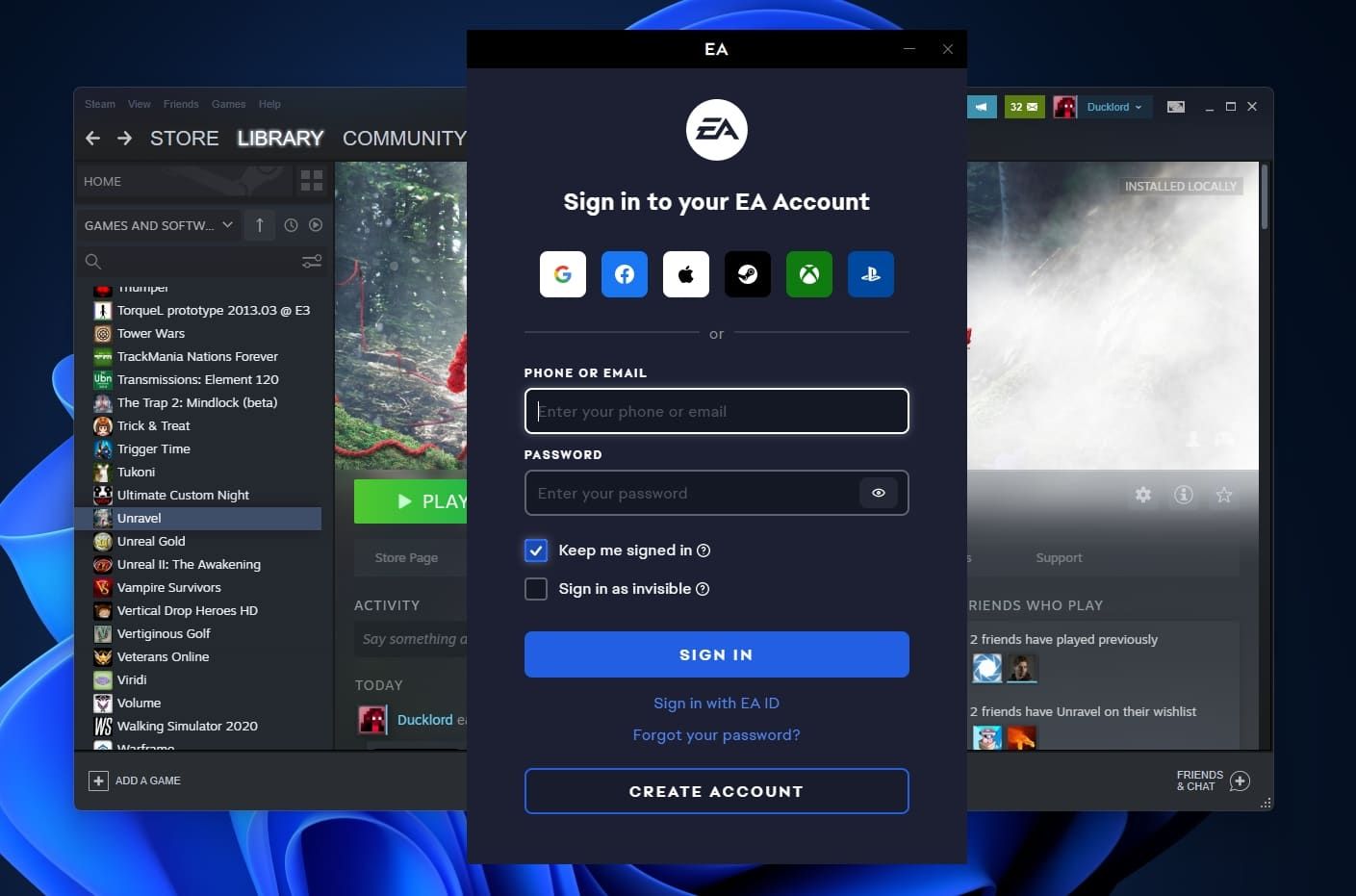
- Sign In or Register: A lightweight EA sign-in window will open. Choose Create Account to establish a new EA ID, or log in with existing credentials.
- Confirm Link: The launcher will automatically bind your Steam ID or Epic Games account to your EA Account for future single-click launches.
Rules and Guidelines for Choosing Your EA Public ID
Your EA Public ID is your primary online identifier. To avoid account penalties or automatic system renames, adhere to these technical rules and community guidelines:
- Length: 3 to 16 characters in length.
- Allowed Symbols: Letters (A–Z), Numbers (0–9), Underscores (
_), and Hyphens (-). - Uniqueness: Every EA ID must be completely unique. If your desired name is already taken by another user, the registration form will display an error message requesting an alternative.
- Prohibited Content: IDs containing profanity, hate speech, racial slurs, references to illegal drugs, sexual content, or impersonation of EA staff/celebrities violate the EA Code of Conduct.
- Personal Information: Never include private personal identifiers in your public handle, such as your full legal name, phone number, physical address, or birth year.
Changing Your EA ID Later
If you want to alter your handle after registration, EA allows free name changes directly within your account settings:
- Log into the EA Account Portal.
- Select the About Me tab on the left navigation panel.
- Click Edit next to the Basic Information header.
- Complete any requested security checks (such as entering a 2FA code).
- Enter your new EA Public ID and click Save.
Note: You can update your EA ID once every 30 days. Once changed, your old ID becomes immediately available for other players to claim.
EA ID Setup & Platform Integration Matrix
The following table summarizes registration pathways, requirements, and account linking limitations across supported platforms:
| Platform / Method | Primary Requirements | Creation & Linking Mechanism | Cross-Play Visibility | Key Limitations & Rules |
|---|---|---|---|---|
| Web Browser (EA Portal) | Email address, Date of birth | Direct registration via browser form | Visible across all linked systems | Standalone registration; must link consoles later. |
| EA App (PC / Mac) | Desktop client, Email address | In-app registration form | Visible in PC games & cross-play | Replaced legacy Origin client; native launcher requirement. |
| PlayStation (PS4 / PS5) | Active PSN Account, Online connection | In-game registration popup on first launch | PSN Online ID linked to EA ID | Only one PSN account can be linked to an EA account in its lifetime. |
| Xbox (Series X|S / One) | Active Xbox Network Account | In-game registration popup on first launch | Xbox Gamertag linked to EA ID | Only one Xbox Gamertag can be linked to an EA account in its lifetime. |
| Nintendo Switch | Nintendo Account, Internet connection | In-game prompt when booting online titles | Nintendo Nickname linked to EA ID | Required for cross-platform play in titles like Apex Legends. |
| Steam / Epic Games | Active Storefront Account, EA App background service | Automatic linkage during initial game launch | EA Public ID visible in cross-play lobbies | Unlinking Steam profiles can cause loss of game entitlements. |
Essential Account Security Steps
After creating your EA ID, securing your account against unauthorized access, credential stuffing, and account hijacking is critical—especially if you store payment methods or accumulate digital purchases.
Enable Login Verification (Two-Factor Authentication)
Two-Factor Authentication (2FA) adds a security layer by requiring an authorization code whenever a log-in attempt occurs on an unrecognized device.
- Go to your EA Security Settings.
- Under the Login Verification section, click Turn On.
- Select your preferred verification method:
- App Authenticator (Recommended): Use third-party apps like Google Authenticator, Microsoft Authenticator, or Authy to generate time-based one-time passwords (TOTP).
- Email Verification: EA emails a unique code for every login attempt.
- SMS / Text Message: Verification codes arrive on your mobile phone number.
- Click Send Code, enter the code received, and activate verification.
[ Login Attempt ] ---> [ Password Entered ] ---> [ 2FA Code Prompt ] ---> [ Access Granted ]
Save Backup Codes
Upon enabling Login Verification, EA generates a set of single-use Backup Codes. Copy these codes and store them in a secure location (such as a password manager or encrypted file). If you lose access to your primary email address or mobile authenticator app, these emergency codes are the primary way to regain access to your account without submitting an official support ticket.
Troubleshooting Common EA ID Setup Issues
Issue 1: "Email Address Already in Use"
If you encounter an error stating that your email address is already registered, an EA Account was likely created during an earlier game setup, demo play, or mobile app registration.
- Solution: Do not attempt to register a duplicate account. Click Sign In, select Forgot Password?, and enter your email address to initiate a password reset link.
Issue 2: "ID Contains Restricted Characters or Words"
If the system rejects your chosen EA Public ID, it means the text triggers automated content filters or uses unsupported character encodings.
- Solution: Remove special symbols, emojis, accented letters, or space gaps. Try inserting numbers or hyphens to achieve a unique string (e.g.,
Player_One-99).
Issue 3: Age Restriction Lockout (Child Account Errors)
If you enter a birthdate that falls below the legal digital consent age in your country, the system automatically blocks the creation of a standard adult profile and prevents entering a public handle.
- Solution: If a birthdate was entered incorrectly during registration, clear your web browser's cookies and cache, restart the browser, and re-enter the correct information. If registering for a minor, set up a designated Parent Account first, then invite the child profile via EA Household settings.
Issue 4: Console Account Already Linked to Another EA Profile
If your PlayStation Network or Xbox account was historically linked to an old, unused, or deleted EA Account, attempting to link it to a newly created EA ID will fail with an error.
- Solution: You must log into the old EA Account, navigate to Connections, and unlink the console profile before attaching it to your current EA ID.
Warning on Unlinking Console Accounts: Unlinking a console account from an EA ID can permanently erase cross-progression save files, Ultimate Team rosters, unlocked cosmetic items, and game purchase histories associated with that platform profile. Proceed with caution and consult official support documentation prior to breaking active account links.
Frequently Asked Questions
Is creating an EA ID free?
Yes. Registering for an EA Account and creating an EA Public ID is completely free. EA does not charge fees for account registration, online profile maintenance, or platform account linking.
How do I find my EA ID if I forgot what it is?
You can view your EA ID by logging into the official EA Account Portal using your registered email address and password. Your EA ID will be listed at the top of the About Me section. Alternatively, launch any EA game on PC or console; your display name shown in main menus or friend lists is your EA Public ID.
Can I link multiple console accounts to one EA ID?
Yes. You can link one PlayStation Network account, one Xbox Network account, one Nintendo Account, and one Steam account to a single master EA Account simultaneously. However, you cannot link multiple accounts of the exact same platform (for example, two different PSN IDs) to one EA ID at the same time.
Why does a game ask for an EA ID if I already have a PSN or Xbox Account?
PlayStation and Xbox handle network authentication for their respective hardware platforms, but Electronic Arts manages multiplayer servers, cross-platform matchmaking, anti-cheat enforcement, and cloud saves internally. The EA ID acts as the global cross-platform bridge connecting console profiles to EA's game servers.
How often can I change my EA ID?
You can update your EA Public ID once every 30 days free of charge through the About Me tab in your account settings.
Summary and Next Actions
Making an EA ID is a straightforward process that grants access to Electronic Arts games, cross-platform multiplayer, and cloud services. To establish your account properly:
- Register via the official web portal or the desktop EA App using a secure email address.
- Select an appropriate EA Public ID between 3 and 16 characters that follows platform naming rules.
- Turn on Login Verification (2FA) immediately inside your security settings to shield your account against unauthorized access.
- Save your Backup Codes in a safe place to prevent lockout situations.
- Link your console profiles (PSN, Xbox, Nintendo, or Steam) from within your EA Account portal under the Connections menu before jumping into cross-play titles.
Image Gallery