How to Fix Windows 10 Password Not Working
When your Windows 10 password is not working, you can usually regain access by verifying your keyboard layout, utilizing a password reset disk, switching from a Microsoft account to a local account via web recovery, or booting into Saf...
When your Windows 10 password is not working, you can usually regain access by verifying your keyboard layout, utilizing a password reset disk, switching from a Microsoft account to a local account via web recovery, or booting into Safe Mode to repair local account corruptions.
Contents
Encountering a login failure on your personal computer can trigger immediate anxiety, especially when you are certain you are entering the correct credentials. Windows 10 handles authentication through two primary paradigms: local user accounts, where credential hashes are stored directly within the Security Account Manager (SAM) database on your local drive, and Microsoft accounts, which synchronize authentication data with cloud servers. When a password stops working, it usually points to a synchronization failure, an accidental keyboard layout shift, a corrupted user profile hive, or a recent update that altered the cryptographic keys required for decryption. Understanding the underlying authentication architecture allows you to apply the correct technical remedy without resorting to unnecessary data wipes or full system reinstallations.
Diagnosing the Root Cause of Authentication Failures
Before executing advanced recovery procedures, you must isolate whether the issue stems from hardware registration errors, software corruption, or account synchronization anomalies. Many users mistakenly assume their password has been changed or hacked when the underlying problem is merely a physical input mismatch.
Keyboard Layout and Special Character Mismatch
During boot screens and lock screens, Windows 10 occasionally defaults to a secondary keyboard layout, particularly if multiple language packs are installed or if a sticky key sequence is inadvertently triggered.
- Visual Verification: Look closely at the bottom-right corner of the login screen. You should see a keyboard language indicator (such as "ENG" or "US"). If it displays an unintended regional layout, special characters, numbers, and symbols like
@,#, or-will output entirely different characters than what you are typing. - On-Screen Keyboard: Click the Accessibility icon on the lock screen and select the On-Screen Keyboard. This allows you to visually confirm every character as your mouse clicks the virtual keys, eliminating physical hardware or driver glitches from the equation.
Caps Lock and Numeric Keypad States
Laptop keyboards and compact external keyboards often lack physical indicator lights for the Caps Lock or Num Lock states. If your password contains uppercase letters or numeric digits, an inverted toggle will silently fail authentication. Type your password into the visible password reveal field (the eye icon next to the input box) to verify character accuracy before submission.
Method 1: Resetting a Microsoft Account Password Remotely
If your Windows 10 machine is tied to an online Microsoft Account (@outlook.com, @live.com, or @hotmail.com), your local machine relies on periodic token refreshes to validate your password. If you recently changed your Microsoft account password on a smartphone, tablet, or web browser, your Windows 10 device will not recognize the new password until it establishes an active internet connection.
| Account Type | Primary Credential Storage Location |
|---|---|
| Microsoft Account | Cloud servers / Local cached token |
| Local Standard/Administrator | Local SAM database (%SystemRoot%\System32\config) |
| Active Directory / Azure AD | Domain Controller / Enterprise Cloud |
Steps to Recover a Microsoft Account Password:
- Establish Connectivity: Ensure your computer is connected to the internet. If you are locked out of the desktop interface, click the Wi-Fi or Ethernet icon in the bottom-right corner of the lock screen and connect to a known wireless network.
- Use an External Device: Access the official Microsoft Password Recovery Portal using a smartphone, tablet, or secondary computer.
- Verify Identity: Enter your email address and complete the security verification prompts (receiving a code via SMS, alternative email, or authentication app).
- Create a New Password: Input and confirm your new secure password.
- Log In: Return to your Windows 10 machine, ensure the network connection is active, and sign in using your newly established password.
Method 2: Resetting a Local Account Password via Security Questions
If you configured a local Windows 10 account and assigned security questions during the initial setup process, you have a built-in recovery mechanism directly on the lock screen.
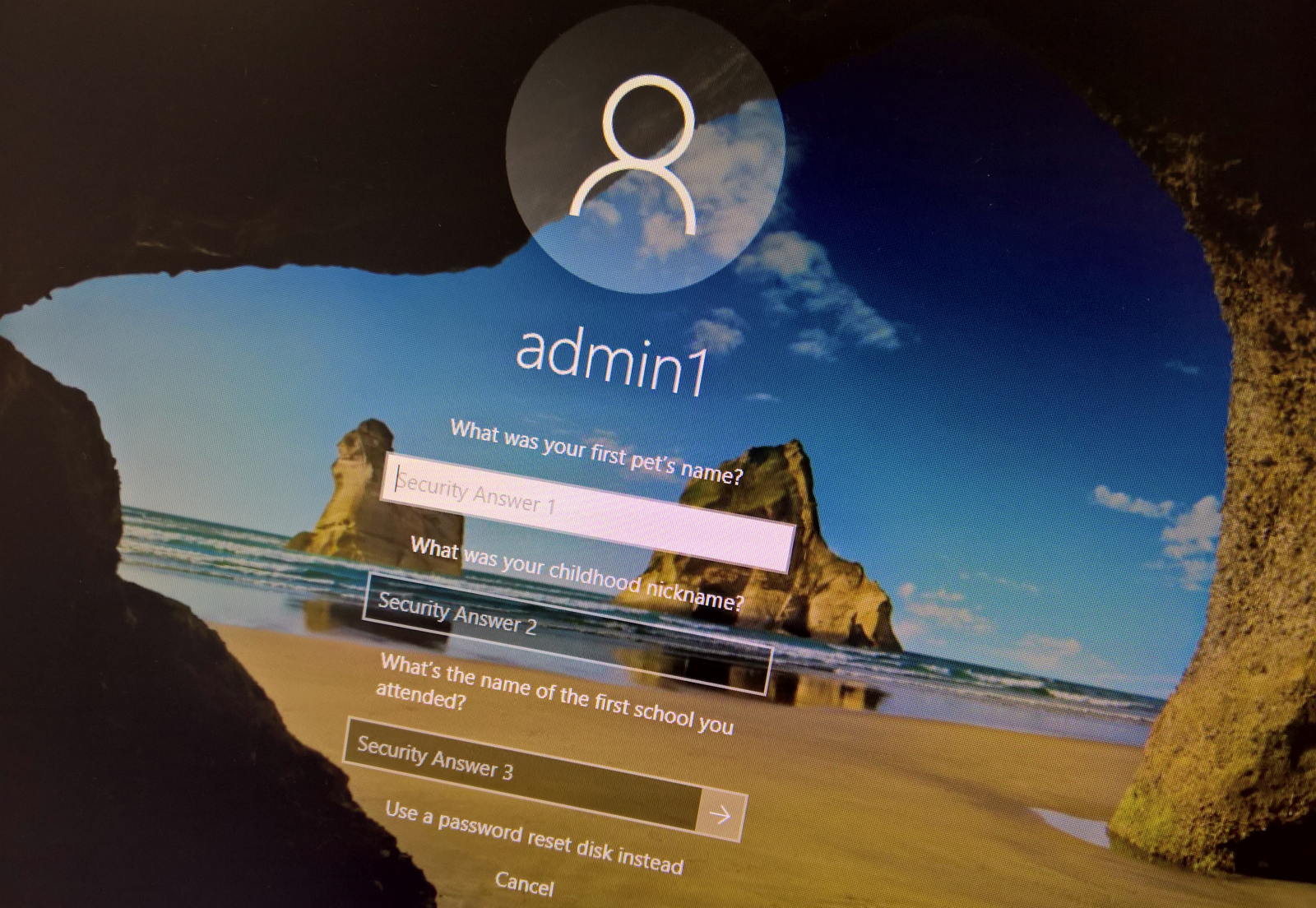
- Trigger the Reset Prompt: Type an incorrect password intentionally and press Enter. Once the "Incorrect password" notification appears, click the OK button.
- Select Reset Password: A new link reading Reset password will appear directly beneath the password input field. Click this link.
- Answer Security Questions: Windows will prompt you to answer the three security questions you selected when setting up the local account.
- Enter New Credentials: Once answered correctly, you can input a new password and hint, immediately granting you access to your desktop environment.
Method 3: Utilizing a Password Reset Disk or USB Drive
Proactive planning prevents prolonged lockouts. If you previously created a Password Reset Disk (a USB flash drive configured for your local account via the legacy Control Panel), you can use it regardless of whether you remember your old password.
- Insert the pre-configured password reset USB drive into your Windows 10 computer.
- Click the Reset password link beneath the login box.
- When the Password Reset Wizard launches, click Next.
- Select your USB drive from the drop-down menu and click Next.
- Type your new password and a helpful password hint, then click Next and Finish.
Method 4: Booting into Safe Mode to Diagnose Corrupted Profiles
Sometimes, a corrupted user profile or a third-party antivirus driver interferes with the authentication service (lsass.exe). Booting Windows 10 into Safe Mode loads only core system drivers and default services, bypassing third-party software conflicts.
Entering Safe Mode from the Lock Screen:
- Hold down the Shift key on your keyboard.
- While holding Shift, click the Power icon in the bottom-right corner of the lock screen, then click Restart.
- Your computer will reboot into the Windows Recovery Environment (WinRE) blue screen menu.
- Navigate to Troubleshoot > Advanced options > Startup Settings > Restart.
- Once your computer restarts a second time, a list of startup options appears. Press 4 or F4 to enable Safe Mode.
- Once you reach the Safe Mode desktop, you can uninstall problematic software, disable conflicting startup services, or create a new local administrator account via the Command Prompt (
net user newusername newpassword /add).
| Recovery Method | Account Type Compatibility | Prerequisites / Requirements | Risk Level |
|---|---|---|---|
| Microsoft Web Reset | Microsoft Account | Active internet connection, access to recovery phone/email | None (Safe) |
| Security Questions | Local Account | Pre-configured security questions | None (Safe) |
| Password Reset Disk | Local Account | Pre-created USB flash drive | None (Safe) |
| Safe Mode / Command Prompt | Local Account | Administrative privileges or installation media | Moderate (Requires precision) |
Preventing Future Windows 10 Lockouts
To ensure you never face a prolonged lockout scenario again, implement these preventative measures immediately after regaining access to your system:
- Link to a Microsoft Account: Connecting your local profile to a Microsoft account allows web-based password recovery from any device worldwide.
- Create a Recovery USB Drive: Dedicate a spare flash drive to act as a physical password reset key via the classic Control Panel utility.
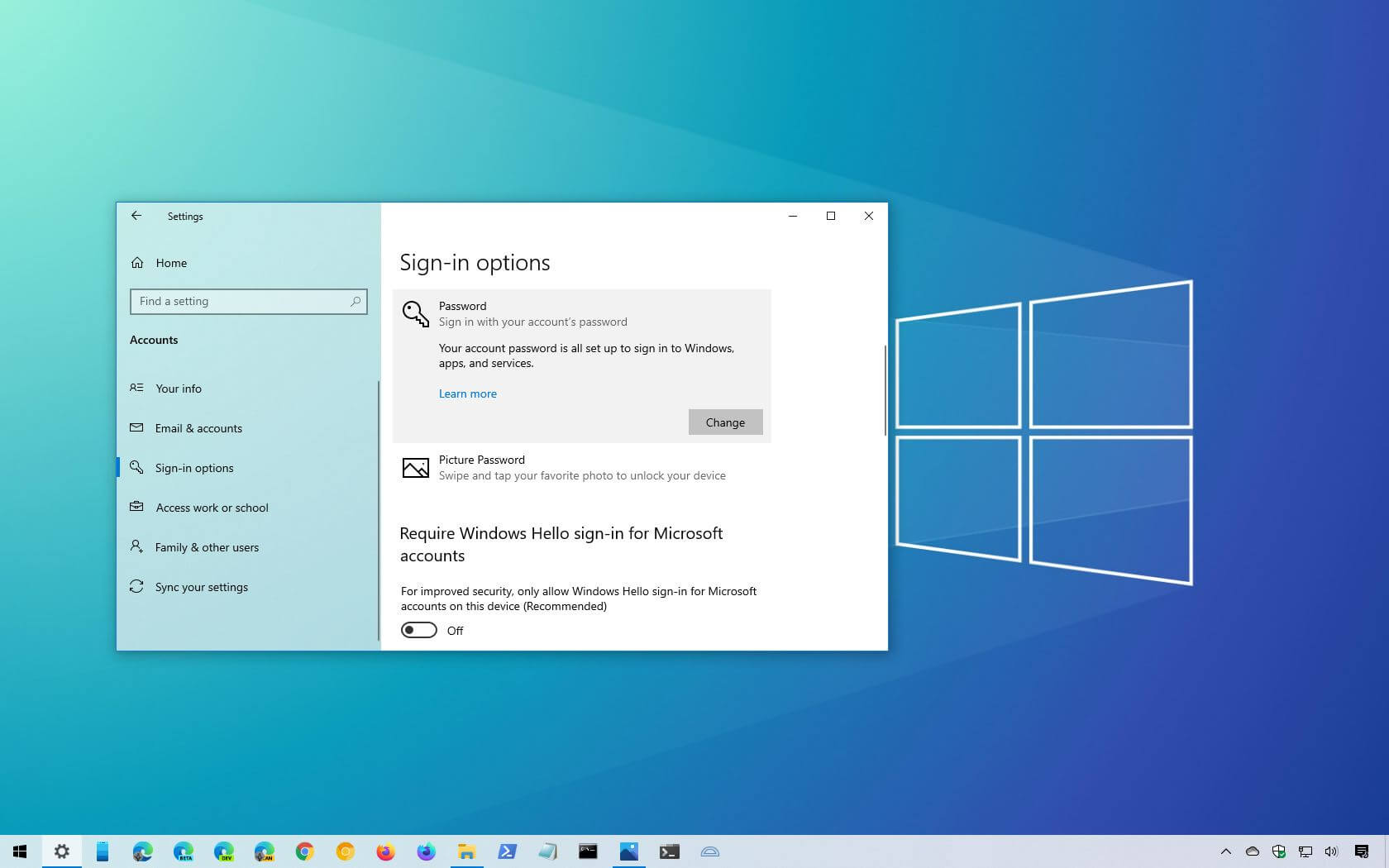
- Establish Alternative Sign-In Methods: Configure Windows Hello PIN, facial recognition (Windows Hello Face), or fingerprint authentication (Windows Hello Fingerprint). These biometric and PIN alternatives provide rapid login access even if your primary account password experiences synchronization issues.
Frequently Asked Questions
Why does my Windows 10 password work on the web but not on my computer?
This typically occurs due to a lack of internet connectivity on the PC, preventing the machine from syncing the updated credential hash from Microsoft's cloud servers. Connect your computer to a stable Wi-Fi or Ethernet network directly from the lock screen, wait a moment for background synchronization, and try again.
Can I use a PIN if my password is not working?
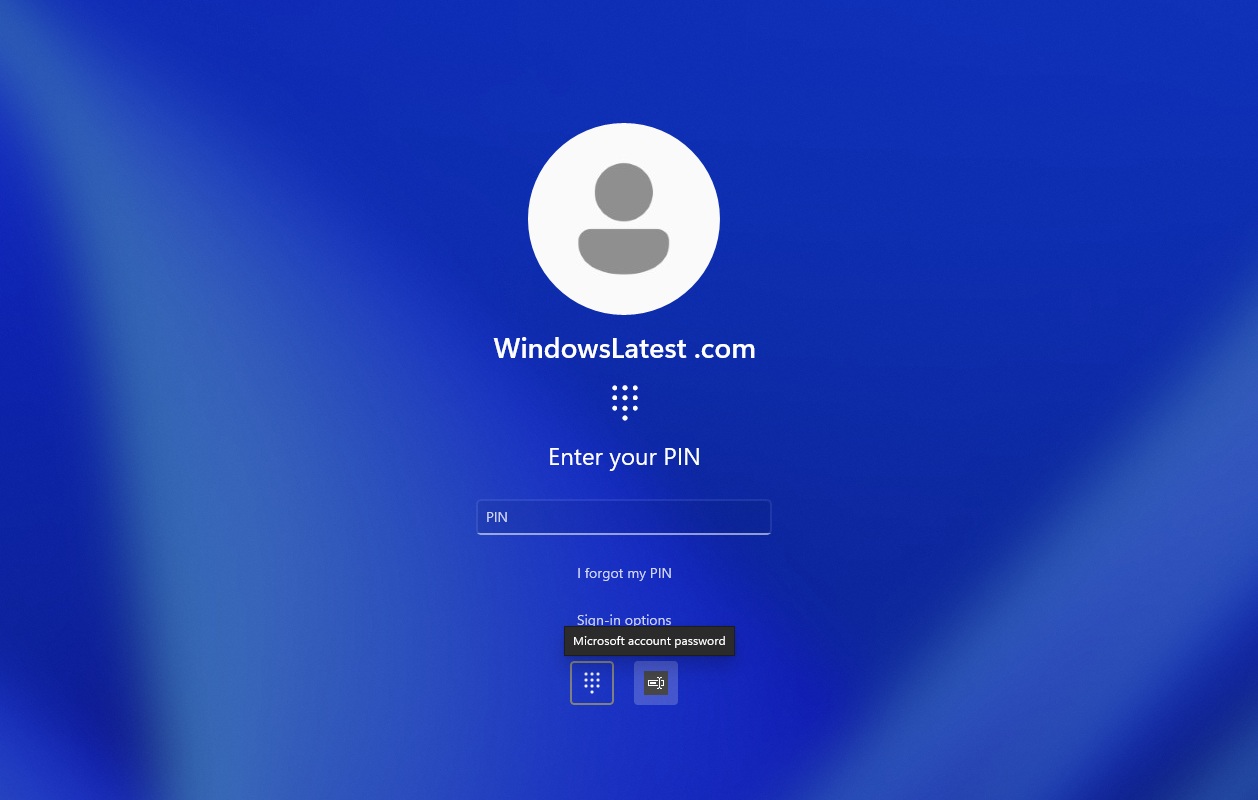
Yes. If you previously configured a Windows Hello PIN, click the Sign-in options link beneath the password field and select the PIN icon. Entering your correct PIN will bypass password verification entirely and grant immediate access to your desktop.
What should I do if the "Reset password" link is missing?
The "Reset password" link only appears for local user accounts that have security questions or a physical password reset disk configured. If you are using a Microsoft account, or if your local account lacks these recovery parameters, you must reset your credentials via an external web browser or use official Windows 10 installation media to repair system files.
Will resetting my password delete my personal files?
No. Standard password resets—whether performed via the Microsoft web portal, security questions, or administrative command prompt—modify only the user authentication credentials. Your personal documents, applications, and system files remain completely untouched and secure.
How can I log in if I forgot my PIN and my password?
If both your password and PIN fail, you must utilize the online Microsoft account recovery portal (for Microsoft accounts) or boot into Safe Mode / Windows Recovery Environment to establish administrative access. Avoid downloading unverified third-party password cracking tools, as many contain malware or compromise system integrity.
Conclusion
Fixing a Windows 10 password that is not working requires a systematic approach based on your specific account type and network connectivity. By verifying your physical keyboard input, leveraging online Microsoft recovery portals, or utilizing pre-configured local security options, you can safely restore access to your system without risking data loss. For ongoing security, implement biometric sign-ins or maintain an updated password reset disk.
Image Gallery