Comprehensive Master Guide to iPhone Syncing Methods and Best Practices for 2026
iPhone syncing remains a cornerstone of the iOS ecosystem, allowing users to seamlessly mirror data, media, documents, and settings across multiple Apple devices or secure it within cloud infrastructure. Whether you are transitioning t...
iPhone syncing remains a cornerstone of the iOS ecosystem, allowing users to seamlessly mirror data, media, documents, and settings across multiple Apple devices or secure it within cloud infrastructure. Whether you are transitioning to a brand-new iPhone, managing music libraries, or ensuring your contacts, calendars, and passwords remain accessible across your Mac, iPad, and PC, understanding the mechanics of local and cloud-based synchronization is critical for data integrity.
Contents
Understanding the Core Architecture of iOS Data Synchronization
Apple employs two distinct paradigms for keeping device data aligned: cloud-based synchronization via iCloud and direct local syncing through a cable or Wi-Fi connection to a computer running macOS or Windows.
Cloud syncing operates continuously in the background, updating data in real time whenever your iPhone connects to the internet. When you edit a note, capture a photo, or save a contact, the change propagates instantly across all devices logged into the same Apple ID. Local syncing, conversely, is an on-demand, batch-oriented process. It creates comprehensive backups, transfers large media libraries that exceed cloud storage limits, and allows offline management of device content without relying on internet bandwidth.
The Mechanics of iCloud Syncing
iCloud acts as the centralized repository for personal data and application states. When configured, it utilizes secure end-to-end encryption for sensitive data types such as passwords, health data, and home configuration settings. Standard data types, including photos, documents, and messages, are encrypted in transit and at rest on Apple's servers.
- Real-Time Delta Updates: iCloud only transmits changed data blocks rather than entire files, conserving mobile data and battery life.
- Optimized Storage Management: Devices can maintain low-resolution thumbnails locally while storing full-resolution masters in the cloud, downloading originals dynamically on demand.
- Cross-Device Continuity: Universal Clipboard, Handoff, and shared application states depend entirely on active iCloud synchronization protocols.
The Role of Finder and iTunes in Local Syncing
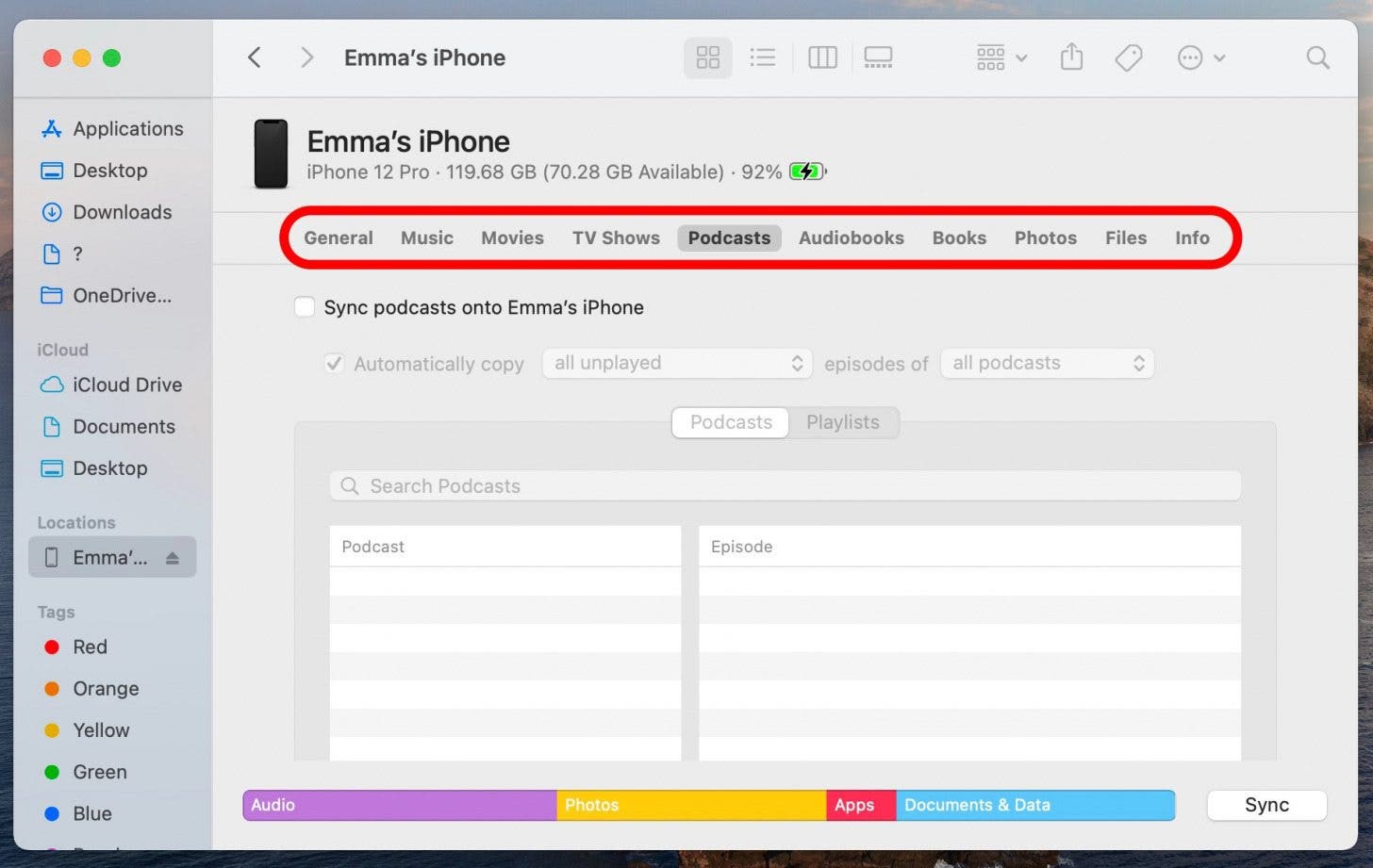
While modern macOS versions (macOS Catalina and later) manage local iPhone connections directly through the Finder sidebar, Windows users continue to utilize either the Apple Devices app or legacy iTunes software. Local synchronization bypasses cloud storage limitations entirely, making it the preferred method for users with massive local music or video collections.
- Full Device Backups: Local computer backups contain almost all device data and settings, excluding content already synced to iCloud (like iCloud Photos) and data already stored in other cloud services.
- Direct Media Transfer: Users can manually drag and drop custom audio files, ringtones, and video files directly onto the device storage partition.
- Firmware Restoration: Local connections are mandatory for restoring device firmware during recovery mode procedures or major software troubleshooting events.
Prerequisites and Preparation Before You Sync
Jumping straight into syncing without proper preparation frequently results in data conflicts, duplicate entries, or unexpected data loss. Before initiating a major sync operation, verify the following baseline requirements:
- Software Version Parity: Ensure your iPhone is running the latest stable version of iOS, and your host computer or cloud environment is fully updated. Mismatched software versions can lead to protocol handshake failures.
- Account Verification: Confirm that the correct Apple ID is signed into the device settings. Syncing data while signed into conflicting accounts across services (such as separating iCloud from the App Store) causes severe metadata corruption.
- Storage Auditing: Check available local device storage and cloud capacity. Attempting to sync a 200GB photo library to a 50GB iCloud tier will stall the process and trigger sync error warnings.
- Network Stability: For cloud-based workflows, verify a stable Wi-Fi connection. Avoid using metered cellular data connections for massive initial sync operations unless explicitly configured in settings.
Step-by-Step Guide to Configuring iCloud Sync
Configuring cloud synchronization requires navigating the primary account settings menu on your iPhone. Follow this structured process to establish robust, automated cloud backups and data mirroring.
- Step 1: Access Account Settings: Open the Settings application on your iPhone, tap your name banner at the top to access your Apple ID profile, and select the iCloud option.
- Step 2: Audit App-Level Sync Toggles: Under the section labeled Apps Using iCloud, tap Show All to view every native and third-party application currently leveraging cloud storage.
- Step 3: Enable Critical Data Types: Toggle the switches to the ON position for essential categories including Contacts, Calendars, Notes, Reminders, and Passwords & Keychain.
- Step 4: Manage Photos Integration: Tap on Photos and enable Sync this iPhone if you want your camera roll automatically uploaded to iCloud. Choose between Optimize iPhone Storage (saves space locally) and Download and Keep Originals (retains full-resolution files on the device).
- Step 5: Verify Backup Parameters: Return to the primary iCloud menu, tap iCloud Backup, and ensure the main toggle is enabled. Perform an initial manual backup by tapping Back Up Now while connected to power and Wi-Fi.
Executing Local Syncing via Computer
When local management is required, establishing a secure cable or Wi-Fi connection between your iPhone and a computer is necessary. This method provides granular control over media synchronization.
- Connect your iPhone to your computer using a certified USB-C or Lightning cable. If prompted on the iPhone screen, unlock the device and tap Trust This Computer, entering your device passcode to authorize the connection.
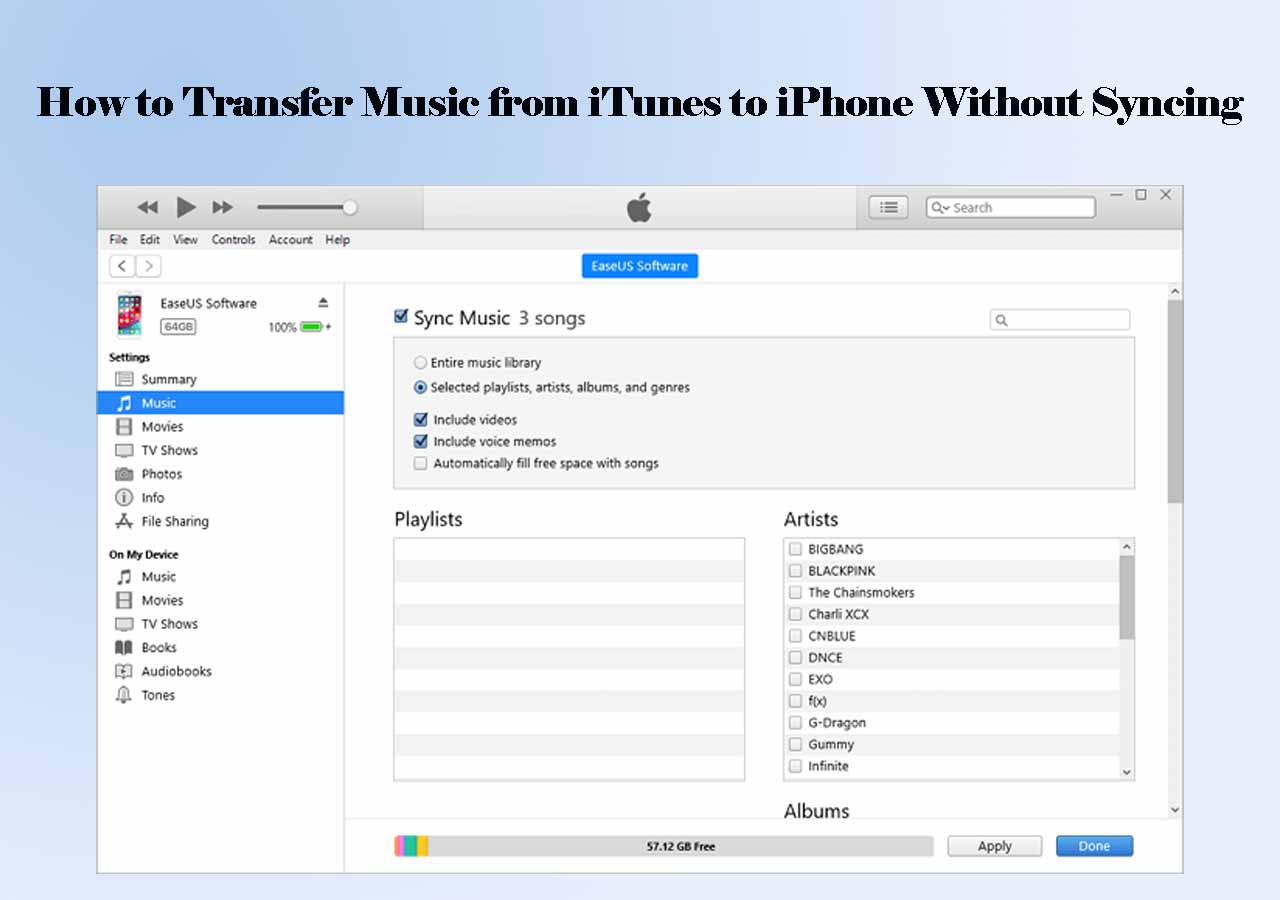
- Open Finder (on macOS) or the Apple Devices app / iTunes (on Windows). Locate your iPhone in the sidebar under the Locations or Devices section and click on it to open the management summary panel.
- Navigate to the General tab to configure overarching backup preferences. Choose whether you want backups saved locally to your computer or encrypted with a secure password (recommended, as encrypted backups preserve saved passwords, Wi-Fi settings, and website history).
- Click through the dedicated media tabs (such as Music, Movies, or Books) to select specific playlists, artists, albums, or folders you wish to sync directly to the device storage.
- Click the Apply button in the bottom right corner of the window to execute the synchronization queue. Do not disconnect the cable until the status bar indicates the process is fully complete.
Comparative Analysis: iCloud Syncing vs. Local Computer Syncing
Choosing the right synchronization strategy depends on your hardware ecosystem, data volume, and privacy preferences. The matrix below outlines the fundamental differences between cloud and local syncing methodologies.
| Feature / Metric | iCloud Syncing | Local Computer Syncing (Finder / Apple Devices) |
|---|---|---|
| Automation | Fully automated, continuous background updates over Wi-Fi/Cellular. | Manual or triggered automatically upon physical connection. |
| Storage Limits | Dependent on paid iCloud+ tier (5GB free, up to 12TB paid). | Limited only by the host computer's hard drive capacity. |
| Internet Dependency | Requires active internet connection for all sync operations. | Completely offline-capable; zero internet required. |
| Data Scope | Granular item-level sync (Photos, Notes, Contacts, Documents). | Comprehensive device backups plus managed media libraries. |
| Security Architecture | Server-side encryption with optional Advanced Data Protection (E2EE). | Local encryption controlled entirely by user computer password. |
Advanced Troubleshooting and Common Sync Pitfalls
Even with robust protocols in place, syncing operations can occasionally stall, throw error codes, or result in missing data. Applying systematic troubleshooting procedures resolves the vast majority of synchronization failures.
Resolving Stuck iCloud Photos Syncs
If your photo library displays a persistent "Syncing X items to iCloud" message that never progresses, try the following remediation steps:
- Power and Thermal State Check: iOS pauses intensive background syncing if the device battery drops below 20% or if the internal thermal sensor detects overheating. Place the phone on a charger and allow it to cool down.
- Network Toggle Reset: Toggle Airplane Mode on for 30 seconds, then turn it off to force a complete reset of the device networking stack and re-establish secure TLS handshakes with Apple's servers.
- Signed Account Refresh: Sign out of your Apple ID entirely within Settings, restart the device, and sign back in to re-authenticate cloud tokens.
Fixing Local Connection and Media Transfer Errors
When a computer fails to recognize your iPhone or refuses to sync music and playlists, check these common points of failure:
- Cable and Port Integrity: Always use certified USB cables. Defective third-party charging cables may supply power for charging while failing to negotiate the data transfer handshake.
- Driver and Software Updates: On Windows, ensure the Apple Mobile Device Support service is running and that the Apple Devices app is fully updated via the Microsoft Store.
- Sync Library Conflicts: If you utilize Apple Music or iCloud Music Library on your device, local media syncing for music is automatically disabled. You must disable cloud music services to manage local audio files manually via a computer.
Best Practices for Long-Term Data Health
Maintaining a seamless syncing workflow requires adherence to proactive management habits. Establish a routine of auditing your cloud storage usage annually to prevent unexpected tier upgrade charges. Periodically verify that your local computer backups are completing successfully and that your critical passwords are securely backed up via iCloud Keychain. By combining the automated convenience of cloud synchronization with the robust security of localized backups, you ensure complete data availability across all personal hardware platforms without compromising privacy.
Frequently Asked Questions
Why won't my iPhone sync with my computer via USB?
Connection failures usually stem from an unverified device trust state, outdated computer software, or a faulty data cable. Unlock your iPhone, ensure you tap "Trust" when prompted, and verify that your macOS Finder or Windows Apple Devices app is running the latest software version.
Does syncing delete my existing photos or music?
Local syncing can replace existing media if your computer library is empty or set to overwrite device content. When configuring sync settings in Finder or the Apple Devices app, carefully review checkmarks and warning prompts before clicking Apply to ensure existing files are preserved.
How can I stop my iPhone from syncing automatically with iCloud?
You can selectively disable cloud synchronization for specific apps by navigating to Settings, tapping your Apple ID banner, selecting iCloud, tapping Show All under apps using iCloud, and toggling off individual app switches.
What is the difference between an iCloud backup and iCloud syncing?
iCloud syncing mirrors real-time data changes across multiple devices so everything matches everywhere, whereas an iCloud backup creates a snapshot point-in-time archive of your device state used for restoring a phone during setup or replacement.
Can I sync my iPhone with both a Mac and a Windows PC?
iOS devices are designed to sync their primary content libraries with a single designated computer to prevent database conflicts and duplicate media corruption. While you can sign into the same iCloud account across multiple computers, local cable syncing should be restricted to one primary host machine.
What should I do if my iCloud storage is full?
You can free up space by deleting unnecessary device backups, purging old videos from iCloud Photos, clearing attachments within the Messages app, or upgrading your storage tier via the iCloud settings menu.
Image Gallery